Setting Up Primentra
The Set up Primentra card sits at the top of the dashboard. It lists the four steps that take a new install from empty to ready.
Only administrators see it. Other users never do.
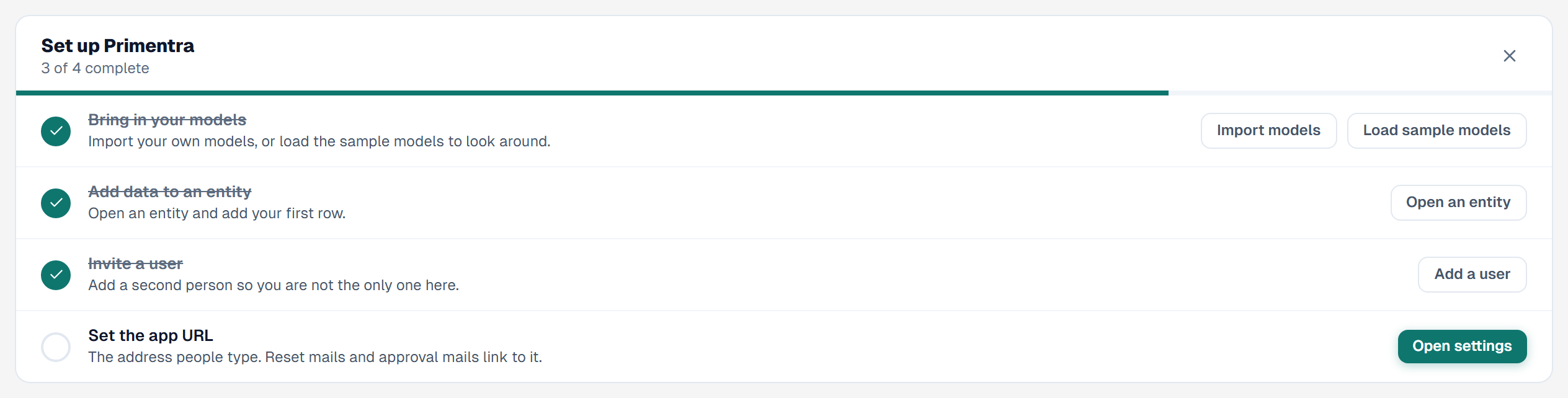
The four steps
Each step shows a check mark when it is done. The card reads the real data, so a step opens again when you delete what completed it.
| Step | Done when | Button |
|---|---|---|
| Bring in your models | One active model exists | Import models, Load sample models |
| Add data to an entity | An active entity of an active model has at least one row | Open an entity |
| Invite a user | Two or more people can sign in | Add a user |
| Set the app URL | App URL is filled in under general settings | Open settings |
A person who can sign in is a user who is enabled and not locked out. System and API accounts do not count.
The line under the title shows the progress, for example *2 of 4 complete*. A bar below it follows the same count.
Dismiss the card
Click the X at the top right of the card. The card stays hidden in that browser. A new browser, or a cleared browser store, shows it again.
When all four steps are done, the card hides itself. If you watched the last step finish, it shows You are set up once first. An install that was already complete when you opened the dashboard never shows the card.
Load sample models
Click Load sample models to fill the install with test data. The button opens the same import preview as Import models. You choose what to create before anything is written.
The sample holds:
- 5 models, all named
Sample - ...: Product, Customer, Supplier, Location and Finance - 25 entities, five per model
- about 5,590 rows
The sample covers:
- All six data types: text, whole number, decimal, date and time, yes/no and domain
- Domain links between entities and between models
- A cascade of Region, Country and City, where the City list follows the Country you pick
- Business rules on five entities
- Approval on Sample - Product
The prefix keeps the sample apart from your own models. A model of yours with the same name as a sample model, without the prefix, is never touched.
To keep some of it out, untick the models or entities in the preview before you click Import.
The button loads the sample once. After that it reads Sample models loaded and stays off. To start over, delete the sample models like any other model. See Models.
Questions
Why do I not see the Set up Primentra card?
You need to be an administrator. The card also stays hidden after you dismiss it in that browser, and when all four steps are done.
Related
- Dashboard — the page the card sits on
- Model Export / Import — what the import preview does with the sample file
- General Settings — where the app URL is set
- Users — adding the second person
- Approval Workflows — what approval on Sample - Product does