Personalization
Primentra remembers how you like to work. The theme, the entities you starred, and the entities you hid are all yours alone and do not affect anyone else.
Dark mode
Click the sun or moon icon at the far left of the status bar to switch between light and dark.

Automatic on the first visit
Until you use the toggle, Primentra picks the theme for you:
- It asks your browser for your location. It waits five seconds for an answer.
- From your latitude and longitude it calculates today's local sunrise and sunset.
- Before sunrise or after sunset it starts in dark mode. Between them it starts in light mode.
- If your browser cannot give a location, or you decline the request, it falls back to the clock: dark from 19:00 to 07:00.
Your coordinates are cached in the browser so later visits do not have to ask again. A cached position up to 24 hours old is reused.
Your choice wins
The moment you click the toggle, your choice is saved in the browser and automatic detection stops. To go back to automatic, clear the site's local storage for Primentra.
The status bar
The bar along the bottom of the window changes with what you are doing.
Outside a data grid, it shows:
- the theme toggle on the left
- the database server, as
HOSTNAME\INSTANCE, or No database connected - the license state on the right — Licensed to your organization, or Demo mode — no license required
- the version number, which opens the changelog when you click it
Inside a data grid, the left side reports what the grid is doing and the right side lists the keys for it. One state is shown at a time, in this order:
| State | Left side |
|---|---|
| Editing a cell | Editing cell |
| Something copied | Copied: and the value |
| Rows checked | the number of checked rows |
| Cells selected | the number of selected cells |
| Unsaved edits | the number of unsaved changes |
| Idle | the record count, and how many filters are active |
The settings menu
The gear icon in the top bar opens your account menu. It starts with your name, your email address, and an Admin badge if you are an administrator.
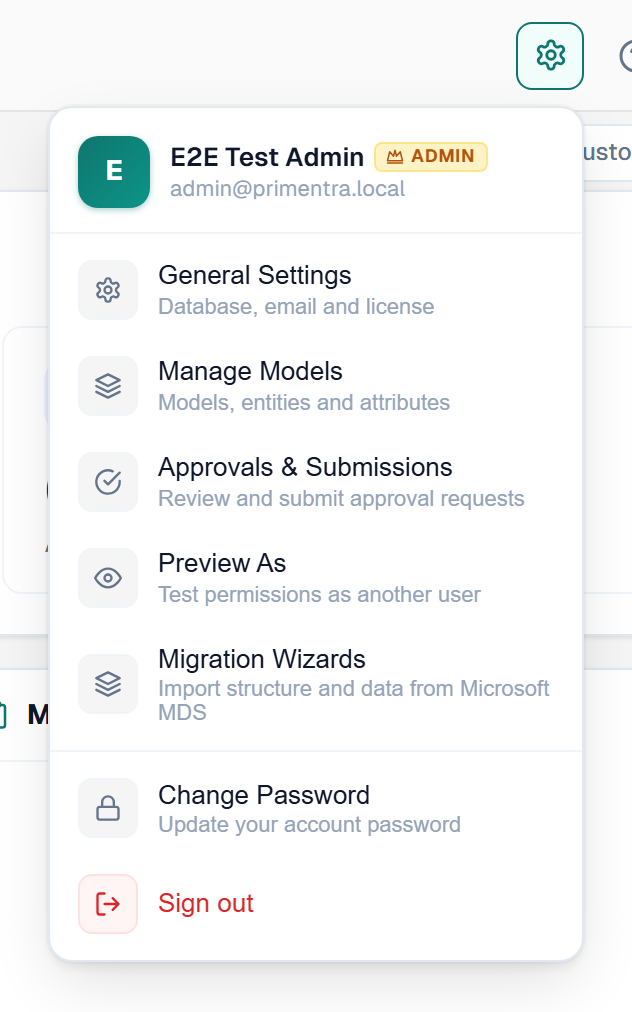
| Entry | Who sees it |
|---|---|
| General Settings | Administrators |
| Manage Models | Administrators and moderators |
| Approvals & Submissions | Everyone |
| Preview As | Administrators |
| Migration Wizards | Administrators |
| Change Password | Everyone |
| Sign out | Everyone |
Approvals & Submissions opens the Approvals screen if you can approve, and My Submissions if you cannot.
Favorites
Star the entities you open most, and they stay at the top of the sidebar. No scrolling, no expanding.
You can star an entity from two places:
- the star in the data grid toolbar
- the star next to an entity on a model detail page
Click the star again to unstar. Your favorites appear in a Favorites section above the models in the sidebar, each with its record count.
Favorites are stored per user in the database, so they follow you to any browser or device.
Hidden entities
Hide the entities you never use. They leave your sidebar without affecting anyone else.
- Click a model name in the sidebar to open the model detail view.
- Click the eye icon next to the entity you want to hide.
- The entity disappears from the sidebar at once. Its row in the model detail view stays, dimmed.
To bring it back, open the same model detail view and click the eye icon again.
What hiding does:
- The entity leaves the sidebar and is left out of the entity count on a collapsed model.
- It is left out of sidebar search results.
- It still appears in the Favorites section if you have starred it.
- It stays fully accessible everywhere else, including the admin screens.
Hidden entities are stored per user in the database and persist across sessions and devices.
Related
- App Navigation — where the sidebar and top bar put these controls
- Dashboard — the home screen, which no longer carries a favorites list of its own
- What's New — the changelog behind the version number
- Roles & Permissions — hiding an entity is not the same as restricting it
- Preview As — check what another user sees