Models
A model is the highest level of organization in Primentra. It represents a business domain — a broad category that groups related data together.
For example, you can create separate models for:
- Customer Management — everything related to customers
- Product Management — all product master data
- Supplier Management — data about your suppliers
Models keep business areas separate. Roles can be granted access at the model level, so you control who works with which domain.
Create a model
- Go to Settings → Models.
- Click New model.
- Enter a Model name. This field is required.
- Enter a Description. This field is optional and holds up to 500 characters.
- Set the Active toggle. New models are active.
- Click Create model.
To change a model later, click the edit button on its card. The button then reads Save.
The same steps, on screen: the video on the Entities page creates a model and its first entity in 80 seconds.
Active and inactive
The Active toggle marks whether a model is in use. The Models page shows the status on each model card. Nothing is deleted when you set a model to inactive.
To hide data from users, set the entities inactive instead. The sidebar is built from active entities only, and a user sees a model only when at least one entity in it is both active and readable for them.
Reorder models
- Drag the grip handle (six-dot icon) on a model card to a new position.
- Or click the up and down arrows on the card.
The new order is saved immediately and decides the order in the sidebar.
Delete a model
Deleting a model deletes every entity in it, and all of their data.
- Click the delete button on the model card.
- Type the exact model name to enable the button.
- Click Delete permanently.
A progress bar reports each phase — attribute values, approval rows, entity rows, then metadata cleanup — with a percentage and a running count such as 45,000 / 200,000 items deleted.
Reading the Models page
Cards or list
The toggle at the top right switches between two views of the same models.
- Cards — one card per model, with its entities, hierarchy diagram and full detail. This is the default.
- List — every model and every entity under each other in one narrow table: fields, records, rules, approval and status per entity.
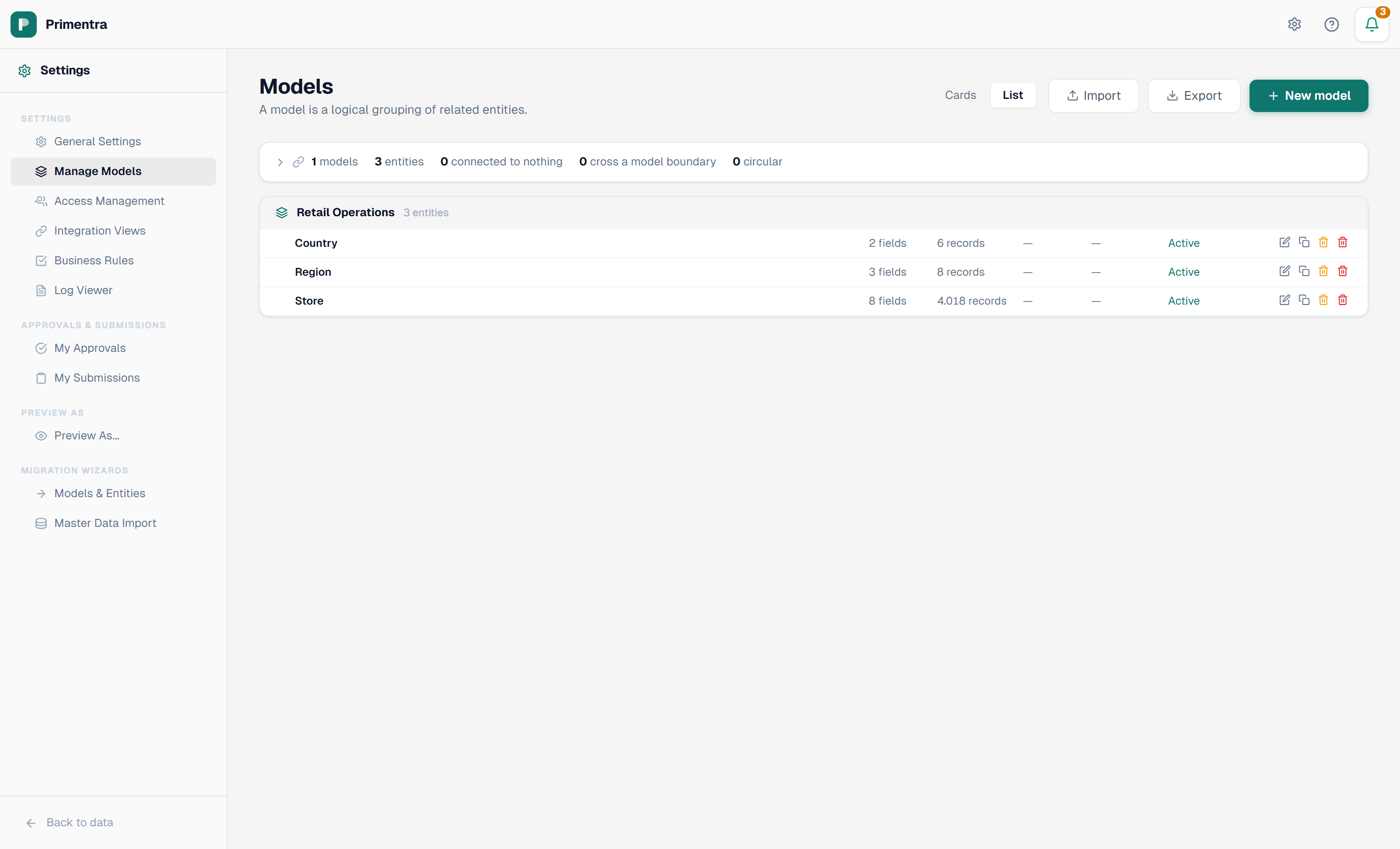
List mode carries the same row actions as the cards — edit, clone, purge and delete — so you never have to switch back to act on what you found. Actions you have no permission for are hidden in both views.
Your choice is remembered per browser.
The relations panel
Above the models sits a summary of how the installation hangs together. The header line shows the counts:
Click the line to open the detail. Three columns name the entities behind the three numbers that matter.
| Column | What it means | Why you care |
|---|---|---|
| Connected to nothing | The entity has no domain attribute, and nothing points at it | Usually correct for a lookup list. Suspicious for anything else — the entity stands alone |
| Cross a model boundary | A domain attribute points at an entity in another model | Legitimate for shared reference data. Worth knowing, because deleting the target reaches across models |
| Circular | A chain of references leads back to where it started | Nearly always a mistake. A self-reference is deliberate and is not counted here |
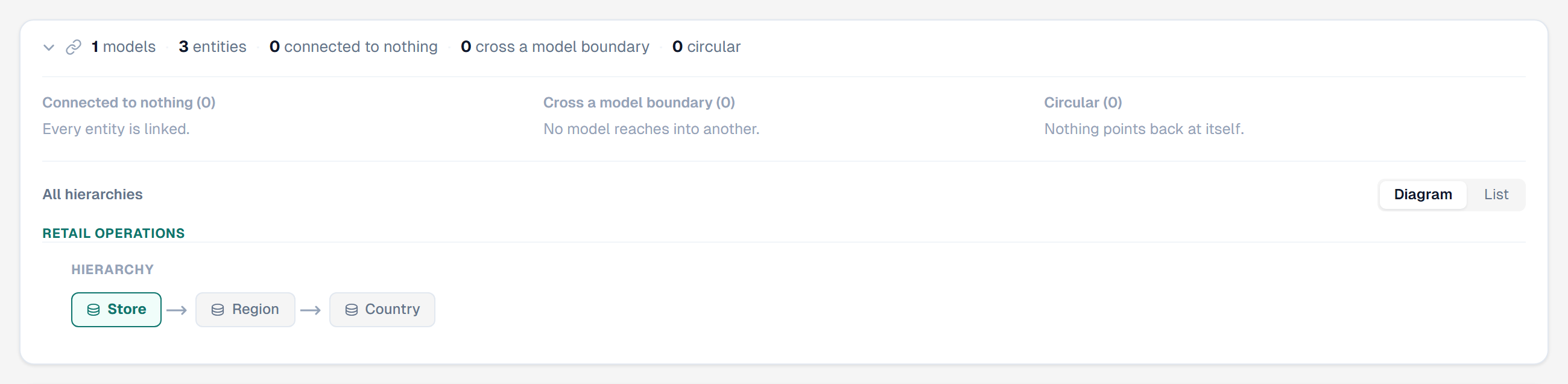
The panel is collapsed each time you open the page.
Every hierarchy on one screen
Below the counts, All hierarchies draws the chains of every model together, so you can check the whole data model without opening each model in turn.

Each chain reads left to right, from the entity that starts it to the one at the top of the tree. The colors say where each entity lives.
| Color | Meaning |
|---|---|
| Teal outline | Starts here — this is where the chain begins |
| Grey | Points at, this model |
| Amber | Points at, another model |
Amber is the one to look at. It marks every place a chain leaves the model it started in.
Diagram or list — the toggle beside *All hierarchies* switches between the drawn chains and a compact text list. The list fits more models on a screen; the diagram is easier to follow. Your choice is remembered per browser.
The full tree, on hover
A chain shows one path. An entity that several others point at has a tree, and a chain cannot draw a tree.
Hover any entity in the diagram. A tooltip shows everything that points at it, however deep, with the attribute behind each link.
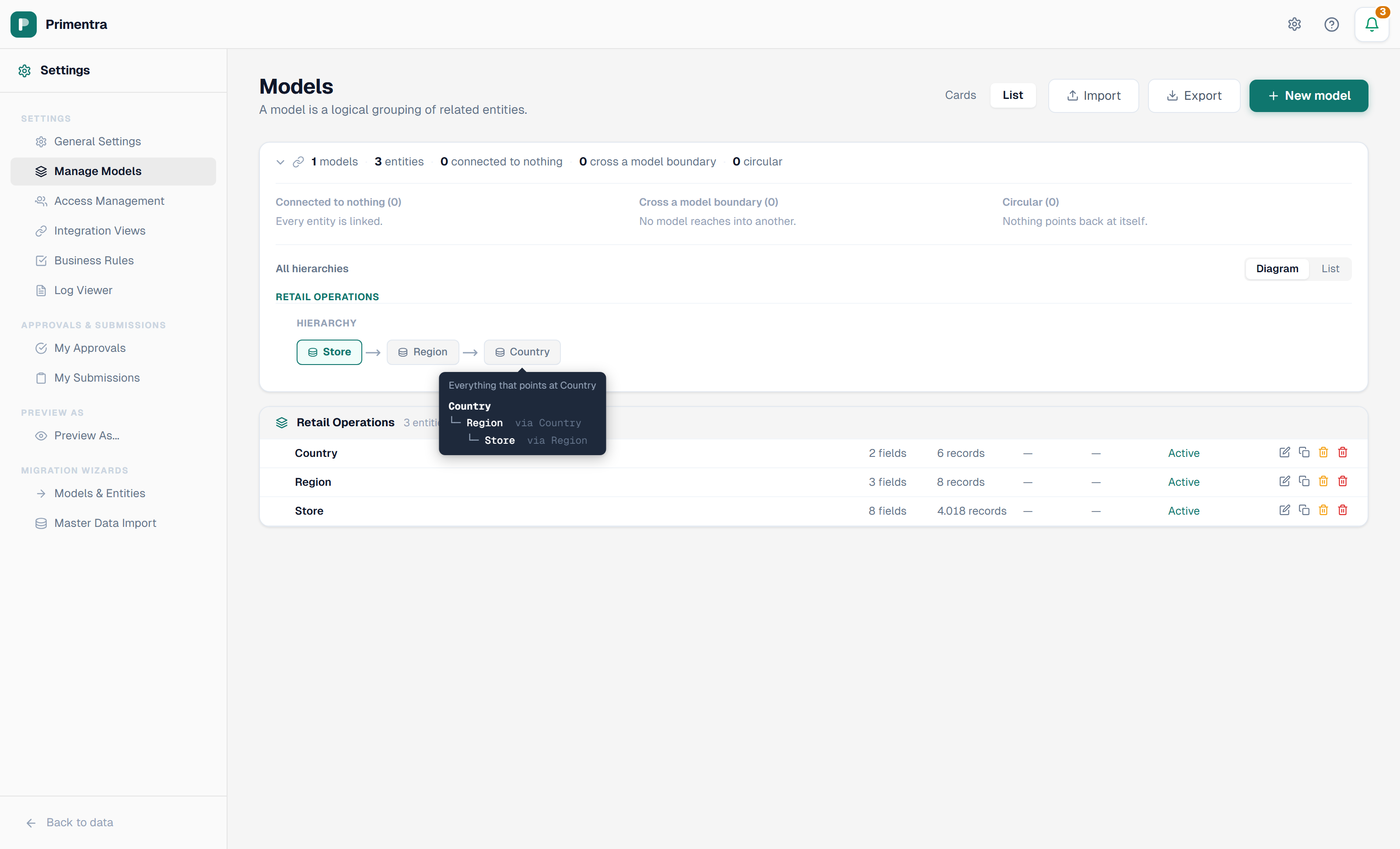
This is the fastest way to answer "what breaks if I delete this?" before you open the delete dialog.
Related
- Entities — what lives inside a model
- Domain Attributes & Hierarchies — how the chains in the hierarchy panel are built
- Model Export / Import — move models between environments
- Best Practices — how to structure models and entities