Model Export / Import
Export model definitions to a JSON file and import them into another Primentra environment. Use it to move models between development, test and production, or to share a structure between teams.
Both buttons, Export and Import, sit at the top of Settings → Models.
Watch it end to end: the export, a wrong file refused, the preview with a tick box per change, a renamed column linked, and the result.
Export
- Go to Settings → Models and click Export.
- Choose what to include. The list is a tree: a row per model, expandable to its entities. Every entity is selected when the dialog opens.
- Use the checkbox on a model row to select or clear all of its entities, or expand it and pick entities one by one. Select all and Deselect all at the top right cover everything.
- Turn on the options you need.
- Click Export to download
primentra-export-YYYY-MM-DD.json.
| Option | What it adds | Default |
|---|---|---|
| Include data rows | All records in each selected entity | Off |
| Include integration views | The SQL views built on the selected entities | Off |
| Include business rules | The rules defined on the selected entities | Off |
| Include security | The roles that have a permission on the selected models, entities or attributes, with those permissions | Off |
| Include users | The users in those roles, and the approvers of the selected entities | Off |
Include users turns on Include security too. Passwords and API keys never go into the file, and neither do API accounts. Make a new API key on each server.
With Include data rows on, the dialog warns against exporting several large entities at once. It can take a while.
Domain references to entities you did not select are flagged in the export file, and the dialog says so before you export.
Integration views are captured with their configuration: excluded columns and the column snapshot taken at export time. A view whose entity is outside your selection is not included.
Derived columns carry their path as model, entity and attribute names, so they point at the right columns on another server.
Import
The import runs in three steps: Upload, Preview, Import.
- Go to Settings → Models and click Import.
- Drop or select the
.jsonexport file. Only.jsonis accepted. - Read the preview. Every difference between the file and this server is one line with a tick box.
- Tick what you want to take over. Untick what you do not.
- Click Import. A progress bar reports each step.
Nothing is written before you click Import. The preview only reads.
The preview
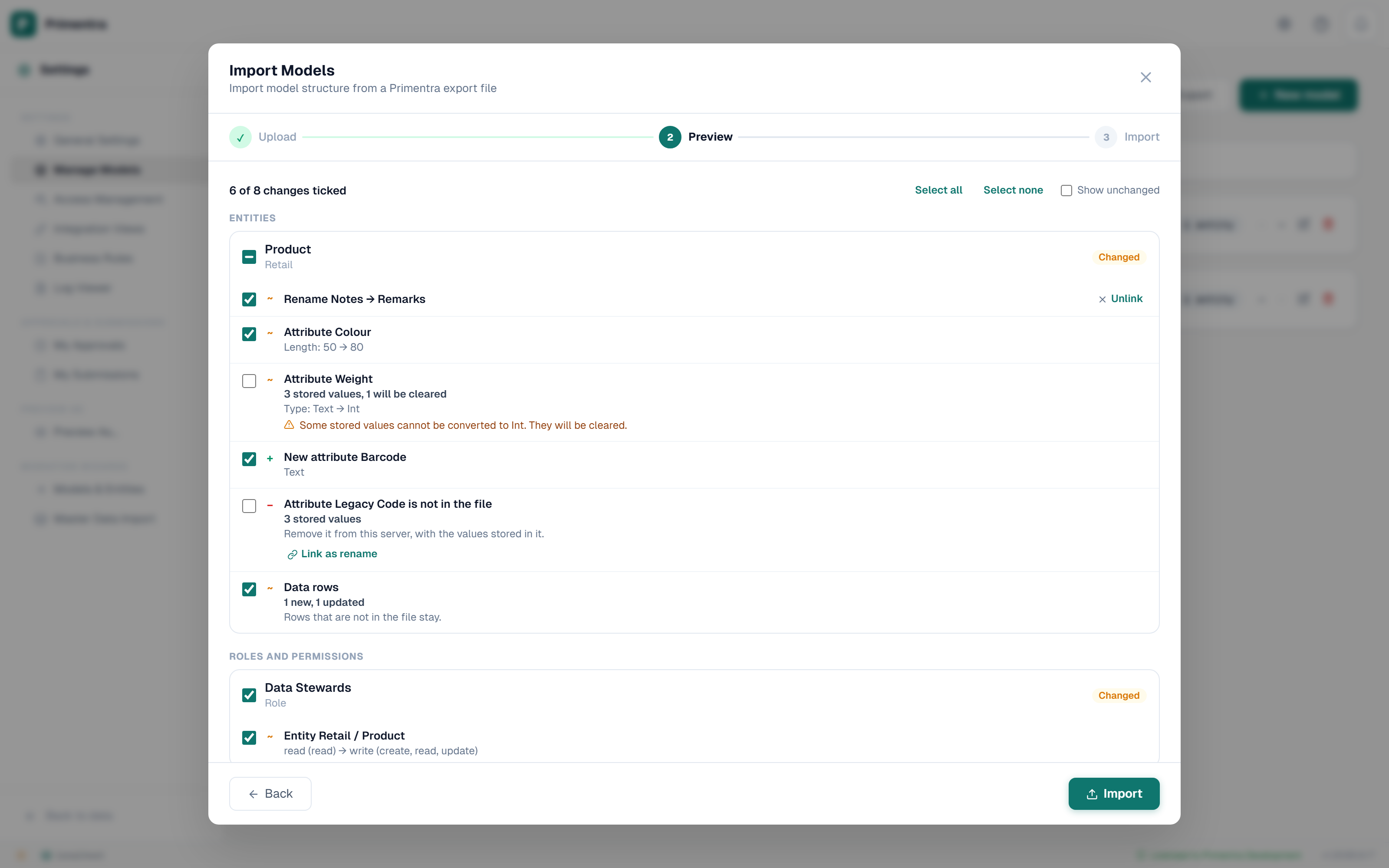
The lines are grouped: one card per entity, one for integration views, one per role, one for users and one for approvers. A card shows a status:
| Status | Meaning |
|---|---|
| New | It does not exist here. The import creates it |
| Changed | It exists here and the file differs. Each difference is a line |
| No changes | The file and this server agree. Hidden until you turn on Show unchanged |
| Only on this server | It is not in the file |
Each line starts with a marker: + something new, ~ something that changed, − something only on this server, i information you cannot tick.
What starts ticked:
| The line | Ticked at the start |
|---|---|
| Something new, such as an attribute, a rule or a role | Yes |
| Something that changed, such as a length, a data type or a permission level | Yes |
| A type change that would clear stored values | No |
| Something only on this server, which the import would remove | No |
| A new user | No |
| Anything that gives administrator rights | No |
The count at the top says how many changes are ticked. Select all and Select none work on every line; the tick box on a card works on that card.
Entities and attributes
| Line | What a tick does |
|---|---|
| New entity | Creates the entity with all its attributes and derived columns |
| Entity settings | Sets the settings the line names, such as the approval strategy or the code prefix |
| New attribute | Adds the attribute. Nothing else changes |
| Attribute (changed) | Sets the fields the line names. A field the file leaves out keeps its value |
| Attribute is not in the file | Removes the attribute, with every value stored in it. That cannot be undone |
A type change, for example Text to Number, converts the stored values the same way the entity form does. The line shows how many stored values cannot be converted. Those values are cleared, so such a line starts unticked: tick it only when you accept that loss. A change to or from Domain clears every stored value.
The Code and Name columns of an entity are never offered for removal.
A Domain attribute refers to another entity. When that entity is new in the file and you leave it unticked, the Domain attribute is not created: it would point at nothing. The result lists it under Not applied, with the reason. Tick both to bring them together.
Renames
Primentra matches attributes by name, so a renamed attribute shows as two lines: one not in the file and one new. Click Link as rename on the first line and choose the new name. The two lines become one Rename line. The attribute keeps its values under the new name, and nothing is deleted.
When the two lines also have a different data type, the Rename line warns you. The stored values are then converted as with any type change, and values that cannot be converted are cleared. The result says how many.
Business rules, derived columns and views
Rules match by name, derived columns by their path, and views by name. New and changed ones start ticked. A rule or derived column that is only on this server starts unticked: a tick removes it. A view is never removed by an import.
A rule whose columns cannot be found here is imported switched off. A derived column whose path does not exist here is not imported. The result names both.
Data rows
When the file carries rows, each entity gets one Data rows line with the number of new rows and updated rows. A row is matched on its Code, ignoring upper and lower case.
You choose per entity, not per row: one tick covers every row of that entity in the file. To leave some rows out, remove them from the file before you import.
| The row… | Ticked | Not ticked |
|---|---|---|
| is in the file and its code exists here | Updated with the values in the file | Not changed |
| is in the file and its code is new | Added | Not added |
| is here but not in the file | Stays | Stays |
| has no value for a column in the file | The stored value stays | Not changed |
The import never deletes a row. To empty an entity before loading, use Replace all in Import from Excel & CSV.
A row that cannot be written, for example one with a domain value that does not exist here, is refused. The rest of the file still imports.
An entity only on this server
When the file holds a complete model and an entity of that model is missing from it, the entity shows as Only on this server with its number of records. You cannot tick it: to remove an entity, delete it under Settings → Models. A file with only some entities of a model never shows this line.
Domain attribute warnings
If an imported entity references a domain entity that is not in the file, a warning appears during the preview. The import can still run, but the domain link stays unresolved until that entity is created or imported separately.
Security: roles, permissions, users and approvers
A file made with Include security carries roles and their permissions. With Include users it also carries the users in those roles and the entity approvers.
Roles match by name, without regard to upper and lower case. Each role shows its permission lines: new, changed (for example read → write), and only on this server. A permission keeps its exact level on the way over, including an explicit none that blocks access. This holds for a column too: a column set to None arrives as None.
A role that is not in the file but has permissions on the objects in the file shows as Only on this server. A tick removes its permissions on those objects. The role itself stays.
Users match by e-mail address, without regard to upper and lower case.
- A user who does not exist here is a New user line, not ticked. A tick creates the account with no password and with User must change password at next login on. The user signs in with the welcome mail or with Forgot password.
- For an existing user, a changed name and each role to join are ticked lines. When a role is in the file and the user is in it here but not in the file, that is an unticked line. A tick takes the user out of that role. The account itself is never switched off or deleted by an import.
- A file only changes the members of roles it carries. A role that is only on this server keeps its members. Its Only on this server line removes the role's permissions, so its members lose that access.
- A user deleted on the source server is not in the file. Here the account stays. The user leaves only the roles in the file, and only when you tick those lines. To remove the account, delete it under Users.
- An account that is deactivated or deleted here is information only. Switch it on under Users first.
- A user who is inactive on the source server is never created.
Tick Send the welcome mail to users this import creates to mail the new users. It is off by default, so a test run does not mail anyone.
Approvers match by entity and e-mail address, with their mail setting.
A line that points at something that exists in neither the file nor this server says cannot be matched and why. It cannot be ticked.
An import that would leave the system without an active administrator is refused as a whole. Nothing is written.
When the server changes during the preview
The import compares again when you click Import. A line that no longer applies, because someone changed this server after the preview, is not applied. The result lists it under Not applied, together with lines that could not apply because a line they depend on was not ticked, such as a permission of a new role that you did not tick.
The result
The final step reports tiles for entities created and updated, attributes renamed and removed, type changes, rows imported, business rules, integration views and security changes.
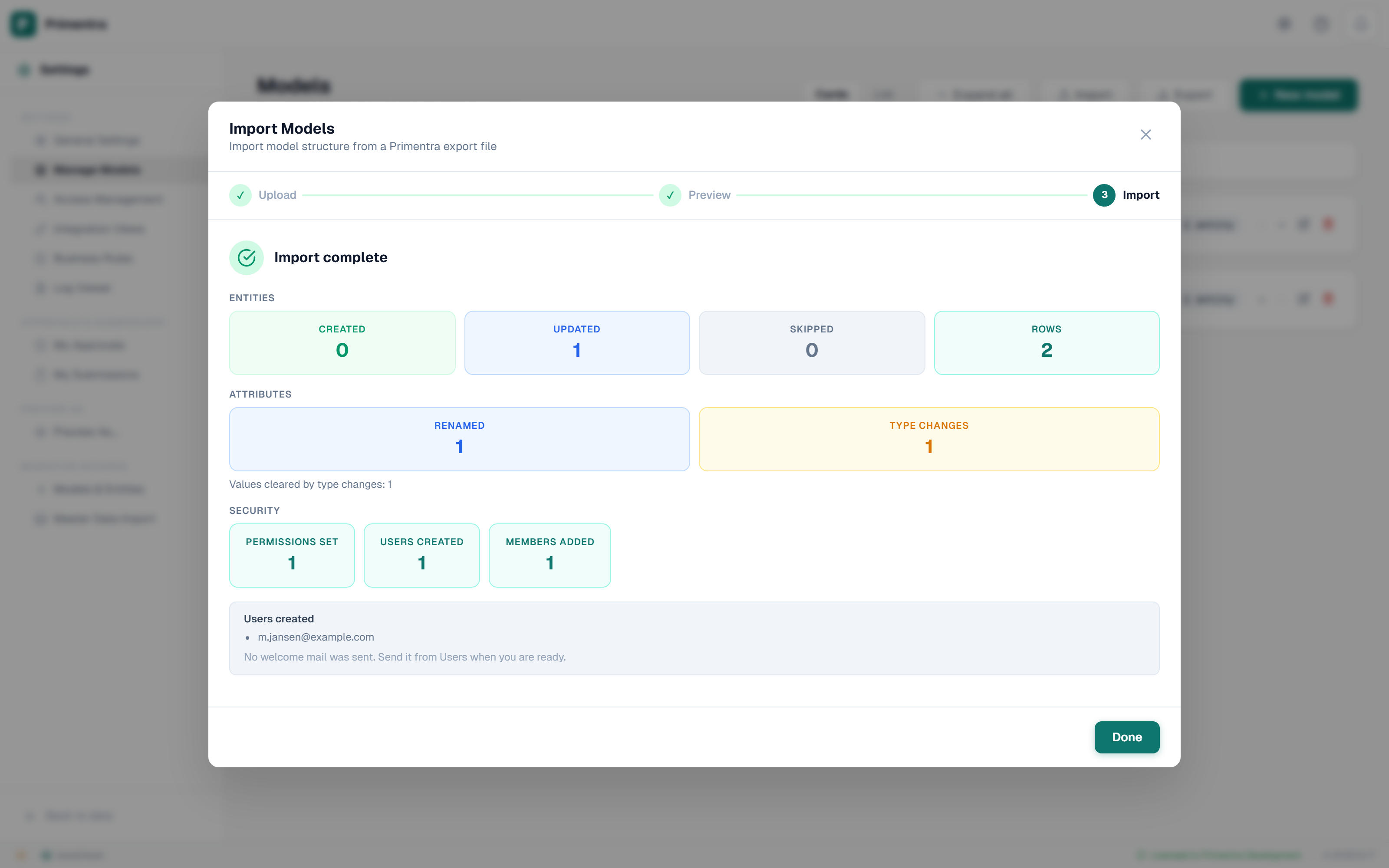
Panels can appear underneath:
- Users created, with the outcome of the welcome mail.
- Rows refused: rows the database did not accept, such as a row without a code, each with the reason. Download all refused rows saves the full list as an Excel file.
- Not applied, with the reason for each line.
- Changed Definitions: every view you imported over an existing one whose stored definition differed from the file.
- Warnings: views that could not be resolved, and views whose SQL failed to build after they were saved.
- Business rules imported inactive: rules whose columns could not be matched here.
- Derived columns not imported: derived columns whose path does not exist here.
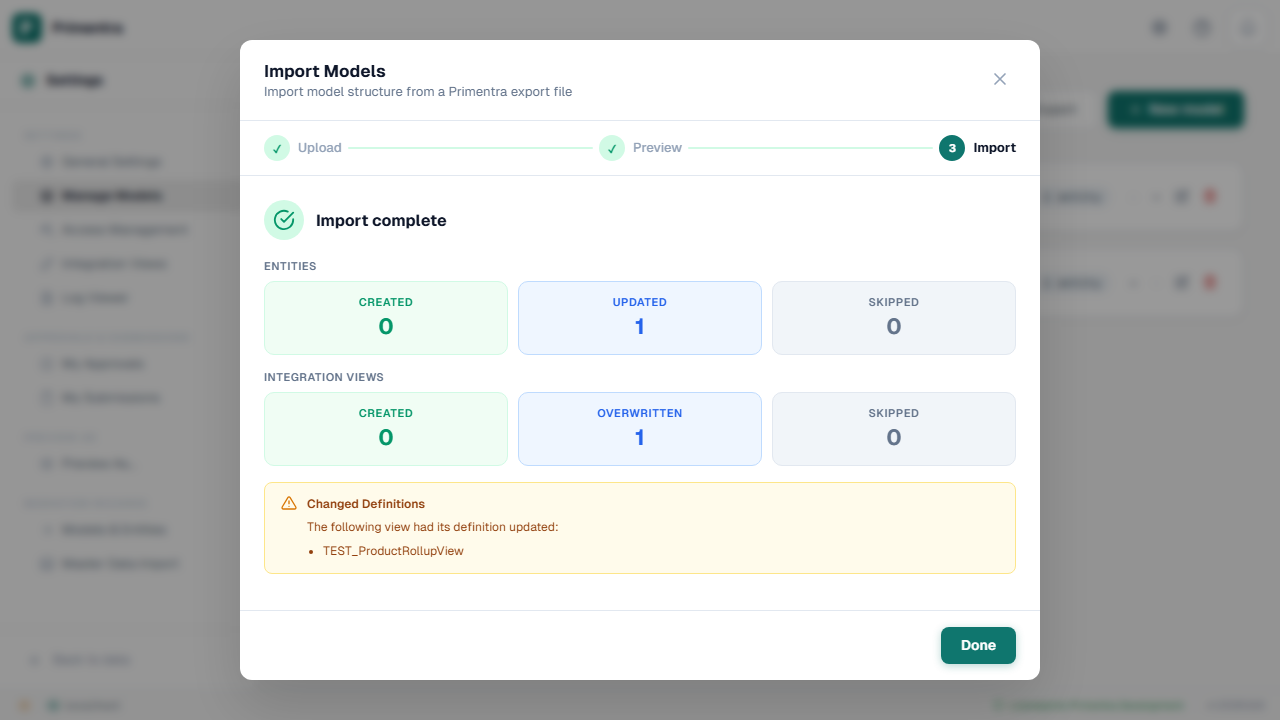
Audit log
Every import writes one entry to the audit log for each entity it changed, naming every line it applied. This includes columns removed with their data. Security changes and type changes get their own entries. An import that is refused as a whole writes nothing.
What this is, and is not
Export and import move a model from one Primentra environment to another, and show every difference before anything is written.
It does not keep two environments in step on its own. There is no history of what was imported and when, beyond the result shown at the end of each run.
Related
- Models: where both buttons live
- Entity Management: clone an entity within one environment
- Integration Views: the views the export carries
- Business Rules Overview: the rules the export carries
- Roles & Permissions: the roles and permissions the export carries