What's New
Primentra ships a changelog with every release. You can read it inside the app, without leaving the screen you are on.
Opening the changelog
Click the version number at the right end of the status bar, for example v1.2026.8.14. The changelog opens full screen. The back arrow in its header returns you to the dashboard.
The changelog also has its own address, /changelog, so you can bookmark it or send someone a link.
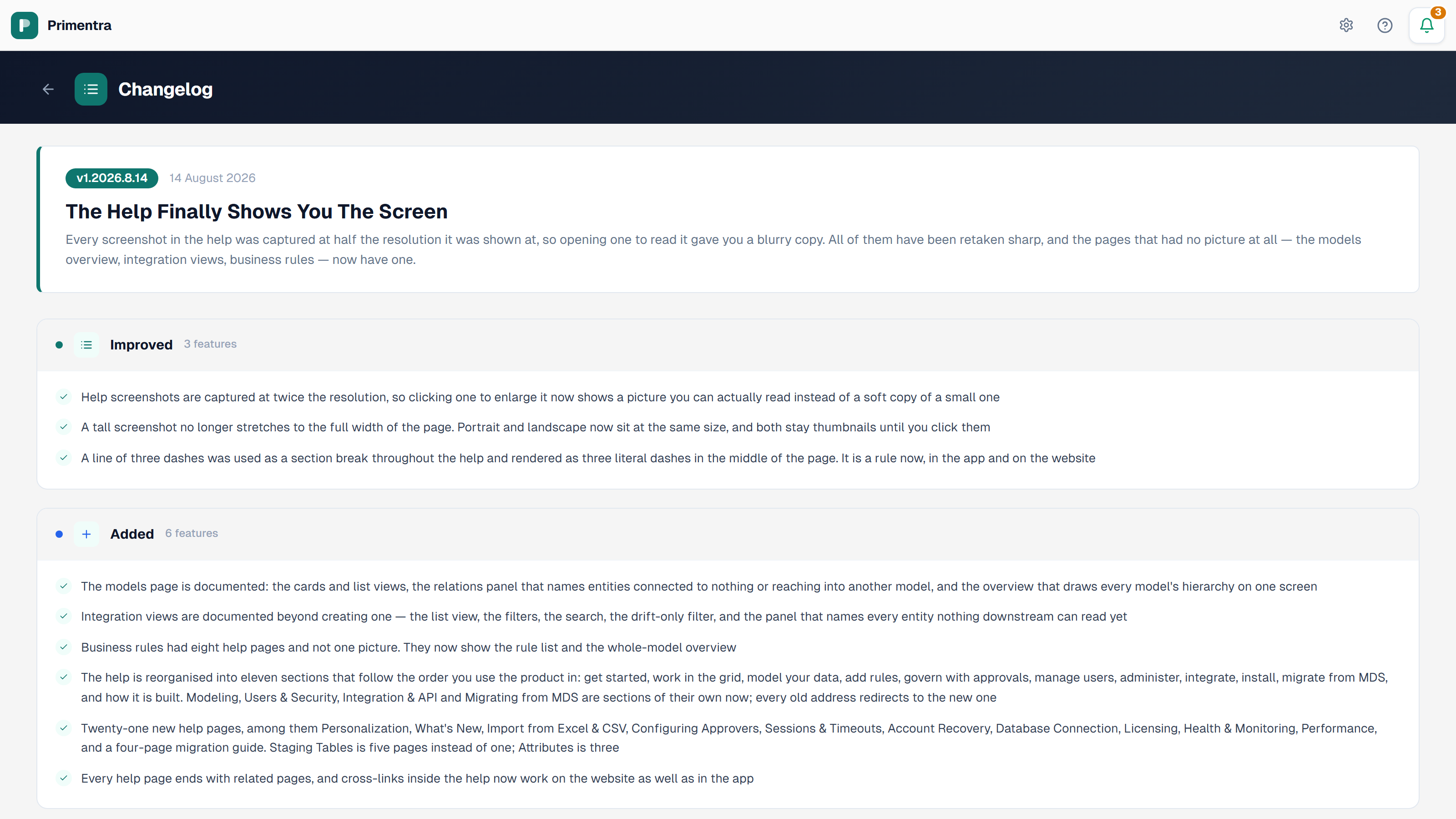
What the changelog shows
Releases are listed newest first. Each release has a header card and one or more category cards.
The header card carries:
- the version badge, for example
v1.2026.8.14 - the release date
- a short title
- a paragraph explaining what changed and why
The category cards group the individual changes. Each card shows a colored dot, an icon, a category name such as Added, Improved, or Fixed, and how many items it holds. Under that, every change is listed with a check mark.
Reading a version number
Versions use the format MAJOR.YEAR.MONTH.DAY. In 1.2026.8.14, 1 is the major version and the rest is the build date, 14 August 2026.
The version number only goes up when the database schema changes. Releases that touch only the app or the API ship under the current version, so two installs on the same version can still differ in build date.
The changelog on the website
The same list is published at primentra.com/changelog. Use it to see what a newer release contains before you upgrade, since you do not have to sign in to read it.
Related
- Personalization — the status bar that holds the version number
- Bookmarkable Links — every screen, including the changelog, has an address
- Upgrading — how to move an install to a newer version
- Licensing — license keys and the trial period