User Management
Every person who signs in to Primentra needs a user account. Accounts are created and managed in Settings → Access Management → Users.
Watch it in 3:36 — the three badges, an account created and given a role, an address refused because it already exists, and the last administrator refused a switch-off:
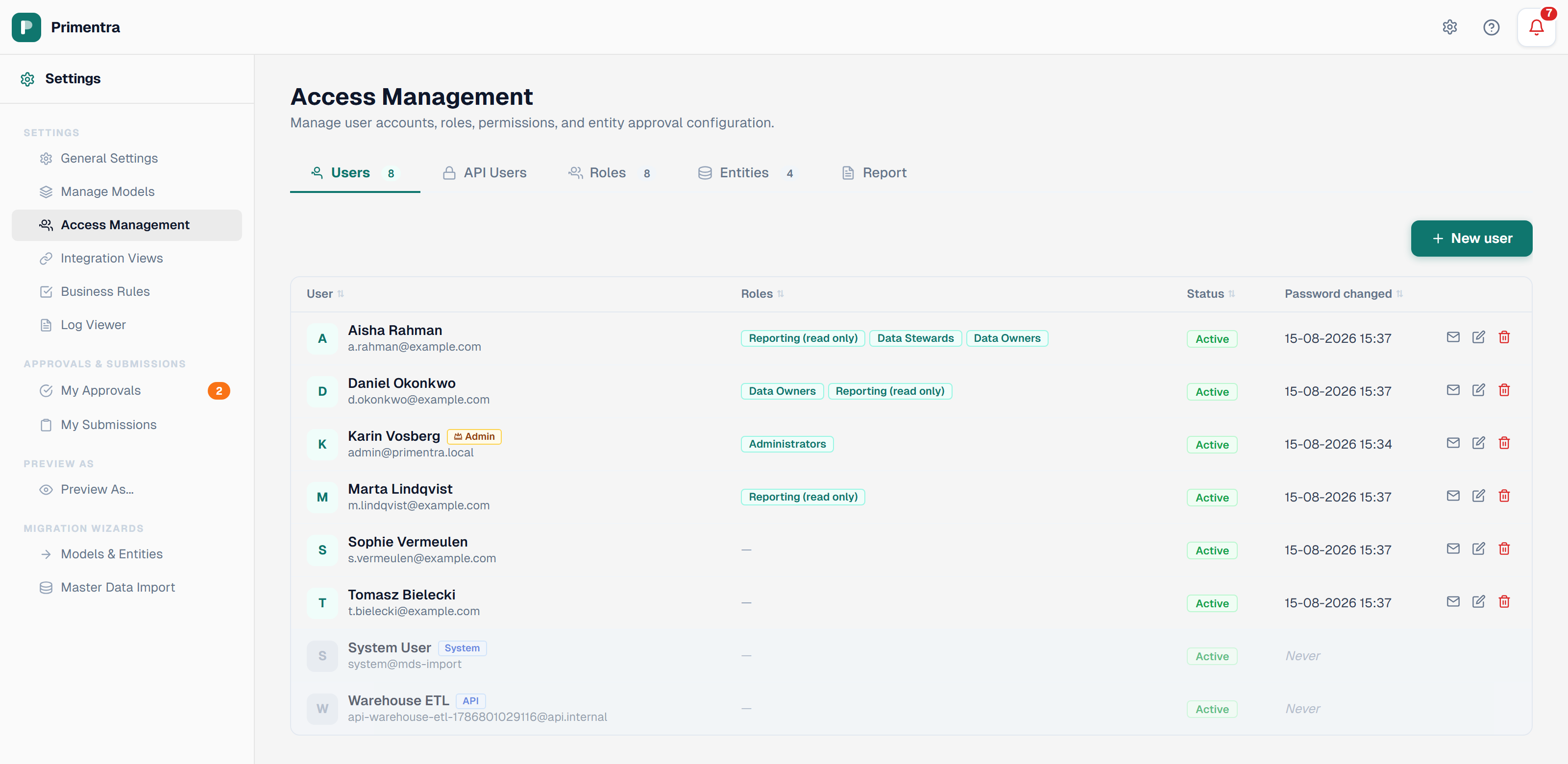
The user list
The list is a sortable table. Click any column header to cycle through ascending, descending, and unsorted.
| Column | Shows |
|---|---|
| User | Display name, email address, and badges |
| Roles | Every role the user belongs to |
| Status | Active or Inactive |
| Password changed | When the user last set a password, or Never |
Three badges can appear next to a name:
- Admin (crown) — the user belongs to a role with the Administrator flag
- System — Primentra's own account, see below
- API — an API service account, see below
Click a row to open the account. The action buttons on the right send the welcome email, edit the account, or delete it.
Create a user
- Click New user.
- Enter the Email. This is the login name and must be unique.
- Enter the Display Name. It appears in the settings menu and the audit log.
- Enter a Password, or click Generate for a random 16-character password. Use the eye icon to check it.
- Leave User must change password at next login ticked if the user must choose their own password.
- Leave Send welcome email ticked to mail the account details.
- Set Status to Active.
- Tick the roles the user belongs to.
- Click Create user.
The welcome email
The welcome email is branded HTML. What it contains depends on the Must change password setting.
| Must change password | The email contains |
|---|---|
| On | A one-click sign-in link, valid 72 hours, single use. No password is included. |
| Off | The login name, the password, and a sign-in button. |
Both versions list the user's role memberships.
To send it again later, click the mail icon on the user's row. A resent email never contains a password, because passwords are not stored in readable form.
Sending is non-blocking. If the mail server is unavailable, the account is still created and a toast reports the failure.
Edit a user
Open the account and change any field. Leave the password box empty to keep the current password. Role changes apply as soon as you save.
The Password last changed date is shown at the bottom of the form and cannot be edited.
Deactivate or delete
Clear the Active checkbox to block sign-in without removing anything. This is also how you unlock an account after a lockout — see Account Security.
Deleting is a soft delete:
- The account is marked deleted and set to inactive.
- Role memberships, favorites, hidden entities, and personal settings are removed permanently.
- Audit log entries stay, so the history of what the user did remains readable.
- The email address becomes free again, because the uniqueness rule only covers accounts that are not deleted.
Primentra refuses any change that would leave the installation without an active administrator. Deleting the last administrator returns an error instead.
Accounts Primentra creates itself
Two account types appear in the list that nobody created by hand. Both carry a blue badge.
| Badge | Account | Why it exists |
|---|---|---|
| System | system@mds-import | Created during database setup. Primentra records its own work under this name: scheduled staging runs and MDS migration imports. It cannot be deleted. |
| API | api-…@api.internal | Created with each API user. Calls made with that key are traceable in the audit log. Manage it under Administration → API Users. |
Neither account has a password, so neither can sign in. The email addresses are internal identifiers — no mail is ever sent to them.
Related
- Roles & Permissions — what each role may see and edit
- Authentication — how users sign in
- Account Security — lockout and password rules
- Email & Notifications — mail server settings
- REST API — API users and keys