App Navigation
Primentra has three areas: the home dashboard, the data grids, and the admin screens. The top bar and the sidebar are always on screen, so you can move between them from anywhere.
The top bar
The top bar runs across the full width of the window.
- The Primentra logo on the left returns you to the home dashboard from any screen.
- The gear icon on the right opens the settings menu — general settings, model management, approvals, and sign out.
- The question-mark icon opens this help panel.
- The bell icon shows approval and system alerts.
The sidebar
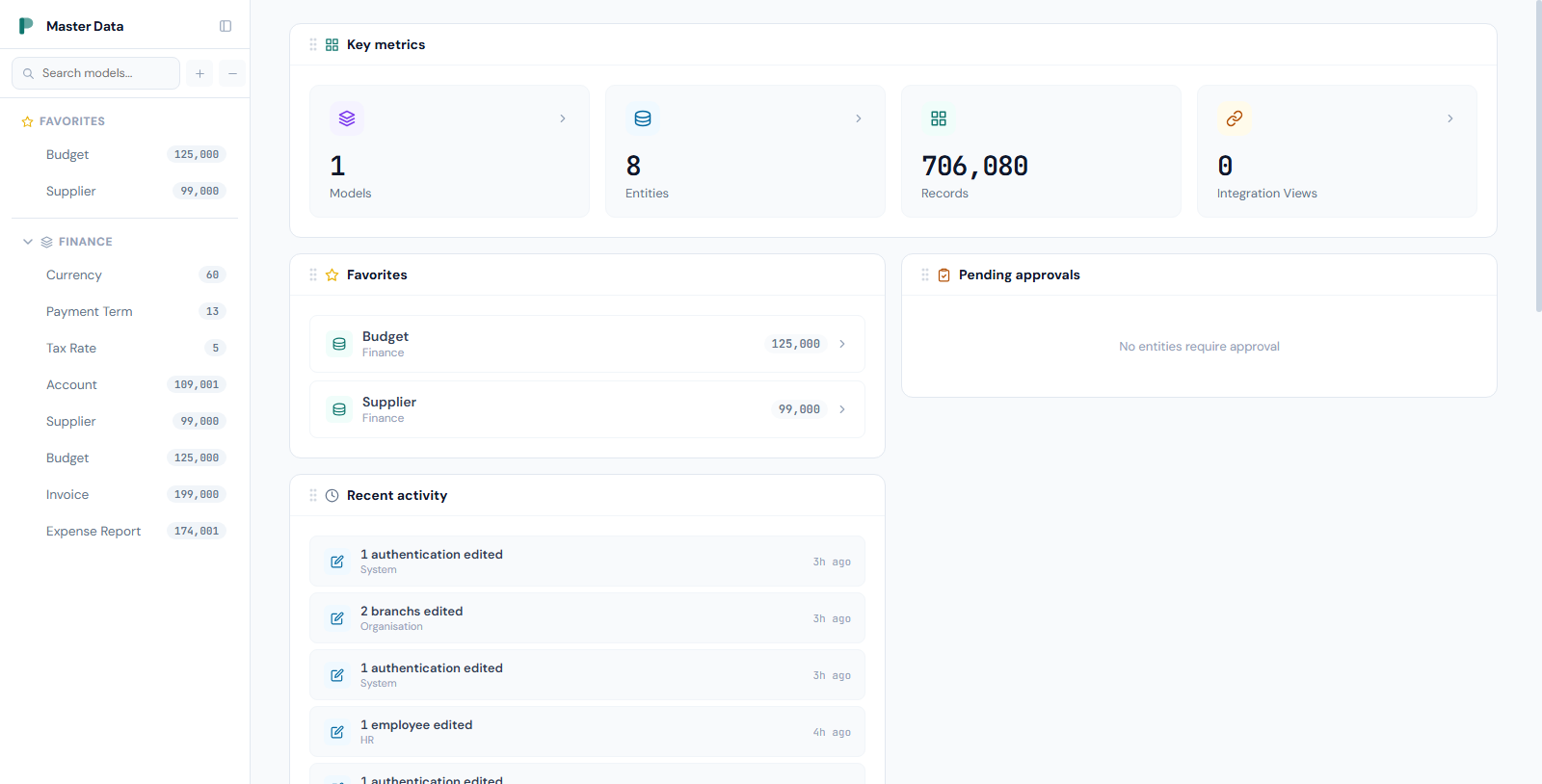
The sidebar on the left lists your models and their entities.
- Type in the Find box at the top to filter. It matches model names, entity names, and attribute names — when an attribute matches, the entity is listed with the matching attribute names below it in italics.
- Click a model name to open the model detail view.
- Click the arrow to the left of a model name to expand or collapse its entities.
- Click an entity name to open its data grid.
- The badge to the right of each entity shows its record count. A collapsed model shows how many entities it holds.
- Use the + and − buttons under the search box to expand or collapse every model at once.
- Use the panel icon next to the search box to shrink the sidebar to a narrow strip. The menu icon brings it back.
Which models you left open is remembered in your browser, so the sidebar looks the same after a reload.
Favorites in the sidebar
Entities you have starred appear in a Favorites section above the models, each with its record count. Click one to open its grid directly.
Starring and hiding entities is covered in Personalization.
The entity hierarchy
Entities are organized in a parent-child hierarchy. An Organization model might contain:
- Country — the top level, for example Netherlands or Germany
- Zone — groups of business units inside a country
- Area — a regional grouping inside a zone
- Cost center — the operational unit, for example an office, branch, or store
Each child entity holds a domain attribute that points at its parent. Cost center points at Area, Area points at Zone, Zone points at Country. That chain runs from leaf to root.
Primentra reads the chain from your domain attributes and draws it for you in the admin panel under each model. You do not draw a diagram or configure the hierarchy by hand.
There is no limit on the number of levels. Your administrator sets the entities and the depth.
The status bar
The bar along the bottom of the window carries the theme toggle, the database or grid status, the license state, and the version number. See Personalization.
Related
- Personalization — dark mode, favorites, hidden entities, and the status bar
- Dashboard — what the home screen puts in front of you
- Bookmarkable Links — every screen has its own address
- Grid Overview — the layout of a data grid
- Models — how models and their hierarchies are built