Approval Workflows
An approval workflow adds a review step before a data change becomes permanent. When an entity has Requires approval enabled, a save does not write to the master data. It creates an approval request that an approver must decide on.
Watch the whole workflow in four and a half minutes — the Approver flag on the role, the entity settings, a steward's submission and the owner's decision:
What approval changes
Without approval, Save writes straight to the entity. With approval, the same save creates one approval request that holds every change in that save. The grid keeps showing the approved data. Your changes stay in the queue until someone decides on them.
Who may approve
Approval rights work in two layers. Both are needed. Read, write and delete permissions play no part in them.
- Role flag — a role has an Approver checkbox ("Can approve changes and requests"). Every member of that role becomes eligible to be an approver.
- Entity assignment — an eligible user must also be assigned as an approver of that specific entity, in Access Management → Entities.
A user may decide on a request when both layers apply. See Configuring Approvers for the settings, and Roles & Permissions for the role flag.
What happens when you save
- You edit cells in the data grid and click Save.
- The Submit changes for approval modal opens instead of the normal save dialog.
- You check the summary, add an optional note, and click Submit for approval.
- The modal confirms the submission and shows the request number.
- Each assigned approver with email notifications on receives a mail.
All changes in one save become one request. An approver decides on the whole request, not on single records. This keeps a set of related edits together.
Which ways in respect approval
There are five ways data reaches an entity. Four of them respect approval. One does not, on purpose.
| Way in | On an entity that requires approval |
|---|---|
| Grid — typing and saving | Submitted to the queue |
| Grid — pasting | Submitted to the queue |
| Grid — deleting | Mark for deletion, submitted to the queue |
| REST API — create, update, delete | Submitted to the queue. Answers 202 with the request number |
| File import (Excel, CSV, JSON) | Refused. Switch Requires approval off if you mean to load the file directly |
| Staging | Published directly. See below |
A file import is refused rather than queued because a single file can carry fifty thousand rows. Putting those in front of a person is not review, it is a wall. Switching the setting off is a deliberate act that shows in the entity's history; a fifty-thousand-row queue is neither.
Why staging publishes directly
Staging is the one exception, and it is worth understanding rather than working around.
A staging feed runs on a clock, unattended, and the system pushing the data is the system of record for those fields. There is nobody to press Approve at three in the morning, and nobody who could meaningfully second-guess the sending system. A nightly load held in a review queue stalls for ever — and in practice somebody switches the approval off within a week, which leaves you worse off than before.
The REST API is machine-driven too, so it is fair to ask why it does not get the same treatment. The difference is not who is at the keyboard, it is how hard the door is to open. Writing to the stg schema needs a SQL login granted by a database administrator. An API key is created in the admin screen in about ten seconds. If a key could write past approval, approval would be optional for anyone who can make one — switched on, and protecting nothing.
So the rule is one line: every route with a user offers the change to an approver. Staging has no user, so it cannot.
What staging means for your governance
Say this one out loud to your organisation, because nobody else will:
stg schema can change master data without review. Write access to that schema is approver rights, whatever the org chart says.If that is not acceptable for an entity, keep that entity out of staging. There is no setting that adds review to a staging batch, and no half measure.
What you do get is the record. Every batch appears in Batch History and in the audit log, so what a load changed is always traceable afterwards. Approval prevents; the audit log records. Staging keeps the record and drops the prevention.
Business rules are never skipped, on any of the five routes, staging included. A blocking rule undoes a staged row exactly as it refuses one typed in the grid.
What the grid shows
The grid always shows the approved data. Pending changes are never mixed in. A record with a pending change is marked and locked:
- The row gets a diagonal hatched background and a gray left border.
- A lock icon replaces the row checkbox.
- The cells cannot be edited until the request is decided.
A record you marked for deletion is shown in red with a strikethrough and a red lock, until the request is approved.
Where approvals live
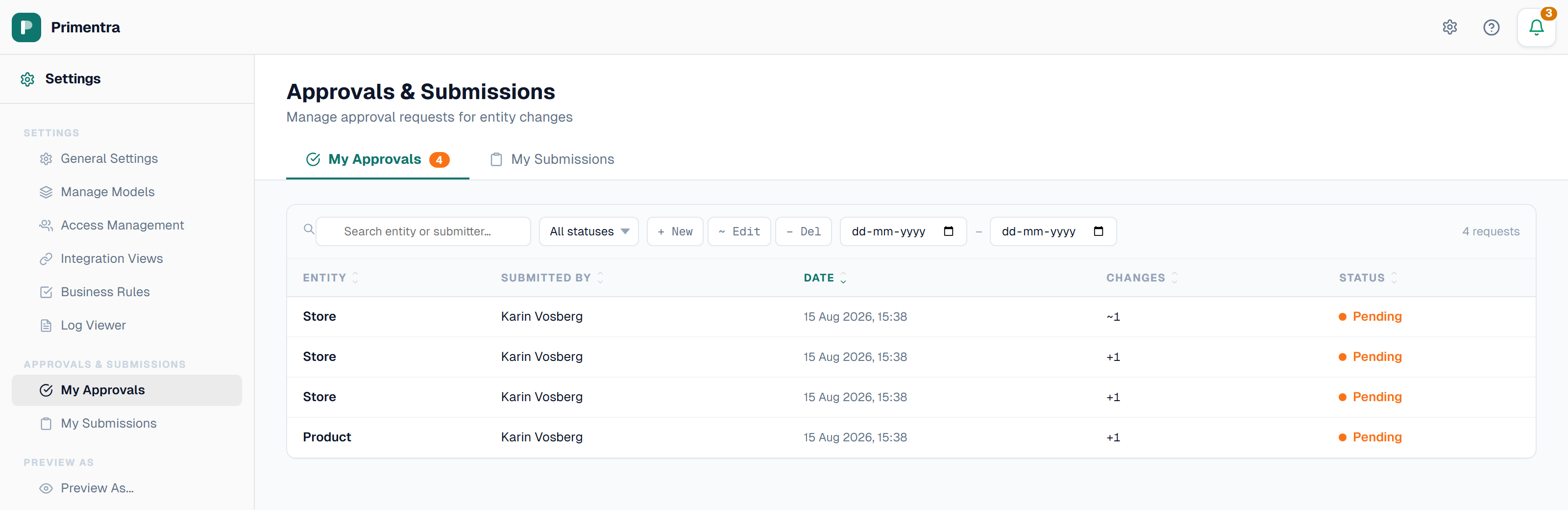
Two pages in the settings sidebar, under Approvals & Submissions:
| Page | URL | Who sees it |
|---|---|---|
| My Approvals | /admin/approvals | Users with the Approver role flag, and administrators |
| My Submissions | /admin/my-submissions | Every user |
Notification bell
The bell in the header is color-coded. The badge shows the total count.
- Red — one of your submissions was rejected, or there is an error notification
- Orange — requests are waiting for your decision
- Green — one of your submissions was approved
The highest priority wins: red, then orange, then green. Click an entry in the dropdown to open the matching page.
Dashboard widgets
The dashboard has two approval widgets. Both link to the full page.
- Approvals — approvers only. The most recent requests in all statuses, with a "N pending" badge.
- My submissions — your own requests, newest first, with a display count you can set.
Columns hidden from an approver
A column that the approver's roles set to None is left out of the request diff. The approver can still approve the request. The value is applied as submitted.
A submitter cannot send a change for a column their own roles set to None, or change a column they can only read. The submission is refused. The message does not name a hidden column, so a user cannot learn that it exists.
Keeping the history small
Decided requests stay in the database. Set a retention period to remove them automatically. See Data Retention.
Related
- Configuring Approvers — turn approval on and assign the approvers
- Role: Submitter — submit changes and follow their status
- Role: Approver — review a request and decide
- Rules in Approval Workflows — how business rules refuse an approval
- Data Retention — how long decided requests are kept
Further reading
- How Primentra's Approval Workflow Works: From Edit to Live Data — the whole path one edit takes, from submission to committed data
Questions
Can someone get round approval by using the API?
No. An API write on an entity that requires approval is submitted to the queue like any other change, and answers 202 with the request number rather than writing the record. See REST API.
Then why can staging get round it?
Because staging is the only way in with no user behind it and no response to answer into — a batch at three in the morning has nobody to press Approve and nowhere to be told it is waiting. Every other route has a user, so every other route offers the change to an approver.
Can I make staging respect approval?
No, and there is no half measure. If an entity must not be changed without review, keep it out of staging. Treat write access to the stg schema as approver rights when you grant it.
Why is a file import refused instead of being queued?
One file can hold fifty thousand rows. Putting those in front of a person is not review, it is a wall. Switch Requires approval off on the entity if you mean to load the file directly — that is a deliberate act, and it is visible in the entity's history.
Do business rules still run when approval is on?
Yes, on every route including staging. They also run when a change is *submitted*, not only when it is approved, so a row that breaks a blocking rule is refused at the moment you offer it — rather than landing on an approver who did not type the value and cannot fix it.