General Settings
Settings → General Settings holds every installation-wide setting. Only administrators can open it.
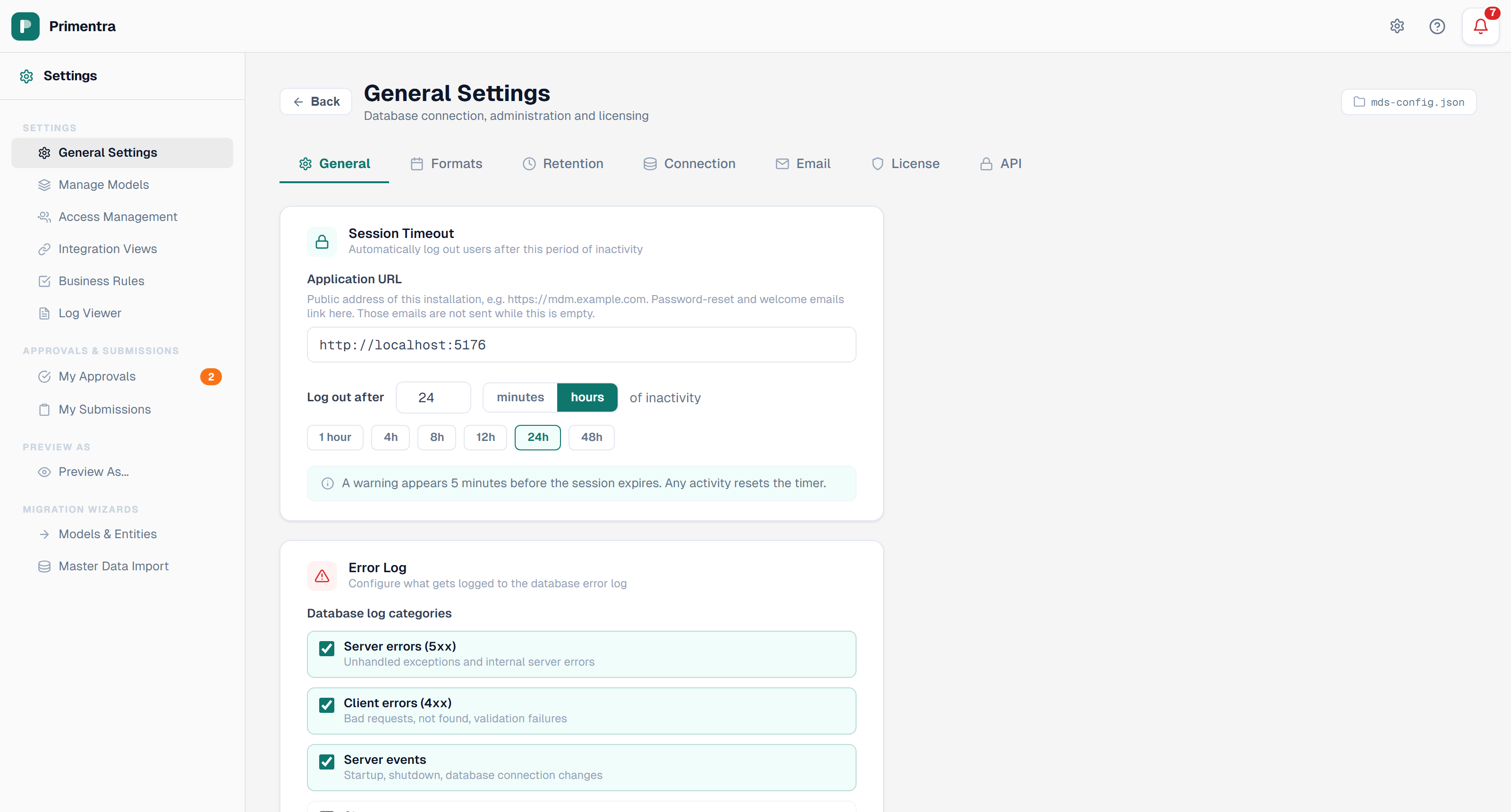
The seven tabs
| Tab | What it configures |
|---|---|
| General | Application URL, session timeout, error-log categories, boolean labels, announcement banner. Documented below |
| Formats | The date and time format library used by DateTime attributes. See Date & Time Formats |
| Retention | How long audit, approval, error, staging and scheduler records are kept. See Data Retention |
| Connection | SQL Server host, database, credentials and schema deployment. See Database Connection |
| The SMTP server used for all outgoing mail. See Email & Notifications | |
| License | Licence key, organization name and expiry warnings. See Licensing |
| API | The kill switch for the external REST API. See REST API |
Every tab except API saves with the Save settings button at the bottom of the page. The API toggle saves immediately.
Each tab has its own address, so /admin/general-settings/email opens on the Email tab and survives a page reload.
Application URL
The public address of this installation, for example https://mdm.example.com. Password-reset and welcome emails build their links from this value.
Session timeout
Set how long a user can stay idle before Primentra signs them out.
- Choose the unit — minutes or hours.
- Type a value, or click one of the presets (5 to 90 minutes, or 1 to 48 hours).
- Click Save settings.
The default is 24 hours. A warning appears before the session expires; the panel under the field shows exactly how many minutes of warning the current value gives. Any activity resets the timer. See Sessions & Timeouts.
Error log categories
Choose which events reach the database error log:
- Server errors (5xx) — unhandled exceptions and internal server errors. Default: on
- Client errors (4xx) — bad requests, not found, validation failures. Default: on
- Server events — startup, shutdown, database connection changes. Default: on
- Slow requests — API requests over the threshold. Default: off, threshold 5000 ms
Switch on Slow requests to reveal the threshold field, with presets of 1s, 3s, 5s and 10s.
errorlog.txt always records everything. See Error Log.Boolean display
Set the True label and False label shown in the data grid for Boolean attributes that use the Custom display format. Both fields are required — Save settings stays disabled while either is empty.
Announcement banner
Show a message bar at the top of the application for every user.
| Field | Description |
|---|---|
| Message | The banner text. Maximum 200 characters |
| Expire date | Optional. The banner disappears after this date. Leave empty for no expiry |
| Color | Red, Orange, Green, or Custom with a six-digit hex value |
| Link | None, Link to a URL, or Extended text |
Red and orange show a warning triangle, green a checkmark, and a custom color an info circle.
Link modes
- None — message only.
- Link to a URL — add Link text and a Link URL. The URL opens in a new tab.
https://is added if you leave it out; any other scheme is rejected and no link is saved. - Extended text — add Link text, a Page title and the Extended text body. Clicking the link opens that text as a page inside Primentra. Leave a blank line between paragraphs.
A live preview appears under the fields. The preview uses the same rules as the real banner, so a link that shows here will show there. If the link cannot render, the preview says which field is missing.
How users see it
- The banner is a 40-pixel bar above the navigation.
- A user dismisses it with the × button. The dismissal is stored in that browser, for that user.
- Change the message and every dismissal resets, so all users see the new text.
- After the expire date the banner disappears for everyone, dismissed or not.
- Click Clear banner and save to remove the message, date, link and color in one action.
Related
- Database Connection — the Connection tab in detail
- Data Retention — the Retention tab in detail
- Licensing — the License tab in detail
- Email & Notifications — the Email tab in detail
- Date & Time Formats — the Formats tab in detail