Schedules
On this page
Settings › Schedules holds the named schedules of the installation. You make a schedule once, for example Every night at 02:00, and pick it by name in two places: the Processing Schedule of a staging entity and the Schedule and limits of a Lookalikes rule. Only administrators can open the page.
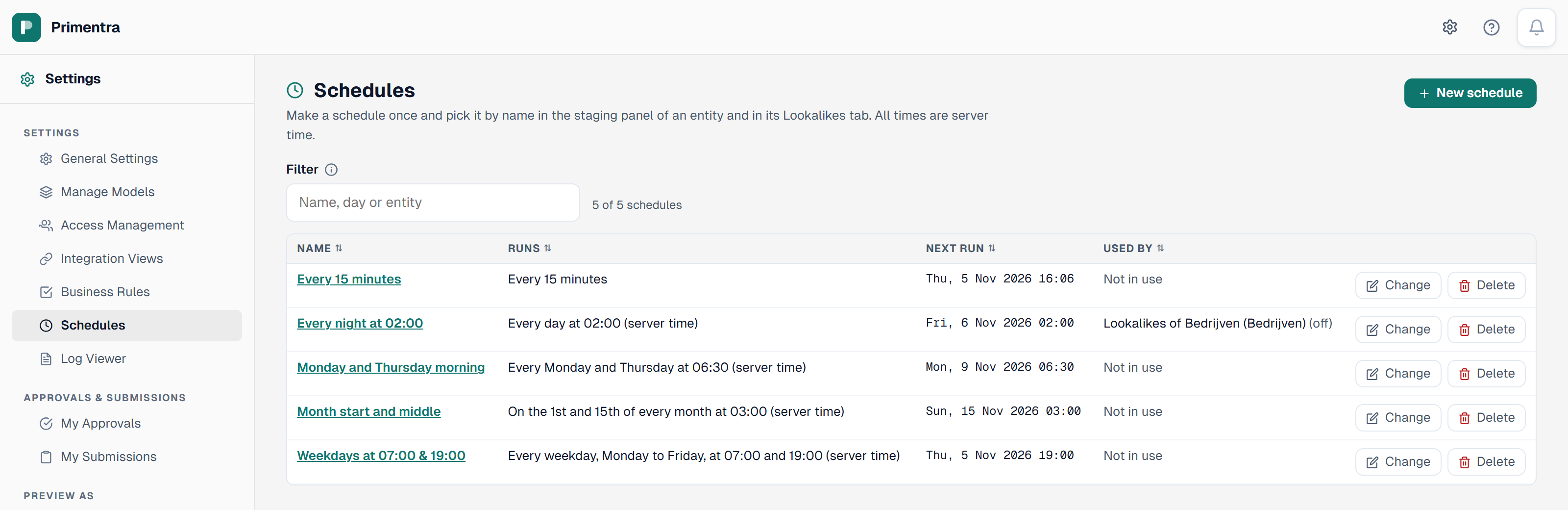
What the list shows
| Column | What it shows |
|---|---|
| Name | The name you pick the schedule by. Click it to change the schedule. |
| Runs | The schedule in words, for example Every Monday and Thursday at 02:00 (server time). |
| Next run | The earliest next run still to come of the entities that have this schedule switched on, in server time. Without one, a schedule with run times shows its next time. An every-N-minutes schedule counts from its first run, so it says Starts when an entity switches it on, or Set at the next check when an entity has it on. |
| Used by | Each entity that picked the schedule, for staging or for Lookalikes. (off) means the entity keeps the pick with that use switched off. |
Click a column header to sort. Type in Filter to find a schedule by name, day or entity.
Make a schedule
- Click New schedule.
- Type a Name of at most 100 characters. Two schedules cannot have the same name.
- Pick How often: every N minutes, daily, weekly or monthly.
- Set the minutes, or pick the days and add one or more run times.
- Click Save schedule.
Every time is server time: the clock of the machine that runs SQL Server. You can also make a schedule from the staging panel or the Lookalikes tab with New schedule.
Change or rename a schedule
Click the name or Change, edit the fields and click Save schedule. When entities use the schedule, Primentra first tells you how many it changes and names them. After the save, each of them gets a new next run. A rename alone moves no run.
Delete a schedule
Click Delete. Primentra never deletes a schedule in use: the message names each entity that uses it. Pick another schedule there first, then delete this one.
After the upgrade to 1.2026.11.6
- Each staging entity that ran on a schedule of its own now picks a named schedule with the same values. Entities with the same values share one, named after the first entity, for example Supplier schedule. The next run stays the same moment.
- A Lookalikes schedule line of the 1.2026.10.31 beta becomes a named schedule with the switch on. Primentra removes a line that fits no schedule type and shows a message on the Lookalikes tab.
Every create, change, delete and pick writes an audit line. Filter the Audit Log on Schedules to see them.
Related
- Staging Scheduler: the processing mode that picks a schedule
- Lookalikes: the scheduled full run of a lookalike rule
- Audit Log: the schedule actions
- General Settings: the other installation-wide settings
Did not find what you need?
Try the troubleshooting pages, or ask us.