Active Directory Setup
On this page
This page is for the IT team that connects Primentra to the domain. It covers the setup steps, the Windows button, the check page, IIS and recovery.
What Active Directory does in Primentra, for roles, sign-in and passwords, is on the page Active Directory & SSO.
Watch it in 7:14: connect to the domain and fix three errors on the way, switch on Windows sign-in, give an AD group a role, and see the first sign-in and the daily check.
Before you start
mail field in AD for every person who signs in, before you switch AD on. Primentra takes the email from mail. It finds an existing Primentra user only through mail, never through the user principal name (UPN). This is how the old accounts of your people move to AD, with no double users. Without mail, an old account is not found, approval mails may not arrive, and a UPN that is already the email of another user blocks the sign-in until an administrator links the account by hand. Ask your IT team to check mail for every user first.Do these steps once.
- Join the Primentra server to the domain if you can. Most domain servers already trust the certificate authority (CA) of the domain.
- Check that each domain controller answers on LDAPS, port 636. Each controller needs a certificate that the Primentra server trusts. Primentra trusts whatever the Windows certificate store of its server trusts. When your CA is not in that store, save the CA certificate as a file on the server and enter its path in CA certificate file.
- Create an account in Active Directory for Primentra to read the directory with. It is not the account that the Primentra service runs as on the server. Give it read rights only.
- Open Primentra over HTTPS. The Windows password form stays hidden on plain HTTP. If IIS is in front of Primentra, read the section Behind IIS below.
- Keep one local administrator that is not linked to AD. This account is your way back in. See the section Recovery below.
- Check your domain's lockout rule. Primentra sends at most 3 wrong passwords per user name to AD in 30 minutes. This number must stay under that rule. You can change it in the tab Sign-in.
- Use Node.js 22.15 or later on the server. The EXE installer offers to install or upgrade it. See Manual Installation (ZIP).
- Set the Application URL to the full name that people type. See the next section.
Set the Application URL first
Open Settings › General Settings and type the address that people use in the Application URL field, for example https://primentra.company.local. Then save.
Primentra trusts a short name (primentra) and an IP address by itself. It trusts a name with a dot (primentra.company.local) only when this field holds it. If the field does not hold the full name, the page stays blank when someone opens that name.
Use the full name for sign-in with Windows. Kerberos needs the full name, and so does the Windows button.
You do not have to restart the service. Press Ctrl+F5 in the browser after you save.
Set up the connection
Two tabs of Settings › Access Management hold the Active Directory settings. Only administrators see them.
- Active Directory holds the connection to the domain controllers, the daily check and a link to the Roles page.
- Sign-in holds the card How people sign in: the switch for Active Directory sign-in and every choice about who may sign in, and how.
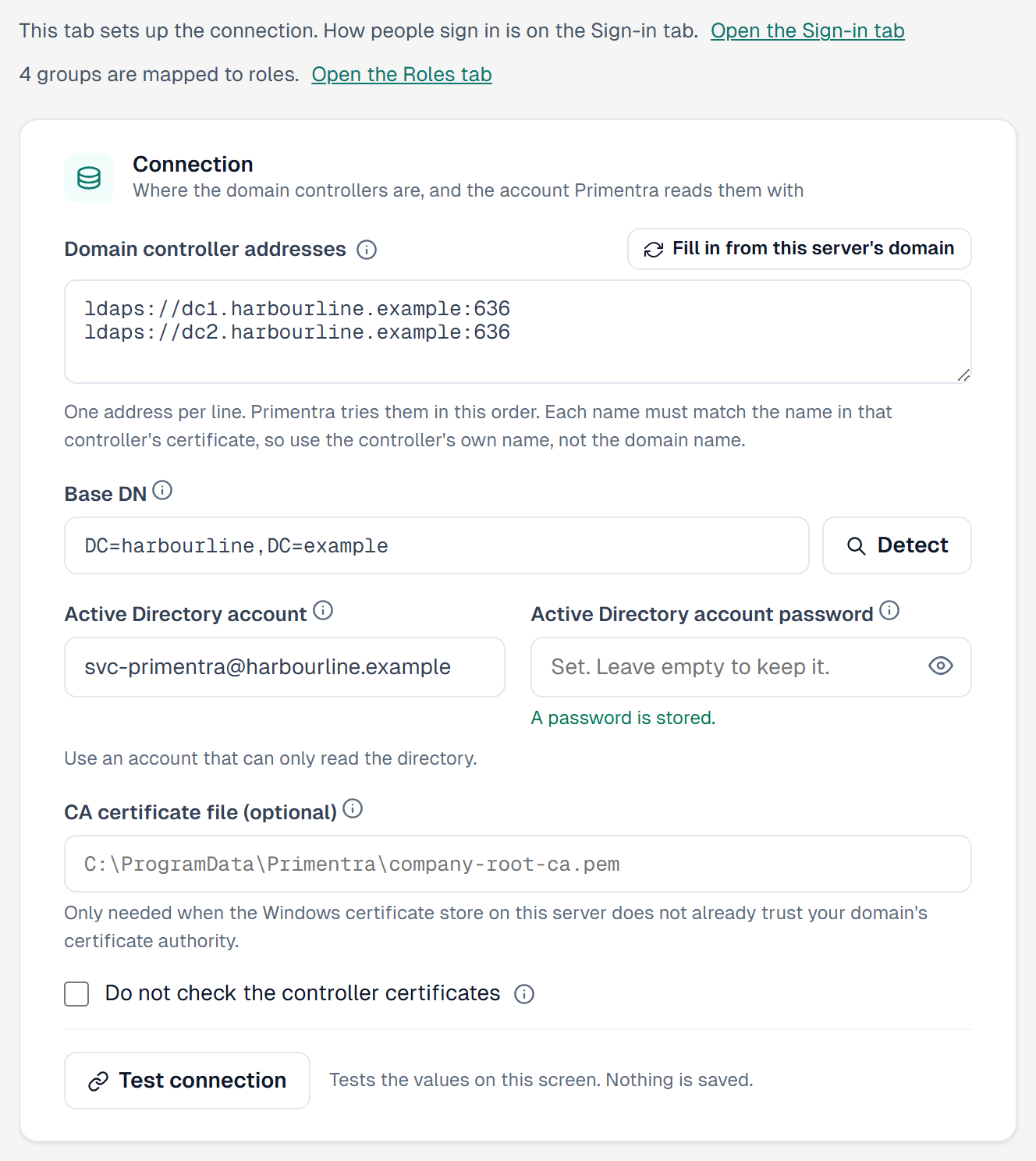
- In Access Management, open the tab Active Directory, check Domain controller addresses and Base DN. See the box below: Primentra may have filled them in already.
- Type the Active Directory account and its password.
- Click Test connection. Fix what it reports.
- Give roles to AD groups on the Roles page (see Give a role to AD groups and users).
- Open the tab Sign-in. Tick Active Directory and choose how people sign in. Primentra does not let you tick it before the connection is set up: the tab says Set up the connection first.
- Click Save settings at the bottom of the page.
Both tabs save with Save settings at the bottom of the page, like the other tabs. Cancel puts back the saved values.
Fill in from the domain of the server
You do not have to type the connection fields when the Primentra server is in the domain.
- When you open the tab and it has no addresses and no Base DN, Primentra fills them in from the domain of the server. It takes the domain from the computer's primary DNS suffix and asks DNS for the domain controllers. It writes each one as
ldaps://name:636, and it builds the Base DN from the domain name. The screen says Filled in from the domain and the name of the domain. - Later, click Fill in from this server's domain, next to Domain controller addresses. It fills only a field that is empty. Anything you typed stays. The screen says Left alone, already filled in for such a field.
- The filled values are not saved yet. Check them and click Save settings.
- When Primentra finds no domain controller, it fills nothing, not even the Base DN. A note says why. For example: This server is not a member of a domain, so the fields cannot be filled in. Type the addresses and the Base DN yourself.
The fields stay visible, so you can check and change them. Primentra never fills in the Active Directory account or its password. You type them.
If you type the addresses yourself, type one per line, for example ldaps://dc1.company.local:636. You can click Detect to read the Base DN from a controller.
The fields of the Active Directory tab
| Field | What it does |
|---|---|
| Domain controller addresses | One ldaps:// address per line. Primentra tries them in this order. Use the name of the controller itself, not the domain name. That name must be in the certificate of the controller. Primentra can fill them in from the domain of the server. |
| Base DN | Where Primentra looks for people. Primentra can fill it in from the domain of the server, and Detect reads it from the controller. Every search starts here, so a wrong Base DN stops the sign-in with a Windows password: the message is Active Directory sign-in is not available. Leave it empty or use the domain name. A Base DN that is an OU limits sign-in to the users in that OU. |
| Active Directory account | The account in AD that Primentra reads AD with, for example svc-primentra@company.local. It is not the account that the Primentra service runs as on the server. |
| Active Directory account password | Primentra never shows it again after you save it. The field says whether one is stored. Type it again when you change the addresses, the account or the certificate settings. |
| CA certificate file | Optional. A path on a drive of the server, for example C:\Certificates\company-ca.pem. A network path is refused. |
| Do not check the controller certificates | For a short test only. With this on, anyone on your network can pose as a domain controller and read the passwords people type. |
| Check the linked users every day and Hour of the day | The daily check. Default: on, at 2 (02:00, server time). |
The fields of the Sign-in tab
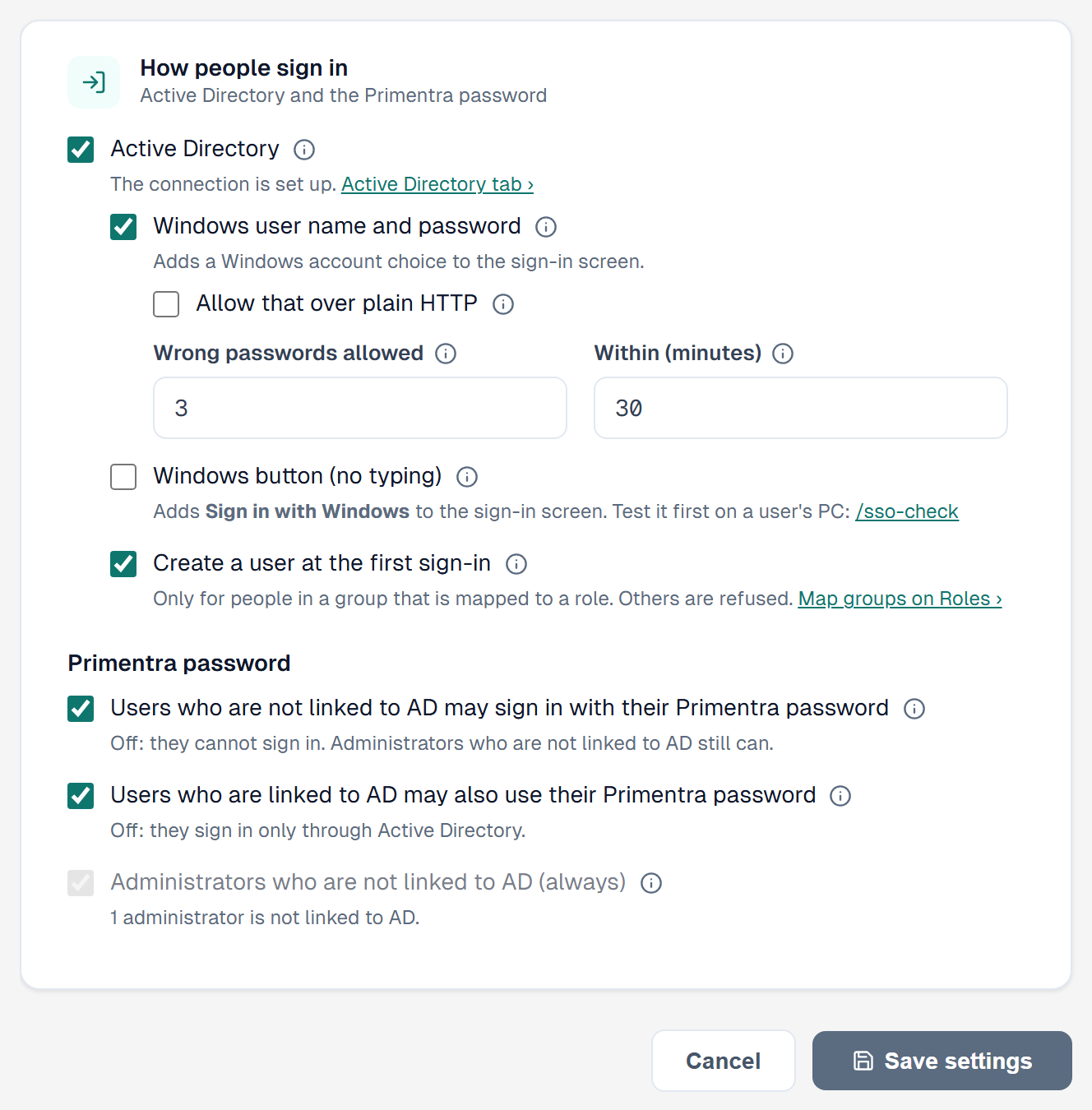
The card How people sign in has two parts. Each field has an info icon with a short tip. The tab saves with Save settings at the bottom of the page, and Saved shows after a save.
Active Directory
| Field | What it does |
|---|---|
| Active Directory | The switch. Off: nobody signs in through AD, and the boxes under it are gray and unticked. Your choices come back when you switch it on again. Linked users keep their account. Under it, a line says The connection is set up. or The connection is not set up yet., with the link Active Directory tab. |
| Windows user name and password | Adds the Windows account choice to the sign-in screen. |
| Allow that over plain HTTP | Under the box above. Off by default. With it on, Windows passwords cross the network as plain text, and a red warning says so. |
| Wrong passwords allowed and Within (minutes) | Also under Windows user name and password. The limit per user name. The boxes are gray when Windows user name and password is off. Default: 3 in 30 minutes. |
| Create a user at the first sign-in | Only for people in a group that is mapped to a role. Others are refused. The link Map groups on Roles opens Access Management, Roles. An MDS account without an email that an MDS migration kept gets its user at its first sign-in also with this box off: the migration already decided. |
Primentra password
| Field | What it does |
|---|---|
| Users who are not linked to AD may sign in with their Primentra password | On by default. A gray line says Off: they cannot sign in. Administrators who are not linked to AD still can. See Passwords. |
| Users who are linked to AD may also use their Primentra password | Whether a user who is linked to AD may also use a Primentra password. A gray line says Off: they sign in only through Active Directory. See Passwords. |
| Administrators who are not linked to AD (always) | Always ticked and gray. An administrator who is not linked to AD can always use the Primentra password, so somebody can always get in. A linked administrator follows the setting above, for linked users. A line counts these administrators: N administrators are not linked to AD. When the count is 0 and AD sign-in is on, an amber warning says Every administrator is linked to AD. If Active Directory is down, nobody can sign in through this page. Keep one administrator who is not linked to AD. |
Never a setup with no way in
Primentra does not allow a setup in which nobody can sign in.
- AD sign-in is off: everyone uses the Primentra password. A line says With Active Directory sign-in off, everyone signs in with the Primentra password. The two boxes for the Primentra password show ticked, and you cannot change them.
- AD sign-in is on: you need at least one way to sign in with AD. Without one, the tab shows Choose at least one way to sign in with Active Directory, or switch Active Directory sign-in off. and Save settings stays gray. The server refuses such a save, too.
- Administrators who are not linked to AD: they can always use their Primentra password, whatever you choose. A linked administrator follows the setting for linked users.
The settings are in the ad block of mds-config.json. That file holds the password of the Active Directory account. Only the Primentra service and administrators can read it. If the tab shows that other Windows users can read the file, restrict its permissions on the server.
Test connection
Test connection tries every address with the values on the screen. It saves nothing. For each address it shows Connected or Failed, and:
- the real error, when it fails;
- where the trust came from: the built-in list, the Windows certificate store or the CA file;
- the names in the certificate. When the name in your address is wrong, you see the names that are right;
- the domain name that Detect uses;
- a check of the Base DN. When the Base DN does not exist in AD or is outside the domain, a red line under the field says so and shows the domain. The button Use the domain puts the domain in the field;
- a warning when the Active Directory account cannot read protected accounts, such as domain administrators. Primentra then never switches those people off as "deleted".
It also has a line for the service principal name (SPN) of the address that people open. The Sign in with Windows button needs this SPN. If you do not use the button, you can ignore that line.
The Windows button
When the server can use Kerberos, the sign-in screen shows one button, Sign in with Windows, and under it the link Sign in with user name and password. The person signs in without typing anything. The screen remembers which form the person used last on this PC.
If the button does not work, the screen opens the form at once and shows an amber line: Windows sign-in did not work. The link Why? opens a check page. The page lists what is wrong and how to fix it.
What the button needs:
- The Primentra server is in the domain.
- People open Primentra by the full server name, never by an IP address or
localhost. On an IP address the button cannot work, so the screen goes straight to the form. - The full name is in the Application URL. See the section Set the Application URL first.
- The browser puts the address in the Local intranet zone. Edge signs in by itself only in that zone. Without it, Edge shows a password box.
- Primentra accepts Kerberos only. It refuses NTLM and shows one message.
The button is optional. The form with the user name and password works without it.
The check page /sso-check
The check page tells a person why Sign in with Windows does not work on their PC. It needs no sign-in.
Open it in one of two ways:
- Click Why? on the amber line of the sign-in screen.
- Type the address of Primentra with
/sso-checkafter it, for examplehttp://mdm.company.local/sso-check.
Open it on the PC of the person who has the problem, in the browser that person uses. The result is about that PC, that browser and that Windows account.
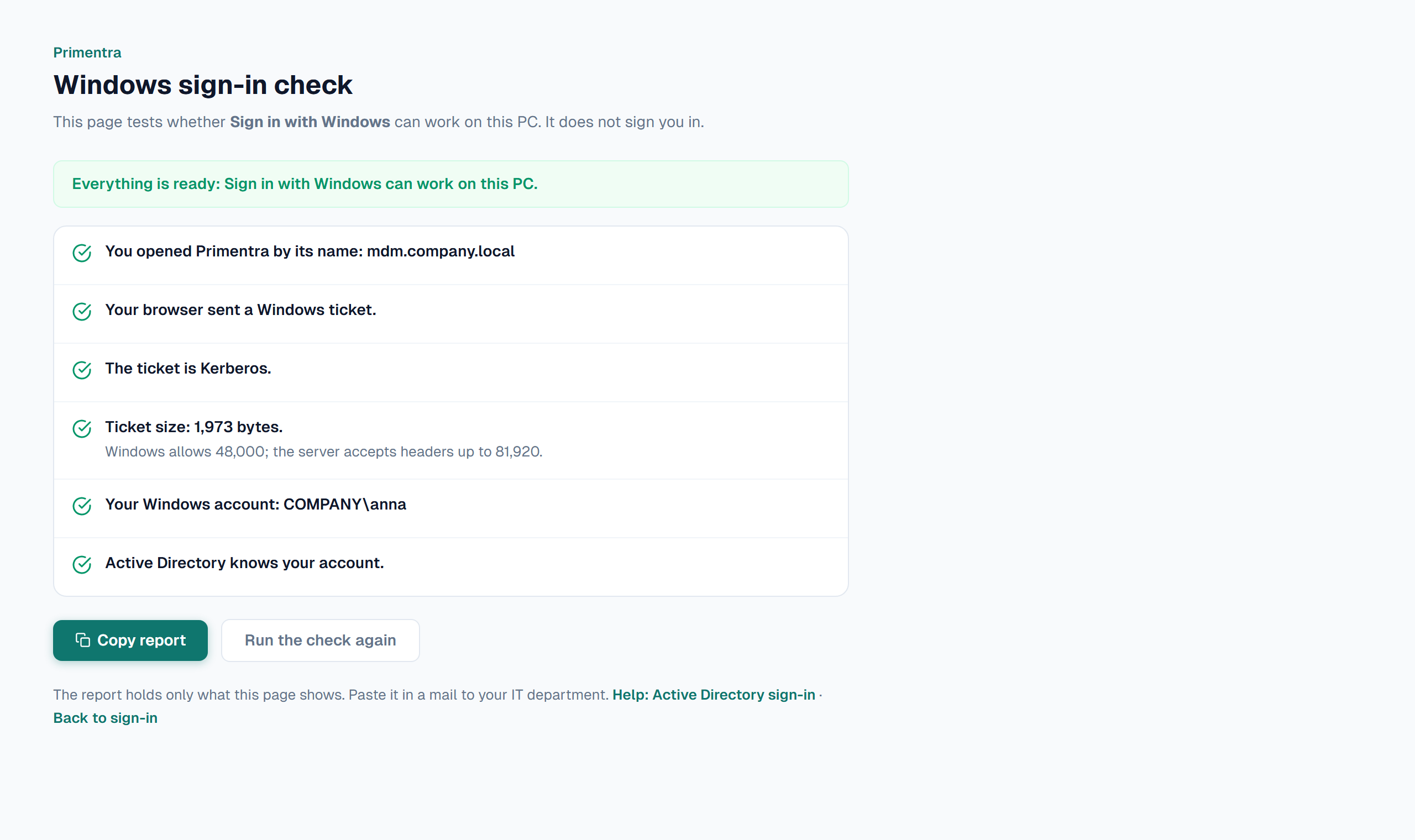
Each line is a check. Green means the check passed. Red gives the fix under it.
| Line | What it checks |
|---|---|
| You opened Primentra by its name | Kerberos works only with the name of the server. On an IP address or localhost the page stops here. |
| Your browser sent a Windows ticket | The browser sends one only to an address in the Local intranet zone, from a PC in the domain. |
| The ticket is Kerberos | Primentra accepts Kerberos only, not NTLM. |
| Ticket size | A person in very many groups can have a ticket that is too large. |
| Your Windows account | The account that Windows signed in with. |
| Active Directory knows your account | Primentra found the account in AD, and the account is not switched off. |
The usual results
| The page says | What to do |
|---|---|
| You opened Primentra by an IP address, or by localhost | Open Primentra by its server name. |
| Your browser sent no Windows ticket | Put the address in the Local intranet zone. IT does this for every PC with the group policy Site to Zone Assignment List. The page also gives one PowerShell line to test it on this PC only. |
| Windows sent NTLM, not Kerberos. This browser runs on the Primentra server itself. | Normal on the server: Windows sends NTLM there. Run the check on another PC in the domain. |
| Windows sent NTLM, not Kerberos (on another PC) | The name of the server has no SPN, or the PC cannot reach the domain. The page gives a klist command to test the name. |
| Primentra could not find your account in Active Directory | Check the Base DN and the AD account on the tab Active Directory. |
On the Primentra server itself the browser can show its own password box when the page opens. Click Cancel. The check only works from another PC anyway.
Copy report
Copy report puts every line on the clipboard as plain text. The person pastes it into an email to IT. The report holds no password and no ticket.
Behind IIS
Behind IIS, Primentra counts a request as HTTPS only when IIS proves it. ARR adds the header X-ARR-SSL to an HTTPS request. iisnode passes the HTTPS server variable. The web.config that ships with Primentra already does this.
Bind the site to HTTPS only. If the site also has an HTTP binding, the Windows password form stays hidden on HTTP, and Primentra refuses AD passwords there.
Also set appBaseUrl in mds-config.json to the https:// address. Primentra believes these headers only from IIS on the same server. See Production Deployment (IIS).
Recovery
Keep one local administrator that is not linked to AD. If AD settings lock everyone out, turn AD off by hand:
- Open
mds-config.jsonas an administrator. See Open mds-config.json. - Find the
adblock and set"enabled"tofalse. - Save the file.
Primentra reads the file at each request. You do not need to restart the service. Take care with commas and quotes. When the file is not valid, Primentra keeps the old settings and shows Configuration problem on the sign-in screen. The server log has the error.
While AD is off, Primentra cannot see who left. Linked users sign in with their Primentra passwords. Use this switch for a short outage, not as a permanent setting.
recover-admin on the server can create a new local administrator at any time. It has no AD link and needs no password change. While AD is on, the tool does not list linked users, because a new Primentra password would not get them in. With AD off it lists them and marks them AD. See Account Recovery.
Related
- Active Directory & SSO: what Active Directory does in Primentra
- Account Recovery: when nobody can sign in
- Production Deployment (IIS): HTTPS behind IIS
- Active Directory Troubleshooting: what can go wrong, and where you see why
Did not find what you need?
Try the troubleshooting pages, or ask us.