Date & Time Formats
Date formats live in one library for the whole installation. An attribute links to a format instead of carrying its own copy, so editing a format changes every date column that uses it, in every entity and every model.
You never have to visit each entity to change how its dates read.
Where the library lives
Go to Settings → General Settings → Formats. The table is the editor: click the edit icon and the row turns into inputs in place.
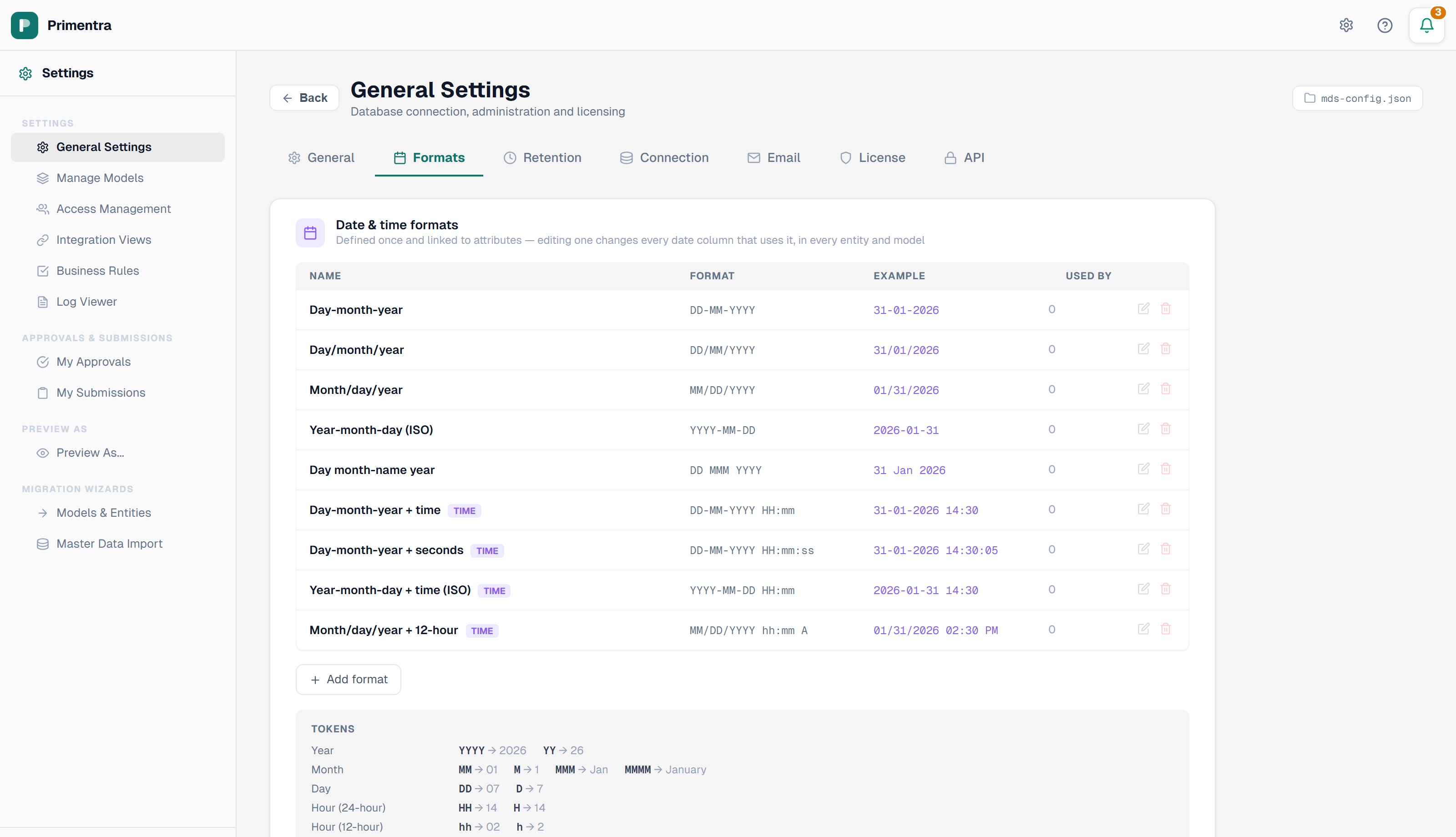
| Column | What it shows |
|---|---|
| Name | What the format is called in every picker. A TIME badge marks a format that carries a time |
| Format | The mask, for example DD-MM-YYYY HH:mm |
| Example | The mask rendered against a fixed sample moment, so the list is comparable at a glance |
| Used by | How many attributes link to this format |
You can also reach the library from any date attribute: open the format dropdown in the entity form and choose Manage formats…. The dialog holds the same list, and your place in the entity form is kept.
Add or edit a format
- Click Add format, or the edit icon on an existing row.
- Enter a Name.
- Enter a Format using the tokens below. The Example updates as you type.
- Click Save format.
Two formats cannot share a name, and two formats cannot share a mask — identical entries cannot be told apart in the attribute picker.
Tokens
Anything that is not a token is shown as is, so /, -, ., : and spaces all work as separators. Any other letter or digit is refused.
| Part | Tokens | Example |
|---|---|---|
| Day | D DD | 7, 07 |
| Month | M MM MMM MMMM | 8, 08, Aug, August |
| Year | YY YYYY | 26, 2026 |
| Hour, 24-hour | H HH | 14 |
| Hour, 12-hour | h hh | 02 |
| Minute, second | m mm s ss | 30, 05 |
| AM / PM | A a | PM, pm |
So DD-MM-YYYY HH:mm reads as 31-01-2026 14:30, and D MMMM YYYY as 31 January 2026.
Built-in formats
Eleven formats ship with every installation: five date-only masks, four that carry a date and a time, and two that are a time alone — Time (HH:mm) and Time + seconds (HH:mm:ss). They cannot be edited or deleted, so an attribute pointing at one can never lose it. Add your own alongside them.
Pick a format for an attribute
In the entity form, set the attribute's Type to DateTime, then open the Length/Target dropdown. It lists every format as *name — mask*, so you can see whether a column will read 31-01-2026 or 2026-01-31 before you choose. Leave it on Default for DD-MM-YYYY.
Created and Last Modified take a format too. The database stamps their values, so the value cannot be edited — but how they read is a display choice like any other date column's, made in the same dropdown. They show a plain date by default. Pick a time-bearing format when it matters that a record changed at 14:30 rather than merely "on Tuesday". Everything else on those rows stays locked.
Time, or no time
The format decides whether a column can hold a time. Choose a mask carrying HH:mm and the column stores and shows a time. Choose one without and any time is dropped the next time the record is saved. Records that existed before you added a time show 00:00, because no time was ever captured for them.
A mask with no date token at all makes the column a time of day: a shift start, a cut-off, an opening hour. You type 06:00 and that is all you see. A date is still stored underneath, because the column is a DATETIME2 and a time has to sit on one, but it is never shown and never entered. Two such values still compare and sort against each other.
Times are wall-clock. 14:30 reads as 14:30 for everyone, in every country. Nothing is converted between timezones.
Entering a value is forgiving
Typing 31/01/2026 into a column formatted DD-MM-YYYY is understood and shown back as 31-01-2026. Typing only the date into a column that carries a time means midnight. A time pasted into a date-only column is dropped rather than refused.
Deleting a format
A built-in format cannot be deleted. Neither can one that is still in use — deleting it would silently change how every one of those columns reads.
Click delete on a format that is in use and a dialog lists exactly where it is used, by model, entity and attribute. Point those columns at another format first, then delete.
Related
- Attributes & Data Types — where the format is picked per attribute
- General Settings — the other tabs beside Formats
- Export — how dates leave Primentra
- Entities — the entity form that holds the picker