Email & Notifications
Primentra sends welcome emails, password resets, approval notices and licence reminders over SMTP. This page covers the mail server and the in-app notification bell.
SMTP configuration
Access: Settings → General Settings → Email
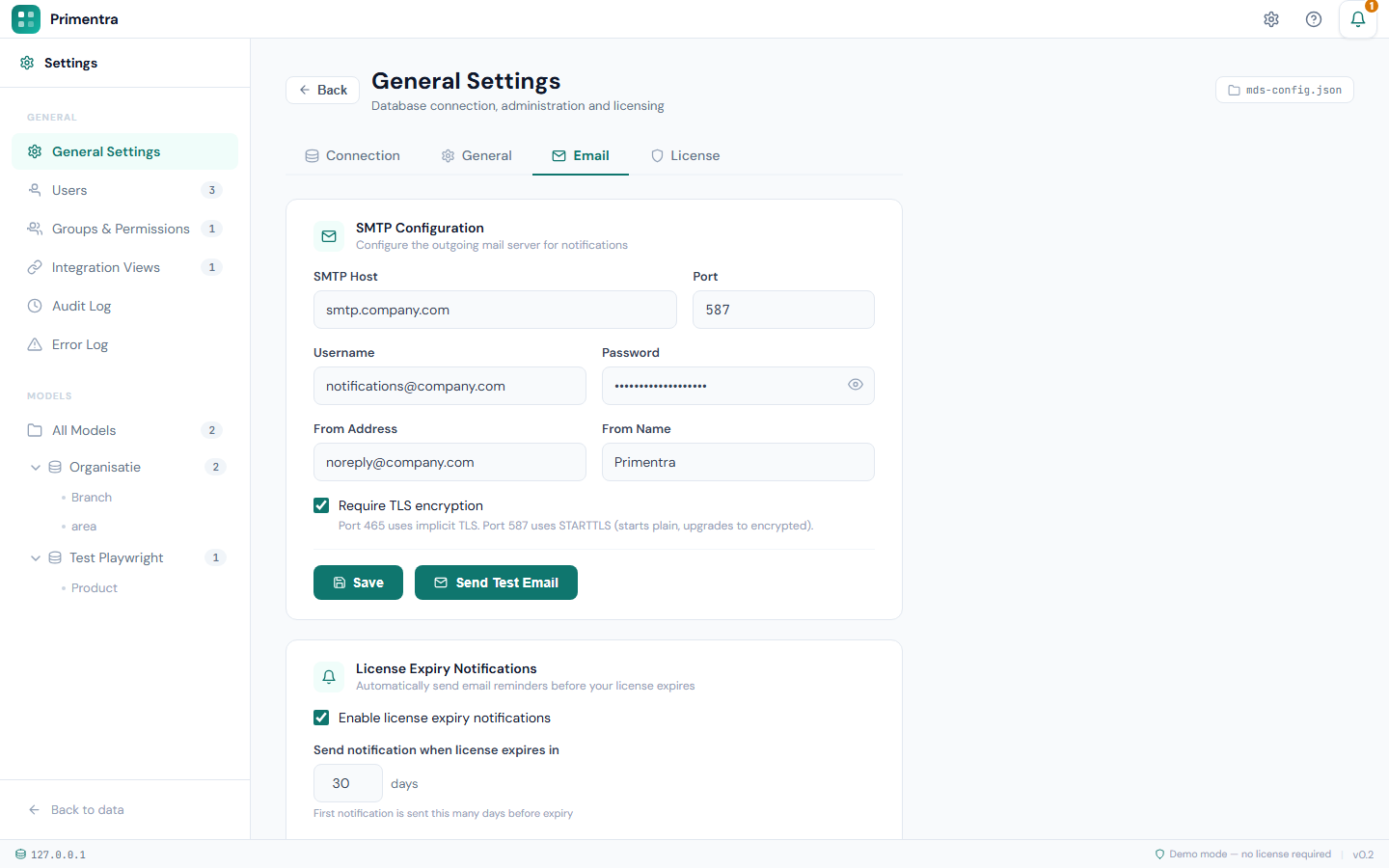
| Field | Description |
|---|---|
| SMTP Host | The mail server, for example smtp.office365.com |
| Port | The SMTP port. Default 587 |
| Username | The SMTP account, often the sender address |
| Password | The account password or an app password. Click the eye icon to reveal it |
| From Address | The address shown in the From field of outgoing mail |
| From Name | The display name next to it. Default Primentra |
| Require TLS encryption | Switch on to demand an encrypted connection |
Send a test email
- Fill in the SMTP fields.
- Click Save.
- Type a recipient address in the box next to the button. Leave it empty to use the first licence-reminder recipient.
- Click Send Test Email.
The result panel reports *Test email sent to …* or the SMTP server's own error message. Send Test Email stays disabled while there is no host and no recipient. Only administrators can send test emails.
What needs a working SMTP server
- Welcome emails for new users, and the resend action. See User Management
- Password reset links. See Authentication
- Approval notifications. See Approval Email Notifications
- Licence expiry reminders. See Licensing
Notification bell
The bell in the top-right corner collects alerts that need your attention. The badge shows the total across all categories.
| Color | Meaning |
|---|---|
| Red | A submission was rejected or sent back, or an integration view is broken |
| Orange | Submissions wait for your review, or an integration view has drifted |
| Green | One or more of your submissions was approved |
The highest priority wins: red beats orange, orange beats green. The bell is grey and does nothing when there is nothing to report.
Click the bell to open the list. Every entry links to the screen that resolves it, and clicking it clears that item. Clear all empties the list without opening anything.
Notification types
Approvals
- Awaiting your approval (orange) — submissions you can review. Opens My Approvals
- Approved (green) — your submissions that were approved. Opens My Submissions
- Rejected or sent back (red) — your submissions that need work. Opens My Submissions
Integration views
- View broken (red) — a column the view depends on was removed
- View outdated (orange) — new columns were added to the entity
Each integration entry names the view and summarizes the problem. Click it to open that view's detail page.
Related
- Licensing — expiry reminders and their recipients
- General Settings — the Application URL that email links use
- Approval Email Notifications — which approval events send mail
- User Management — welcome emails and resends