REST API
The REST API lets external applications read and write entity records over HTTP. Access is controlled with API keys. Each key belongs to a service account — an API user — that takes part in the same role and permission system as a human user.
Or watch the whole life of a key — created and shown once, three real calls and their answers, a write refused by the account's own role, the old key answering 401 the moment it is regenerated, and every call answering 503 with the kill switch off:
The API is for server-to-server use only. No CORS headers are set, so browser calls from another origin are blocked. Call it from a backend service, a script, or an integration platform.
Enabling and disabling the API
The global kill switch is in Settings → General Settings → API.
- On (default) — valid API key requests are processed normally
- Off — every request using
X-API-Keyreturns503 Service Unavailable, whatever the key
The toggle saves immediately and takes effect at once. Use it to suspend all external access without deleting a key.
Managing API users
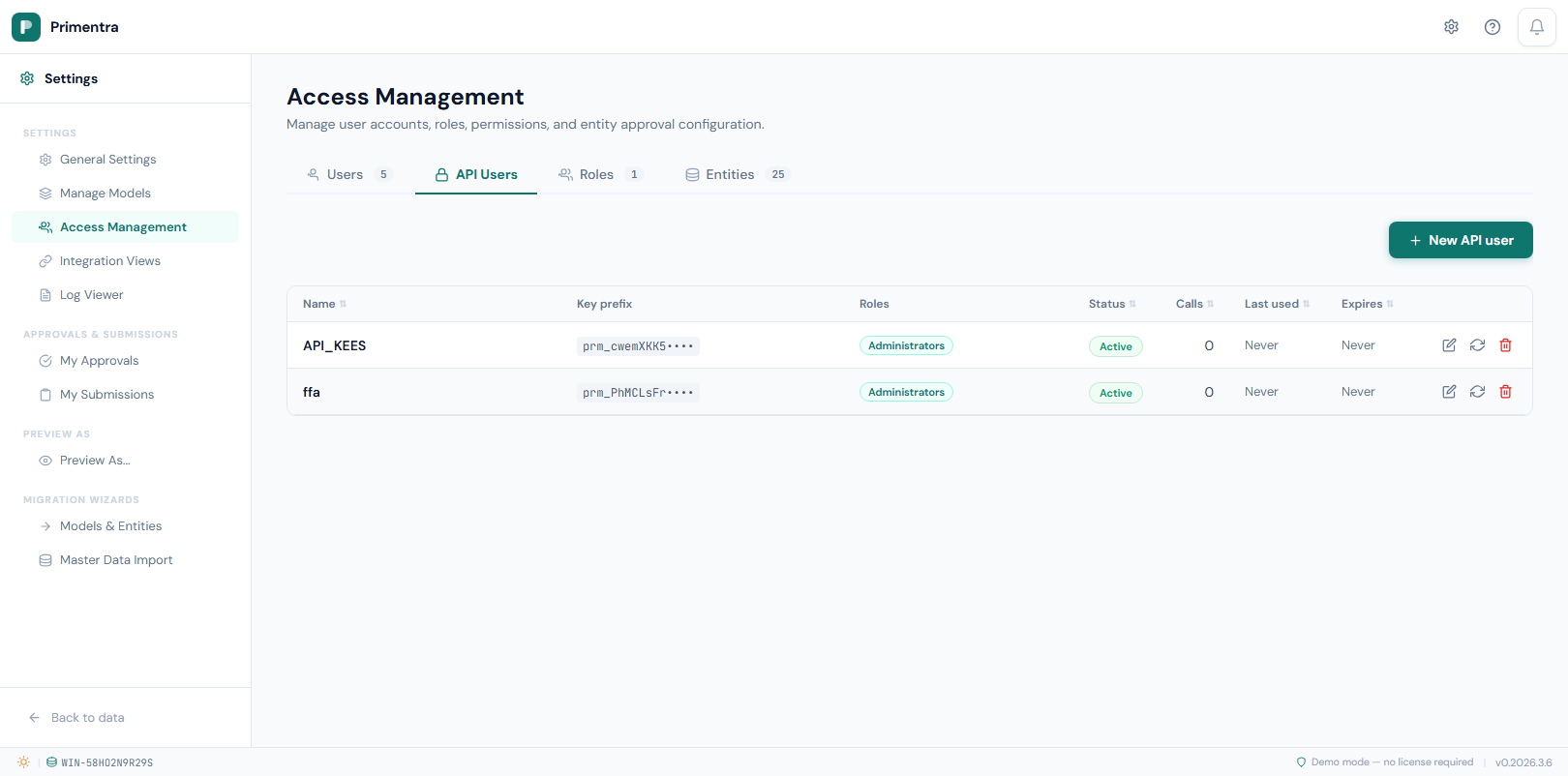
Go to Settings → Access Management → API Users.
Each API user is a dedicated identity for one integration. It is subject to the same roles and permissions as a regular user, so assign only the roles the integration needs.
A column that the API user's roles set to None is left out of every record and out of the entity's attribute list. A create or update that names such a column answers 403 PERMISSION_DENIED with the message No access to column "Salary"., and nothing is written. If the API user has another role that grants the column, it stays visible. See Roles & Permissions.
The How API users work panel at the top of that screen sets out the three steps and stays folded away once you have read it.
Notes
Every API user carries a note — 500 characters, counted down as you type. Use it for what the account is for, who runs it, and which system calls it. It is shown under the name in the list and survives regenerating the key, which is the moment you are most likely to want it.
Create an API user:
- Click New API user.
- Enter a display name. This field is required.
- Optionally name the key. A label helps when you manage several.
- Assign one or more roles.
- Optionally set a key expiry date. Leave it blank for a key that never expires.
- Click Save.
The key is shown once, immediately after creation. Copy it now — it cannot be retrieved again. Only a SHA-256 hash is stored.
Edit — click a row to change the display name, roles, active status or expiry. The key is not affected.
Regenerate key — the old key is invalidated at once, and any integration using it gets 401 Unauthorized on its next request. The new key is shown once.
Delete — removes the service account. Calls using its key return 401 immediately.
The list shows the key prefix, roles, status (Active, Inactive, Expired or No key), call count, last use and expiry. Every column header sorts.
Authenticating requests
Send the key in the X-API-Key header on every request:
The format is prm_ followed by a random string. Never send the key as a query parameter or in the body.
Rate limiting
The API accepts 300 requests per minute per key. Requests over the limit return 429 with error code RATE_LIMITED. Callers without a key are limited by client address instead.
Response envelope
Every endpoint is under /api/v1/ and returns the same shape:
Errors return:
Endpoints
Entities
| Method | Path | Description |
|---|---|---|
GET | /api/v1/entities | List the entities the API user can read |
GET | /api/v1/entities/:entityId | Entity metadata and attribute definitions |
Records
| Method | Path | Description |
|---|---|---|
GET | /api/v1/entities/:entityId/records | List records, paginated |
GET | /api/v1/entities/:entityId/records/:recordId | One record |
POST | /api/v1/entities/:entityId/records | Create a record |
PUT | /api/v1/entities/:entityId/records/:recordId | Update a record |
DELETE | /api/v1/entities/:entityId/records/:recordId | Delete a record |
Pagination and search
| Parameter | Default | Max | Description |
|---|---|---|---|
page | 1 | — | Page number |
pageSize | 100 | 1000 | Records per page |
search | — | — | Free-text search across code and name |
Examples
1. Discover your entities. This gives you the entityId values the other calls need.
2. Inspect an entity's attributes. Check the attribute ids and data types before you write.
3. Read records.
Records come back as flat objects. A domain attribute carries its row id, plus a _<FieldName>_display property with the readable label:
4. Create a record. The body needs code or name, or both. Pass attribute values in the values array.
5. Update a record. Same body shape. Only the attributes present in values are changed.
6. Delete a record.
Values array — field names by data type
| Data type | Field in values | Example |
|---|---|---|
| Text | textValue | "textValue": "Gold" |
| Int | intValue | "intValue": 42 |
| Decimal | decimalValue | "decimalValue": 9.99 |
| Boolean | intValue | "intValue": 1 (1 = true, 0 = false) |
| DateTime | dateTimeValue | "dateTimeValue": "2026-01-15T00:00:00" |
| Domain | intValue | "intValue": 5 — the row id of the referenced record |
Reading every page
Follow pagination.totalPages until you have them all:
Error codes
| Code | HTTP | Meaning |
|---|---|---|
VALIDATION_ERROR | 400 | Missing required field or invalid input |
INVALID_KEY | 401 | Key not found or invalid |
KEY_DISABLED | 401 | The key or its linked user is inactive |
KEY_EXPIRED | 401 | The key is past its expiry date |
PERMISSION_DENIED | 403 | The role lacks the permission for this operation |
LICENSE_EXPIRED | 403 | The licence or trial has expired. Reads and exports still work; writes are refused until it is renewed |
NOT_FOUND | 404 | Entity or record does not exist |
RATE_LIMITED | 429 | More than 300 requests in one minute on this key |
API_DISABLED | 503 | The global kill switch is off |
INTERNAL_ERROR | 500 | Unexpected server error |
Approval workflows and the API
When an entity has Requires approval enabled, an API write is offered to an approver instead of being applied. Nothing reaches master data until a person decides on it.
The call is not refused. It answers 202 Accepted:
This applies to all three writes — create, update and delete. A queued delete leaves the record in place until the deletion is approved.
Write your integration to expect it. A 200 means the change is live. A 202 means it is waiting, and approvalRequestId is the number to quote if someone asks what happened to it. Treating 202 as success-and-done is the mistake to avoid: the data is not there yet.
If the submission could never be approved, you get a 400 with the reason instead — a code that already exists, or a value that breaks a blocking business rule. Those are checked at submission rather than left for the approver, who did not type the value and cannot fix it.
Why the API is treated like a person and staging is not
Staging is the one way in that still publishes directly on an entity that requires approval. The API is machine-driven too, so it is fair to ask why it does not get the same pass.
The answer is not who is at the keyboard. It is how hard the door is to open.
| Staging | REST API | |
|---|---|---|
| What you need to use it | a SQL login with write rights on the stg schema | an API key |
| Who can grant it | a database administrator | any Primentra administrator, in about ten seconds |
| Has a user identity | no | yes — a service account with roles and permissions |
| Can be told what happened | no | yes, in the HTTP response |
If an API key could write past approval, then approval would be optional for anyone able to make a key. The setting would still look switched on and would protect nothing. Reaching the stg schema already needs the kind of access approval was never guarding against.
The second reason is practical. An HTTP caller can be told "waiting for an approver, request 41" and do something with it. A batch that ran at three in the morning has nowhere to receive that sentence, and a nightly load held in a review queue stalls for ever — so the approval would be switched off within a week, which is worse than not having it.
So the rule is one line: every route with a user offers the change to an approver. Staging has no user, so it cannot.
What this means for your data
Write access to the stg schema is approver rights, whatever the org chart says. Grant it that way. If that is not acceptable for an entity, keep that entity out of staging — there is no setting that adds review to a staging batch.
Business rules are a separate matter and are never skipped. They run on staged rows too.
Every API write is written to the audit log whether it was applied or queued, so the change is traceable either way.
Usage tracking
Every authenticated request is counted per key, with a breakdown by operation.
| Counter | Incremented on |
|---|---|
| Total | Every authenticated request |
| Read | GET |
| Create | POST |
| Update | PUT |
| Delete | DELETE |
The counters appear as R/C/U/D badges in the API Users table, in the dashboard's API keys widget, and as a total API calls card in the dashboard KPIs. Tracking is fire-and-forget and never slows a response.
─── Technical ───
Database tables
| Column | Table | Description |
|---|---|---|
KeyHash | ApiKeys | SHA-256 hash of the raw key. The raw key is never stored |
KeyPrefix | ApiKeys | First 12 characters of the key, shown in the UI |
CallCount | ApiKeys | Incremented on every authenticated request |
LastUsedAt | ApiKeys | Timestamp of the most recent request |
ExpiresAt | ApiKeys | NULL means the key never expires |
IsDeleted | ApiKeys | Soft delete. The row is kept for audit; the key is rejected |
UserType | Users | 'api' for service accounts, 'standard' for people |
Authentication flow
- The client sends
X-API-Key: prm_<key>. - The server hashes the key with SHA-256 and looks the hash up in
ApiKeys. - If the key is valid — not deleted, not inactive, not expired, and the API is not globally disabled — the request proceeds as the linked API user.
CallCountis incremented andLastUsedAtupdated.- Role-based permission checks run exactly as they do for a human user.
Kill switch caching. The apiEnabled setting is cached in memory for 30 seconds. Toggling it in General Settings clears the cache at once, so the change is immediate. The 30-second window only matters when the setting is changed outside the application.
Related
- Staging API Reference — the staging endpoints, for bulk loads the record API is not built for
- Roles & Permissions — what an API user's roles allow
- General Settings — where the API kill switch lives
- Integration Views — reading the same data with SQL
- Audit Log — every API write is recorded there
Further reading
- The Primentra REST API — worked examples of reading and writing master data from another system