Database Connection
The Connection tab tells Primentra which SQL Server to use, and deploys the database schema.
Access: Settings → General Settings → Connection
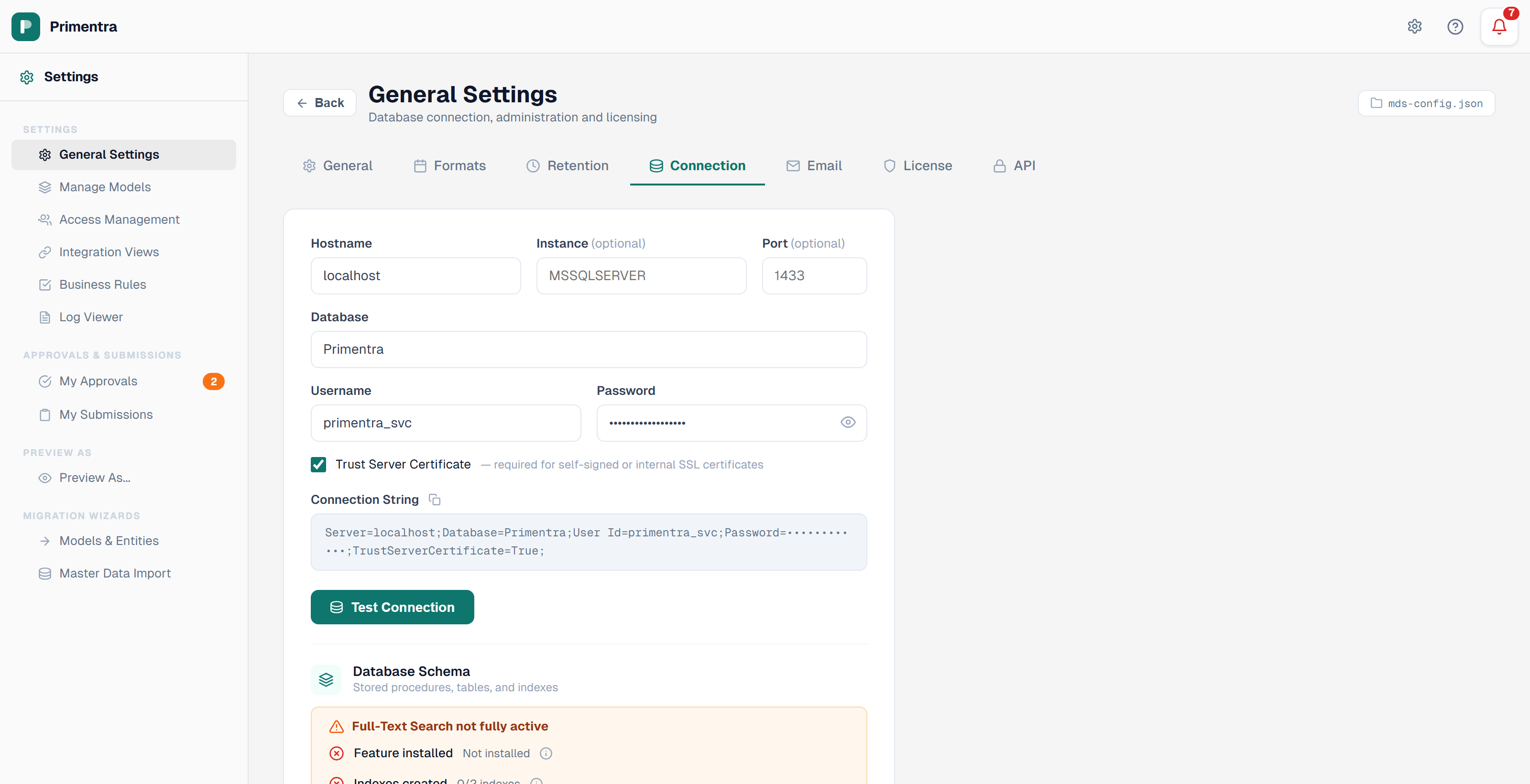
Connection fields
| Field | Description |
|---|---|
| Hostname | The SQL Server machine, for example 127.0.0.1 or sql01.example.com |
| Instance | Optional. The named instance, for example MSSQLSERVER |
| Port | Optional. The TCP port, for example 1433. Leave empty to use the default |
| Database | The database name, for example Primentra |
| Username | The SQL login Primentra uses |
| Password | The password for that login. Click the eye icon to reveal it |
| Trust Server Certificate | On by default. Required for self-signed or internal SSL certificates |
Type HOST\INSTANCE in Hostname and Primentra splits it for you: the part before the backslash goes to Hostname, the rest to Instance.
Connection string preview
Under the fields, Primentra shows the connection string it will use:
The preview updates as you type. Use the copy button next to the label to put it on the clipboard — useful when you want to test the same string in another tool.
Test the connection
- Fill in the fields.
- Click Test Connection.
- Read the result panel next to the button.
A green Connected panel shows the SQL Server version. A red Connection failed panel shows the driver's own error message. Testing does not save the settings — click Save settings afterwards.
Database schema
The Database Schema section below the test button reports what is in the database.
- On a fresh database — a Setup Database button creates all tables, indexes and stored procedures.
- After an upgrade — an amber panel reads *Schema update available — v… → v…* with a Sync button that applies the new schema.
- When schema and application match — no action is offered.
Full-Text Search
Primentra checks four things and shows each with a green or red mark:
- Feature installed — Full-Text Search is present on this SQL Server.
- Indexes created — both indexes exist:
EntityRows (Code, Name)andEntityValues (TextValue). - Queries working — a test
CONTAINS()query runs successfully. - Windows service — the SQL Full-text Filter Daemon Launcher is running.
If any check fails, click Show how to fix. Primentra prints the steps for that exact failure and the SQL script that creates the indexes, with a copy button. Refresh the page after fixing to re-run the checks.
Troubleshooting
| Symptom | What to check |
|---|---|
| *Login failed for user* | The username and password. Confirm the login exists and is mapped to the database |
| *A connection was successfully established … certificate chain* | Switch on Trust Server Certificate |
| *Could not open a connection to SQL Server* | The instance name, the port, and that TCP/IP is enabled in SQL Server Configuration Manager |
| *Cannot open database … requested by the login* | The Database name, and that the login has access to it |
| Test succeeds but the app shows no data | The schema is missing. Click Setup Database |
| Search returns nothing | Full-Text Search. Run the four checks above |
| *Could not reach API server* | The Primentra API service is not running |
Related
- General Settings — the other six settings tabs
- Create Database & Service Account — creating the login this tab uses
- Troubleshooting — installation-wide problem list
- Database Schema — what the schema contains