Audit Panel & Read-Only Fields
Every row can answer two questions: who changed it, and why can I not change it now. The audit panel answers the first. The lock icon answers the second.
The audit panel
Click the info icon at the left of a row to open the audit panel. It slides in from the right.
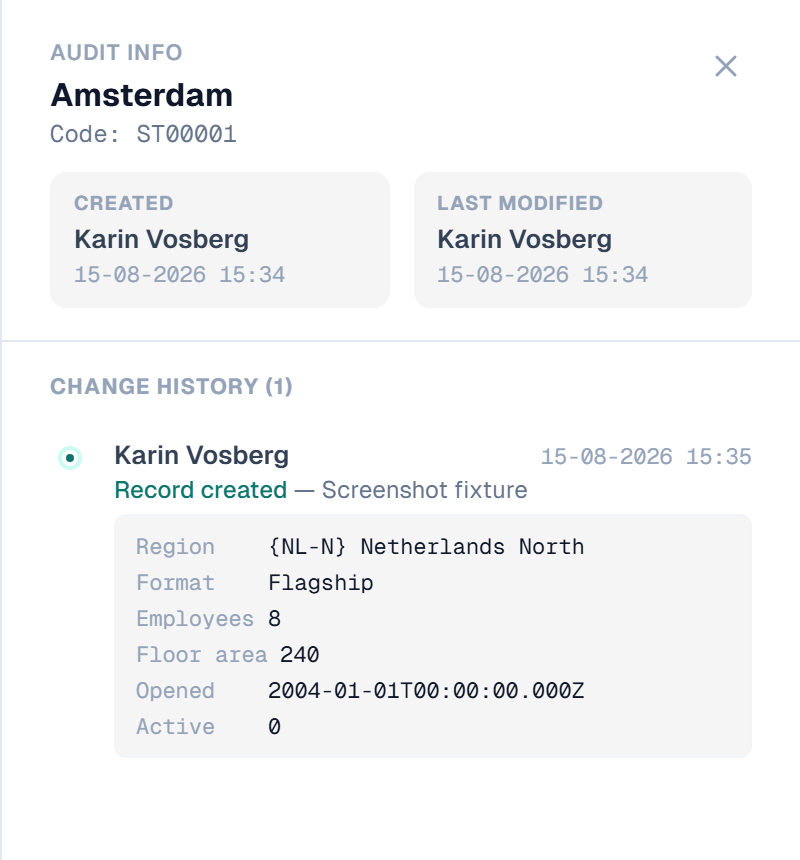
The panel is in three parts:
- Header — the record's name and code
- Metadata — who created the record and when, who last modified it and when
- Change history — one entry per saved change, newest first
Each history entry names the user, the timestamp and the kind of change: Record created, Modified, Approved, Imported or Record deleted. Under it, the fields that changed are listed as *old value → new value*. Fields that did not change are left out.
Notes:
- The audit comment you typed in the save dialog is shown next to the entry
- Reference values are shown as
{Code} Name, not as row ids - Unsaved changes appear at the top in amber, marked (unsaved)
- A created or deleted record shows its full field snapshot
- A column your role has set to None is left out of the history, in every entry
Close the panel with the ×, by pressing Escape, or by clicking outside it.
For the installation-wide log of every change across every entity, see Audit Log.
Read-only fields
A padlock on a cell means you cannot edit it here and now. There are five reasons.
1. The code is generated
On an entity with Auto-generate Code, the Code cell is always read-only. The database assigns the value on save. See Entities.
2. The column is derived
A derived column shows a value read from a linked entity. It is calculated, never typed. Change it at its source. See Derived Columns.
3. You have no Update permission
Your role does not carry Update on this entity, or the attribute is set to Read. Permissions are resolved at three levels:
- Model level — CRUD defaults for every entity in a model
- Entity level — CRUD overrides for one entity
- Attribute level: None, Read or Write for one column
A column set to None is not locked. It is not shown at all, so a padlock never explains a missing column. If a column you expect is gone, see Roles & Permissions.
Ask your administrator to enable U (Update) for your role. See Roles & Permissions.
4. The record has a pending approval
On an entity that requires approval, a record already submitted for review is locked for everyone until the change is approved, rejected or sent back. The whole row shows a padlock. See Approval Workflows.
A row marked for deletion shows a red padlock with the tooltip Marked for deletion.
5. The installation is read-only
Two settings put the whole grid into read-only mode:
- Preview As — an administrator is testing another user's permissions. A blue banner names the user. See Preview As
- License expired — the application runs read-only until a valid licence is activated. See Licensing
Related
- Editing & Saving — the audit comment written with each save
- Audit Log — the log across every entity
- Roles & Permissions — how edit rights are resolved
- Approval Workflows — why a row can be locked
- Data Retention — how long history is kept