Adding, Deleting & Pasting
Rows are added one at a time with New, in a block with Paste rows, or by pasting past the last row of the grid. All three produce pending changes that only reach the database when you save.
If you came from the Microsoft MDS Excel add-in, this is the workflow that replaces it. Watch it in 5:01 — a block pasted in, a heading refused for one typo, a lookup column filled down a selection, an export edited in a spreadsheet and loaded back on its codes, and the audit entry the add-in never had:
Add a row
Click New in the toolbar. An empty row appears at the bottom with:
- An empty Code, or a muted Auto when the entity generates its own codes. The real value is assigned by the database on save
- Active set to true
- Every other field empty
- A purple left border, marking it as new and unsaved
Pressing Tab past the last cell of the last row also creates a new row, so you can key in records without touching the mouse.
While the row is still empty the status bar reads New row, and tells you that Esc cancels it.
Changing your mind about a new row
A new row you have not typed into is not really a record yet, so it does not take a delete to get rid of it:
- Press Esc.
- Or click any other row.
Either way the empty row goes, with nothing to confirm. Nothing was saved, so nothing is lost.
Once you type anything into it the row stops being disposable. It stays, shows red Required markers on the fields it still needs, and from then on it is removed the same way any other row is — by checking it and clicking Delete.
New does not stack unfinished rows. If a row is still missing its Code or Name, clicking New again takes you back to that row instead of adding a second empty one below it.
Delete rows
- Check the rows you want to remove.
- Click Delete (N).
- The dialog lists every record by code and name.
- Click Delete permanently.
The dialog says This action cannot be undone, and it means it: a delete against the database is immediate and is not covered by Undo or Ctrl+Z. Check the list before you confirm.
In the interactive demo the confirmation toast carries an Undo button with a ten-second countdown, because the demo holds its data in the browser.
Copy
Select cells and press Ctrl+C (Cmd+C on Mac).
- A single cell copies its displayed text
- A column of cells copies one value per line
- A rectangle of cells copies as tab-separated text, ready for Excel
- Reference cells copy as
{CODE} Name - Date cells copy in the column's own format, with no time, so they paste straight back
Paste
Focus a cell and press Ctrl+V (Cmd+V on Mac). What happens depends on what is on the clipboard.
| Clipboard holds | Result |
|---|---|
| One value | Written into every selected cell |
| One column of lines | Written downward from the focused cell, one line per row |
| Tab-separated rows | Written as a block, starting at the focused cell and spreading right and down |
Lines that run past the last row of the grid become new rows rather than being dropped. The toast says so: 40 cell(s) pasted, 4 new row(s).
Three columns never accept a paste: derived columns, the system date columns, and Code on an auto-code entity.
What the values must look like
- Reference columns accept the row id, the code, the name, or
{CODE} Name. A value that matches nothing is skipped and reported with up to three suggestions - Yes/No columns accept
1,true,yesorjafor true, and0,false,no,neeor an empty cell for false. Custom labels are not accepted — export a column to see what it holds, then paste one of the accepted words - Number columns reject anything that is not a plain number, and reject a negative value unless the
attribute allows negatives. That last rule holds on every route — typing, pasting, an Excel or CSV import, staging and the REST API — not only in the grid
- Date columns are parsed with the column's own format
Clear cells
Select cells and press Delete or Backspace. The values are cleared, including reference columns, which are set back to empty. The status column and any column you may not edit are skipped. Ctrl+Z brings the values back.
Paste rows
Paste rows takes a whole block out of Excel and turns it into new records.
- Click Paste rows in the toolbar.
- Press Ctrl+V in the text area. The dialog parses the text as you paste.
- Read the preview.
- Click Confirm.
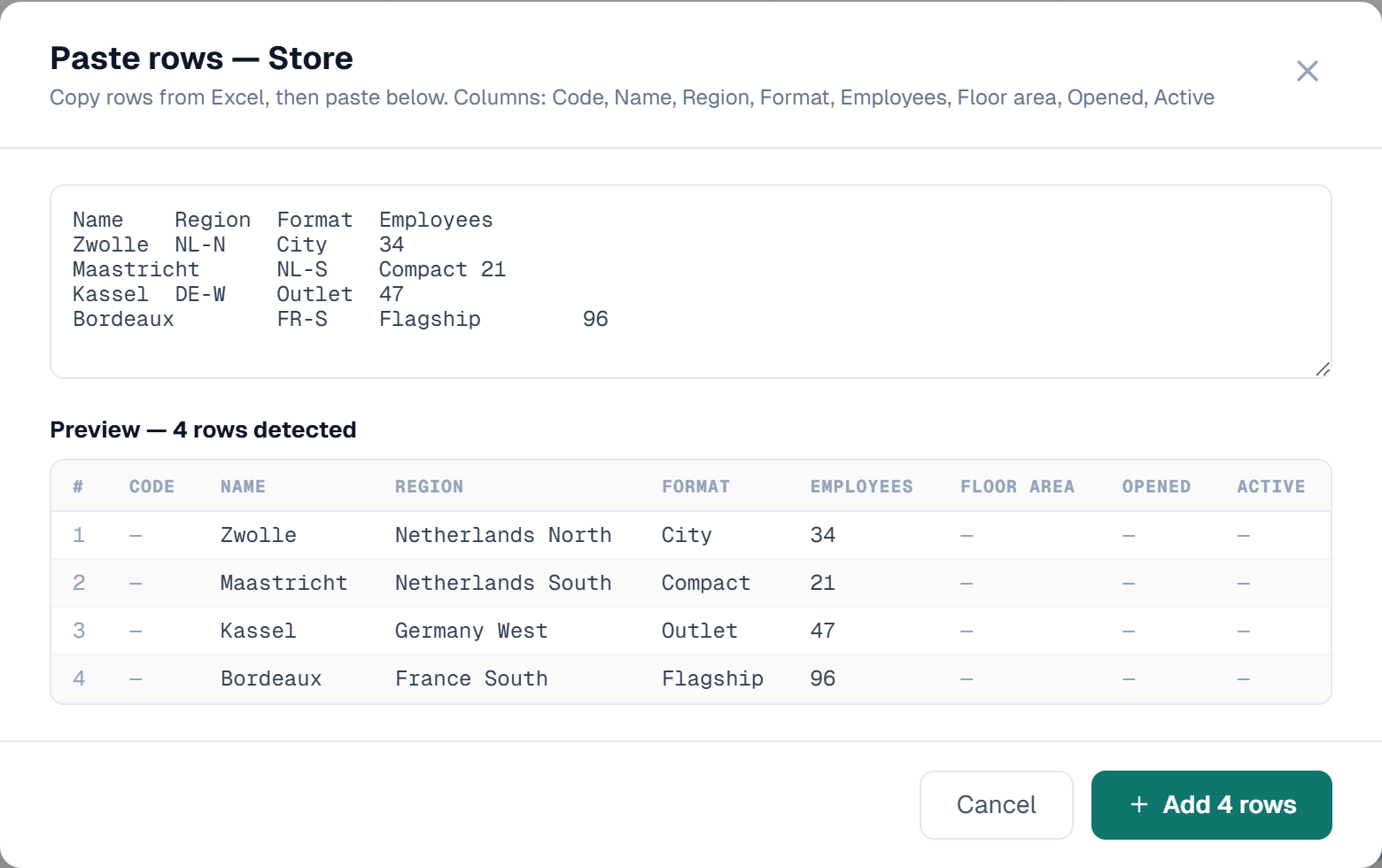
How the columns are matched:
- If the first line matches your column names, it is treated as a header row and each column is mapped by name
- Without a header row, columns are mapped positionally, left to right
- Reference columns are resolved from their display text to the underlying record
- The preview lists the first 50 rows and states the total detected
Headings must match the column exactly
A heading has to be the column's name, letter for letter. MagMinGetal matches; MAgMin does not, and neither does a heading with a stray space. Case is the one thing that does not matter.
Two matching headings are enough for the first line to be read as a header row, so a single mistyped heading is not a small mistake — the other columns still map, and that one does not. The paste is refused and names the heading it could not place, together with the columns the entity does have. Correct the heading and paste again.
If you are unsure of the exact names, export the entity first: the export writes the header row this dialog expects.
On an entity that generates its own codes, Code is left out of the mapping entirely. Your first data column lands in Name, and a Code column in the pasted data is ignored with the note Code is generated automatically — the Code column was ignored.
Confirming adds every row to the bottom of the grid as a pending change. Nothing is stored until you click Save.
Related
- Editing & Saving — turning pending rows into stored records
- Import from Excel & CSV — the wizard for larger or repeat loads
- Export — produce a file you can edit and paste back
- Selection & Bulk Operations — checking rows before a delete
- Keyboard Shortcuts — the clipboard keys