Import from Excel & CSV
Import loads a spreadsheet, a CSV file or a JSON file straight into the entity you are looking at. It is a four-step wizard: Upload → Column mapping → Preview → Result.
Supported file types: .xlsx, .xls, .csv and .json.
Watch the four steps done in 70 seconds — a CSV of six suppliers goes into an empty entity:
Step 1 — Upload
Drop a file on the upload area, or click it to browse. A confirmation line reports the file name, the number of data rows and the number of columns.
- Multi-sheet workbooks get a Sheet dropdown. Pick a sheet and the wizard re-reads the file
- The first row of the sheet is always treated as the header row. Its headings must match your
column names exactly, the same rule Paste rows follows. Export the entity first if you want a file with the headings already correct
- More than 5,000 rows — a warning appears. The import still proceeds
- More than 50,000 rows — the file is refused. Split it and import the parts
A JSON file must be an array of objects. The grid's own JSON export is unwrapped automatically, so a file you exported can be imported again without editing.
Number format — a dot in a file, a comma or a dot when you type
In a file, write numbers plainly: `1234.56`. The decimal separator is a dot. Do not use a thousands separator anywhere, on any route.
When you type into the grid, or paste rows into it, a comma works too. 1,235 is 1.235. Your keyboard's number pad puts a comma there and Primentra reads it, because the grid accepts no thousands separator at all — so a comma has nothing to be confused with, and you can see what Primentra made of the value before you save.
| Where the value comes from | Decimal separator | Why |
|---|---|---|
| Typing in a grid cell | . or , | You are looking at the result before it is saved |
| Paste rows | . or , | The preview shows what was read, before anything is written |
| File upload | . only | Nobody is watching, and the file came out of another system |
| Staging tables | . only | Same |
| REST API | . only | Same |
No thousands separator, anywhere. Not 1.234,56, not 1,234.56, not 1 234,56. Write 1234.56.
That is what makes the comma safe where it is allowed. 1.234 is genuinely ambiguous — one thousand two hundred thirty-four in Amsterdam, one point two three four in London — and nothing in a file says which. But with grouping refused everywhere, a lone comma can only ever be a decimal point, so reading it costs nothing.
#### Examples
Typing in a cell, or pasting rows — a person is looking at the result:
| You write | Primentra stores | |
|---|---|---|
1234.56 | 1234.56 | ✓ |
1234,56 | 1234.56 | ✓ a comma is read as the decimal point |
1,235 | 1.235 | ✓ |
1.234,56 | — | ✗ refused: two separators |
1,234.56 | — | ✗ refused: two separators |
1 234,56 | — | ✗ refused: a space is a separator too |
In a file, in staging, or through the REST API — nobody is watching:
| The file says | Primentra stores | |
|---|---|---|
1234.56 | 1234.56 | ✓ |
1234,56 | — | ✗ refused, with the row number |
1.234 | — | ✗ refused in a whole-number column |
1.234 | 1.234 | ✓ in a decimal column — it is one and a bit |
1.0 | 1 | ✓ in a whole-number column — 1.0 is a whole number |
The same three characters can mean different things in different columns, which is exactly why a file has to be unambiguous. 1.234 is one-and-a-bit in a decimal column and refused in a whole number column, because there it could only have been meant as one thousand.
#### Every data type, every route
The short version of everything below. Typed means a grid cell or the Paste rows box, where you can see what Primentra made of the value before it is saved. File covers a spreadsheet upload, a staging table and the REST API — routes where nobody is watching and the value came out of another system.
| Data type | Typed | File, staging, REST API | Refused everywhere |
|---|---|---|---|
| Text | Any text, up to the column's length | Same | Longer than the column allows |
| Whole number | 42, -7 | Same, and 42.0 | 42.5, 1.234, 1,234, 42 000 |
| Decimal | 3.14 or 3,14 | 3.14 only | 1.234,56, 1,234.56, 3 000,50 |
| Date | As the column's format shows, e.g. 31-01-2026 | Same, or ISO 2026-01-31 | A date the column's format cannot read |
| Yes/No | 1, 0, or the column's own labels | 1 and 0 only | Any other word |
| Reference | The code, or the exact name | Same | A code or name that is not in the target list |
Three things this table is really saying:
- No route accepts a thousands separator. Not a dot, not a comma, not a space. That is what
lets a comma be a decimal point where it is allowed — with no grouping to compete with, it can only mean one thing.
- A whole-number column will take `42.0` but not `42.5`. The first is a whole number
written with a decimal point, which some systems export; the second is not a whole number.
- A reference column matches the code first, then the name. Give it the code where you can —
names change, codes usually do not.
#### Yes/No columns
A Yes/No column is stored as 1 and 0. What you see on screen depends on the column's display format, which you set when you create the attribute — Yes/No, True/False, 1/0, or a pair of words you choose yourself, such as Ja and Nein.
| Route | What it accepts |
|---|---|
| Typing in a cell, pasting rows | 1, 0, and your own labels — Ja, Nein |
| File upload, staging, REST API | 1 and 0 |
Exports always write 1 and 0, whatever the screen shows. So a file you export is a file you can send straight back. If exports carried the labels, a column set to Ja/Nein would produce a file Primentra then refused to read.
This is also the rule SQL Server itself keeps. CAST('1234.56' AS DECIMAL(18,6)) works; CAST('1.234,56' AS DECIMAL(18,6)) and CAST('1,234.56' AS DECIMAL(18,6)) both fail. Primentra refuses what the database underneath would refuse anyway, and tells you which row it was.
You will find the same rule elsewhere. SAP MDG documents it in almost these words — a full stop for the decimal, no separator for grouping — and Stibo STEP reads files this way unless you switch a setting. Microsoft MDS never faced the question: its staging tables were ordinary SQL Server columns, so whatever wrote to them did the parsing, and a bad number failed as a raw conversion error before MDS ever saw it. There is no standard to appeal to — CSV itself says nothing about number formats.
To fix a file exported from a Dutch or German Excel, set the column format to a plain number with no thousands separator before you export, or use Save As → CSV after changing Excel's decimal separator to a dot under File → Options → Advanced.
#### Number display
Everything above is about *reading* a number in — what a file, a paste, or a typed value has to look like. Number Display, in General Settings → Formats, is the opposite: it changes only how a Whole number or Decimal column is *shown* in the grid. Choose Plain (1234567.89), English (1,234,567.89), European (1.234.567,89) or Space (1 234 567,89). Plain is the default, so an existing installation looks exactly the same after an upgrade until someone changes it.
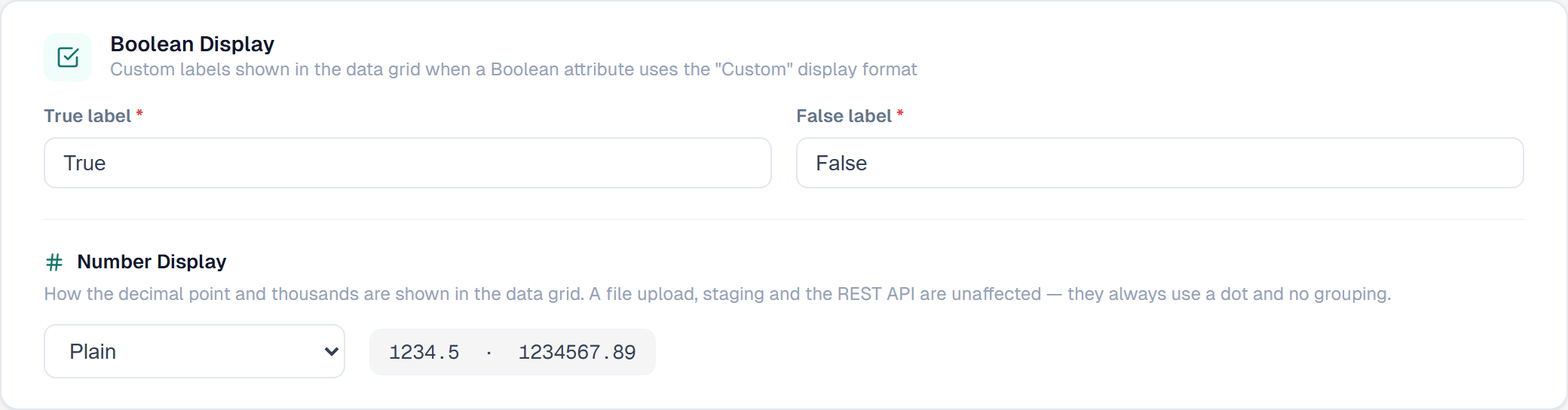
This is the same rule the Yes/No labels above follow, applied to numbers instead of words: the setting changes the screen and nothing else. A file upload, staging and the REST API always read and write a plain dot with no grouping, whatever this setting is set to — so a file you export under European display still opens with 1234567.89 in the cell, not 1.234.567,89, and a file you send back in still has to follow the table above regardless of what the grid currently shows.
A column filter matches what the screen shows, not the raw stored text — type 1.234.567,89 into a filter under European display and it finds the row storing 1234567.89. Typing into a cell, or pasting rows, is unaffected by this setting either way: a dot or a plain comma is always read as the decimal point, exactly as the table above describes, no matter which display format is active.
Step 2 — Column mapping
The wizard matches your file's headers against the entity's attributes. Matching ignores case, spaces and punctuation, so First Name, firstname and first_name all reach the same attribute.
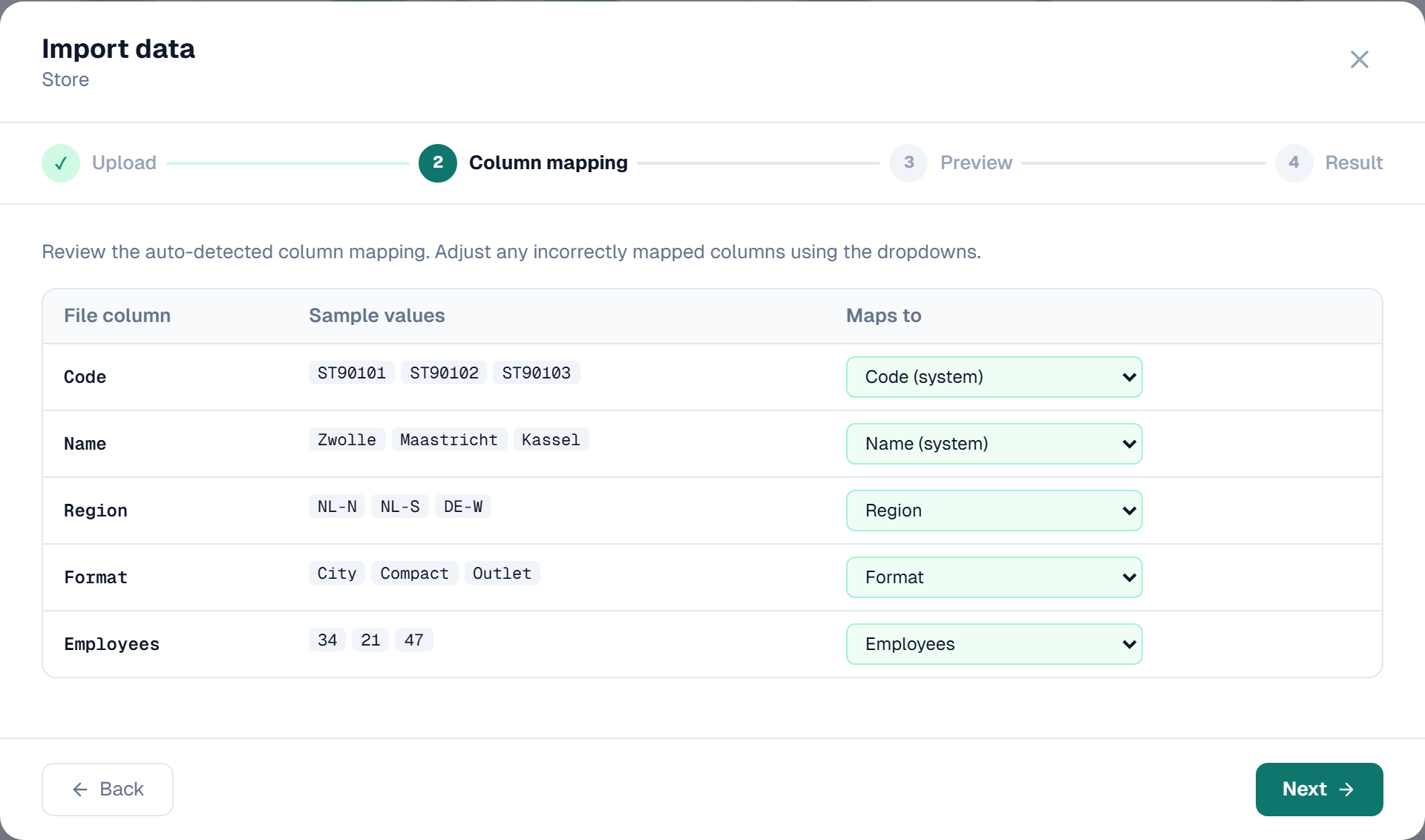
The table shows one row per file column: the header, up to three sample values, and a Maps to dropdown. Change any dropdown to correct the guess, or choose — skip column — to leave a column out. Required attributes are marked with an asterisk.
Code and Name must both be mapped. Until they are, a red note names the missing one and Next stays disabled.
On an entity with Auto-generate Code, only Name is required — but Code is still offered, and mapping it is usually what you want. The code is what decides whether a row updates an existing record or creates a new one, so an unmapped Code column leaves Overwrite and Skip with nothing to match, and re-importing a file you exported would add every row a second time. Map it, and any row whose Code cell is empty still gets a generated code.
Step 3 — Preview
This step reports what the wizard found and asks how to handle it. Three cards head the page:
- Total rows — data rows in the file
- Validation errors — problems found while reading the file
- Ready to import — rows with no local error, until the server check below has an answer. Once it does, this card switches to the server's own count, because the two can disagree: a file that passes every local check can still contain a row the database refuses
Validation errors
Errors are listed by row number, field and message. The first 20 are shown, with a count of the rest. The checks are:
| Error | Cause |
|---|---|
Code is required | The Code cell is empty on an entity that does not auto-generate codes |
Name is required | The Name cell is empty |
Duplicate code "X" in file | The same Code appears twice in the file |
Required field is empty | A required attribute has no value |
"X" is not a valid integer / number / date | The value does not fit the target type |
When there are errors, choose what to do with them:
- Skip invalid rows — import the valid rows, leave the rest
- Stop — import nothing. Correct the file and try again
Conflict action
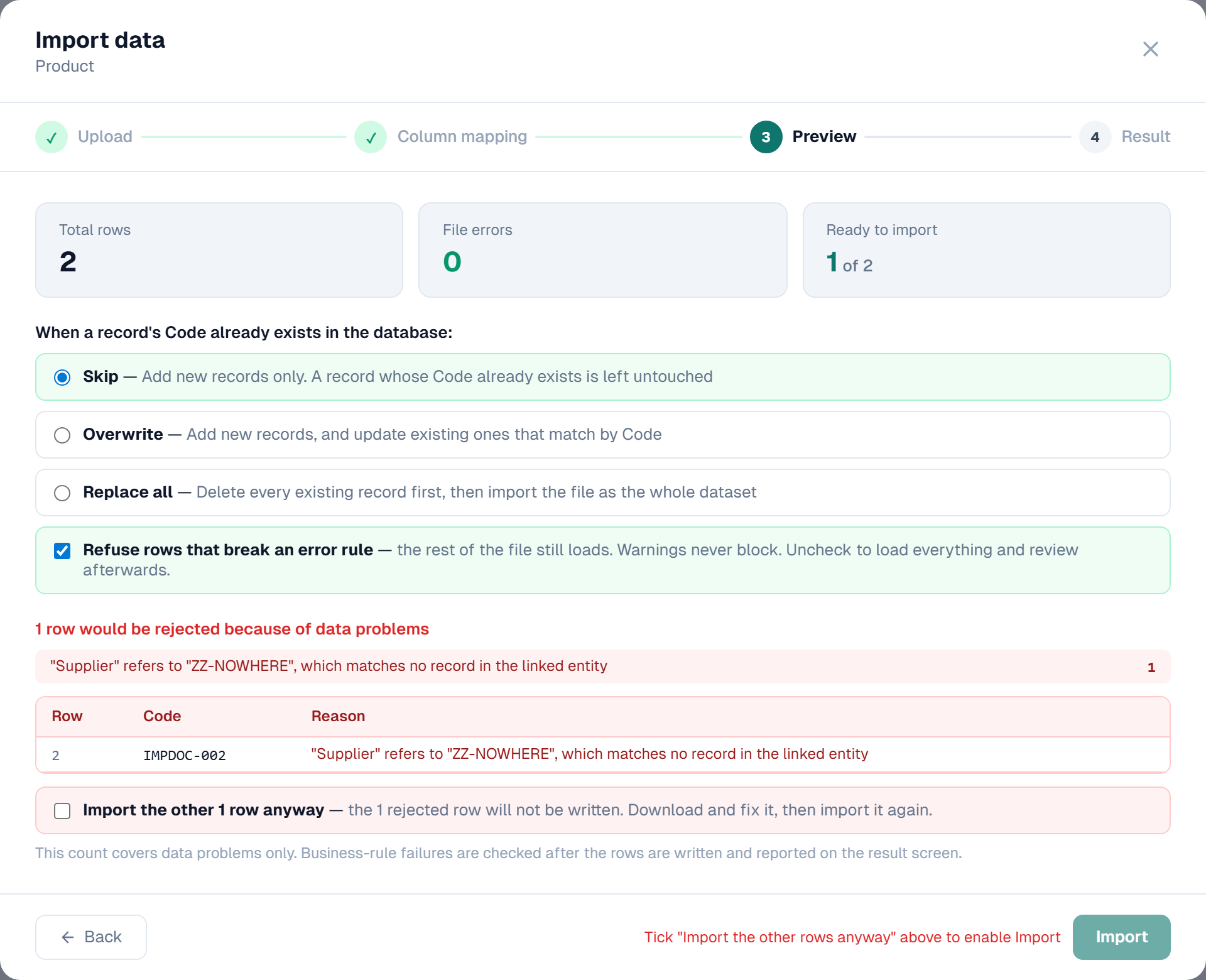
Choose what happens when a Code already exists in the entity:
| Option | A Code that is new | A Code that already exists |
|---|---|---|
| Skip | Imported as a new record | Left exactly as it is — nothing in the file touches it |
| Overwrite | Imported as a new record | Updated with the values from the file, matched on Code |
| Replace all | Imported | Every existing record is deleted first, so the file becomes the whole dataset |
Both columns matter. Skip does not skip the file — it skips only the rows that would collide, and still imports the rest. A file of 100 rows where 30 codes already exist imports 70 and leaves those 30 alone.
Whether you are told about the 30 depends on Import the other rows anyway:
- Off — they are skipped quietly. The result says 70 imported and does not mention the rest
- On — they are listed at Preview with the reason *The code … already exists in this entity*
Replace all shows a red warning, because it is not reversible.
The options you can pick depend on your permissions on the entity. Skip needs Create. Overwrite also needs Update, and Replace all also needs Delete. An option you do not have the permission for is greyed out and names the permission it needs. See Roles & Permissions.
Business rules
Refuse rows that break an error rule is on by default. A row that fails an error-severity rule is not imported; the rest of the file still loads. Warnings never block.
Clear the checkbox to load everything and review afterwards with the failing-rows filter in the grid. See Rules in Staging & Imports.
Server-side reject check
Before you can import, Primentra checks the file against the database. This catches problems no local check can see — a code that already exists, a value the column is too narrow for, a domain reference to a record that is not there — without writing anything.
While it runs, the step shows Checking the file against the database…. When it finishes, one of two things appears:
- No data problems found in this file — every row would be written. Nothing else to do.
- N rows would be rejected because of data problems — a red panel groups the rejects by reason, with a table of the row number, code and reason underneath. The full list of reasons is below.
Watch it on a bigger file, plus a hierarchy that needs two passes and a domain reference that points at nothing:
If any row is rejected, a checkbox appears: Import the other rows anyway. Import stays disabled until you tick it — a partial import never happens without you confirming it. Ticking it does not change which rows are rejected; it only allows the rest to load.
Changing the conflict action, the business-rule checkbox, or the error-handling choice re-runs this check and unchecks the box, because any of the three can change which rows the database would refuse.
Why a row is rejected
| Reason | Cause |
|---|---|
| Code is missing | The Code cell is empty and the entity does not auto-generate codes |
| Code already used earlier in the file | Two rows in the file share the same Code |
| Code already exists | The Code is already in the entity and the conflict action is Skip |
| Name is missing | The Name cell is empty |
| A required field has no value | A custom attribute marked Required is empty in the file |
| Code is too long | The Code is longer than the column allows (200 characters) |
| Name is too long | The Name is longer than the column allows (500 characters) |
| A value is too long | A text value is longer than the field's configured width |
| A value has the wrong type | A value will not convert to its field's data type — text in a number field, for example |
| A domain reference matches nothing | The value does not match any record in the linked entity |
| The row breaks a business rule | Found after the import, when Refuse rows that break an error rule is on. The row is put back to what it was before |
Approval bypass
If the entity has Requires approval enabled, the import is refused. A bulk load bypassing review would make the approval setting meaningless, and 5,000 rows arriving as one request is not a review anybody can perform. Switch Requires approval off on the entity if you intend to load the file directly, and switch it back on afterwards.
Step 4 — Result
Counters report the outcome: Inserted, Updated, Skipped, Rejected and Errors. The Rejected counter only appears when the import rejected at least one row.
A rejected row was never written. If any were, a table below the counters lists them by row, code and reason, and Download rejected rows writes an Excel file with the same columns for every rejected row — not only the ones shown on screen. Fix those rows in the original file and import them again.
A note underneath the counters also reports any rows a business rule refused, if you left that check on.
Close & refresh closes the wizard and reloads the grid.
Value formats
| Type | Accepted |
|---|---|
| Reference | {CODE} Name, the bare code, or the bare name |
| Yes/No | 1, true, yes, ja, waar are true. Anything else is false |
| Date | YYYY-MM-DD, with an optional time as YYYY-MM-DD HH:mm:ss, an Excel date cell, or an Excel date serial |
| Number | Digits, with spaces and thousands separators removed |
A date in a file is read as ISO, not in the column's own Date format. The file cannot see that setting, so the same text would mean two different days depending on which column it landed in: 01-02-2026 is the first of February or the second of January and nothing in the file says which. Typing and pasting still follow the column format, because there you see the result before it is saved.
The column format does decide one thing: whether a time is kept. Import 2026-01-31 14:30:00 into a column whose format carries a time and the time is stored. Import the same value into a date-only column and it is stored at midnight, the same as typing it or loading it through staging.
Reference values are resolved on the server in a single pass, so the order of the rows in the file does not matter.
Constraints and business rules are not the same thing
Two different kinds of check can refuse a value, and only one of them can be waived.
A constraint is part of the entity's shape: the data type, the maximum length, whether the field is required, and whether it accepts negative numbers. It is enforced on every route, every time, and there is no option to skip it. A row that breaks a constraint cannot be written at all — the column would not hold it.
A business rule is a policy you wrote on top of that shape: a value must be within a range, a field must be filled when another one is, a date must be in the past. An import can be told to carry on past a rule it fails, with Skip business rule failures, because the row is still a row the database can hold. You decided the policy, so you may decide to set it aside for one file.
So "this field does not accept negative numbers" behaves exactly like "this field is required", not like a rule you wrote. Skip business rule failures does not reach it.
What each route checks
Every route enforces the same constraints. What differs is only what a route can accept as *input*, because in the grid a person is watching the result and in a file nobody is.
| Grid typing | Copy / paste | Excel & CSV import | Staging | REST API | |
|---|---|---|---|---|---|
| Decimal mark | dot or comma | dot or comma | dot only | dot only | dot only |
| Thousands separators | not accepted | only what the grid itself wrote | not accepted | not accepted | not accepted |
| Yes/No values | 1/0 and the labels shown | 1/0 and the labels shown | 1/0 | 1/0 | 1/0 |
| Wrong data type | refused | refused | row rejected | row failed | refused |
| Too long for the field | refused | refused | row rejected | row failed | refused |
| Required field empty | refused | refused | row rejected | row failed | refused |
| Negative in a field that refuses them | refused | refused | row rejected | row failed | refused |
| Business rule failure | refused | refused | skippable | configurable per field | refused |
A comma is accepted where a person can see what happened to it. In a file it is genuinely ambiguous — 1,234 is a thousand and a bit in one country and one and a bit in another — so a file, staging and the API take a plain dot and no grouping, whatever the screen is set to display.
Related
- Export — produce a file in the shape the wizard expects
- Adding, Deleting & Pasting — Paste rows, for a quick block of new records
- Rules in Staging & Imports — how business rules judge imported rows
- Staging Overview — loading data from another system on a schedule
- Migrate Master Data — moving many entities at once out of MDS