Migrate Master Data
The second wizard loads the data rows from MDS into entities that already exist in Primentra. Run Migrate Models & Entities first.
Open Settings › Migration Wizards › Master Data Import, or click Import Data on the result screen of the first wizard.
The wizard has four steps: Instructions, Upload NDJSON, Preview and Done.
Watch it end to end — no match, has data, all three conflict actions proven, an entity that requires approval refused, and why a reject the preview flags is not always a reject the real import hits:
Step 1 — Export the data from MDS
- Copy the SQL script and save it as
C:\Temp\export_mds.sql. - Find
sqlcmd.exewith the locate command the wizard shows. - Run the
sqlcmdcommand with your server and database name, writing toC:\Temp\import_data.ndjson. - Click Next: Upload NDJSON.
The flags are the same as in the first wizard. -h -1 -y 0 -Y 0 are what keep long rows intact.
What the script does
The script loops over every entity that has a leaf member table and builds a SELECT for it:
- Only active members are exported (
Status_ID = 1), ordered byCode. - Every non-system attribute becomes a column.
CodeandNameare always included. - A domain attribute is joined to its target entity and exported as
{Code} Name. - Rows are written in batches of 200 to stay under the 1 MB output limit of
sqlcmd. - An attribute whose name contains a dot is exported under a placeholder name such as
_pmtcol1, with the real name recorded in acolumnsmap.FOR JSON PATHreads a dot as a nesting separator, and a name that starts or ends with a dot fails the whole export.
The output is NDJSON — one JSON object per line, one line per batch:
Step 2 — Upload the NDJSON
Choose Choose .ndjson file, or paste the content. The wizard reads both NDJSON and a single JSON array from an older export, merges the batches of each entity back together, and restores any placeholder column names.
A line that sqlcmd cut off cannot be parsed. The wizard names the affected entities in a warning and continues with the rest. Re-export with the current script to fix it.
Step 3 — Choose an action per entity
Each entity in the file is matched to a Primentra entity by entity name and model name, ignoring case. The table then shows the rows to import, the rows already present, and a status:
| Status | Meaning |
|---|---|
| empty | Matched, and the entity has no rows yet |
| has data | Matched, and the entity already has rows |
| no match | No entity with that name in that model. The rows are skipped |
Pick an action per entity:
| Action | Behavior |
|---|---|
| Import | Add rows. A row whose Code already exists is skipped |
| Overwrite | Match on Code, update those rows, add the rest |
| Delete + import | Delete every existing row first, then import |
| Skip | Leave the entity untouched |
Overwrite and Delete + import are only offered for an entity that has data. The default is Import for an empty entity and Overwrite for one that has data. Import all, Overwrite all, Delete + import all and Skip all set every matched entity at once.
A yellow banner appears if any selected entity requires approval, because that entity cannot be bulk imported until Requires approval is switched off — set it to Skip for this run, or turn the setting off first.
Check for rows the database would reject
Click Check for rows the database would reject to have Primentra read the file against the database — every entity you have not set to Skip — and write nothing. This is what catches dirty MDS data before it becomes a half-finished import: a missing code, a value too long for its field, a domain reference to a member that is not there.
While it runs: Checking every entity against the database — this reads each row once and writes nothing.
When it finishes:
- No data problems found across any entity — every row would be written.
- N rows would be rejected because of data problems, across M entities — one line per entity, each expandable to the row number, code and reason. See Import from Excel & CSV for the full list of reasons.
If any row is rejected, tick Import the other rows anyway before Import data will run. The rejected rows are never written; the rest of each entity loads. Changing an entity's action after the check runs marks the numbers stale and offers Recheck.
Step 4 — Import
Primentra sorts the entities before it writes anything. It builds a dependency graph from the domain attributes and imports each parent before its children, so a domain value always finds its target. Entities in a dependency cycle are imported last.
Domain values
A domain value arrives as text and is resolved on the server in three passes:
- Exact match on
Code. - Exact match on
Name. - The code inside a
{Code} Namestring.
There is no partial matching. A value that matches nothing is refused, not written as an empty field — MDS data commonly carries a reference or two that no longer resolves, which is exactly what the reject check in Step 3 is for. Run it first and every unresolved reference is named before anything is written. Skip it, and the entity carrying the bad reference imports nothing at all: with Import the other rows anyway off, one bad reference stops the whole entity, the same way any other rejected row does.
Self-referencing hierarchies
An entity whose own attributes reference itself — a Cost Center pointing at its parent Cost Center, an Org Unit pointing at its parent Org Unit — is the shape of most MDS hierarchies, and it cannot load in one pass.
A domain value only resolves against a row that already exists. Parent and child arrive in the same call here, so a child's reference to its own parent cannot be found yet, whatever order the file is in. The dependency sort described above orders one entity before another; it cannot order an entity before itself, because a self-reference is a cycle, and Primentra imports a cycle as a single unsorted group.
Before this release, that reference imported silently empty and the hierarchy came out flat, with nobody told. It is now refused and reported instead: reason 4109, naming the parent's own code, so fixing it is a mechanical follow-up rather than a search.
Load a self-referencing hierarchy in two passes:
- Run the reject check in Step 3, tick Import the other rows anyway, and import. The top-level rows load. The rows pointing at a parent that is not in the database yet are refused, and the reject report names them.
- Import the same file again. The parents now exist, so the references that failed the first time resolve, and those rows load.
With Import the other rows anyway left off, the first pass refuses the whole entity and nothing loads — the same as any other rejected row. Ticking it is what makes the two passes possible.
Progress
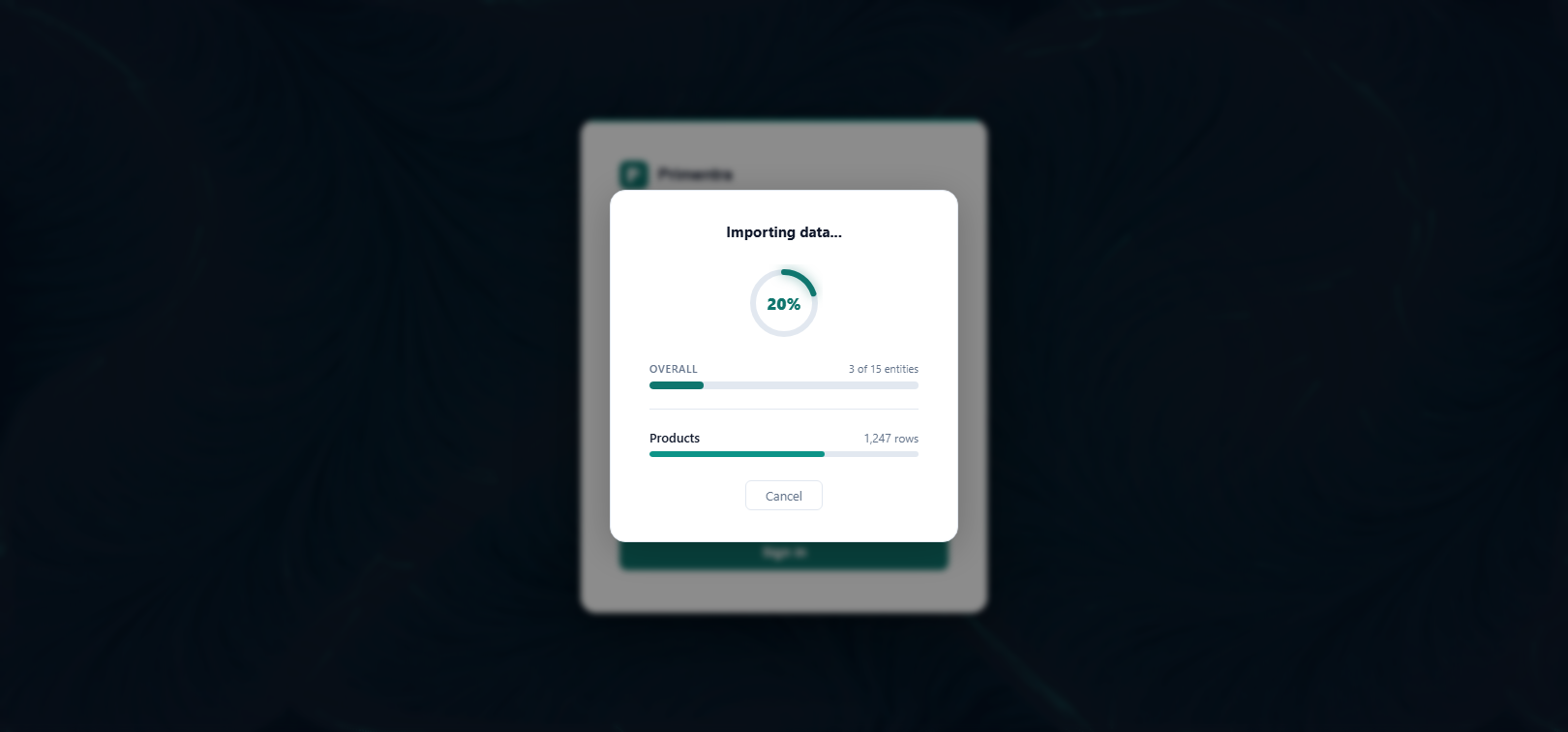
The overlay shows a percentage ring, an overall bar with "3 of 15 entities", and a bar for the entity being written with its row count. The per-entity bar is an estimate based on row count, so it moves at a different speed for a wide entity.
Cancel and rollback
Cancel stops the import after the entity in progress finishes. A part-written entity is never left behind.
The preview screen then shows "Import cancelled. Rolled back N entities."
Step 5 — Done
The result screen reports Rows imported, Rows updated, Rows skipped, Rows rejected (only when at least one row was rejected) and Entities cleared, with any warnings below. Each entity also gets an import entry in the Audit Log.
When rows were rejected, a table below lists every entity that had one, with a Download button for each. It writes an Excel file with the model, entity, row number, code and reason for that entity's rejects — not only the ones shown on screen.
Limits
- 50,000 rows per entity per import call.
- Business rules never block the import. Rows that break a rule are written and reported afterwards.
- The default is unchanged: one row the database cannot write still stops that whole entity's import. Run the reject check in Step 3 and tick Import the other rows anyway to leave only the bad rows out instead.
- A self-referencing entity needs two import passes — see Self-referencing hierarchies above.
Related
- Migrate Models & Entities — the structure import that must run first
- After Migration — the checks to run once the rows are in
- Domain Attributes & Hierarchies — how domain values are stored and shown
- Import from Excel & CSV — the reject check and the full list of reject reasons
- Approval Workflows — why an entity that requires approval cannot be bulk imported
- Audit Log — where the import is recorded