Staging Overview
A staging table is a persistent landing zone in the stg schema. External systems — SSIS packages, ETL pipelines, plain SQL scripts — write rows into it, and Primentra loads those rows into master data on demand or on a schedule.
Each entity has its own staging table. You control validation, merge behavior and error handling per entity.
Watch the whole flow in seven minutes — a table is enabled, rows land in it from outside, a batch loads them into master data, and a failed batch shows what it looks like when a row is rejected:
The flow
- An external system inserts rows into
stg.<Model>_<Entity>withImportStatus = 0. - A batch is started, by a person or by the scheduler.
- The engine validates every row: codes, required fields, data types, domain references.
- Valid rows are merged into master data. Failed rows are marked with an error code.
- The batch is recorded in Batch History with counts and per-row error detail.
Enabling staging
- Go to Settings → Manage Models and click Edit on an entity.
- Open the Staging Config tab.
- Click Enable Staging, check the proposed table name, and confirm.
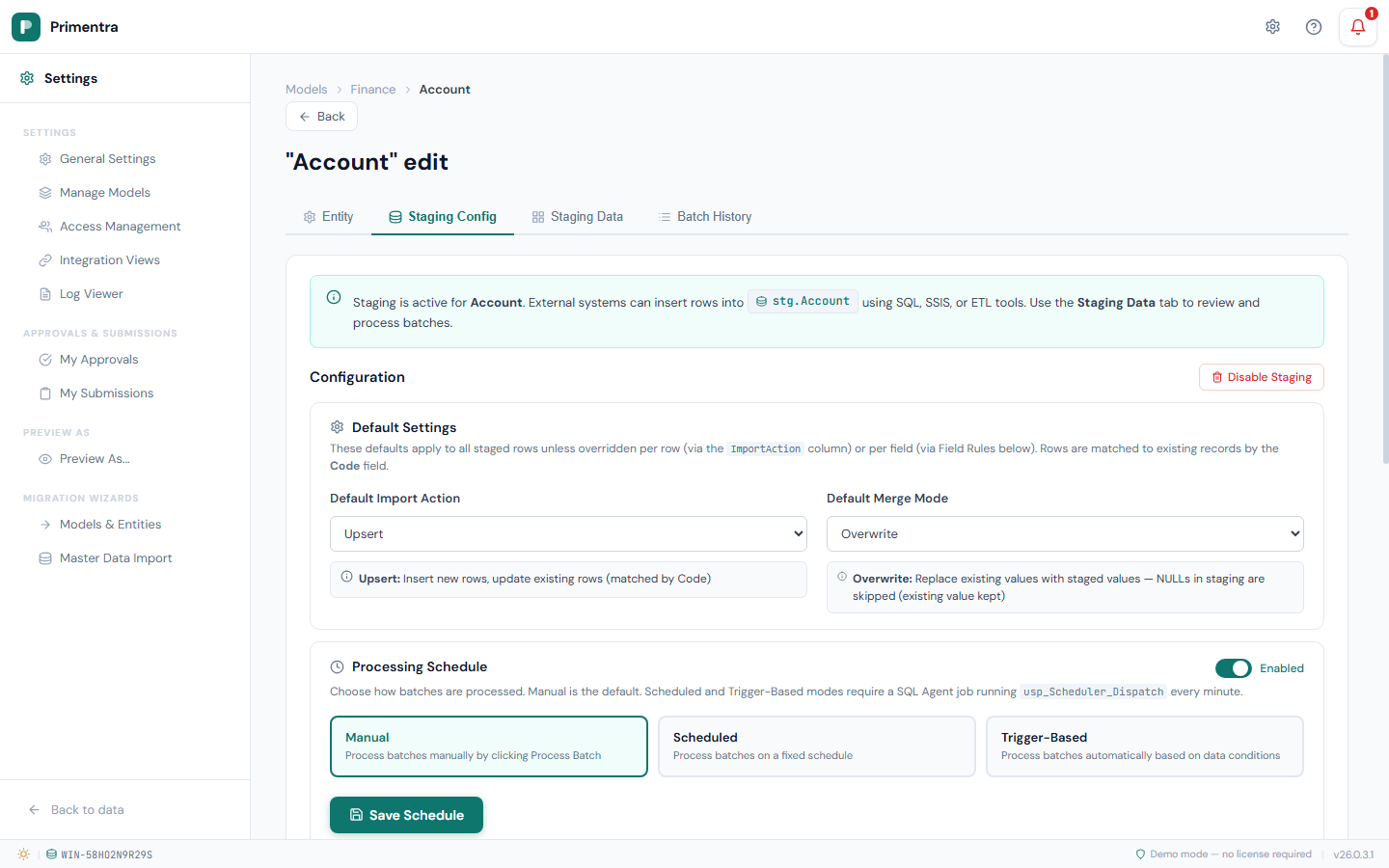
The banner at the top of the tab names the table that was created.
The table name
The proposed name joins the model name and the entity name: stg.Sales_Currency, stg.Retail_Operations_Store. The model is part of the name because the same entity name can exist in more than one model. Without it, a Product entity in Sales and a Product entity in Logistics would both want stg.Product.
You can replace the proposed name. Spaces and punctuation become underscores, so the result is always a valid SQL identifier, and the dialog previews the exact object name.
A name another entity already stages into is refused, and the message names the entity and model that owns it. Nothing is overwritten.
Staging or file import?
Watch the same data loaded both ways in seven minutes — once through staging, once through file import — then the questions that decide which door to use, including where the REST API fits in:
Both load bulk data. They answer different questions.
| Use staging when | Use file import when |
|---|---|
| A machine sends the data, repeatedly | A person loads a file, occasionally |
| The load must run unattended, on a schedule | Someone reviews a preview before committing |
| You need per-field merge rules and sentinels | The default merge is fine |
| You need a per-row error record you can query in SQL | An error CSV download is enough |
Staging and approval workflows
Staging publishes directly, including on entities that require approval. If an entity has Requires approval switched on, that governs people editing it in the application. A staging batch does not — its rows go live as soon as the batch is processed, with no approval request raised.
This is deliberate. Staging is a machine-to-machine channel: the system pushing the data is the system of record for those fields, and holding an automated nightly load in a review queue would stall it indefinitely.
The consequence is worth stating plainly: anyone who can write to a staging table can change master data without review. Treat write access to the stg schema as equivalent to approver rights. Keep approval-controlled entities out of staging if that is not acceptable for your organization.
Every batch is still recorded in Batch History and the audit log, so what a staging load changed is always traceable.
Disabling staging
Click Disable Staging on the Staging Config tab. The confirmation dialog warns that this:
- Drops the staging table permanently
- Deletes all unprocessed rows
Batch history records are kept for audit.
Related
- Staging Table Structure — the columns to insert into
- Staging Configuration — merge modes, sentinels and field rules
- Processing & Errors — running a batch and reading what failed
- Staging Scheduler — running batches unattended
- Import from Excel & CSV — the file-based alternative
Further reading
- SQL Server Staging Tables: Import Actions, Merge Modes, and Per-Field Rules — every load strategy worked through against one real file