Export
Export downloads the entity you are looking at. Click it in the toolbar and pick a format.
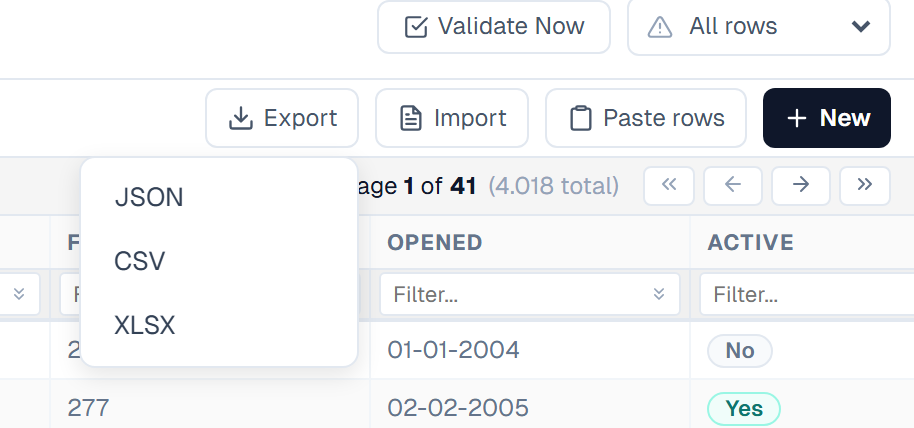
The three formats
| Format | Use it for |
|---|---|
| JSON | Reloading the data into Primentra. Wrapped in an envelope with the model name, the entity name and a timestamp |
| CSV | Anything that reads comma-separated text. Values holding a comma, a quote or a newline are quoted and escaped |
| XLSX | Excel. Real cell types, so dates sort and subtract as dates |
The file is named after the entity and the moment it was written — entity_export_YYYY-MM-DD_HHMMSS, for example branch_export_2026-08-15_143207.xlsx.
What is exported
- No rows checked — the whole entity, every page, fetched from the database
- Rows checked — only those rows. The button reads Export (N) to make that clear
Column filters and the search box do not narrow the export. Check the rows you want, or export everything and filter in the spreadsheet.
A column your role has set to None is not in the file, in any format. See Roles & Permissions.
How the columns are written
Reference columns become three columns
A reference attribute is exported three times over. A Supplier column produces:
| Header | Holds |
|---|---|
Supplier | {ACME} Acme Ltd — exactly what the grid shows |
Supplier Code | ACME |
Supplier Name | Acme Ltd |
All three round-trip: the import wizard accepts the combined form, the bare code and the bare name. The two extra columns exist because a spreadsheet is easier to work with when the code can be read without splitting text.
Yes/No columns export their label
A Yes/No column is stored as 1 and 0, but exported as the label the column displays — Yes/No, True/False, 1/0, or your own custom wording. See General Settings for the installation-wide default.
Paste that label back and it is understood, with one exception: custom labels are not accepted on paste. Use yes or no instead.
Date columns
CSV and XLSX write dates in the column's own configured format, with no time component, so a file can be edited in Excel and pasted straight back through Paste rows.
XLSX goes one step further: a date is written as a real date cell with a matching number format, not as text that merely looks like a date. A derived column pointing at a date uses the format of the attribute it reads.
JSON keeps the raw stored value, because JSON is meant to be re-imported rather than read.
Derived columns
Derived columns are exported with their resolved value. They cannot be imported back, because they are calculated. See Derived Columns.
Exporting a whole model
To move an entire model — entities, attributes and data — use the model export instead of running one grid export per entity. See Model Export / Import.
Related
- Import from Excel & CSV — read a file back in
- Adding, Deleting & Pasting — paste an exported block back into the grid
- Selection & Bulk Operations — check the rows you want exported
- Model Export / Import — move a whole model
- Integration Views — read the data from SQL instead of a file