Integration Views
Integration views expose entity data as real SQL views in the [mdm] schema. Any system that can read SQL Server — a BI tool, an ETL package, a reporting service — can query them directly.
A view is generated from the entity's current attributes. Primentra stores a snapshot of the columns it deployed, and compares that snapshot against the entity to detect drift.
Watch it done in 3:35 — a flat view read column by column, a hierarchy view built over Store, and the drift a new column causes found and synced:
View types
| Type | What it contains |
|---|---|
| Flat | Columns from a single entity |
| Hierarchy | The entity's columns plus the columns of every entity it references through a domain attribute |
A hierarchy view expands one level of parents. If Order references Customer, the hierarchy view carries the Order columns and the Customer columns side by side.
Creating a view
- Go to Settings → Integration Views.
- Click New view.
- Select the entity and the view type. The name is suggested for you as
vw_<Model>_<Entity>_Flatorvw_<Model>_<Entity>_Hierarchy.
The model is part of the suggestion on purpose. A view name becomes a SQL object, so it must be unique across the whole installation, while an entity name is only unique inside its model — two models can each hold a Country, two views cannot. Staging tables are named the same way, for the same reason. You can still type any name you like; the suggestion is only a suggestion.
- Tick Include validation status if the reading system should be able to tell a valid row from an invalid one.
- Clear the checkbox of any column you do not want to expose.
- Click Create view. The button reads Save when you edit a view that already exists.
The SQL view is deployed to [mdm].[<viewName>] immediately. A duplicate name is refused with a message instead of overwriting the existing view.
Column names
Every column is prefixed with the entity's table name, so a hierarchy view never has two columns with the same name.
| Attribute | Columns produced |
|---|---|
| Built-in keys | <Entity>_ID, <Entity>_Code, <Entity>_Name |
| Text, Integer, Decimal, DateTime, Boolean | <Entity>_<Attribute> |
| Domain | <Entity>_<Attribute>_ID and <Entity>_<Attribute>_Code |
| Timestamps | <Entity>_CreatedAt, <Entity>_ModifiedAt |
A domain attribute produces two columns on purpose. The _ID column holds the internal row id; the _Code column holds the business key the other system already recognizes. Join on the code.
When an entity references the same parent twice — an invoicing customer and a delivery customer — the parent columns carry the attribute name that reached them, for example InvoicingCustomer_Code beside DeliveryCustomer_Code.
Validation status
A view shows what a row holds, not whether it is any good. Two rows look identical on the way out even when one of them breaks a business rule. Tick Include validation status and the view gains two more columns:
| Column | Holds |
|---|---|
<Entity>_ValidationSeverity | error, warning, or empty when the row breaks nothing |
<Entity>_ValidationMessages | The messages of the rules it breaks, separated by ; |
They read the same rule results the grid marks a row with, so the view and the screen agree.
It is off on every view until you turn it on, including views that already exist. These views feed other people's load packages, and a column that turns up unannounced is their problem, not ours. Turning it on regenerates the view, so tell whoever reads it first.
A rule result is written when the rules run — on a save, an import or a staging batch — not on every read. A row loaded before a rule existed carries no result until it is next validated.
Copyable query
Each view shows a ready-to-run snippet, for example SELECT * FROM [mdm].[vw_Branch_Flat]. Click it to copy.
Finding a view
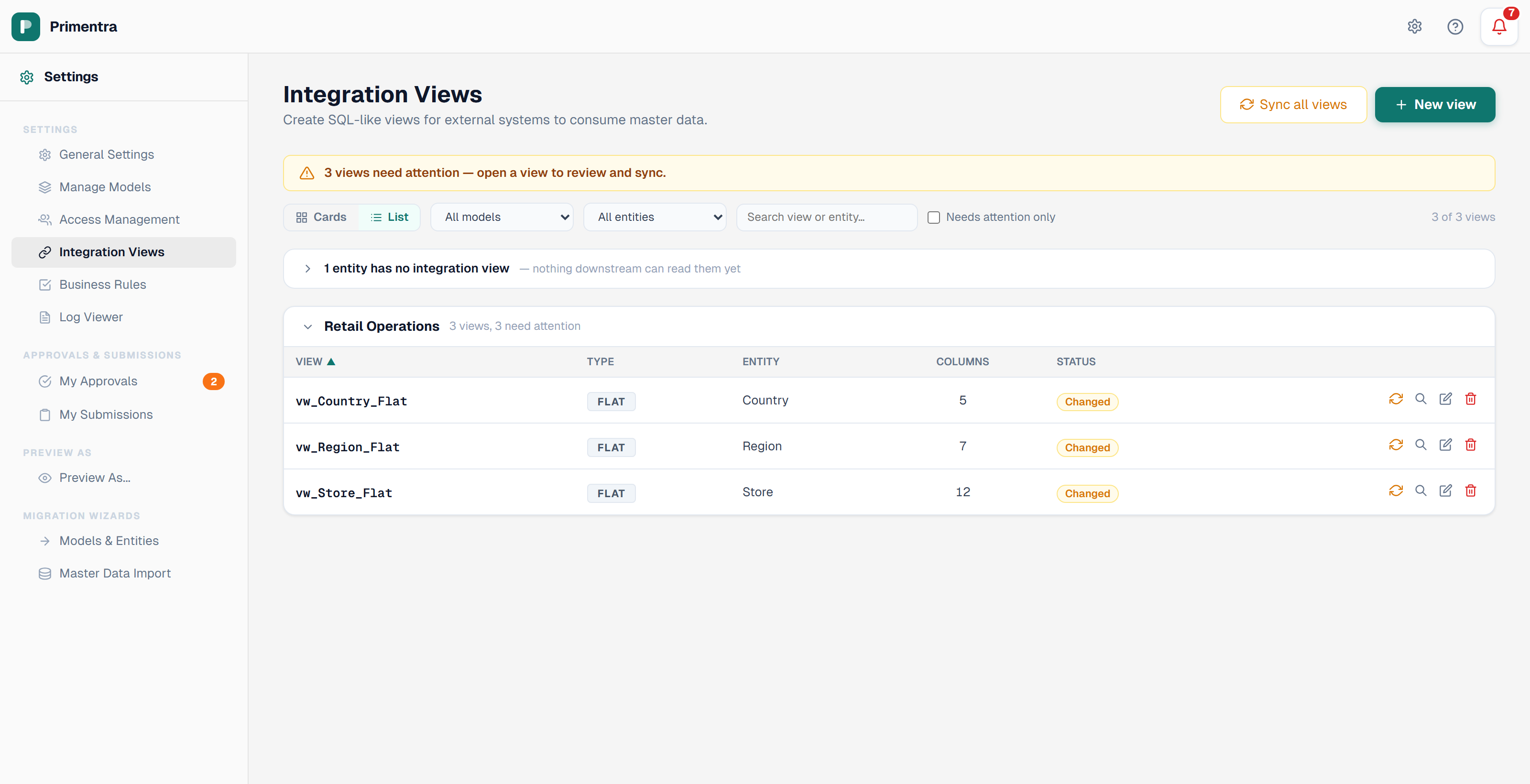
Cards or list
Two ways to read the same views:
- Cards — one card per view, with the copyable query and the full column detail. Best when you work on a single view.
- List — one row per view, grouped by model: name, type, entity, column count and status. Every column header sorts. Best when you want to see everything at once.
Your choice is remembered per browser. Cards is the default.
Filters
| Control | What it does |
|---|---|
| All models | Limits the list to one model |
| All entities | Limits the list to one entity |
| Include hierarchy | Appears once an entity is chosen. Also shows views of entities that reference it, and their children |
| Search | Matches on view name, entity name or model name |
| Needs attention only | Shows only views with drift |
The count on the right — for example *7 of 12 views shown* — tells you how much the filters hide.
Entities with no view
A panel above the list names every active entity that has no integration view: *"10 entities have no integration view — nothing downstream can read them yet."*
- Open the panel.
- Tick the entities you want, or click Select all.
- Click Create flat views.
Each entity gets a flat view named vw_<Model>_<Entity>_Flat, built exactly as the form would build it — including the column snapshot, without which every new view would report drift at once.
Include validation status applies to every view the run creates, and matches the option on the single-view form. Leave it off unless the reading system expects the two extra columns.
Per model
Switch to List view and each model carries two small controls of its own:
- Create N missing — a flat view for every entity in that model that has none
- Delete all — every view in that model, after a confirmation naming the count
The panel at the top speaks for the whole installation; these are for when the question is about one model. Delete all disconnects anything selecting from those views, which is why it asks.
Names carry the model because they must: before they did, two models each holding a Country both wanted vw_Country_Flat, and the second one failed while the panel still listed that entity as having no view.
Bulk creation always makes flat views. A hierarchy view depends on which references to follow, and guessing that for ten entities produces ten views somebody has to inspect anyway.
Drift detection
When an entity's attributes change, the deployed view no longer matches. That mismatch is called drift.
| Severity | Cause | Status chip |
|---|---|---|
| Error | Columns were removed. The view is broken | Broken (red) |
| Warning | Columns were added, types changed, or an excluded column no longer exists | Changed (orange) |
A view that matches its entity shows In sync (green). Hover the chip to read exactly what changed, column by column.
Drift is also reported in:
- A banner above the Integration Views list
- A badge on the notification bell
- The drift warnings section of the dashboard
Regenerating a view
One view. Click the regenerate icon on its row in the list. The snapshot is refreshed and the SQL view is redeployed.
Every view. Click Sync all views in the header. A confirmation dialog names each affected view and lists its removed columns, new columns, type changes and stale exclusions before anything runs.
Related
- Attributes & Data Types — changing an attribute is what makes a view drift
- Domain Attributes & Hierarchies — the references a hierarchy view follows
- Staging Overview — the inbound half of the same integration story
- REST API — read the same data over HTTP instead of SQL
- Model Export / Import — importing a model can change the attributes behind a view