Authentication
Primentra uses token-based authentication. Everyone signs in with an email address and a password before they can see any data.
First-run setup
When the database holds no real user accounts, Primentra shows a setup screen instead of the login screen.
- Enter the Email for the first administrator. It becomes the login name.
- Enter a Display name.
- Enter a Password of at least 8 characters, or click Generate.
- Click Create account & continue.
The account is added to the Administrators role and signed in straight away. The setup screen is never shown again while accounts exist.
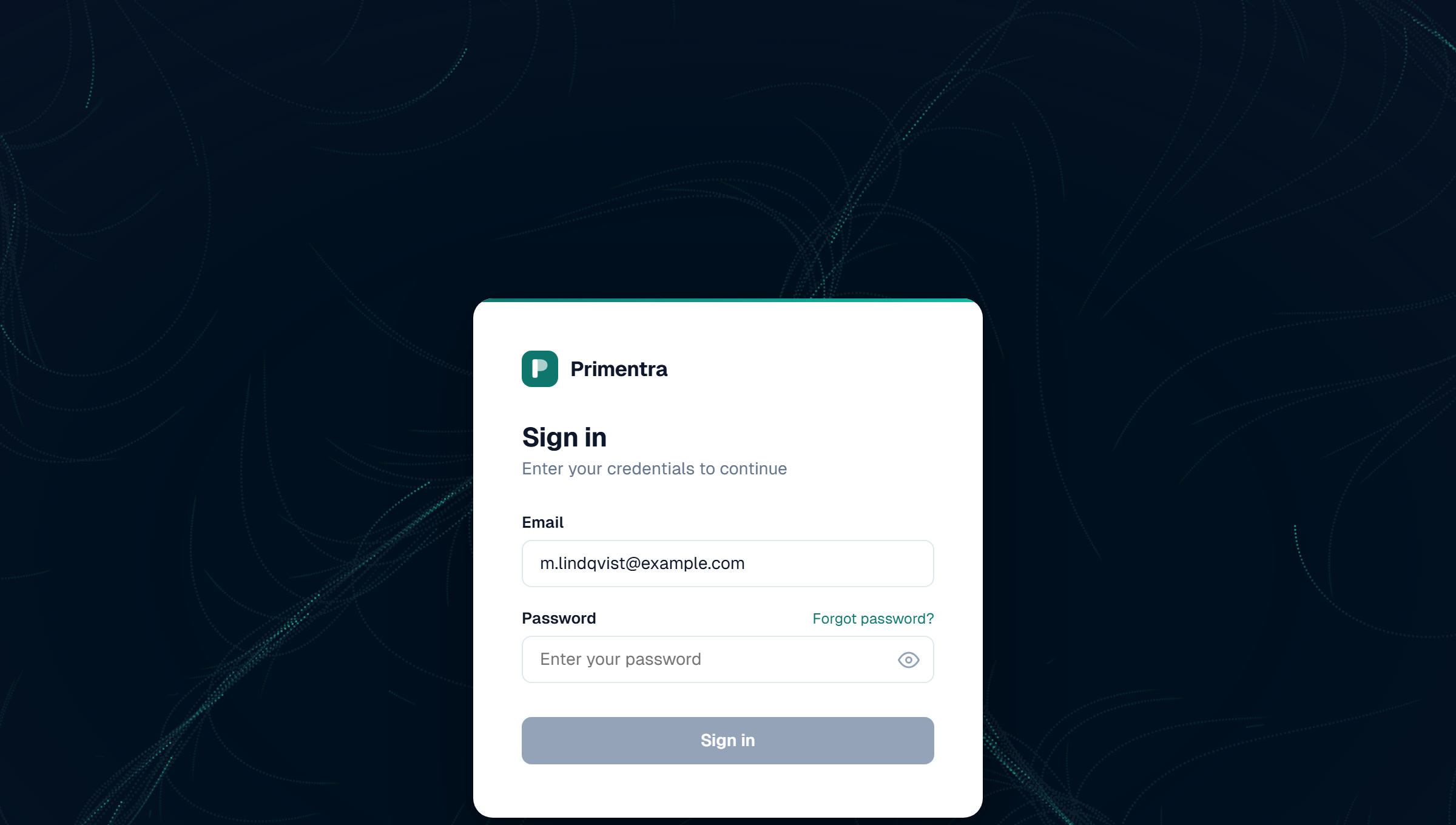
Sign in
Enter your email and password, then click Sign in.
- Passwords are case-sensitive.
- The eye icon reveals the password so you can check it.
- After a wrong password, the screen reports how many attempts remain before the account locks.
- After signing in you land on the dashboard.
Sign-in is rate limited to 10 attempts per 15 minutes per IP address. Successful sign-ins are not counted.
One-click sign-in link
A welcome email sent to an account with Must change password carries a one-click link instead of a password. Clicking it signs the user in and goes straight to the Secure your account screen, where they choose a personal password. The application stays closed until they do.
The link is valid for 72 hours and works once. After that the login screen reports:
Ask an administrator to resend the welcome email from the mail icon on the user's row.
Forced password change
When an account is flagged User must change password at next login, the Secure your account screen appears immediately after sign-in. It asks for a new password and a confirmation, nothing else. The current password is not asked again: the user has just signed in with it.
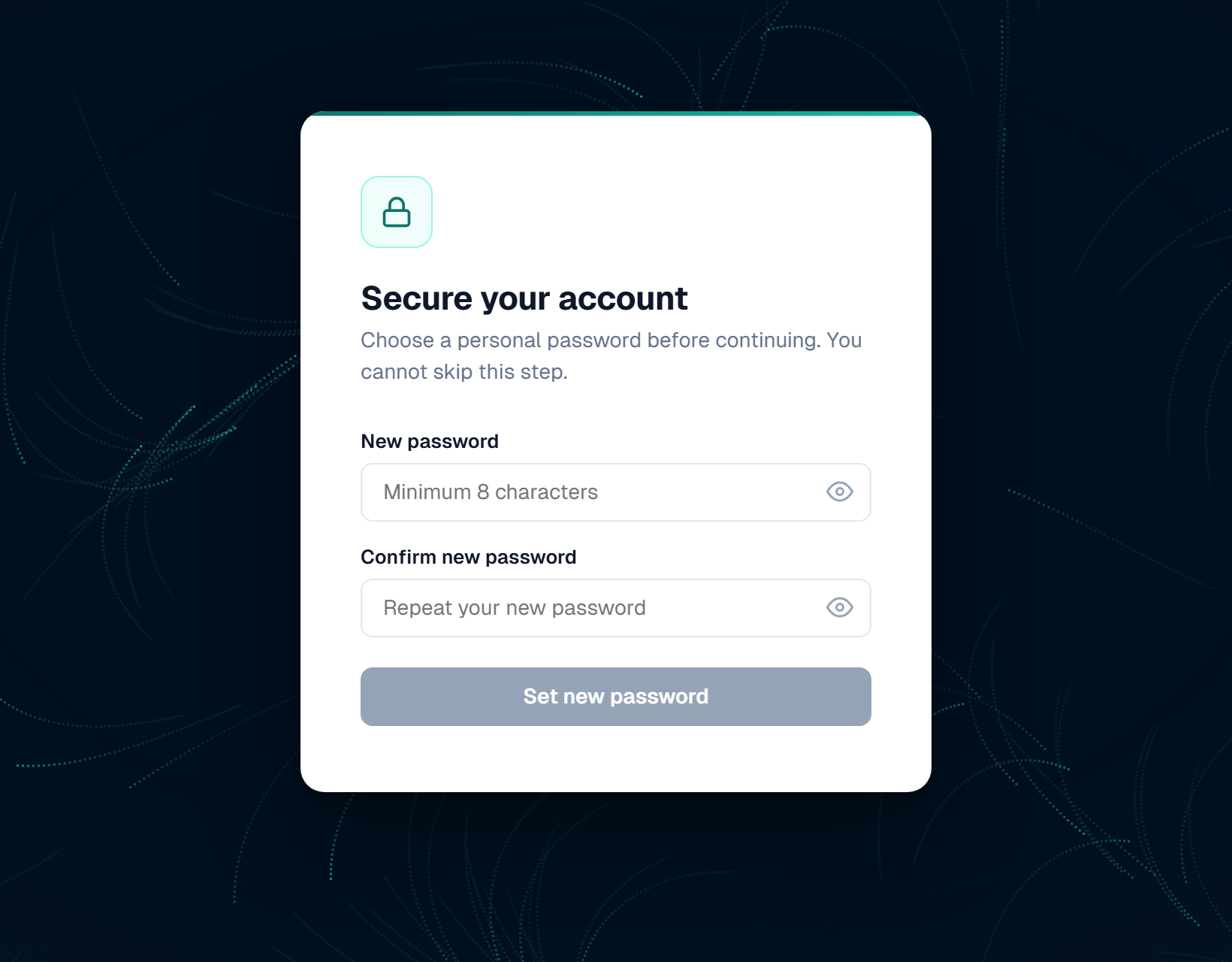
The flag clears once the new password is saved, so the next sign-in goes straight to the application. The flag works the same way with or without the welcome email: with it, the one-click link opens this screen without a password; without it, the user signs in with the password you gave them first.
Forgot your password
- Click Forgot password? on the login screen.
- Enter your email address and click Send reset link.
- Open the mail and click Reset password.
- Enter a new password twice and click Set new password.
The link is valid for 30 minutes and replaces any earlier link for the same address. The confirmation message is the same whether or not the address exists, so the screen never reveals which accounts are real.
Requests are limited to 5 per hour per IP address, and reset attempts to 10 per 15 minutes.
A completed reset also clears a lockout and resets the failed-attempt counter.
Sign out
Click the gear icon in the top-right corner, then Sign out at the bottom of the menu.
Signing out invalidates the token on the server, removes it from the browser, and returns you to the login screen. Bookmarked URLs redirect to the login screen until you sign in again.
How authentication works
- Passwords are hashed with
scryptand a random salt. Plain text is never stored. - A successful sign-in returns a random 64-character hex token.
- The token is kept in
localStorageand sent as anAuthorization: Bearerheader on every request. - Every sign-in, failed attempt, and lockout is written to the audit log.
Related
- Sessions & Timeouts — how long a token lasts
- Account Security — lockout and password rules
- User Management — create accounts and send welcome mail
- Account Recovery — when no administrator can sign in
- General Settings — set the Application URL