Permissions Report
The Report tab in Access Management is a read-only overview of permissions across the whole installation. It answers three questions the Roles tab cannot.
Watch it in 2:54 — the same facts by user, by entity and by role, an administrator's line with no role to credit, and the export menu:
- What can user X access?
- Who has access to entity Y?
- What does role Z grant?
Switch between the three perspectives with the toggle at the top.
By user
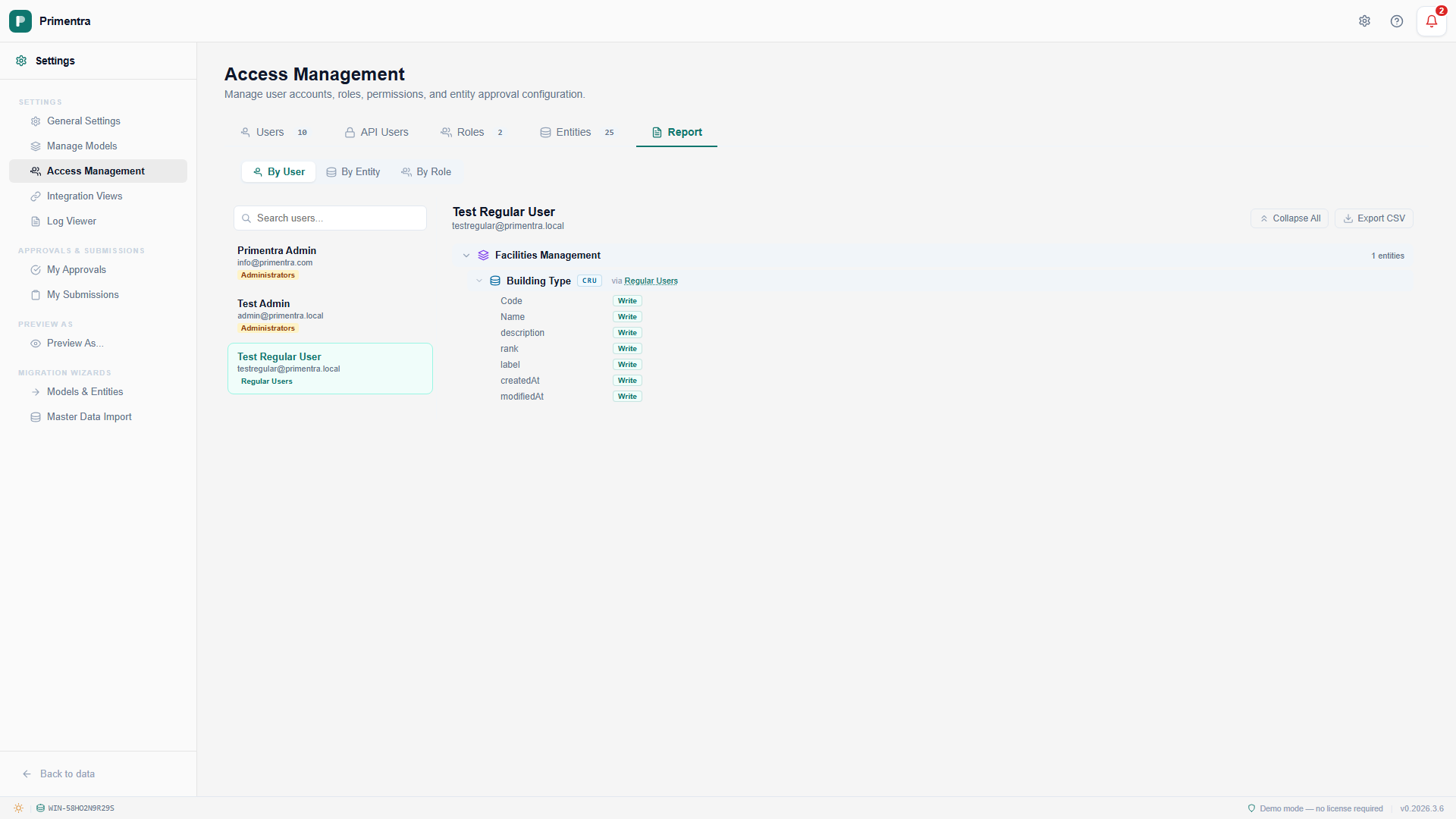
Export offers JSON, CSV and Excel, the same three the data grid does. An administrator exports a row per entity with every permission set to Yes and a source of *Administrator — full access*, rather than the empty file it used to produce: the account can do everything everywhere, and that is what a permissions report has to say.
Select a user on the left. The right panel shows their effective permissions:
- A permission tree grouped by model, then entity.
- A CRUD badge on each entity, combined across all the user's roles.
- Attribute-level None, Read and Write badges when you expand an entity.
- A via [Role Name] label on each row, naming the role that grants it.
- An amber banner for administrators: *Administrator — full access to everything*.
By entity
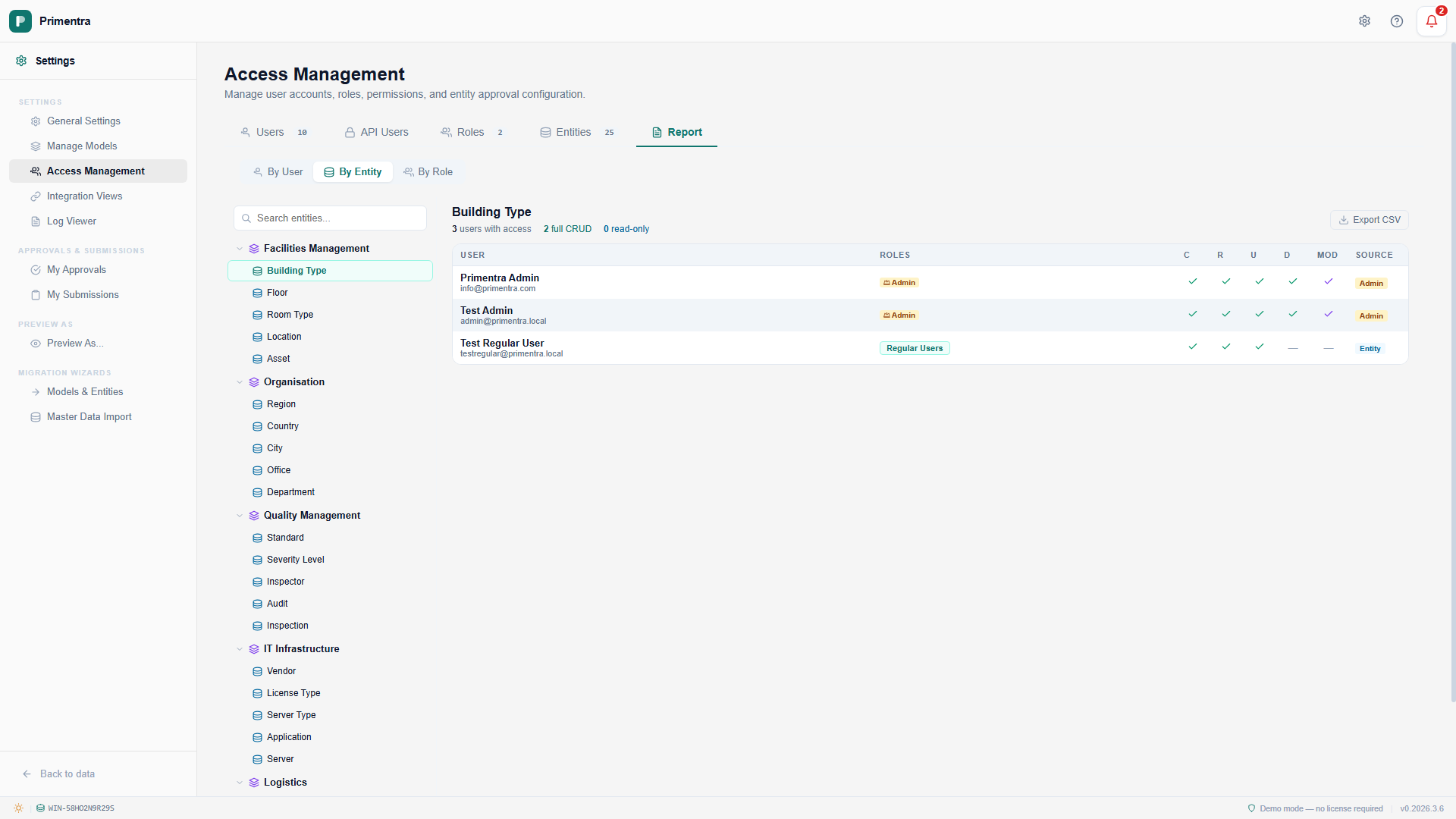
Select an entity in the model tree on the left. The right panel shows:
- Summary stats — how many users have access, how many have full CRUD, how many are read-only.
- A sortable table with the columns User, Roles, C, R, U, D, Mod, and Source.
- Source — whether the access comes from an entity permission, a model permission, or administrator rights.
Click any column header to sort.
By role
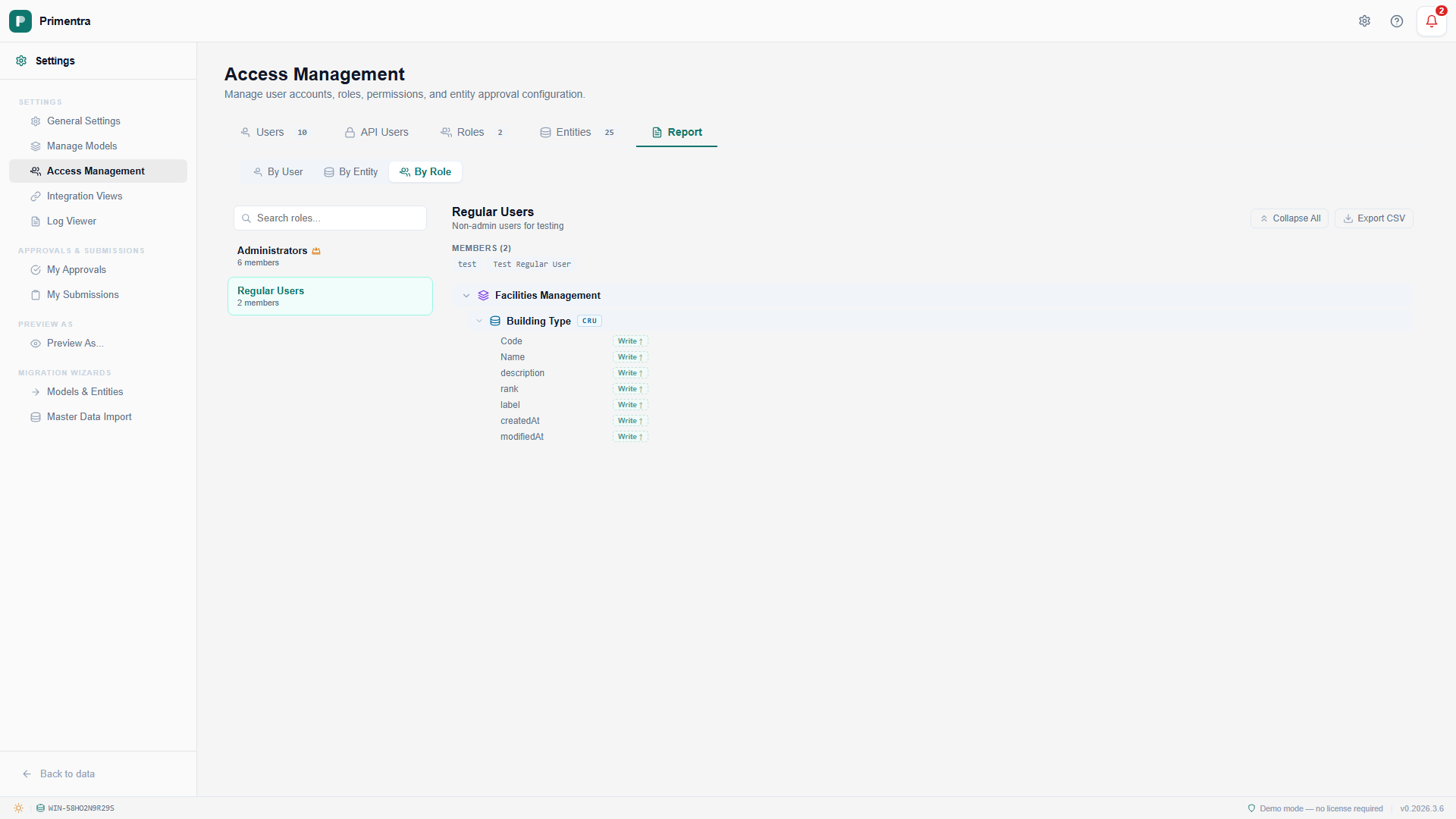
Select a role on the left. The right panel shows:
- The role name, description, and member list.
- A read-only permission tree of models and entities with CRUD badges.
- Attribute-level badges when you expand an entity.
- An amber banner on administrator roles, because they bypass every check.
Shared controls
- Search — filter the left list as you type.
- Expand All / Collapse All — open or close every tree node at once.
- Export CSV — download the current view. The file is built in the browser; no server call is made.
- Cross-navigation — click a role badge in the user perspective to jump to that role, and back again.
Related
- Roles & Permissions — change what the report shows
- Preview As — see the effect instead of reading it
- Administrator & Moderator — why some rows say "full access"
- User Management — the accounts listed here