Domain Sources & Links
A domain attribute always has a domain source. The source is the entity the attribute points at. This page shows what the rule does wherever you set up, enter or load data. It quotes the messages as Primentra gives them.
Two examples run through the page:
- Customers.Country points at Countries (
NLNetherlands,DEGermany,BEBelgium). - Employees.Manager points at Employees itself. Anna (
E1) has no manager. Bram (E2) reports to Anna. Chris (E3) reports to Bram.
Each scenario reads the same way: what you do, what Primentra does, what you see.
The rule
A domain attribute without a source cannot exist. The database refuses it, so no screen, import or script can make one.
Before this rule, several paths could leave a domain attribute with no source. Such an attribute accepted a row of any entity as its value. Every path now refuses it or turns the attribute into Text. The last section of this page covers what the upgrade does with them.
Setting up
A new domain attribute without a source
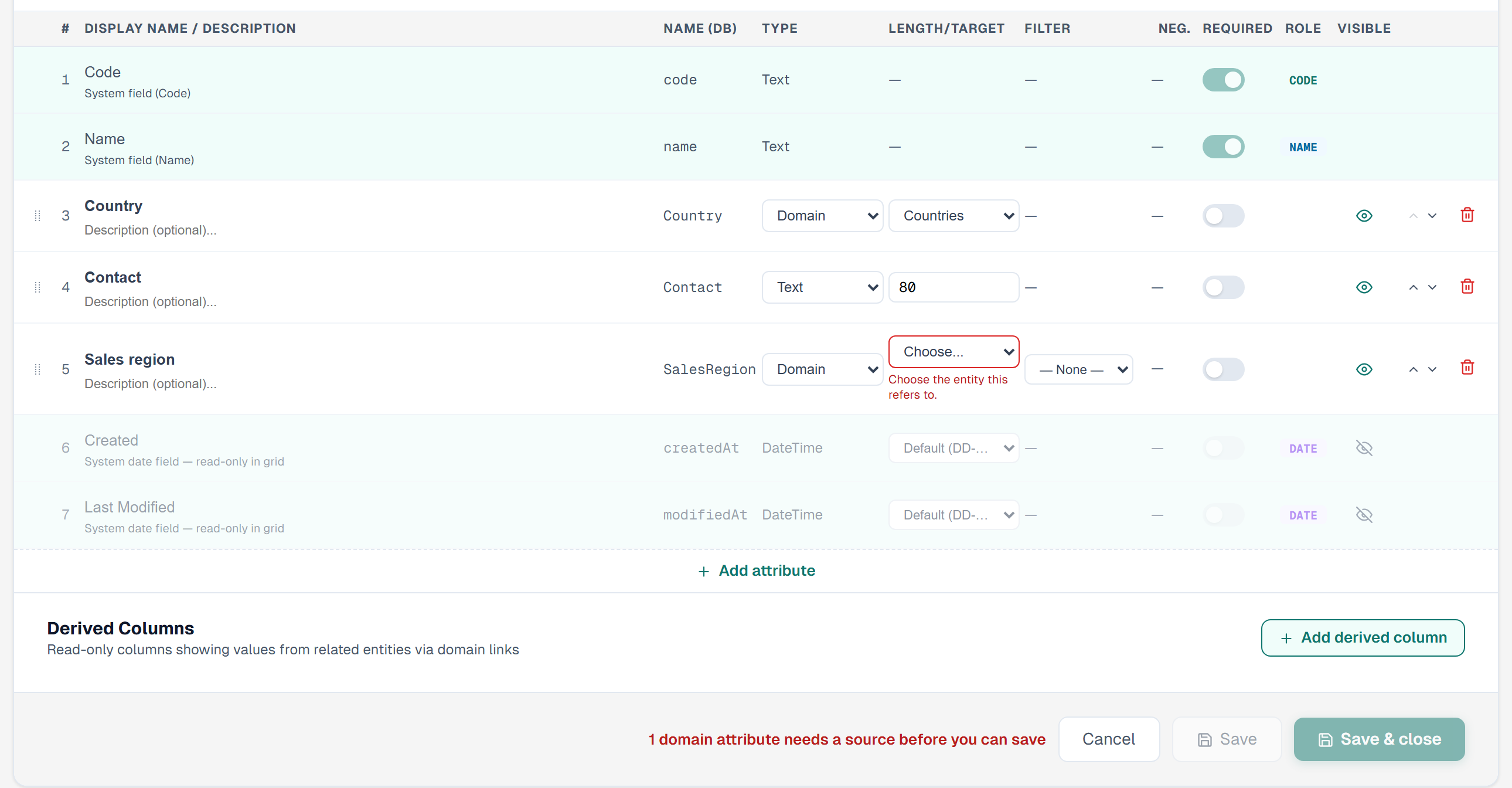
- You do: Open the Customers entity form. Add the attribute Country. Set Type to
Domain. Leave Length/Target on Choose.... - Primentra does: It keeps Save switched off and marks the row.
- You see: A red border on the Length/Target list. Under it:
Choose the entity this refers to.Next to the buttons:1 domain attribute needs a source before you can save. With two such attributes it reads2 domain attributes need a source before you can save.
Any other client gets a refusal from the server. A script that calls the entity API without a source receives status 400:
The same message comes for a source id that does not exist, with one more sentence before the last one: Domain attribute "Country" needs a domain source. The domain source with id 999 does not exist. Choose the entity it refers to.
An id that is not a whole number gets its own message: The domain source of "Country" is not a valid entity id. Choose the entity it refers to.
Pick the source
- You do: Choose Countries in the Length/Target list. Click Save.
- Primentra does: It saves the type and the source together.
- You see: In the grid, Country is a dropdown of the rows of Countries, each shown as
{NL} Netherlands.
Switch a saved attribute to Domain
Take Country as a Text attribute that already holds values.
- You do: Change Type to
Domain. - Primentra does: It opens the Change Data Type dialog first, as for any type change. Text values cannot become links, so they are cleared. Nothing is written yet. Primentra keeps the action you choose in the dialog and applies it when you pick the source.
- You see: The Length/Target list shows Choose... and Save is off. Pick Countries. The type and the source change together, with the action you chose in the dialog.
If the server refuses the change, the list goes back to Choose... and the row shows the message in red.
If you set the type back to Text before you pick a source, nothing changes. Primentra wrote nothing.
Remove the source again
- You do: Pick a source, then pick Choose... again.
- Primentra does: It switches Save off again.
- You see:
1 domain attribute needs a source before you can save.
Switch the source of an empty attribute
- You do: Change Country from Countries to Regions. The attribute holds no values.
- Primentra does: It changes the source when you click Save.
- You see: No dialog.
The same holds when you send the same source again. Nothing is cleared.
Switch the source of an attribute that holds values
Every stored value is the row of the old source. After a switch it would point at the wrong entity. So Primentra asks first.
- You do: Change Country from Countries to Regions. The attribute holds 1,204 values.
- Primentra does: It opens the dialog Change Domain Source.
- You see:
"Country" holds 1,204 values that refer to Countries. They will be cleared.Under it:The source changes to Regions when you save the entity.Two buttons: Cancel and Clear values & switch.
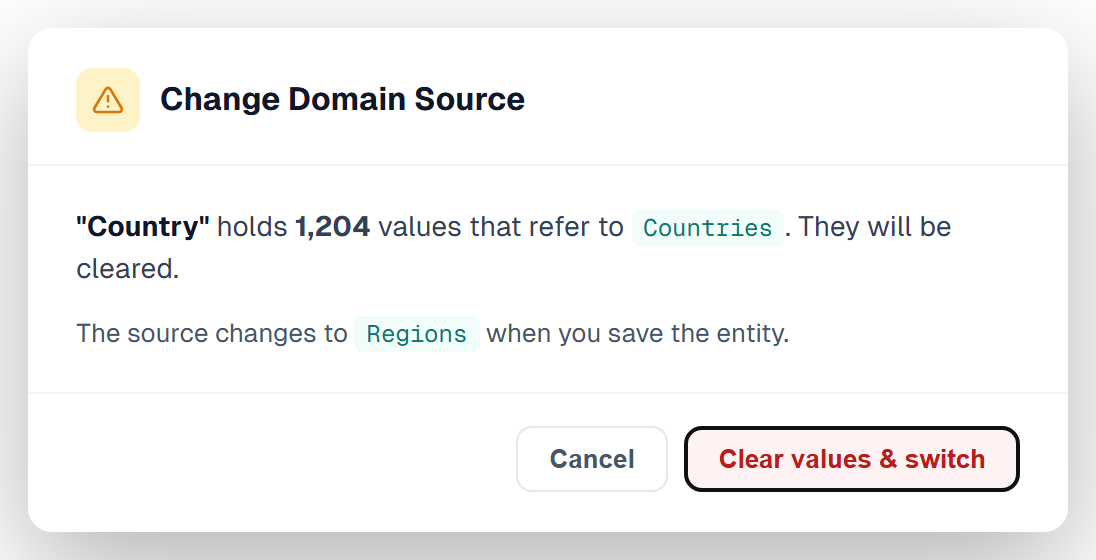
What each button does:
| Button | Result |
|---|---|
| Cancel | The dialog closes. The source stays Countries. Nothing is cleared. |
| Clear values & switch | The form now shows Regions. When you click Save, Primentra clears the 1,204 values and writes the new source. |
A caller of the entity API gets a 400 for the same switch, unless the attribute carries "clearOnSourceChange": true:
With one value the message reads holds 1 value that refers to.
Domain to Text and back to Domain
- You do: Change Country from
DomaintoText. - Primentra does: It runs the type change. A reference cannot be converted, so every value is cleared.
- You see: The Change Data Type dialog with the count of values it will clear.
Changing back to Domain works as in the section above on switching a saved attribute to Domain. The old values are gone. The text values do not turn into links.
A self reference
- You do: Add Manager to Employees. Set Type to
Domain. Open Length/Target. - Primentra does: It lists the entity itself, marked as such.
- You see:
Employees (this entity). An entity in another model readsRegions (Reference), with the model name in brackets.
A self reference is allowed. It is how you build a tree of managers and employees. Loading it needs one rule that the next section explains.
Entering data in the grid
Pick a value
- You do: Click the Country cell of a customer. Pick
{NL} Netherlands. - Primentra does: It stores the row of Netherlands as the value.
- You see:
{NL} Netherlandsin the cell.
Paste a code that exists
- You do: Copy
NLfrom a spreadsheet. Paste it into the Country cell. - Primentra does: It looks for a row of Countries by id, by code, by name and by
{CODE} Name. - You see:
{NL} Netherlandsin the cell.
Paste a code that does not exist
- You do: Paste
XXinto the Country cell. - Primentra does: It writes nothing in that cell and shows a message at the bottom right of the screen.
- You see:
"XX" is not a valid value for Country.Under it:Valid values include:and up to three values of Countries, such as{NL} Netherlands.
Paste an empty value into a required attribute
- You do: Mark Country as Required. Paste an empty cell into it on a new customer.
- Primentra does: It accepts the paste. An empty cell clears the field. The row now lacks a required value.
- You see: A red
Requiredin the cell. When you click Save, the save dialog listsRows with empty required fields:. The row readsCode "C-100" — missing Country. The dialog ends withComplete or delete these rows before saving.
Who may fill a domain attribute
A user who is not an administrator can fill a domain attribute only when a role of that user may read its domain source. Take a user with write on Customers and no read on Countries. That user cannot fill Country. The rule holds for a value that exists and for one that does not. The answer is the same, so nobody learns what Countries holds. The message never names the value.
A value the row already holds stays as it is. Editing another column of the row does not trigger the refusal.
Grid and API
- You do: Pick or paste a country in a customer, as a user with write on Customers and no read on Countries. Click Save.
- Primentra does: It refuses the save and writes nothing. The status is 403.
- You see:
You may not read Countries, so Country cannot be filled.The body is{ "success": false, "error": { "code": "PERMISSION_DENIED", "message": "You may not read Countries, so Country cannot be filled." } }
The REST API gives the same answer, with status 403, when the API user's role cannot read the source. A request for approval is refused the same way, and so is an all-or-nothing import.
Partial import
- You do: Import customers with a Country column, as the same user, with Import the other rows anyway ticked.
- Primentra does: It refuses each row that fills Country. It loads the rows that leave Country empty.
- You see: Error 4113 in the reject table. The reason reads
You may not read Countries, so Country cannot be filled.
In every case the fix is to give the role Read on the source entity. See Roles & Permissions.
Self references: rows first, links after
Employees.Manager points at the rows of Employees. In a file, Bram can come before Anna. In a grid, Chris can be pasted before Bram. The manager row does not exist yet when the employee row arrives.
So Primentra loads self references in two steps:
- Rows first. It writes every row, with the Manager left empty.
- Links after. It reads each Manager code and links it to a row of the database or a row of this same load.
Both steps run in one transaction. The order of the rows no longer matters.
This works in every place that loads many rows at once: the CSV and Excel import, the model import, the MDS data wizard, a staging batch and a save from the grid. A single row cannot do it. For one row the manager must exist first.
A file in any order
The file lists Chris first, Anna last:
- You do: Import the file into Employees.
- Primentra does: It writes Chris, Bram and Anna. Then it links Chris to Bram and Bram to Anna.
- You see:
Inserted 3on the result screen. In the grid, Chris has the manager{E2} Bramand Bram has{E1} Anna.
A loop
- You do: Import
E1,Anna,E2andE2,Bram,E1. Anna reports to Bram. Bram reports to Anna. - Primentra does: It writes both rows, then links both.
- You see: Both rows load, each linked to the other.
A manager code that matches nobody
The file also holds E4,Dirk,E9 and E5,Eva,E4. Nobody has the code E9. Eva reports to Dirk.
- You do: Import the file. Primentra first checks it against the database.
- Primentra does: It refuses the row of Dirk. Eva points at Dirk, so it refuses her row too. It follows the chain to its end.
- You see: Dirk in the reject list with
"Manager" refers to "E9", which matches no record in the linked entity. Eva reads"Manager" refers to "E4", a row of this file that was refused. Tick Import the other rows anyway to load the rest.
A required Manager
- You do: Mark Manager as Required. Import a file where Anna has no manager.
- Primentra does: It refuses Anna's row. A required attribute needs a value in every row. It also refuses the rows that point at Anna, because her row did not load.
- You see:
"Manager" is required and has no value.
Give the top person a link to herself: E1,Anna,E1. Primentra accepts it. A link counts as a value, and Anna links to herself.
Existing rows and new rows together
Employees already holds Anna. The file adds Bram and Chris. Bram points at E1, which is in the database. Chris points at E2, which is in the file.
- You do: Import the file.
- Primentra does: It links each code to the database or to the file.
- You see: Both rows load and both links are right.
Paste three rows into the grid
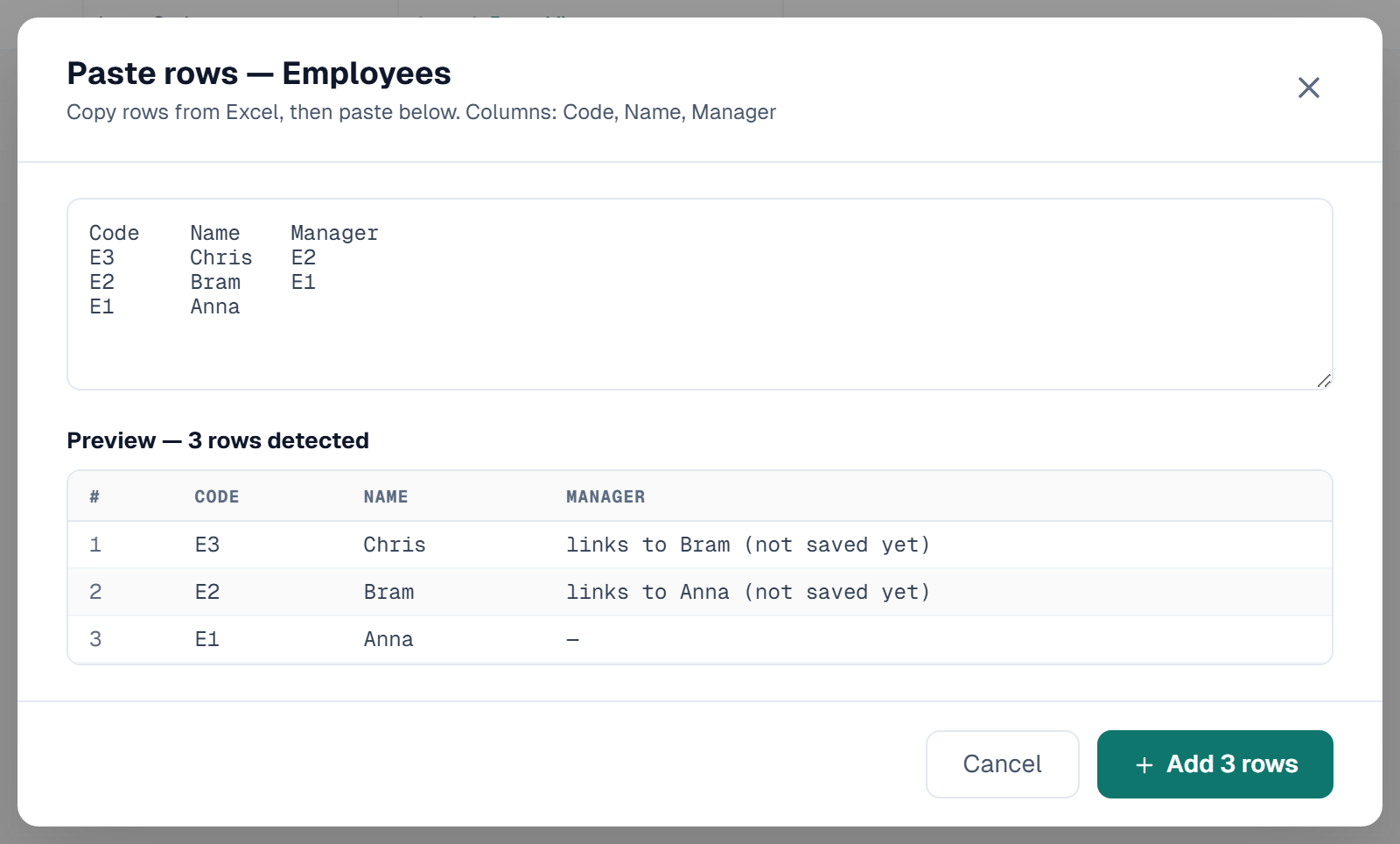
- You do: Click Paste rows. Paste these lines, with Chris first:
- Primentra does: It reads a Manager code that matches a Code in the same paste as a link to a row that is not saved yet.
- You see: In the preview, the Manager column of Chris reads
links to Bram (not saved yet). Confirm the dialog. The three rows are pending changes. Click Save. Primentra writes all three rows, then the links.
Type two new rows by hand
- You do: Click New. Type
E1andAnna. Click New again. TypeE2andBram. Open the Manager list of the second row. - Primentra does: It offers the saved rows and also the new row of Anna.
- You see: The option
Anna (not saved yet). Pick it. The cell readslinks to Anna (not saved yet). The grid counts this as filled, so a required Manager does not showRequired.
Change the code of a row that is not saved yet
- You do: Change the Code of the new Anna from
E1toE5before you save. - Primentra does: It breaks the link and tells you.
- You see: In the cell of Bram:
links to {E1}: no unsaved row has this Code. In the save dialog:Links to rows that are not in this save:, then the row, thenThe Code they link to was changed or the row was removed. Pick the row again.
A manager code that matches nobody, in the grid
- You do: Paste
E4,DirkandE9with Paste rows. - Primentra does: It refuses the whole paste and names the row.
- You see:
1 value could not be read, so nothing was pasted. row 1: "Manager" cannot accept "E9".
When a code passes the paste but fails at Save, Primentra refuses the whole save and writes nothing:
An entity with approval
The manager could be approved after the employee. So a link to a row that is not saved yet is not possible when Requires approval is on.
- You do: Paste Jan (
E10, managerE11) and Emma (E11) into Employees with approval on. - Primentra does: It refuses the paste.
- You see:
1 value could not be read, so nothing was pasted. row 1: "Manager": Emma is not saved yet. Submit and approve Emma first, then this row.The Manager list does not offer rows that are not saved yet.
Submit and approve Emma first. Then add Jan.
Who may link
A link to a row that exists needs the right to update the row. A user who may create rows but not update them can link only to rows created in the same save.
Data import (CSV and Excel)
The import checks every row against the database before it writes. The rows below use Customers and the column Country.
The code exists
- You do: Import a row with
NLin Country. - Primentra does: It matches
NLto the row of Netherlands. - You see: The row counts under Inserted.
The code is missing
- You do: Import a row with
XXin Country. - Primentra does: It refuses the row at the check and writes nothing for it.
- You see: In the reject table, the row number, the code and the reason (error 4109):
"Country" refers to "XX", which matches no record in the linked entity. The checkbox Import the other rows anyway appears. Import stays off until you tick it.
The cell is empty and Country is required
- You do: Import a row with an empty Country.
- Primentra does: It refuses the row (error 4111).
- You see:
"Country" is required and has no value.
The cell is empty and Country is optional
- You do: Import a row with an empty Country.
- Primentra does: It loads the row with no link.
- You see: The row counts under Inserted. The cell is empty.
Staging
A staging table holds the code of the row. The three outcomes below match the data import. The staging viewer shows the error code as a bitmask.
The code exists
- You do: Insert a row with
NLin the Country column. Process the batch. - Primentra does: It links the row to Netherlands.
- You see: The row is processed. It has no error.
The code is missing
- You do: Insert a row with
XXin the Country column. Process the batch. - Primentra does: It marks the row as an error and writes nothing for it.
- You see: Error code
8192and the detailDomain value not found in referenced entity (Code: XX).
The cell is empty
- You do: Insert a row with no value in Country.
- Primentra does: If Country is required, it refuses the row. If not, it loads the row with no link.
- You see: For a required attribute, error code
128and the detailRequired field is empty.Error codes add up. A row with two problems, one of each kind, shows8320, which is128plus8192.
A self reference in a batch
A row may name a row of the same batch as its manager, in any order. A row that names a row the batch refused is refused too: error code 8192 and the detail Refers to a row of this batch that was refused (Code: E4). See Staging Tables for the error codes.
REST API
The REST API writes data only. You cannot change the model through it. It takes one record per call, so it does not link by code. You send the row id of the target in domainValue. A refusal has status 400, except a missing read right on the source, which has status 403. The body has this shape:
| You send | Status | error.message |
|---|---|---|
"domainValue": 12, the id of a row of Countries | 200 | None. The body is { "success": true, "data": { "id": 4821 } }. |
| An id that does not exist | 400 | One or more domain field values reference rows that no longer exist in the database. Please refresh the page and try again. |
| The id of a row of another entity | 400 | The same message. |
A code such as "domainValue": "NL" | 400 | Field "Country" is configured as a Domain type but received an invalid value ("NL"). Either link a domain entity to this field in Administration, or change its type. |
domainCode in a record | 400 | domainCode is only accepted when several rows are saved together. For one row, send the id of the row it links to in domainValue. |
| No value for a required attribute | 400 | Required fields missing: Country |
| A domain id, when the API user's role cannot read the source | 403 | You may not read Countries, so Country cannot be filled. The code is PERMISSION_DENIED. |
For an entity with approval, the API answers 202. It stores the request. The check of the id happens when an approver approves.
Approvals
A request can wait for days. The data moves in the meantime.
- You do: Submit a customer with Country
NL. Before the approver acts, someone deletes the rowNLfrom Countries. - Primentra does: It checks the domain value again when the approver approves. It finds no row.
- You see: The approval is refused and nothing is written. The approver sees
One or more domain field values reference rows that no longer exist in the database. Please refresh the page and try again.The approver rejects the request or sends it back.
Deleting a row of Countries empties the link in every customer that used it. It does not touch the values held in requests that are waiting.
Deleting
A row that others use
- You do: Delete the row
NLof Countries. Customers use it. - Primentra does: It empties Country in every customer that pointed at
NL. This holds for a required attribute too. - You see: The delete succeeds. The customers stay, with an empty Country.
A full snapshot of the deleted row goes to the audit log. See Adding, Deleting & Pasting.
An entity that others use, without the tick
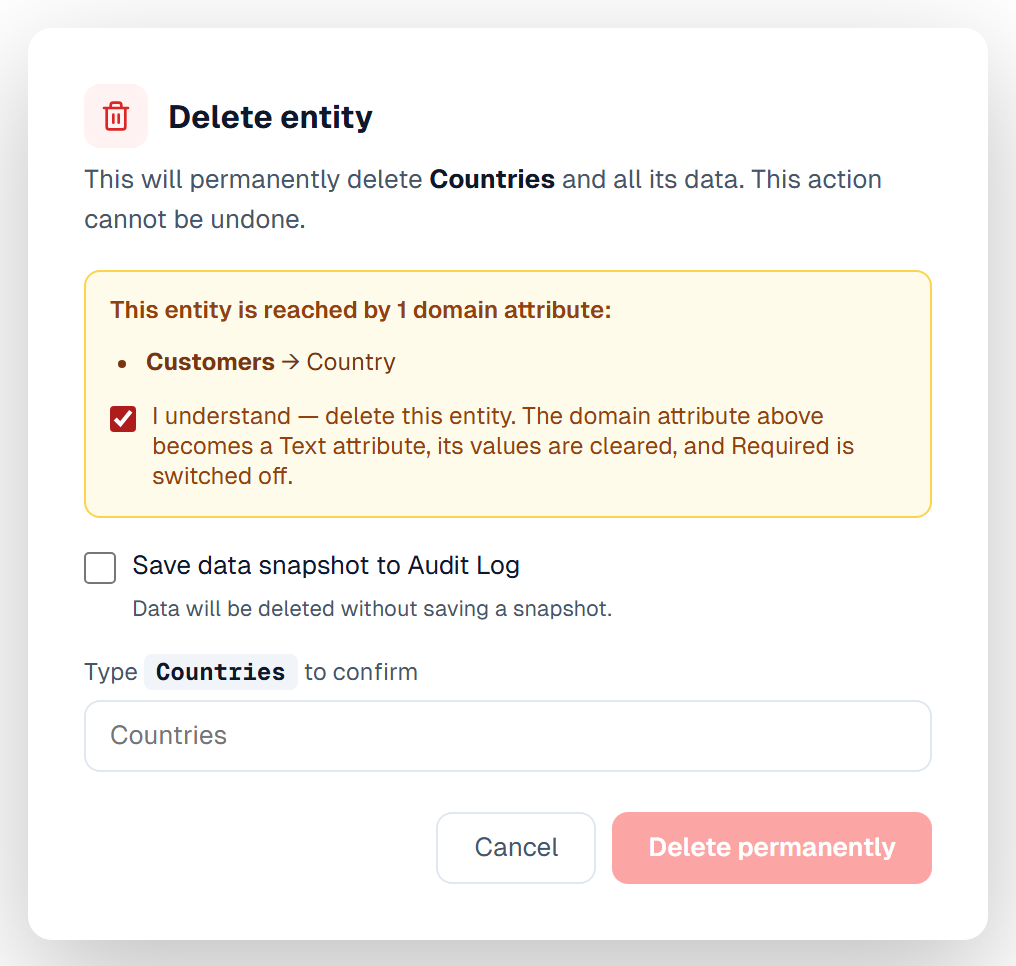
- You do: Click the trash icon of Countries.
- Primentra does: It lists every attribute that points at it and keeps the delete button off.
- You see:
This entity is reached by 1 domain attribute:, thenCustomers → Country, then a checkbox you have not ticked.
A caller of the API that does not send clearDomain gets a 400 and nothing is deleted:
With several attributes the message lists them, and ends with these attributes become Text attributes; their values are cleared.
With the tick
- You do: Tick the checkbox. It reads
I understand — delete this entity. The domain attribute above becomes a Text attribute, its values are cleared, and Required is switched off.Type the name of the entity. Delete. - Primentra does: First it turns each attribute that points at Countries into a Text attribute. Then it deletes the entity.
- You see: Customers now has a Text column Country. The values are gone. Required is off. The entity loads and saves as before.
For each converted attribute Primentra also:
- Clears the Filter of any attribute that used it as its cascade parent.
- Removes its value from the requests that wait for approval, so those requests can still be approved or rejected.
- Writes one audit log entry.
The entry reads: "Country" became a Text attribute: its domain source "Sales/Countries" was deleted. 1204 values cleared. Old domain source: "Sales/Countries". Required switched off. Find it under Audit Log. Filter by the entity Customers.
If a derived column reads through the deleted entity, Primentra removes that derived column.
Attributes of a different model that used Countries are converted too.
An entity that refers to itself
Employees.Manager points at Employees. The dialog lists Employees → Manager and asks for the tick like any other use. Nothing is converted, because the attribute goes with the entity.
Model export and import
A model file names the source of a domain attribute by model name and entity name. Primentra finds the source without regard to upper and lower case.
The source is on this server
- You do: Import a file with Customers. Countries is not in the file. It is on this server in the model Reference.
- Primentra does: It links Country to Reference/Countries.
- You see: No warning.
The source is in the file, before or after
- You do: Import a file where Customers comes before Countries.
- Primentra does: It creates the entities first and links the sources after. The order in the file does not matter.
- You see: Country is a Domain attribute with the right source. The rows import with their links. Primentra imports the rows of the source first.
A loop
- You do: Import two entities that point at each other.
- Primentra does: It links both sources. For the rows, it loads what it can, then repeats the rows that only failed because the other row was not there yet. It stops when a pass loads nothing new.
- You see: Both entities with their rows. A row that still has no target is refused with its reason.
The source is nowhere
- You do: Import a file where Countries is neither in the file nor on this server.
- Primentra does: For a new attribute, or when the import overwrites the attribute, it imports Country as a Text attribute with Required off. The codes in the rows come in as text. When the import merges into an attribute that already has a working source, it keeps that source and its values.
- You see: In the preview:
"Customers.Country" refers to "Reference/Countries", which is not in the file or on this server. It will be imported as a Text attribute.After the import, a warning titled Domain attributes imported as Text repeats it:... It was imported as a Text attribute.
In a merge that keeps the current source, the message ends in another way. The preview reads "Customers.Country" refers to "Reference/Countries", which is not in the file or on this server. It keeps its current source. The report reads ... It kept its current source.
If the source entity is in the file but you leave it unticked, Primentra does not create the attribute: Column "Country" of "Customers" was not created. It refers to "Countries", which this import does not create. Tick "Countries" to bring both.
An old export file
Files made before this rule can hold a Domain attribute with no source name.
- You do: Import such a file.
- Primentra does: It imports the attribute as Text.
- You see:
"Customers.Country" refers to "", which is not in the file or on this server. It will be imported as a Text attribute.
An entity that already holds data
- You do: Import the same model over an entity that holds rows with domain values.
- Primentra does: It keeps the domain values and links of the rows that exist.
- You see: The values are still there and still linked.
An import that fails halfway
- You do: Import a file where an entity later in the file is bad.
- Primentra does: It rolls the whole import back. No Text placeholder stays behind.
- You see:
The import failed and was rolled back — no changes were saved.followed by the cause.
A Filter (a cascading dropdown) travels in the file as domainParentAttributeName, the name of the parent attribute in the same entity. A file without this field imports with no cascade.
MDS migration wizard
The wizard creates every MDS domain attribute as Text in the first pass. In the second pass it turns each one into a Domain attribute with its source, in one step.
The source is in the same model
- You do: Import an MDS model where Customer.Country points at Country.
- Primentra does: It links the attribute in the second pass.
- You see: A Domain attribute with the right source. No warning.
The source is in another model
- You do: Import a model where the source is in a different model of the same run.
- Primentra does: It finds the source in the other model and links it.
- You see: A warning:
Domain "Country" for Customer.Country found in different model.
The source is not found
- You do: Import a model where the source is not in the run.
- Primentra does: It leaves the attribute as Text.
- You see: A warning:
Domain entity "Country" not found for Customer.Country; imported as a Text attribute.
If the second pass cannot save the links, you read: Could not link the domain attributes of Customer (Country) to their source entities: <the cause>. They stay Text attributes.
Upgrading from an older version
Older versions could leave a domain attribute with no source. The upgrade repairs each one and then switches the rule on.
For each broken attribute, the upgrade:
- Turns it into a Text attribute.
- Clears its values.
- Clears the Filter of attributes that used it as their cascade parent.
- Switches Required off, so the rows save again.
- Writes one audit log entry.
A healthy domain attribute stays as it is, with its values. A second run changes nothing.
Look for the entries under Audit Log. The user is System. Filter by the entity that held the attribute. Open the entry to read the comment:
An attribute with no values reads 0 values cleared. An attribute that was not required has no last sentence.
Open the entity form of each converted attribute. If you still need a domain attribute, set the type to Domain and pick a source.
Related
- Domain Attributes & Hierarchies — chains, cascading dropdowns and shared entities
- Attributes & Data Types — the Change Data Type dialog
- Entity Management — delete an entity that others use
- Model Export / Import — move a model with its sources
- Import from Excel & CSV — the reject check and the reasons