Migration Overview
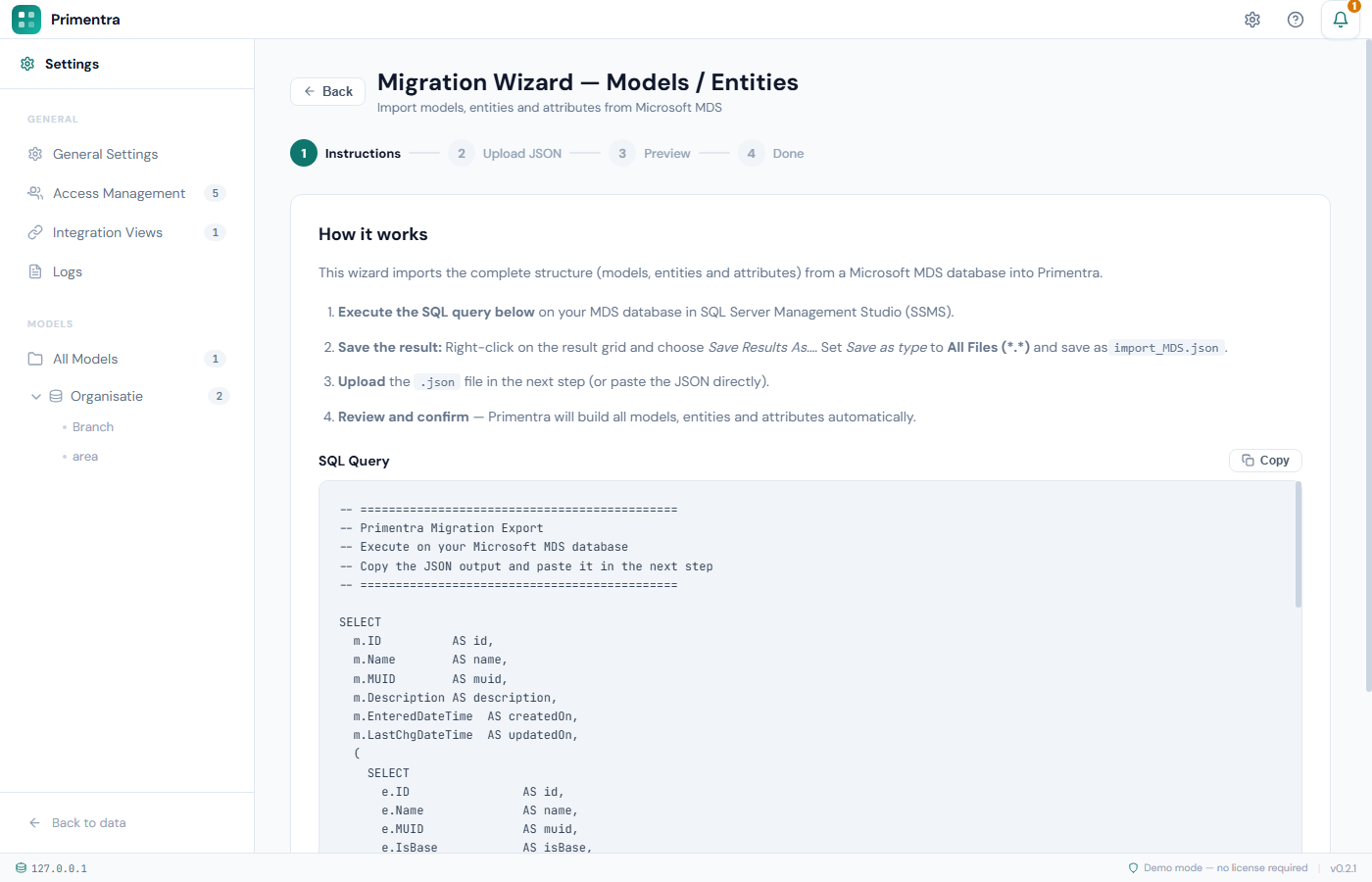
Primentra has two built-in wizards that import your Microsoft Master Data Services (MDS) installation. The first wizard imports the structure. The second wizard imports the data rows.
Both wizards work the same way. You copy a SQL script out of the wizard, run it against your MDS database with sqlcmd, and upload the result file back into the wizard. Primentra never connects to your MDS database itself.
The two wizards
Always run them in this order:
- Models & Entities — imports models, entities and attributes. See Migrate Models & Entities.
- Master Data — imports the data rows into the entities the first wizard created. See Migrate Master Data.
The second wizard can only load rows into an entity that already exists. An entity in the data file that has no match in Primentra is reported as no match and skipped.
Watch what actually crosses over, live — a real structure import, the data type mapping, and the order rule proven with a "no match" row:
Where to find them
Both wizards are for administrators only.
- Open the gear menu and select Migration Wizards. This opens the first wizard.
- In Settings, the sidebar has a Migration Wizards group with Models & Entities and Master Data Import.
- Direct URLs:
/admin/migration/modelsand/admin/migration/data.
Prerequisites
| Requirement | Why |
|---|---|
| Administrator role in Primentra | Both wizards are open to administrators only |
Read access to the MDS database (mdm schema) | The export scripts read mdm.tblModel, mdm.tblEntity, mdm.tblAttribute and the entity tables |
| SQL Server 2016 or later | Both export scripts use FOR JSON PATH |
sqlcmd | SSMS truncates large JSON results. sqlcmd writes the full result to a file |
| A working Primentra installation | See Install Primentra |
The export scripts use Windows Authentication (-E). The Windows account that runs PowerShell must have read access to the MDS database.
What migrates
| Source | What Primentra imports |
|---|---|
mdm.tblModel | Name, description, created and modified timestamps |
mdm.tblEntity | Name, description, created and modified timestamps |
mdm.tblAttribute | Display name, name, data type, maximum length, decimal places, negative numbers allowed, required flag, code and name flags, sort order, description, timestamps, domain reference |
| Entity leaf tables | Code, Name and every non-system attribute value, including domain values |
Original MDS timestamps are kept. The import date is not used.
Data type mapping
| MDS | Primentra |
|---|---|
| Text | Text |
| Number with 0 decimals | Int |
| Number with 1 or more decimals | Decimal — the number of decimal places is kept |
| DateTime | DateTime |
| Domain-based | Domain — the reference is resolved to the imported entity |
| Link, and every other type | Text |
The MDS input mask sets the Allow negative flag: -#### allows negative numbers, #### does not. A mask that says nothing about a sign, or no mask at all, migrates as allowed, so a file that imports into MDS today keeps importing here. Switch it off per attribute afterwards if that field should never hold a negative.
What does not migrate
None of the following is read by the export scripts:
- Business rules — see Business Rules Overview
- Derived and explicit hierarchies, and collections
- Subscription views — Primentra has its own, see Integration Views
- Users, groups and functional area security
- Versions, version flags and the transaction log
- File attributes, annotations and staging batches
- The Requires approval setting on an entity. Every imported entity is created with approval turned off
Only leaf members are exported. Consolidated members and collections are not.
Two things to know before you start
Related
- Migrate Models & Entities — the first wizard, step by step
- Migrate Master Data — the second wizard, step by step
- After Migration — what to check once both wizards are done
- Models — how models, entities and attributes fit together in Primentra
- Import from Excel & CSV — the alternative when your source is not MDS