Migrate Models & Entities
The first wizard imports your MDS structure: models, entities and attributes. It creates empty entities. The data comes later, with Migrate Master Data.
Open the gear menu and select Migration Wizards, or go to Settings › Migration Wizards › Models & Entities.
The wizard has four steps: Instructions, Upload JSON, Preview and Done.
Watch the wizard end to end — the export script, a parse error, the real import, the cross-model warning proven on a real entity, and what Skip and Overwrite each do the second time you run the same file:
Step 1 — Export the structure from MDS
- Copy the SQL script with the Copy button.
- Save it as a
.sqlfile, for exampleC:\Temp\export_mds_model.sql. - Open PowerShell and find
sqlcmd.exewith the locate command the wizard shows. - Copy the
sqlcmdcommand, replaceSERVERNAME\INSTANCEandMDS_DATABASE, and run it. - Click Next: Upload JSON.
| Flag | Purpose |
|---|---|
-S | SQL Server instance that holds the MDS database |
-d | MDS database name |
-E | Windows Authentication |
-i | The saved SQL script |
-o | The output file |
-h -1 | No column header |
-y 0 -Y 0 | No column width limit, which prevents truncation |
What the script reads
The script returns one nested JSON document: models, their entities, and each entity's attributes. It reads every model in the database.
Attributes with AttributeType_ID = 3 are excluded. Everything else is included, which means the MDS Code and Name attributes are part of the export. Domain-based attributes carry the name of the entity they point to.
Step 2 — Upload the JSON
Choose Choose .json file and select import_model.json, or paste the JSON into the text box. Then click Parse & preview.
The wizard cleans up common paste problems by itself: a byte order mark, text in front of the opening [, a result split across several rows, and line breaks or tabs inserted by SSMS.
If the file is not valid, the wizard shows a Parse error and stays on this step.
Step 3 — Review the preview
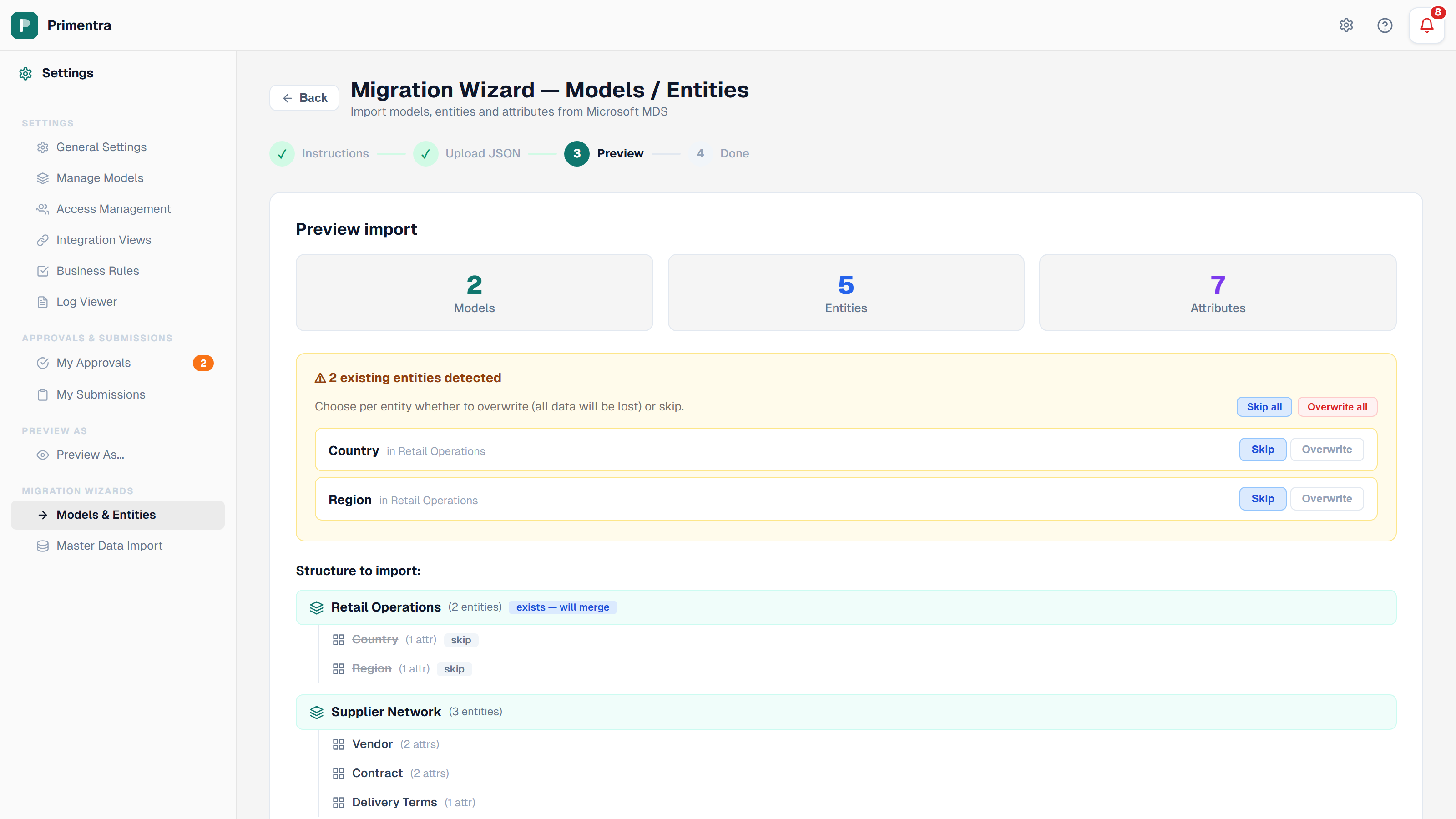
The preview shows three counters — Models, Entities and Attributes — and a tree of everything that will be created.
A model that already exists in Primentra is marked exists — will merge. The wizard adds the new entities to it instead of creating a second model with the same name.
Conflicts
An entity is a conflict when Primentra already has an entity with the same name in the same model. Every conflict is listed with two buttons:
- Skip — keep the existing entity untouched. This is the default.
- Overwrite — replace the existing entity's attribute list with the one from MDS.
Use Skip all or Overwrite all to set every conflict at once. Entities set to Skip are struck through in the tree, and the import button counts only the entities that will be written.
Step 4 — Import
Click Import N entities. The wizard then:
- Creates a System User (
system@mds-import) that owns the imported records. - Creates every model that does not exist yet, with the MDS description or "Imported from MDS".
- Creates each entity with its attributes, and sets the table name to the entity name with spaces replaced by underscores.
- Runs a second pass that resolves every domain attribute to the entity it references.
Domain references are resolved inside the same model first. If the target is not there, Primentra looks in every other model. Both fallbacks produce a warning:
Domain "X" for Entity.Attribute found in different modelDomain entity "X" not found for Entity.Attribute
Step 5 — Done
The result screen reports Models created, Entities created, Entities overwritten and Entities skipped, followed by any warnings. Read the warnings before you continue — an unresolved domain reference means that attribute has no target entity, and the data import cannot fill it.
Click Import Data to go straight to the second wizard, or Done to return to the model list.
Related
- Migrate Master Data — the next step, loading the rows
- Migration Overview — prerequisites and what does not migrate
- Attributes & Data Types — how the mapped data types behave in Primentra
- Domain Attributes & Hierarchies — what a resolved domain reference gives you
- Entities — reviewing and editing an imported entity