Business Rules Overview
Business rules are conditions Primentra applies every time a row is written. Most of them check the row. One kind fills it.
Rules live on the entity. Open Settings → Manage Models, open the entity, and select the Business Rules tab.
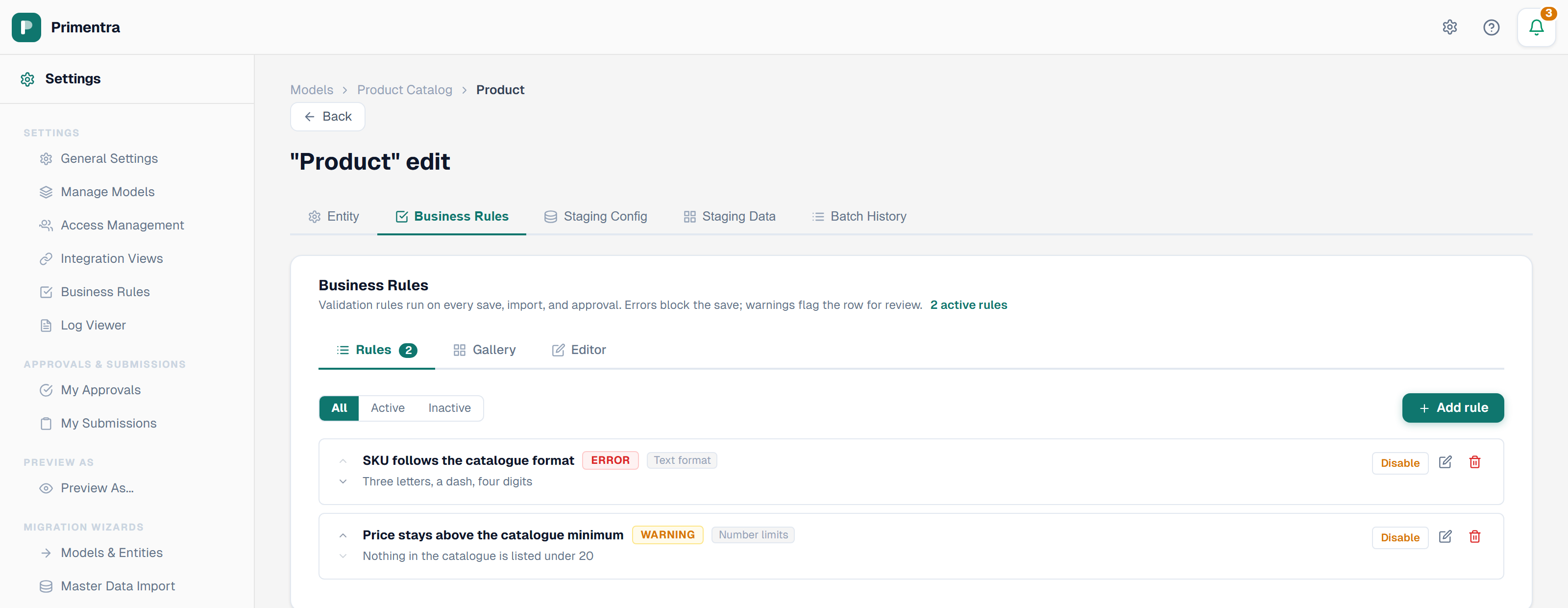
The tab has three inner tabs:
- Rules — the rules that exist, with a count badge.
- Gallery — the templates you build a new rule from.
- Editor — the form for the rule you are creating or editing.
Two kinds of rule
| Kind | What it does |
|---|---|
| Validation | Checks the row. Refuses the save, or flags the row, when the check fails. |
| Fill a value | Fills a column that was left empty, with a fixed value or one built from other columns of the same row. Never refuses anything, and never overwrites a value someone entered. |
Watch the full introduction in 5:11 — a rule is built from a template, tested against live data, then run on a save, an import and Validate Now:
A filling rule comes from the Fill a value template. It uses the same builder as every other rule — only the THEN half changes:
Leave the condition empty and the rule applies to every row: *Status becomes Active when it is left empty*.
default_applied, naming the rule and the column.Filling rules run before the checks on every write path. A value a rule supplies is validated like any other, and a required-value rule does not trip on a blank that was about to be filled. Where several filling rules apply, they run in the order you arrange them, and a later rule sees what an earlier one wrote. This cannot loop: once a blank is filled it is no longer blank.
Filling rules have no severity. There is no pass or fail, so the severity choice is not offered for them.
Severity
Each validation rule has a severity:
| Severity | Button in the form | What it does |
|---|---|---|
| Warning | Warn and flag | The row saves. It is marked in the grid for review. This is the default. |
| Error | Refuse the save | The save is rejected with the rule's message. The row keeps its previous values. |
Where rules run
Rules apply to every path into the entity:
- Grid saves — validated immediately. An error rule refuses the save and reports the first failing rule by name.
- REST API — writes go through the same stored procedure as a grid save, so the API behaves identically. It cannot write a row a steward could not.
- Approval workflows — rules run when an approver applies a submission. Error rules block even a Force approve.
- Staging batches — the rows are written, then evaluated. A row that breaks an error rule is put back the way it was and its staging row is flagged with error code
262144. The rest of the batch still loads. - Bulk file imports — your choice, per import. The import wizard offers Refuse rows that break an error rule, on by default.
- MDS migration import — never blocked. Legacy data is expected to break rules, so every row lands.
Every rule in the model, on one page
Settings → Business Rules gathers the rules of every entity into one table.
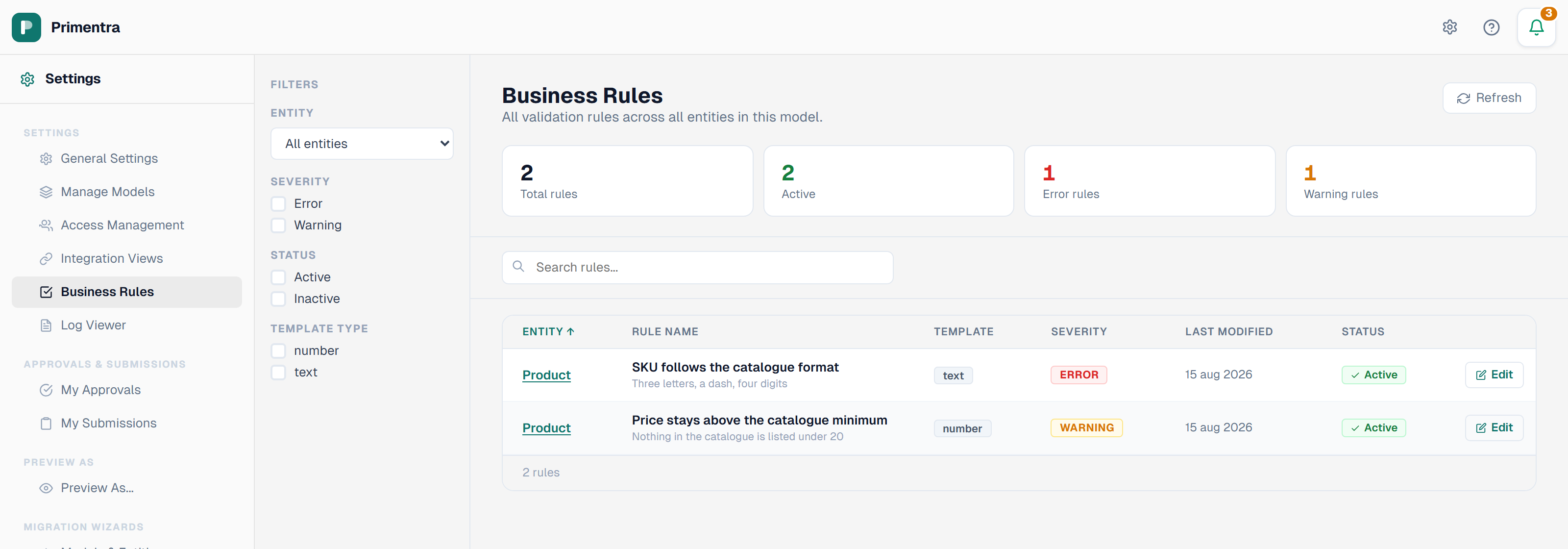
Four cards across the top count the whole model: Total rules, Active, Error rules and Warning rules. They describe the model, not the filtered list, so *6 error rules* stays 6 while you narrow the table beneath it.
Filter down the left side by entity, by severity, by status, or by the template a rule was built from. Search matches the rule name, the entity name and the description. Every column header sorts. Click an entity name, or Edit, to open that rule in its entity's form.
Related
- Creating a Rule from Templates — the nine templates and what each one builds
- Validating Entities — run the rules over rows that are already saved
- Rules in Approval Workflows — what happens when an approver applies a submission
- Entities — where the Business Rules tab lives
- Audit Log — where a filled value is recorded