Install Primentra
The installer sets up Primentra as a Windows service that starts on boot. It installs Node.js, registers the service, and adds a firewall rule for you.
Run the installer
- Download
Primentra-Setup-vX.X.X.exefrom primentra.com. - Right-click the file and choose Run as administrator.
- Accept the license agreement.
- Choose the installation folder. The default is
C:\Program Files\Primentra. - Choose the port. The default is
3001. The installer checks whether the port is free and suggests another one if it is not. - Choose how users will reach Primentra: Direct access on this port, which adds a Windows Firewall inbound rule, or Via IIS reverse proxy, which adds no rule and keeps the port internal.
- Choose whether to create Start Menu shortcuts.
- Click Install.
- Leave Open Primentra in your browser checked on the last screen.
What the installer does
- Installs Node.js LTS when Node is missing or older than v18.
- Registers a Windows service named Primentra with automatic start.
- Writes service logs to
{install folder}\logs\. - Grants the service write access to the install folder.
- Starts the service and waits until
/api/healthanswers. - Opens
http://localhost:{port}in your browser.
First-time setup
The first time you open Primentra in a browser it walks you through three screens.
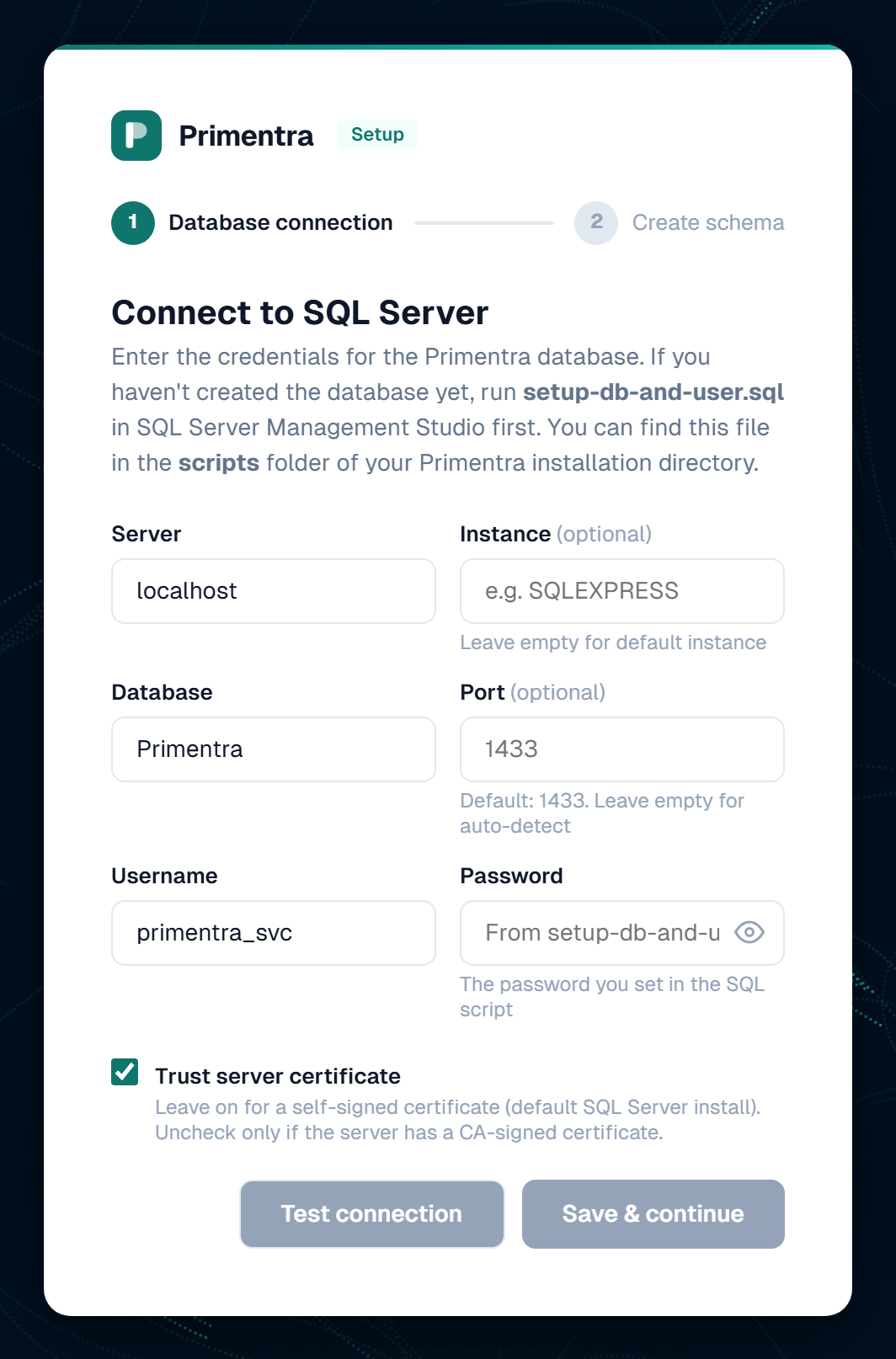
- On Connect to SQL Server, fill in the connection fields listed below.
- Click Test connection. Wait for "Connection successful". If the test fails, the screen lists the checks to make.
- Click Save & continue.
- On Create database schema, click Setup database. Primentra creates all tables, stored procedures and indexes. This takes a few seconds.
- Click Continue.
- On Create your administrator account, enter your email, display name and password. Use Generate for a strong random password.
- Click Create account & continue. You are signed in and land on the dashboard.
Connection fields
| Field | Value |
|---|---|
| Server | The machine SQL Server runs on, for example localhost or SQLSERVER01. Pasting SERVER\INSTANCE splits itself over the two fields |
| Instance | Optional. Leave empty for the default instance. Enter the name, such as SQLEXPRESS, for a named instance |
| Database | Primentra, or the name you chose in setup-db-and-user.sql |
| Port | Optional. Leave empty to auto-detect. Default instances use 1433; named instances are resolved by SQL Server Browser |
| Username | primentra_svc |
| Password | The password you set in setup-db-and-user.sql |
| Trust server certificate | Leave checked for a self-signed certificate, which is the default SQL Server install. Uncheck it only when the server has a CA-signed certificate |
Check the scheduler job
setup-db-and-user.sql creates a SQL Agent job named Primentra_Scheduler. It runs every minute and does two things: it fires scheduled and trigger-based staging batches, and it applies your retention settings. Without it both fail silently — staging runs in Manual mode only, and nothing is ever purged.
You do not have to hunt for it. Settings › General Settings › Database reports the job after every setup run: a missing job gets an amber warning naming the script that repairs it.
To confirm it by hand, connect as a sysadmin:
Make sure the SQL Server Agent service runs and starts automatically. The job cannot fire without it.
sysadmin and run scripts\create-scheduler-agent-job.sql from the install folder. This happens when setup-db-and-user.sql was never run — for example on a database created by hand.SQL Server Express has no SQL Server Agent at all. Setup reports this and continues. Schedule usp_Scheduler_Dispatch and usp_Maintenance_Cleanup from Windows Task Scheduler instead.
Next steps
- Create your first model and entities under Settings › Models.
- Add user accounts under Settings › Access Management.
- Configure SMTP under Settings › General Settings › Email so welcome emails and expiry alerts can go out.
Related
- Create Database & Service Account — do this first
- Health & Monitoring — confirm the service and schema are healthy
- Email & Notifications — SMTP and the Application URL
- Data Retention — what the scheduler job purges
- Troubleshooting — service, connection and setup errors