MDS Manual Import
MDS Manual Import needs no connection to MDS. You run two scripts on the MDS server and upload the two files they write. It has four steps: Files, Options, Select and Run.
Go to Settings › Migration Wizards › MDS Manual Import. The URL is /admin/migration/models.
Watch it in 6:20: the two scripts and their sqlcmd flags, two bad files refused, the dry run, Rename for a model that Primentra already has, the run, and Undo this run.
Step 1 — Files
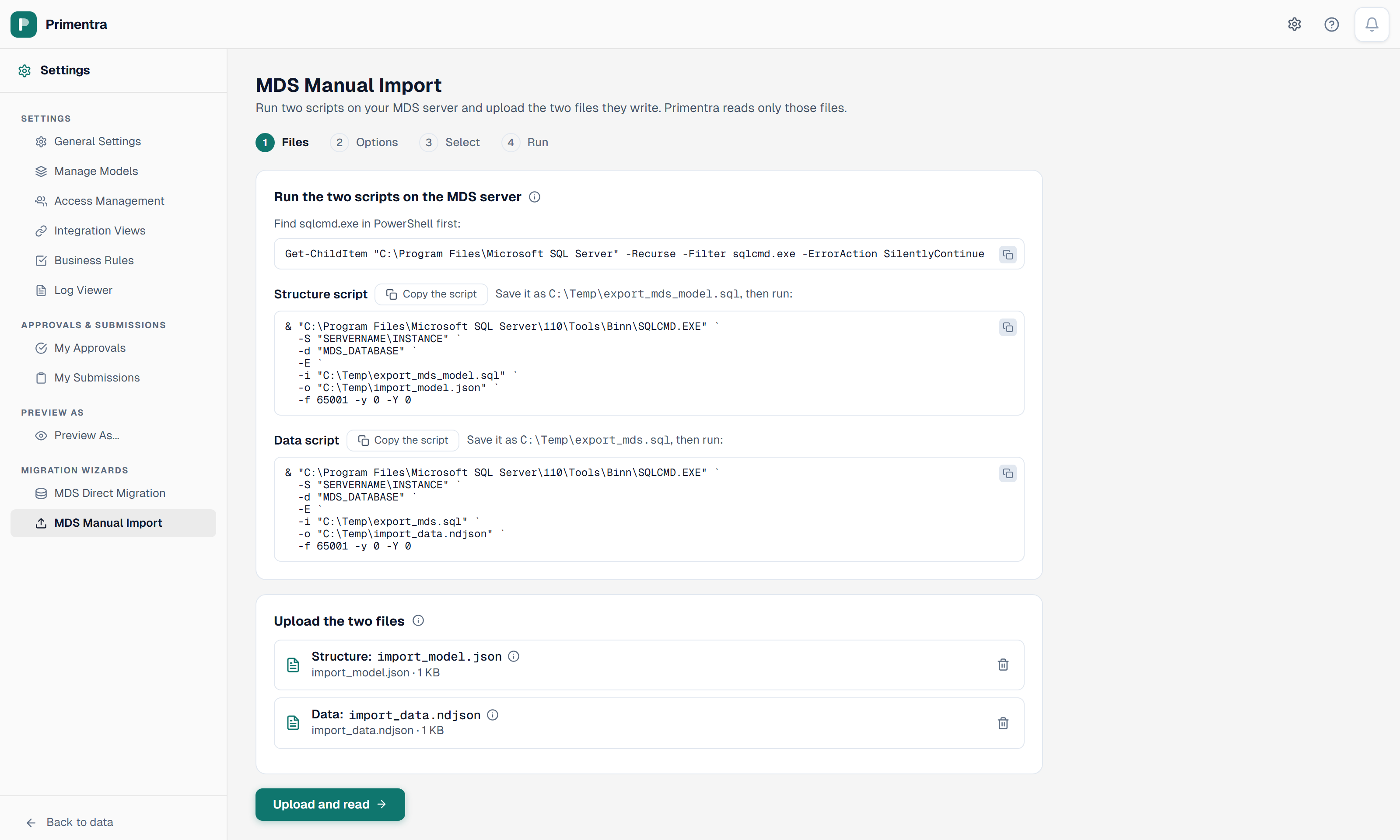
Run the two scripts on the MDS server
- Run the locate command in PowerShell to find
sqlcmd.exe. - Under Structure script, click Copy the script. Save it as
C:\Temp\export_mds_model.sql. - Copy the
sqlcmdcommand below it. ReplaceSERVERNAME\INSTANCEandMDS_DATABASE. Run it. It writesimport_model.json. - Under Data script, click Copy the script. Save it as
C:\Temp\export_mds.sql. - Run its
sqlcmdcommand. It writesimport_data.ndjson.
| Flag | Purpose |
|---|---|
-S | SQL Server instance that holds the MDS database |
-d | MDS database name |
-E | Windows Authentication. The account needs read access to the MDS database |
-i | The saved SQL script |
-o | The output file |
-f 65001 | Writes the file as UTF-8, so letters such as é, ü and 東京 arrive as they are |
-y 0 -Y 0 | No column width limit, so long results are not cut off |
sqlcmd writes the whole result to a file.The scripts use FOR JSON PATH, so the MDS server must run SQL Server 2016 or later. For an older MDS, restore a copy of the database onto a newer instance and run the scripts there.
What the scripts read
- The structure script writes every model with its entities and attributes. Domain-based attributes carry the name of the entity they point to.
- The data script writes the active members of each entity, ordered by Code. It writes one version per model: the newest.
- To use another version of a model, add a line to
@pickunder SETTINGS at the top of the data script, for exampleINSERT @pick VALUES (N'Organization', N'VERSION_2');. A model or version name that does not exist stops the script with a message. - A domain value is written as
{Code} Name. - Rows go out in batches of 200, one JSON line per batch.
- An attribute name with a dot, such as
Employee No., is written under a placeholder like_pmtcol1. Acolumnsmap records the real name. Primentra restores it.FOR JSON PATHwould otherwise read the dot as a nesting separator.
Upload the two files
- Next to Structure: import_model.json, click Choose file and pick the file.
- Next to Data: import_data.ndjson, click Choose file and pick the file.
- Click Upload and read.
Each chosen file shows its size and a bin icon to remove it. Upload and read stays off until both files are there. While the data goes up, the screen shows how many data lines are done.
Primentra checks the files before it uploads them. It refuses a structure file that is not a JSON list, and a data line that is not valid JSON. The message names the file or the line. Run the script again to fix it.
It also refuses a file in which a script stopped with an error. sqlcmd writes that error into the file as a line such as Msg 207, Level 16, and the message shows it.
The data script ends with a closing line that counts the lines before it. A data file without that line, or with another count, is not complete, and the upload refuses it. Files made with an older version of the scripts lack it, and so does a pair of files from different versions. Run both scripts again.
The files stay on your Primentra server for this migration. A run can resume after a restart.
Step 2 — Options
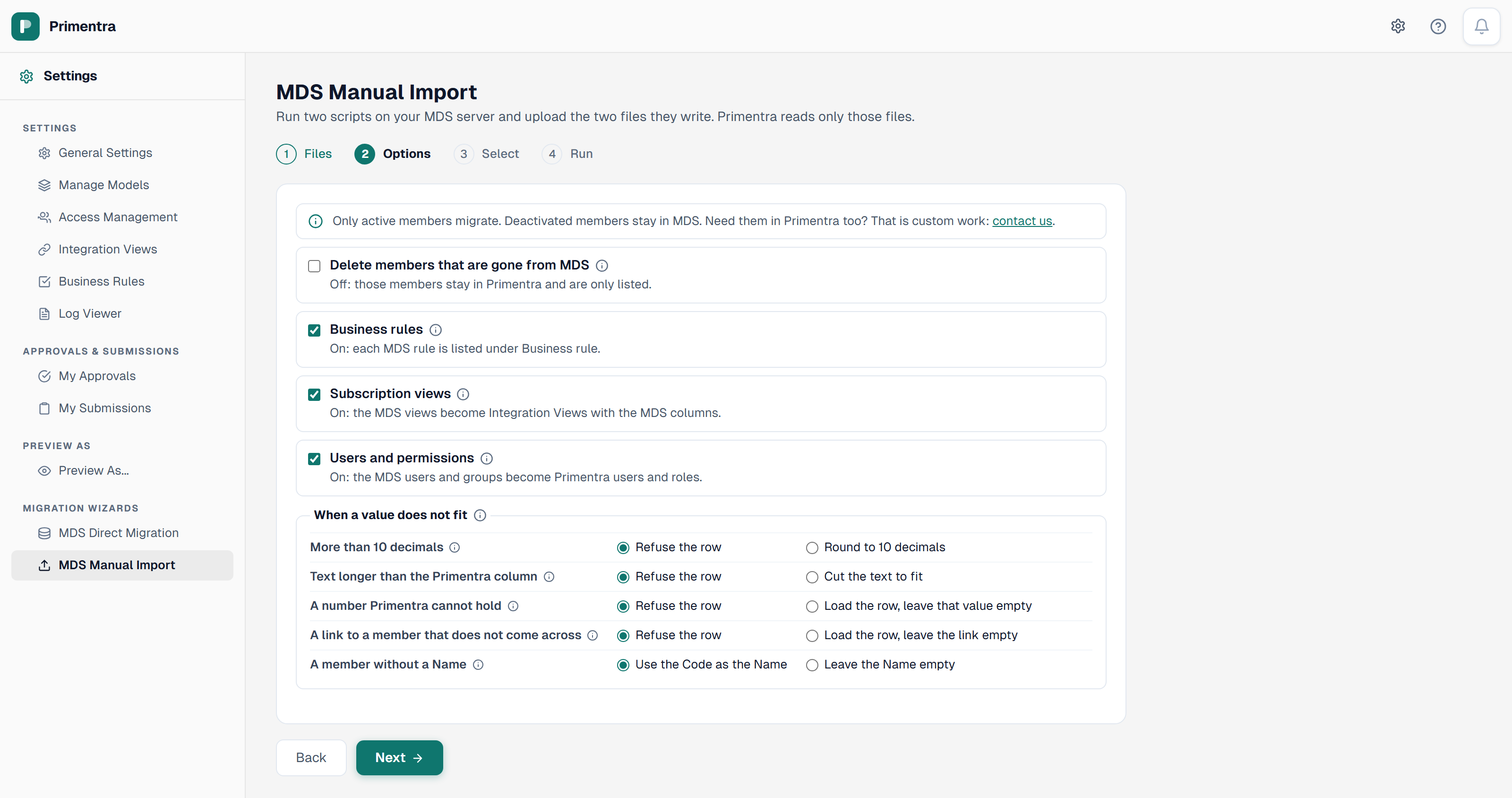
The files hold one version per model, so there is no version mode. The other options work as in MDS Direct Migration: Delete members that are gone from MDS, List MDS business rules, Subscription views, Users and permissions and When a value does not fit.
Step 3 — Select
Tick the models and entities to migrate. The tree works as in MDS Direct Migration: search, Expand all, Select all and Needed by marks. Click Start dry run.
Step 4 — Run
The dry run, the Before the run panel, the run, the problem list and Undo this run work as in MDS Direct Migration. The run reads your uploaded files where the direct migration reads the MDS database.
Explicit hierarchies and auto code come across as in MDS Direct Migration. The structure script exports them, and the data script writes the consolidated members and the parent of each member. Files made with an older version of the scripts hold neither. Run both scripts again.
Questions
Why does Primentra not read my MDS database itself?
It does, with MDS Direct Migration. MDS Manual Import is for servers that the Primentra server cannot reach, or where nobody can give you a login.
Related
- Migration Overview: the two sources and what does not migrate
- MDS Direct Migration: the same flow, connected to the MDS database
- After Migration: the checks to run once the run is done
- Domain Sources & Links: how domain values are stored, linked and refused
- Import from Excel & CSV: the reject reasons for a single entity
- Approval Workflows: why an entity that requires approval cannot be loaded in bulk
Did not find what you need?
Try the troubleshooting pages, or ask us.