MDS Direct Migration
On this page
MDS Direct Migration connects to your MDS database and reads it. It has five steps: Connect, Database, Options, Select and Run. Primentra only reads from MDS.
Open Settings › Migration Wizards › MDS Direct Migration. The URL is /admin/migration/mds.
Watch it in 6:57: connect with a read-only login, read the dry run and its problem list, choose what happens to a value that does not fit, run it, and check the result in the grid.
What you need
| Requirement | Why |
|---|---|
| Administrator role in Primentra | The migration screens are for administrators only |
| A SQL login that can read the MDS database | Primentra connects with it. Windows logon is not available yet |
| A network path from the Primentra server to the MDS server | The Primentra server makes the connection, not your browser |
A read-only login is safer. Primentra warns you when the login can write to the MDS database. It only reads.
Step 1 — Connect
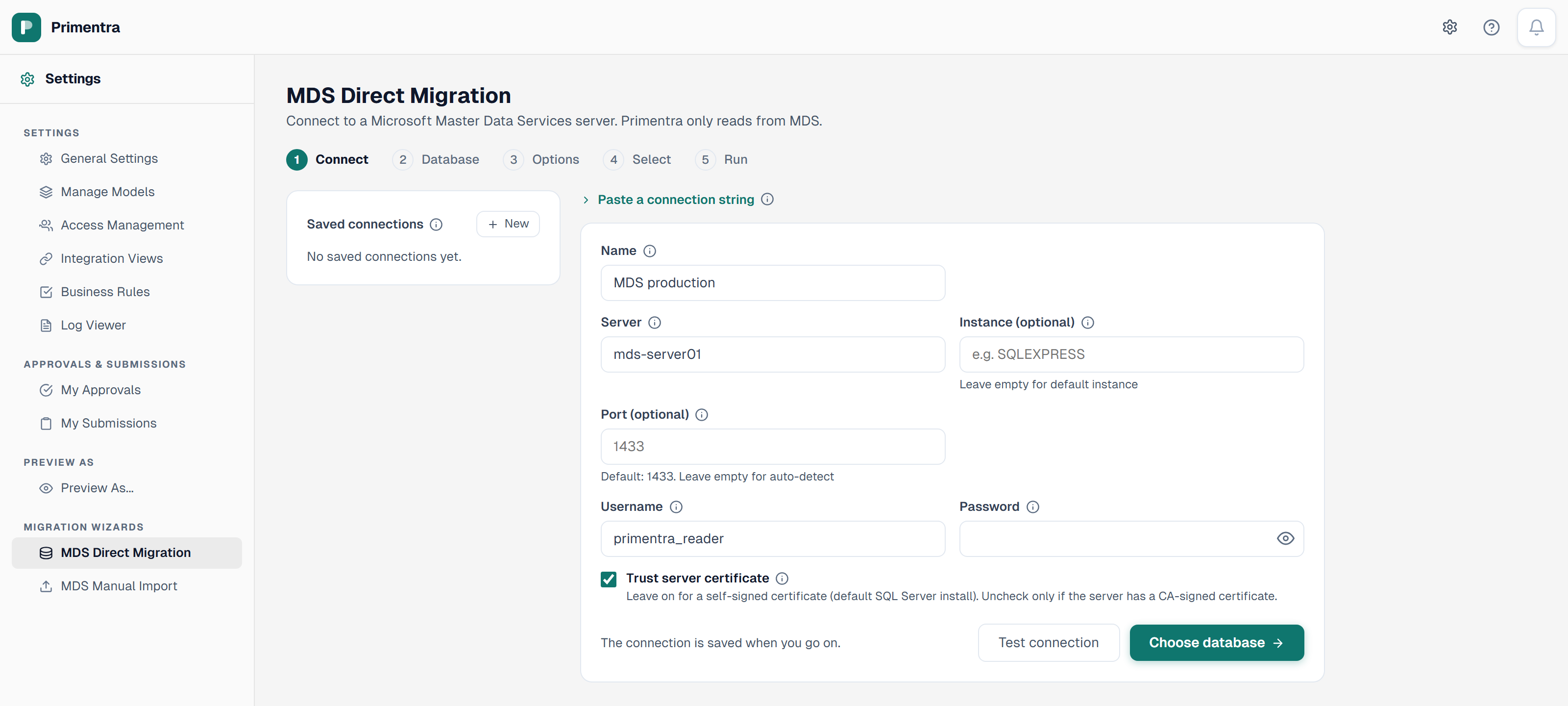
- Click New, or pick a saved connection on the left.
- Fill in Name, Server, Username and Password. Instance and Port are optional. Use a SQL Server login: Windows and Entra ID sign-in do not work here.
- Leave Trust server certificate on for a self-signed certificate (the default SQL Server install). Switch it off only if the server has a CA-signed certificate.
- Click Test connection. A green Connection successful means Primentra can log in. A red Connection failed comes with a Things to check list.
- Click Choose database. Primentra saves the connection when you go on.
You can also click Paste a connection string, paste it and click Read. Primentra fills the fields. It lists the keys it ignored.
Primentra stores the password encrypted and never shows it again. Leave Password empty on a saved connection to keep the saved one.
Run again with the same settings
A saved connection remembers its last run. When you pick it, a Last run line shows the date and the database. The next steps start with the database, options and ticks of that run. The Select step says Ticked as in the last run.
Click Run again with the same settings to start that dry run at once. Use it to bring Primentra up to date after MDS changed. An entity or column that MDS added since the last run is ticked too, and the Select step names it. What you left out on purpose stays out. Check the dry run, then click Start run as usual.
Step 2 — Database
The list shows the databases on the server that hold Master Data Services. Each row shows the schema version with its MDS release, such as Schema 16.0.0.0 (MDS 2022), and the number of models. MDS 2014 and older come last and cannot be picked. Pick one and click Next.
The line under the list says what it leaves out: databases without MDS, and the databases this login cannot open.
A database that Primentra cannot read is grayed out with the reason. Click the refresh icon to read the list again.
Step 3 — Options
- Version mode sets which MDS versions Primentra reads.
- Newest version: the highest version number of each model. This is the usual choice.
- Pick per model: you choose one version for each model on the next step.
- Every version as its own model: each version becomes a model named
<Model>_<Version>.
- Delete members that are gone from MDS: off by default. Switch it on for a run into a model that an earlier migration wrote to. A row that a migration wrote, and that MDS no longer has, is then deleted. A row that another row links to stays. Each delete is in the audit log.
- List MDS business rules: on by default. Business rules do not migrate yet. The run lists each MDS business rule in the problem list, with its MDS text. Switch it off for a run that should not list them again, such as a second merge run.
- Subscription views: on by default. Each MDS subscription view of the leaf attributes becomes an Integration View with the MDS columns, and the other formats are listed. Switch it off to make no view.
- Users and permissions: on by default. The MDS users and groups become Primentra users and roles. See Migration Overview. Switch it off to make no user or role.
- When a value does not fit: five choices. See Migration Overview for each one.
Only active members migrate. The Options step says so.
Step 4 — Select
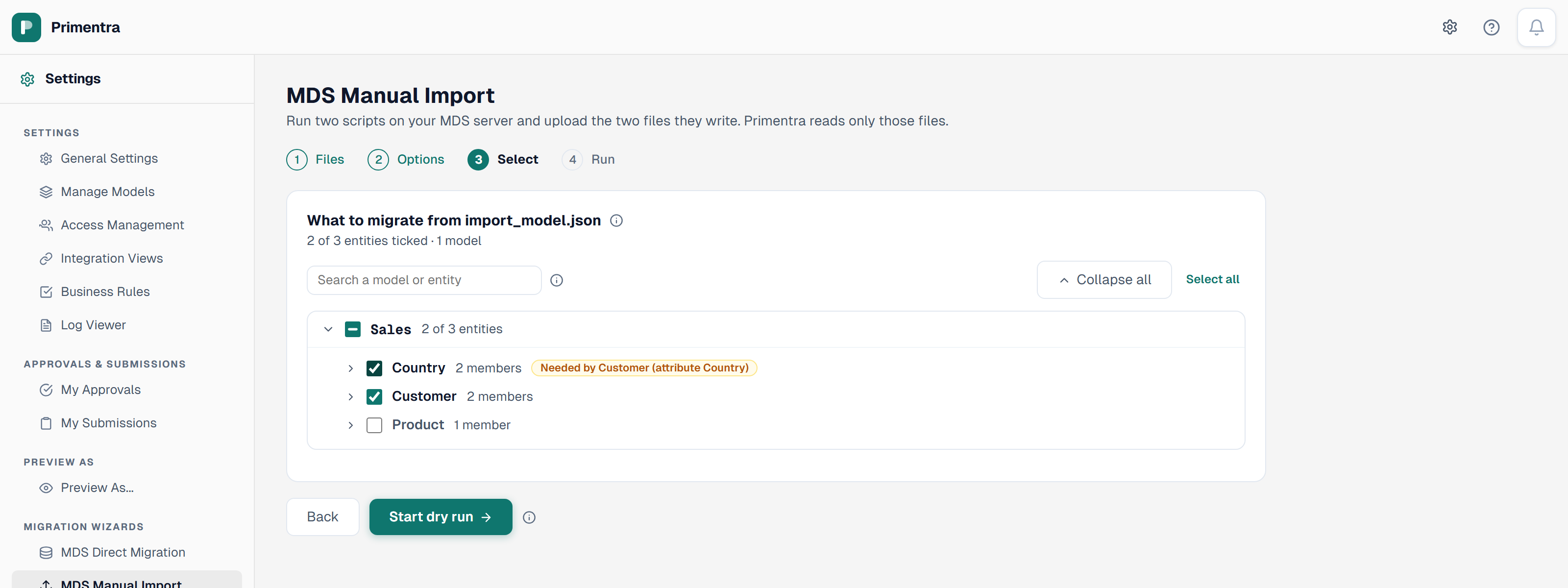
The tree lists every model and entity. Everything is ticked at the start. Untick what you do not want.
- Use Search a model or entity to filter the tree. A hidden entity keeps its tick.
- Expand all and Collapse all open and close every model.
- Select all and Deselect all tick or untick every entity you see.
- An entity that another ticked entity links to stays ticked. It shows Needed by and the name of the entity that needs it.
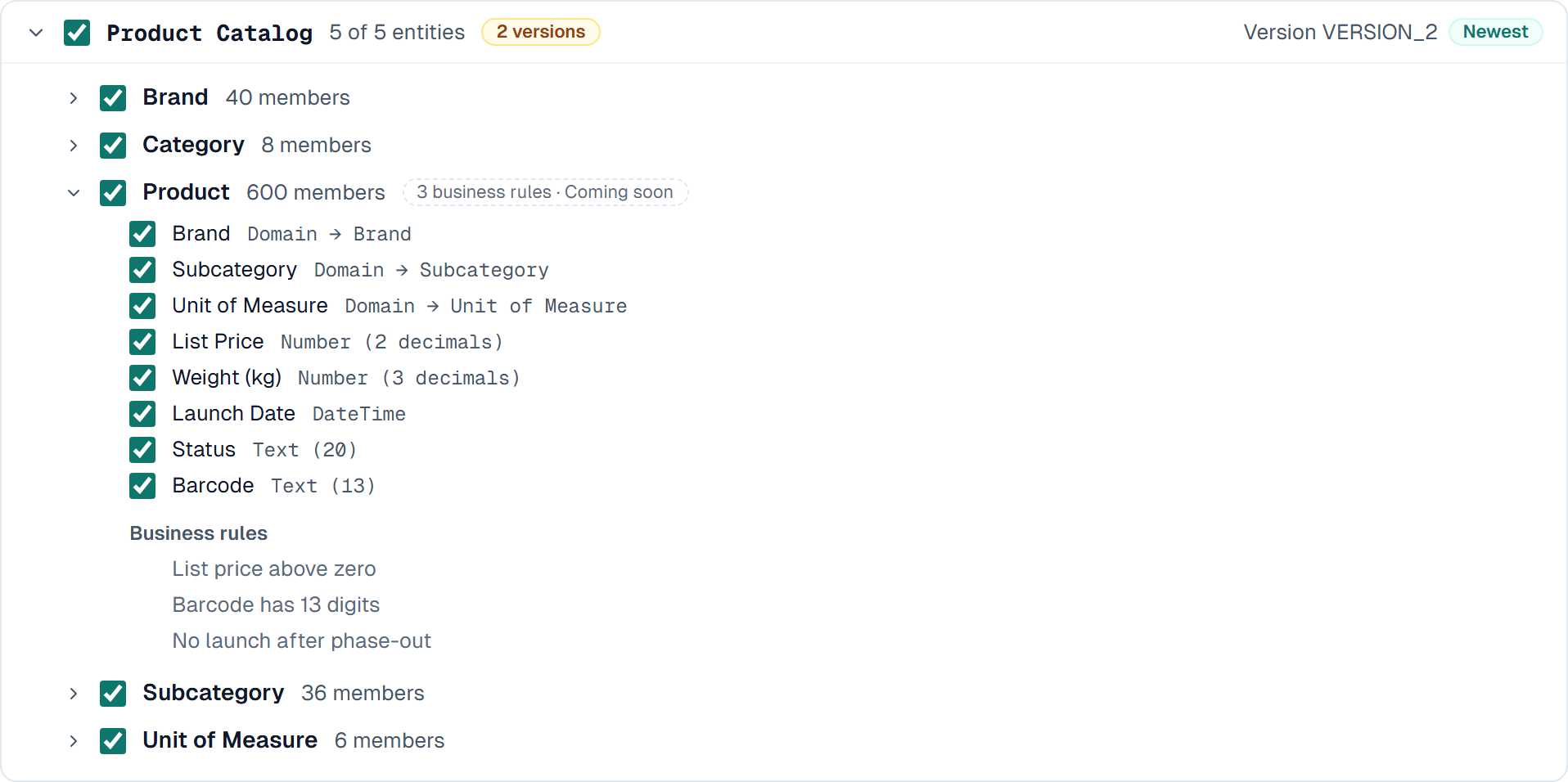
- An entity with MDS business rules shows a gray mark, for example 3 business rules · Coming soon. Expand the entity to see the rule names. Business rules do not migrate yet. The run lists each one in the problem list, with the text MDS shows for it.
With Users and permissions on, MDS users without an email lists the MDS users who have none. They sign in with AD and get their roles at their first sign-in. Type an email only for a user who should sign in with a password. An address that is not an email address stops the dry run until you fix it or empty it.
Click Start dry run.
Step 5 — Run
The dry run reads MDS and compares it with Primentra. It writes nothing. You can leave the screen while it runs. The run goes on.
The report has one row per model and entity, with these columns:
| Column | Meaning |
|---|---|
| New | Members that Primentra does not have yet |
| Changed | Members that changed in MDS since the last migration |
| Unchanged | Members that are the same in both |
| Conflicts | Members where the same column changed in MDS and in Primentra. MDS wins that column unless you keep the Primentra values. The problem list names the column |
| Gone | Members that an earlier migration brought and MDS no longer has |
| Refused | Members that Primentra cannot take as they are |
More columns show type changes, members that got their Code as Name, and changed values. A zero is gray, so the numbers that matter stand out.
The problem list
The problem list under the report names every member that stayed out and every note. Three buttons above it filter by what happened to the data:
| Group | What it holds |
|---|---|
| Blocked | Did not come across: a refused row, or an error nobody foresaw |
| Warning | Came across, but changed or riskier: a changed value, a type change, a setting left off, a Name from the Code, more access than in MDS |
| Info | MDS features listed for you: business rules, views, users, roles, approval, less access than in MDS |
Blocked comes first. A Code or value longer than 60 characters is cut: click Show all to read it whole. The Excel, CSV and JSON export holds every problem with its group.
The steps of a run
A real run has more steps than the dry run. The (i) after each step name says what it does.
| Step | What it does |
|---|---|
| The model name | Makes the model with its entities and columns, or uses the model you merge into. It loads no members |
| An entity | Loads the members of the entity. In the dry run it reads them and writes nothing |
<entity> (domains) | Second pass. It fills the links to a member of the same entity, or of an entity that loads later |
| Auto code | Sets the next generated Code so it follows on after the highest Code in MDS |
| Requires approval | Switches Requires approval on again where MDS has it |
| Subscription views | Makes the MDS subscription views as Integration Views |
| Users and permissions | Makes the Primentra users and roles from the MDS users and groups |
Before the run
When Primentra already has a model with the name of an MDS model, a Before the run panel appears. Pick one choice for each model:
- Merge: new members go in, changed ones are updated.
- Rename: load into a new model named
<name> (MDS). The existing model stays as it is. - Skip: leave the model alone.
Under Keep the Primentra values on a conflict, tick an entity to keep what Primentra has in the conflicting columns. The other columns that changed in MDS are still written. The next run lists the conflicts again.
Start the run
- Read the problem list under the report.
- Click Start run.
- Check the numbers in the Start the run dialog and click Start run.
The run creates the models and loads the members. An entity is read-only while it loads.
Cancel run stops it after the batch it works on. Resume goes on at the step that stopped, so the two together pause a run. The rows of that step load again from the start. When the brake stopped an entity, Resume also relinks the entities that link to it, and the ones that link to those: it fills their missing links and loads the rows they refused for a missing link. Their other rows stay as they are, with any edits made since the run stopped.
Explicit hierarchies
MDS Direct Migration reads the explicit hierarchies of an entity. The consolidated members load as rows. Each member gets a Parent attribute that links to its parent member. With more than one hierarchy, each gets its own attribute named <Hierarchy> parent. Attributes of consolidated members do not migrate.
Problems
Every refused row, changed value and skipped column is in the problem list. The list fills while the run works, so you can stop a run that goes wrong. Filter it, sort it, and download it as CSV, Excel or JSON. The screen shows the first 200 rows. The download holds all of them.
Undo this run
Undo this run takes a run back. A dialog first shows what goes: how many rows are removed, how many get their old values back, and which models and entities the run created. Nothing changes until you confirm. You cannot take an undo back.
A row that someone changed in Primentra after the run stays. So does a row that another row links to. The list names each one.
Questions
Can I migrate one model at a time?
Yes. Untick the other models on the Select step. Run again later for the next model.
Related
- Migration Overview: the two sources and what does not migrate
- MDS Manual Import: the same flow, from two files
- After Migration: the checks to run once the run is done
- Domain Sources & Links: how domain values are stored and linked
- Audit Log: where the run is recorded
Did not find what you need?
Try the troubleshooting pages, or ask us.