Troubleshooting
Symptoms, causes and fixes for installation problems.
Always run Command Prompt or PowerShell as Administrator. Right-click and choose "Run as administrator". An administrator account alone does not give elevated privileges, and sc, net start and anything that writes to C:\Program Files\ fail with "Access is denied" without it.
Database connection
When a database was configured before but cannot be reached right now — most often because the server restarted before SQL Server finished starting — Primentra shows this screen instead of the sign-in page. It never offers a way to type in a new connection: nobody can prove they are an administrator while signing in itself needs the same database, so the only two options are to wait and retry, or email the account that was made the first administrator.
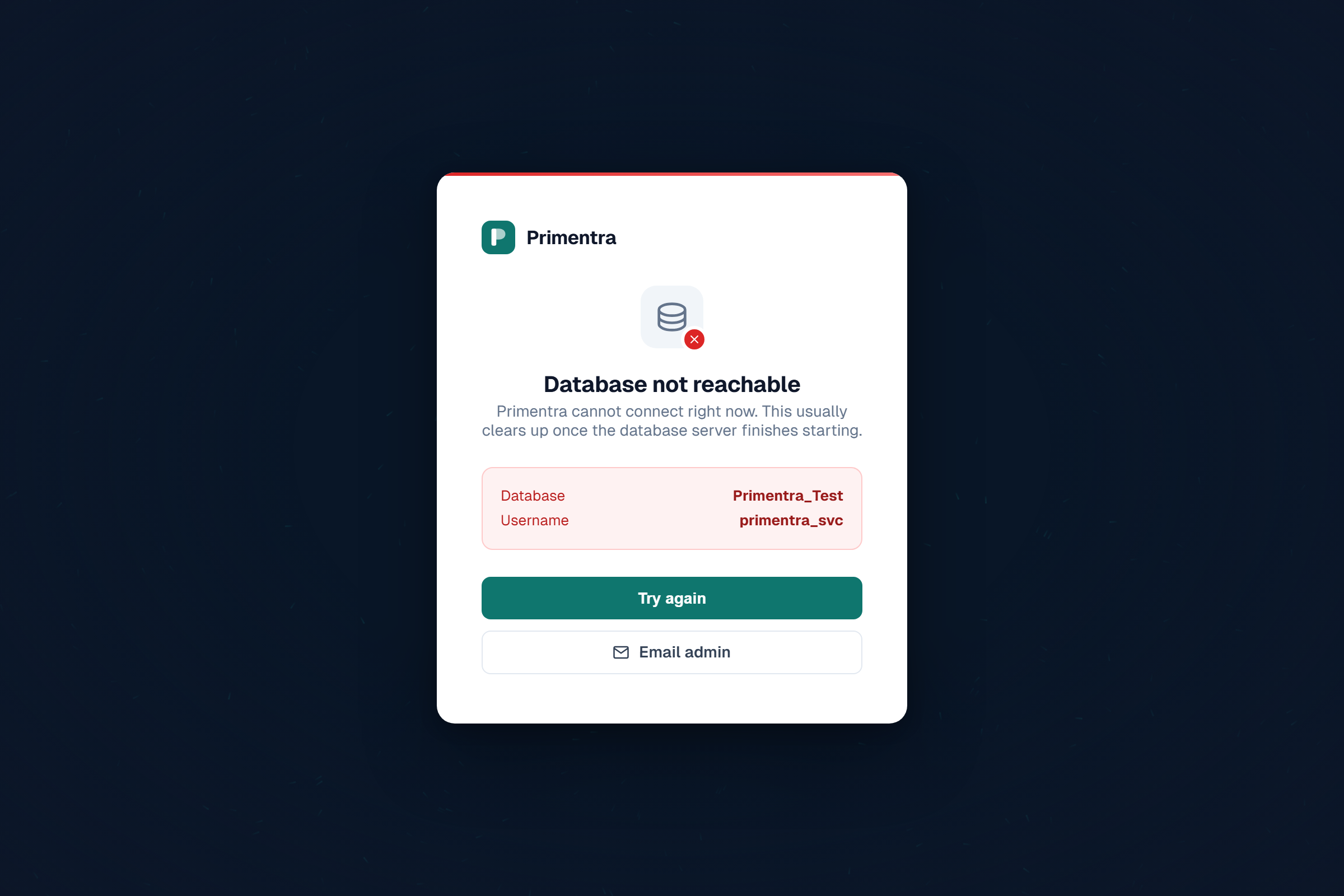
The database-not-reachable screen, showing the configured database name, username, a retry button and an email-admin link(click to enlarge)
| Error | Solution |
|---|
| "Database not reachable" screen after a restart | Wait for SQL Server to finish starting, then click Try again. This is expected right after a reboot and usually clears within a minute |
| "Database not configured" | Open General Settings, enter the connection details, click Test connection and Save |
| "Cannot connect to SQL Server" | Check the server name and instance, and that SQL Server runs. Enable TCP/IP in SQL Server Configuration Manager. Start the SQL Server Browser service for named instances |
| Certificate or "self-signed certificate in certificate chain" error | Leave Trust server certificate checked. A default SQL Server install uses a self-signed certificate. Uncheck it only when the server has a CA-signed certificate — see Database Connection |
| "Port for ... not found" | You typed the database name in the Instance field. Instance is the SQL Server instance name, such as SQLEXPRESS. If the SSMS title bar shows only SERVER, leave Instance empty |
| "Login failed for 'primentra_svc'" | Check the password against setup-db-and-user.sql. Check that Mixed Mode authentication is enabled |
| "Named instance not found" | SQL Server Browser is not running. Open services.msc, set it to Automatic, and start it |
Database setup
| Error | Solution |
|---|
| Port or connection error during setup | Enable Named Pipes and TCP/IP in SQL Server Configuration Manager, then restart SQL Server. Start SQL Server Browser for named instances |
| "Could not create constraint or index" | The primentra_svc account lacks REFERENCES permission. Run as sysadmin: USE Primentra; GRANT REFERENCES ON SCHEMA::dbo TO primentra_app; GRANT CREATE SCHEMA TO primentra_app; ALTER ROLE db_ddladmin ADD MEMBER primentra_app; |
| Setup script fails with a permission error | Run setup-db-and-user.sql as sysadmin first. Setup needs CREATE TABLE, ALTER, REFERENCES and CREATE PROCEDURE |
| Schema deployed into the wrong database | The script refuses to deploy into master, tempdb, model or msdb. Connect to the target database first: sqlcmd -d <database> |
Windows service
| Error | Solution |
|---|
| The service will not start after installation | Read logs\service.err.log. The usual cause is that the database is not configured yet — open the browser and finish the setup wizard |
| The service is stuck or keeps restarting | Run scripts\repair-service.bat as Administrator. It reinstalls the service with the correct configuration |
| Port already in use | The installer detects this and suggests a free port. Accept it, or change the port later with scripts\change-port.bat 3002 |
Installation and upgrade
| Error | Solution |
|---|
| "Access is denied" or "DeleteFile failed" | A file is locked. Close services.msc, close any command prompt in the install folder, and exclude C:\Program Files\Primentra\ from antivirus scanning. Last resort: sc delete Primentra, then run the installer again |
| Locked out of the admin account | Open Command Prompt or PowerShell as Administrator in the install folder and run node scripts\recover-admin.mjs. Type the full command including node — do not double-click the file. See Account Recovery |
License and trial
The 60-day trial is tied to the server it started on, not to the installation. Reinstalling Primentra does not extend it. A fresh installation therefore continues — or immediately ends — a trial that was started earlier on the same machine.
| Error | Solution |
|---|
| "License expired" or read-only mode right after a new installation | Known issue up to and including 1.2026.6.22, fixed in 1.2026.7.28. Saving the database details cleared the licence fields from the configuration file while the trial was still running. Run Restart-Service Primentra in an elevated PowerShell and refresh the browser. No reinstall is needed and no days are lost. To confirm first, open http://localhost:3001/api/trial-status on the server itself — it reports "status":"active" with the days left |
| Existing licence key rejected after upgrading | Keys are signed with Ed25519 since 1.2026.7.28, and older keys no longer validate. Request a replacement — see Licensing |
| "Trial expired" on a machine used before | The trial is recorded per server, so a reinstall does not start a new one. This also applies to a machine deployed from an image on which Primentra was evaluated. Send us the output of http://localhost:3001/api/trial-status and we will extend the trial or issue a key |
| Fewer trial days than expected | Days left are counted from the current system time, so a server clock set ahead makes the trial look shorter. Correct the time and the days return. Only the start date is fixed |
| Read-only and no key on the License tab | The trial ended. Enter a licence key under Settings › General Settings › License |
Log files
All logs are in logs\ under the installation directory, by default C:\Program Files\Primentra\logs\.
| File | Contents |
|---|
errorlog.txt | Application errors — API failures, startup problems, stack traces |
service.log | Service stdout — normal application output |
service.err.log | Service stderr — crash details and Node.js errors |
install.log | Installer log — a step-by-step record of the installation |
You can also read errors in the application under Settings › Logs, or in Windows Event Viewer under Application, source Primentra.
| Script | Purpose |
|---|
scripts\repair-service.bat | Reinstalls the Windows service — fixes a stuck, paused or failing service |
scripts\change-port.bat 3002 | Changes the port Primentra listens on |
node scripts\recover-admin.mjs | Lists users and resets passwords when you are locked out |
Ready to get started?
Start managing your master data with Primentra today.
View Pricing