Active Directory & SSO
On this page
Primentra can check sign-ins against your Active Directory (AD). People sign in with their Windows user name and password. You link AD groups to roles. When AD disables a person, Primentra switches that person off.
How to connect Primentra to your domain: see Active Directory Setup.
What it does
- A person types a Windows user name and password. Primentra asks a domain controller whether they are right.
- A person in a mapped AD group gets the role of that group at every sign-in.
- A person who is new to Primentra gets an account at the first sign-in.
- A daily check switches off people whom AD has disabled.
Primentra only reads from AD. It never writes to it.
Limits
- One domain. People from another domain in the forest are not found.
- No NTLM, Entra ID, SAML or SCIM.
- A user's AD link is not part of a model export, but the group mappings are. See Model Export / Import.
- The password of the Active Directory account is stored in
mds-config.json.
Give a role to AD groups and users
You choose who gets a role on the role page. Go to Settings › Access Management › Roles and open a role. The page has four steps:
- Settings. The name, a note and the type of the role. The Save in this step saves only these.
- What this role may do. The permissions, as a list of models, entities and columns that starts closed. This part has its own Save permissions. See The permission list.
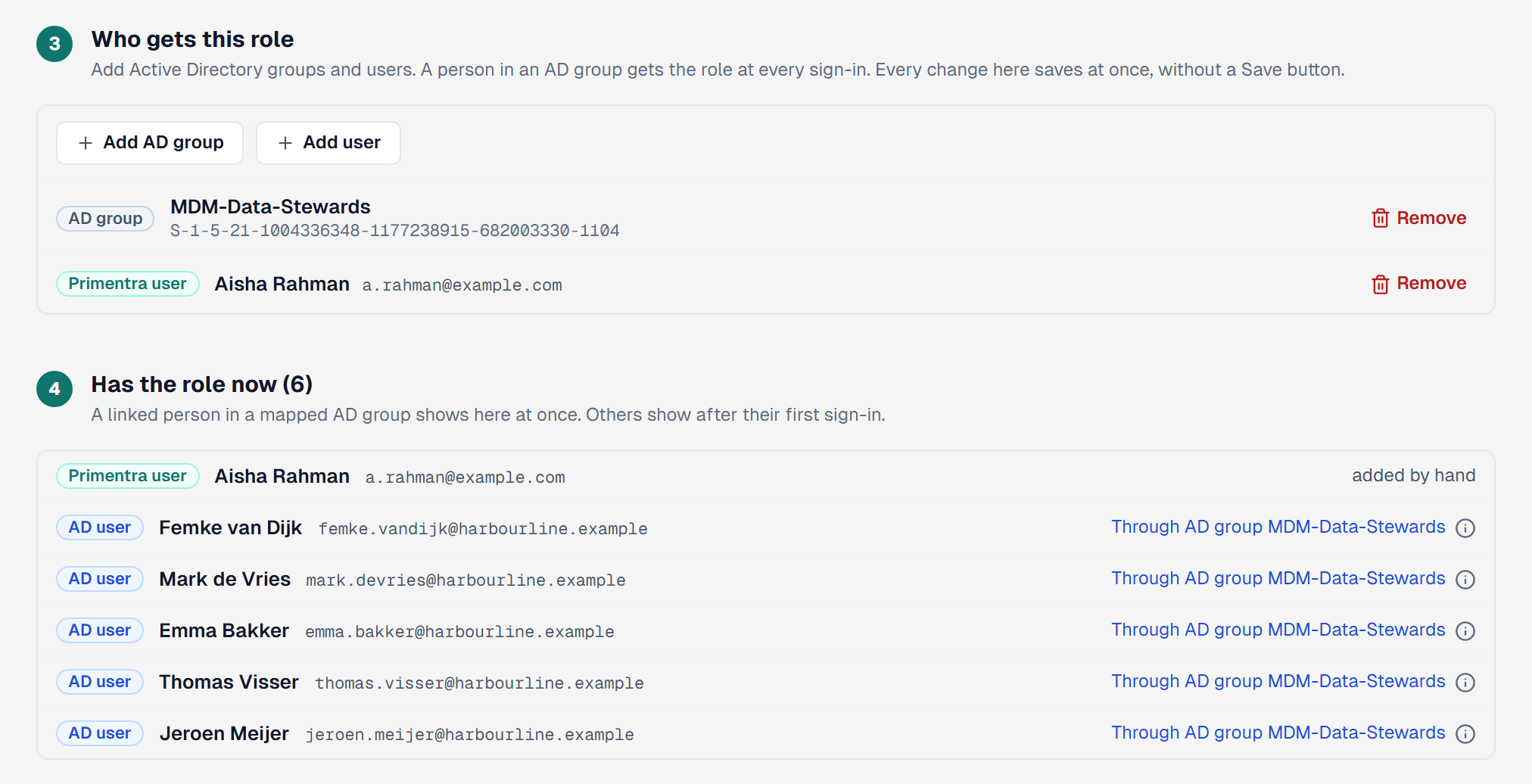
- Who gets this role. One list of AD groups and users that you added. Each row has a label for its type: AD group, AD user, Primentra user or API user. Click Add AD group or Add user at the top: the search opens right under the buttons. Every change here saves at once, without a Save button. Each row has a Remove button.
- Has the role now (N). Shows only when an AD group is linked to the role. Every person with the role, and the reason: Through AD group and the name of the group, or added by hand. When several groups are linked to the role, it reads Through an AD group: A or B. A person in an AD group shows here after their first sign-in. AD supplies the group, and the role page links the group to the role.
Add AD group shows only while AD sign-in is on. When AD sign-in is off and the role has groups, a line says Active Directory sign-in is off. These groups do nothing until it is on.
The tab Active Directory holds the connection and the daily check. At the top it says how many groups are mapped to roles, with the link Open the Roles tab.
A person in a mapped group gets that role at every sign-in. Without a mapped group, a person who is new to Primentra cannot sign in.
A change to a mapping takes effect at once. When you remove a group, the people who got the role only through that group lose it immediately, and their open sessions end with it. When you add a group, the linked users in the group get the role at once. The page says how many users it updated. A person who has the role from another group keeps it. A role you gave by hand stays. If AD cannot be read, Primentra still saves the mapping and the page says AD could not be read: roles follow at the next sign-in or check.
Manage access in AD, not in Primentra
Give roles to AD groups. Do not give them to AD users one by one. IT already keeps the groups up to date, so Primentra follows without extra work. A person who leaves a group in AD loses the role at the next sign-in or the next daily check. Nobody has to remember to remove it in Primentra.
Give a role by hand only for an exception, for example a stand-in for two weeks. A role that you give by hand stays when the person leaves the AD group.
Add an AD group
- Click Add AD group.
- Type two letters or more of a group name in the box Search groups by name. Primentra searches AD and shows at most 20 groups.
- Click the group.
- Click Add.
- A person in two mapped groups gets both roles.
- Nested groups count. A person in a group inside a mapped group gets the role.
- A group on an administrator role shows a warning. Everyone in that group becomes an administrator, now and when someone joins the group later.
- Group not found in AD means that AD no longer has a group with that ID. The row gives nobody the role. Remove it, or add the new group.
- When a removal would take your own administrator role from you, Primentra asks first.
- Deleting a role removes its groups too. The confirmation names them.
Add a user by hand
Click Add user. One search box, Search by name or email, searches two places:
- In Primentra: every active user, linked to AD or not. A user who has the role already shows in the list, but you cannot pick the user. The list says why: has the role through AD group and the name of the group, or already added. API users show only when the role has API users already.
- In Active Directory: the AD accounts that are not a Primentra user yet. This part shows only while AD sign-in is on. Type two letters or more. An account that is disabled in AD shows disabled in Active Directory, and you cannot pick it. An AD account that is linked to a Primentra user shows only under In Primentra.
When you pick an AD account that is not in Primentra yet, Primentra creates the user. The user is linked to that account, has this role and has no Primentra password. Name and email come from AD. When a Primentra user with the same email exists and is not linked, Primentra links that user and does not create a second one.
After you add a user by hand, a gray line says An AD group is usually better.
Primentra refuses the account when it has no mail and no UPN in AD, when AD says it is disabled or expired, when AD cannot find it, and when no domain controller answers.
When you add a Primentra user who is not linked to AD, and the setting for users who are not linked to AD is off, a warning says that this person cannot sign in, so the role does nothing for them until you link them. Step 3 shows the label cannot sign in on that person.
Roles that you give by hand stay. A role that came from an AD group shows Through AD group and the name of the group, in step 3 of the role page and on the Edit user page. You cannot remove it by hand. It disappears when the person leaves the group.
Who gets in at the first sign-in
| The person | What happens |
|---|---|
| Not in Primentra, in a mapped group | Primentra makes an account, when Create a Primentra user at the first sign-in is on. It has the roles of the mapped groups, no password, and no forced password change. |
| Not in Primentra, in no mapped group | Refused. Primentra makes nothing. |
| Already in Primentra with the same email, not linked | Primentra links the two. There is still one account. |
| The same, and the account is an administrator, an approver or a moderator | Refused with "An administrator must link this account in Users first." An administrator links it in Users. |
| The same, and the account is switched off or locked out | Refused. Primentra does not link it. |
| Linked before, and an administrator deleted the user in Primentra | Refused. To let the person back in, make the user again with the same email. |
| Linked already, in no mapped group | Signs in with the roles you gave by hand. A person with no role at all is in and sees nothing. |
After the first sign-in, Primentra finds the person by the AD object ID, so the email can change in AD.
The email of an AD user
The email comes from the mail field in AD. When that field is empty, Primentra uses the user principal name (UPN). Nobody is refused because mail is empty. Such a user shows the label email from UPN on the Users screen and on the role page.
Fill in mail in AD for every person who signs in. It matters for two things:
- Primentra finds an existing Primentra user only through
mail, never through the UPN. The match is exact, so a migration never ends with a second user for the same person. A person with nomailis not matched to an old user. - Approval mails go to the UPN, which may not be a mailbox.
When an account has no mail, and its UPN is already the email of another Primentra user, Primentra refuses the sign-in with "Contact your administrator." The audit log records the refusal. An administrator links the account by hand in Users.
When a name or email changes in AD
- The link uses the fixed ID of the AD account (the object GUID), not the email. A new name or address never breaks the link.
- At the next sign-in Primentra copies the new name and email from AD. The daily check does not copy them. Only a sign-in does.
- The badge Email differs in AD stays until the person signs in again. It stays also after you fix the address in AD or in Primentra, and Run now does not clear it. The badge shows what AD gave at the last sign-in.
- When another Primentra user already has the new address, the user keeps the old address in Primentra and still signs in. The audit log gets one AD email conflict line, and Users shows the badge Email differs in AD. To fix it, change or remove the address of the other user. The next sign-in then copies the new address.
- When
mailbecomes empty in AD, the next sign-in sets the UPN as the email, and the user gets the label email from UPN. If another Primentra user already has that UPN as an address, the address stays as it was, and the audit log gets one AD email conflict line.
A user made with the UPN who later gets a mail address
At the next sign-in Primentra copies the new mail value, and the label email from UPN disappears. The link, the roles and the history stay.
The address may belong to another Primentra user already. Often this is the person's old account from before AD. Then the user keeps the UPN address, still signs in, and the audit log gets one AD email conflict line. Primentra cannot merge two users. In Users, do this:
- Delete the new AD user.
- Open the old account and click Link to AD account.
- Search for the person, pick the AD account and click Link.
The old account keeps its roles and its history. Delete first, because Primentra links an AD account to only one live user, and a deleted user does not count.
Administrators and Active Directory
You can link an administrator to AD. You can do it only by hand: open the user in Users and click Link to AD account. The same holds for an approver and a moderator.
Primentra never links these accounts by the email match at the first sign-in. At that moment Primentra trusts the email that AD sends. Anyone who can change the mail field in AD could give an AD account the email of an administrator, sign in, and take over that administrator account. A link by hand has no such gap, because you choose the AD account.
Keep one administrator that is not linked to AD. This account is your way in when AD, the AD settings or the domain controllers fail. See Account Recovery.
While AD sign-in is on, an administrator who is not linked to AD has the label Local admin, with a tip: Not linked to Active Directory. This administrator can always sign in with the Primentra password, also when Active Directory is down. You see it in the Users list, on the Edit user page and on the role page. The tab Sign-in counts these administrators and shows an amber warning when there is none.
Sign in
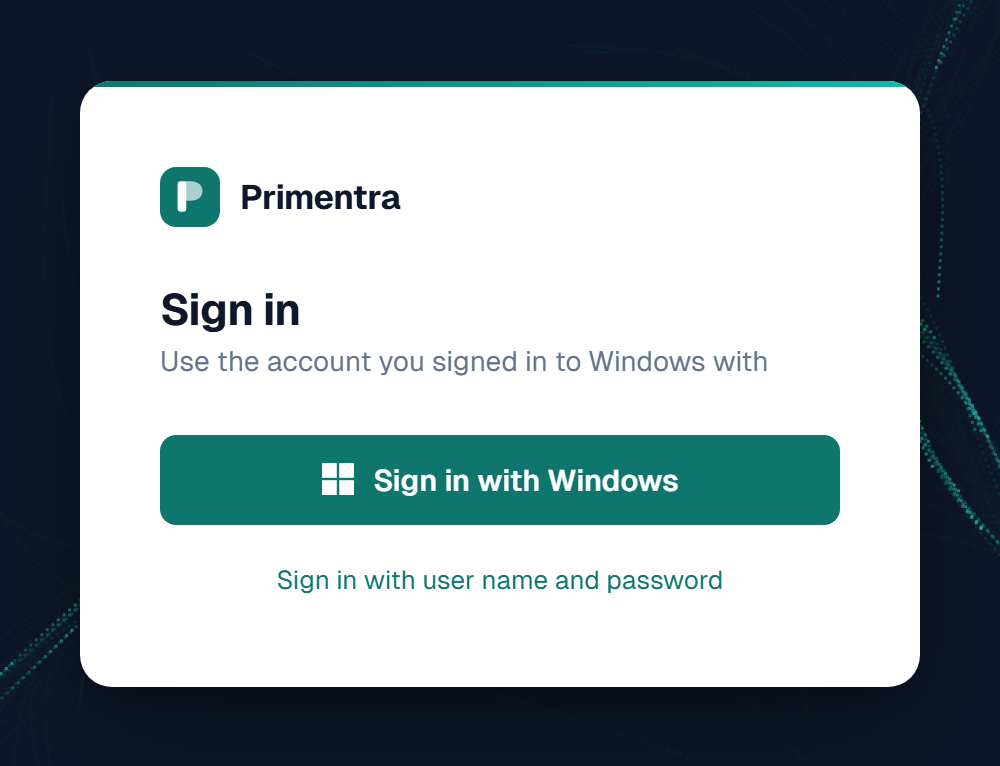
Active Directory Setup describes the Sign in with Windows button and the check page /sso-check.
On the sign-in screen, choose Windows account and type the user name and password. These forms of the user name work:
annaPRIMENTRA\annaanna@company.com
The screen remembers your choice. Primentra refuses an empty password before it asks AD.
The screen shows a message above the fields. After an error, the user name stays in the field and the password field is empty.
| Message | Meaning |
|---|---|
| Invalid user name or password. | A wrong password, an unknown name, a name of another domain, or a disabled account. The text is the same for all of these on purpose. |
| Too many attempts. Try again in 30 minutes. | Primentra has sent 3 wrong passwords for this name to AD in the last 30 minutes. It does not ask AD again for this name until the time is over. |
| Your Windows password has expired. Change it on your Windows PC, then try again. | The password in AD is expired, or must change. The message is amber. |
| Sign-in with a Windows password needs HTTPS. Contact your administrator. | The connection is plain HTTP. |
| Active Directory sign-in is not available right now. Try again in a few minutes. If it keeps happening, contact your administrator. | No domain controller answers, or Primentra cannot read the groups. The message has a reference code. |
| Active Directory sign-in is not available. Contact your administrator. | AD sign-in is off in the settings. |
| name has no access to Primentra yet. Ask your administrator to add you to a Primentra group. | AD knows the person, but none of the person's AD groups is linked to a role in Primentra, and the person has no account. The message is amber and has a reference code. |
| Your Windows account cannot sign in to Primentra. Contact your administrator. | The account has no usable email, or its UPN is already the email of another user. |
| An administrator must link this account in Users first. | The email belongs to a privileged account that is not linked yet. |
After the second failed Windows sign-in, the screen adds the line Still not working? Ask your IT department.
The reference code
Some messages end with Reference: K7M2QX. The person reads the code to the administrator, who finds the same code in the server log. See Troubleshooting.
When Primentra cannot read a person's groups, it stops and changes nothing. The server log says what to do. Most often the fix is to add the Active Directory account to the group Windows Authorization Access Group.
Wrong passwords
Two limits protect the form.
| Limit | Message |
|---|---|
| 3 wrong Windows passwords per user name in 30 minutes. You can change the numbers in the tab Sign-in: Wrong passwords allowed and Within (minutes). After that, Primentra does not ask AD for this name. | Too many attempts. Try again in 30 minutes. |
| 10 failed sign-ins per user name and address, and 50 per address over all names, in 15 minutes. They hold for both sign-in forms and you cannot change them. | Too many login attempts. Please wait 15 minutes before trying again. |
A good sign-in clears the first count.
Because of this, the sign-in screen cannot lock a Windows account. One side effect: if someone types a wrong password for a name three times, the real owner of that name cannot use this form for 30 minutes. A wrong Windows password never counts toward the five wrong Primentra passwords that lock an account.
Neither of these two limits sets Locked out in Users. Only five wrong Primentra passwords do that. So a person can see Too many attempts while Users shows no lock. The Sign in with Windows button keeps working during these limits: it sends a Windows ticket, not a password.
When AD disables a person
AD says an account is disabled, expired or deleted. Then Primentra:
- refuses the sign-in, whatever way the person uses;
- switches the user off;
- ends every open session of the user.
The daily check does the same for people who do not sign in. See the section The daily check below.
AD switches a user off. AD never switches a user on. When AD says the account is fine again, the user stays off. Only an administrator switches the user on again, with Enabled in the user form. AD never clears a lock either.
The Users list helps you find these people:
- The badge Enabled in AD, switched off here marks a user whom AD has enabled again but who is still off. The latest daily check or Run now sets it. Before the first check, and for a user switched off later, you see plain Switched off.
- The filter Switched off shows only users that are off.
When AD disables the last active administrator, Primentra switches that user off like any other. The Application log in the Windows Event Viewer then holds a warning with event ID 410. Run recover-admin on the server to get an administrator back. See Account Recovery.
The group sync never takes the administrator role from the last active administrator. The audit log notes that AD wanted to. Anyone in any administrator role counts, including a role given by hand. The role stays while you are the only administrator. You cannot remove your own administrator role either: another administrator must do it.
The daily check
The daily check reads every linked user from AD. It switches off people who are disabled, expired or deleted. For all other people it brings the AD roles up to date. It runs once a day, after the hour you set. The hour is in server time. When the server was off at that hour, the check runs five minutes after the next start.
What it does not change
- When AD does not answer, the run fails and changes nobody. This holds for a failed bind, a time-out, a certificate error and groups that cannot be read.
- When AD cannot find a person, Primentra switches that person off only if the Active Directory account can see protected accounts and the person did not sign in during the last 24 hours. In all other cases the run lists the person under Not found in AD and changes nothing.
- An automatic run that would switch off more than half of the linked users, and at least three, changes nobody. It counts as a failed run. This is the brake.
Check now
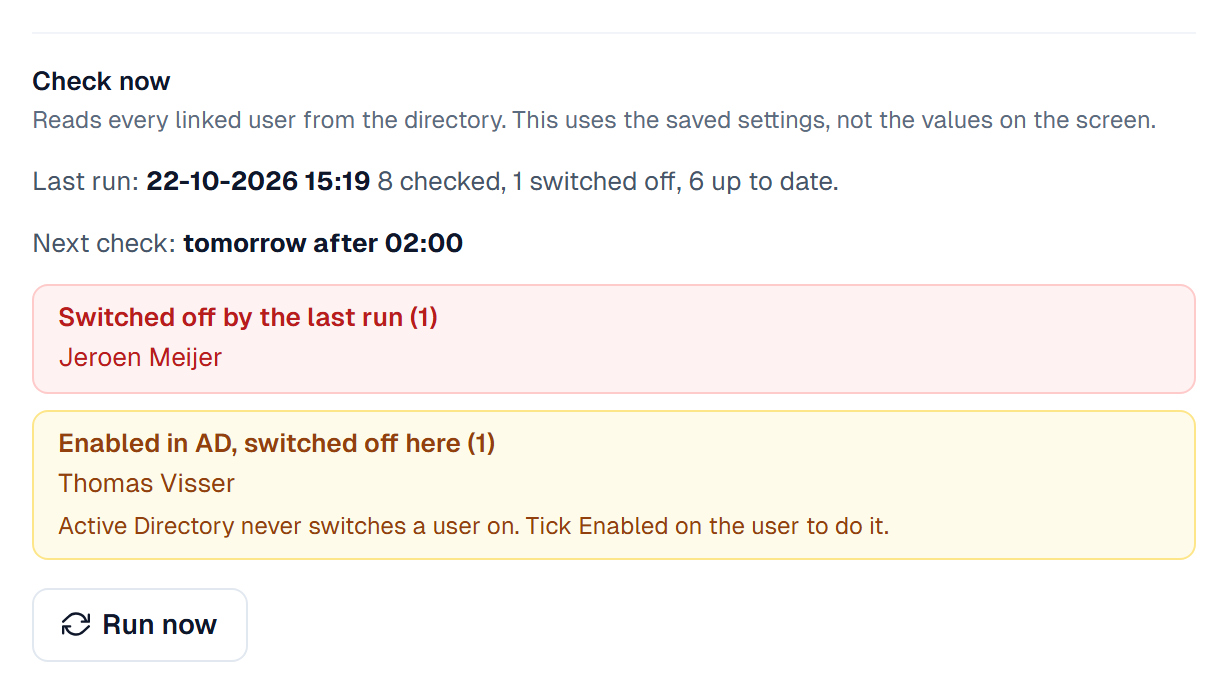
Check now is the lower part of the Daily check card. It shows the last run: when it ran, and how many users it checked and switched off. Under it, Next check says when the next run starts, for example tomorrow after 02:00. After a failed run it says about 14:05 (one hour after a failed check). With the daily check off, it says The daily check is off. It also lists the people the run switched off, the people who are enabled in AD but off here, and the people it did not find.
- Click Run now.
- Read the list. Run now is a preview. Nothing has changed yet.
- Click Apply to do the work, or Cancel.
The preview lists the people the check would switch off. It does not list role changes. Primentra saves the role changes from AD groups only when you click Apply, also when nobody is switched off. In that case the button says just Apply.
If AD changed between the list and the click, nothing is applied. Primentra shows the new list and asks you to look again. Save your changes in the tab first: Run now uses the saved settings.
When the check fails
After two failed runs in a row, every active administrator gets one mail. The bell shows Active Directory check failed twice until a check passes. The Windows Event Log holds event ID 411. A restart does not clear the bell and does not send the mail again.
Passwords
You set the Primentra password rules in Settings › Access Management › Sign-in, in the part Primentra password. The setting Users who are linked to AD may also use their Primentra password decides what a linked user may type.
| Setting | A linked user can |
|---|---|
| On (default) | Sign in with the Windows password or with a Primentra password. After a good Primentra password, Primentra still asks AD. A user whom AD disabled does not get in with an old Primentra password. |
| Off | Sign in with the Windows password only. The Primentra form refuses the user, and the sign-in screen moves to the Windows form. Forgot password? sends no mail. Change Password is hidden. |
A user that Primentra made at the first sign-in has no password. The user form says "no password set".
While AD is on, a linked user with a Primentra password is refused when no domain controller answers. A user who is not linked still gets in.
AD off wins over this setting. When an administrator turns AD off, every user signs in with a Primentra password again. A user that AD created has none yet and uses Forgot password? to set one. The link to AD stays, and works again when AD is on again.
Users who are not linked to AD
The role page shows a label on each person: AD user (linked to an AD account), Primentra user (not linked) or API user. The Users list marks a linked user with the AD badge.
The setting Users who are not linked to AD may sign in with their Primentra password decides what a Primentra user may do while AD sign-in is on. It is on by default.
- On: a Primentra user signs in with a Primentra password, as before.
- Off: a Primentra user who is not an administrator is refused on every way that needs a Primentra password. These are the sign-in, Forgot password?, a reset link and a sign-in link from a mail. An open session of such a user ends, too.
- This setting never refuses an administrator. So a local administrator, who is not linked to AD, can always get in.
- API accounts and system accounts do not change.
- While AD sign-in is off, the setting does nothing.
The role page warns you when a Primentra user gets a role that is not an administrator role while the setting is off. The warning does not stop you.
What a Primentra password does
While AD sign-in is on, what it does depends on the user and on the two settings:
| User | Setting | The Primentra password |
|---|---|---|
| AD user | The setting for linked users is on | A second way in, next to the Windows password |
| AD user | The same setting is off | Not used now. It works again when AD sign-in is switched off. This is your way back in when AD fails |
| Primentra user | The setting for users who are not linked is on | The only way in |
| Primentra user | The same setting is off | Does nothing |
| Administrator that is not linked to AD | Any | Always works |
| Administrator that is linked to AD | The setting for linked users | Follows that setting, like any AD user |
The user form shows the same as a note above the password fields: This user can sign in through Active Directory or with this password. (a gray line), Not used now: this user signs in through Active Directory. The password works again only if Active Directory sign-in is switched off. (gray), or, for a Primentra user while that setting is off, a warning that this password does nothing, with a link to the Sign-in tab.
Locks
Five wrong Primentra passwords lock an account. The lock guards the Primentra password only.
- The Windows form still lets the person in. A lock does not keep an AD user out. To keep a person out, clear Enabled or disable the account in AD.
- A session that started with a Windows sign-in stays open when the account gets locked.
- A locked user who is not linked yet is not linked by a first Windows sign-in. Five wrong passwords can be an attack on that account.
- A lock ends after 30 minutes, when the person sets a new password, or when an administrator clears it. AD never clears it. See Account Security.
Link and unlink users
You can link a user by hand. Open the user, click Link to AD account, search for the person and click Link. Unlink removes the link. The user keeps the account and all roles. The roles from AD become hand-given. After an unlink, the user signs in with a Primentra password only.
Both actions work at once and end the open sessions of the user. Link to AD account also gives the user the roles of the AD groups at once. The user does not have to sign in first. See User Management.
Deleting a linked user does not touch the account in AD. The person can sign in again only after you create the user again.
The audit log
The audit log records every AD event. See Audit Log.
- A sign-in is Login. A refused sign-in is Failed login. The details show the method:
passwordorad-password. - A switch-off by the daily check is User disabled, with By set to
active_directory. - Linked to AD, Unlinked from AD, Roles from AD groups, AD check run, AD settings changed, AD group mapping and AD email conflict are events of their own.
A change that you make by hand in mds-config.json is not in the audit log. This includes turning AD off. Only changes made on the two tabs are logged.
Related
- Active Directory Setup: connect Primentra to your domain, the Windows button and the check page
- User Management: link, unlink and switched-off users
- Account Security: locks, Enabled and password rules
- Account Recovery: when nobody can sign in
- Roles & Permissions: what the mapped roles allow
- Production Deployment (IIS): HTTPS behind IIS
- Active Directory Troubleshooting: what can go wrong, and where you see why
Did not find what you need?
Try the troubleshooting pages, or ask us.