Grid Overview
The data grid is the main workspace for master data. Every entity in your model gets its own grid, with one column per attribute and one row per record.
You reach a grid from the sidebar, or from a model page. The grid keeps its own toolbar, its own filters and its own unsaved changes, so switching entities never mixes two sets of edits.
Watch the whole tour in 4:23 — the bands of the screen, a sort, a search, a column filter, a cell edit, the keyboard, the unsaved batch, and a business rule refusing a save:
The five bands of the screen
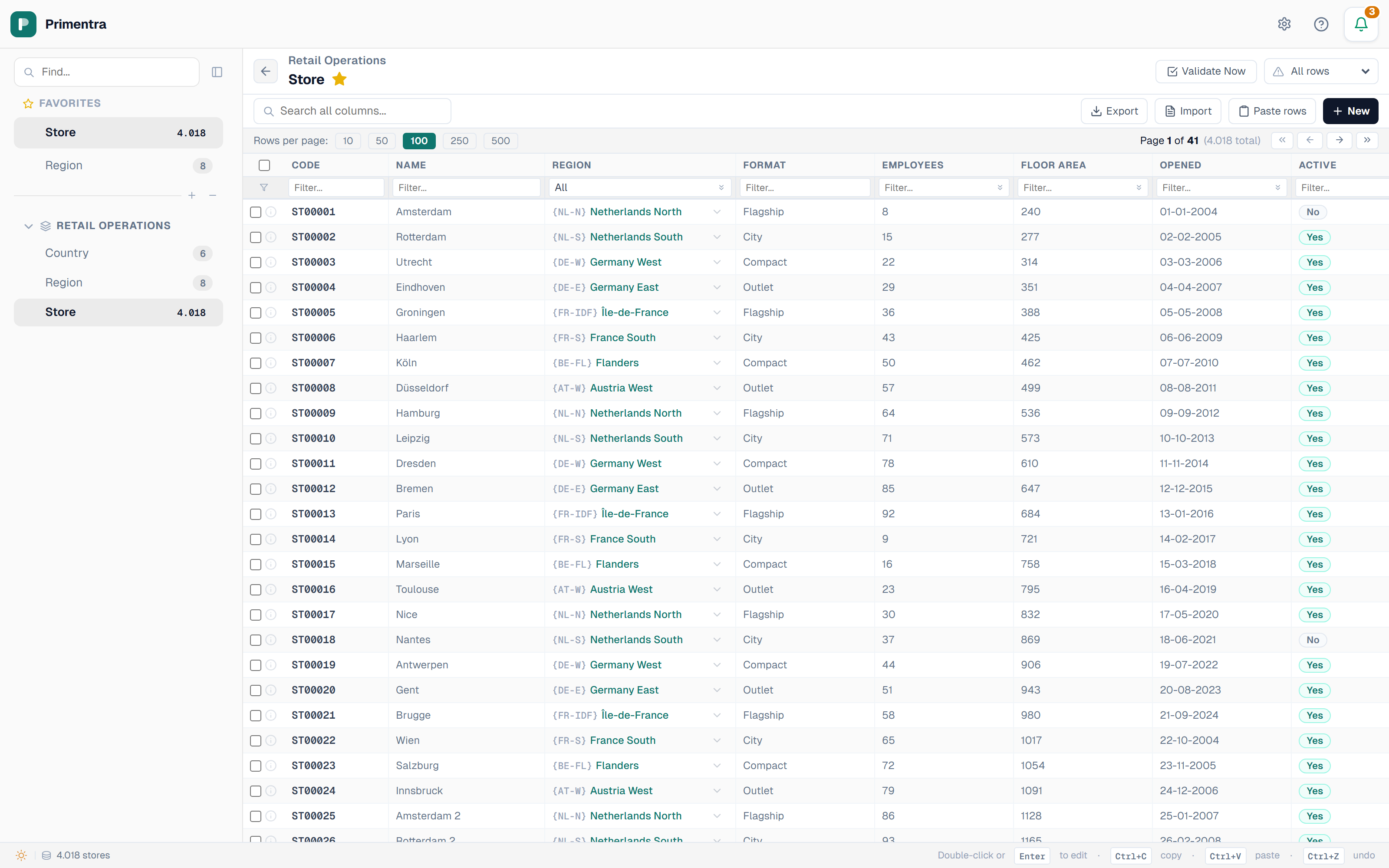
The screen is stacked from top to bottom. Each band has one job.
| Band | What it holds |
|---|---|
| Sidebar (left) | Models, entities, favorites, search. Collapse it with the chevron at the top |
| Header | The model name, the entity name, the favorite star, the validation status, Undo and Save |
| Toolbar | Search, filter reset, and the action buttons on the right |
| Pagination bar | Rows per page, page number, and the total record count |
| Grid | The records. Column headers sort; the row below them filters |
| Status bar (bottom) | What is selected right now, and the shortcuts that apply to it |
Toolbar buttons
The buttons on the right of the toolbar appear only when your role allows the action.
- Bulk edit (N) — set one field on every checked row. Appears when rows are checked and you have Update permission. See Selection & Bulk Operations
- Delete (N) — delete the checked rows. See Adding, Deleting & Pasting
- Export — download the entity as JSON, CSV or XLSX. The label reads Export (N) when rows are checked, because only those rows are written. See Export
- Import — open the four-step import wizard for a spreadsheet or a CSV file. See Import from Excel & CSV
- Paste rows — paste a block of rows straight out of Excel
- New — add an empty row at the bottom of the grid
The record count
The status bar carries the count. With no filter it reads 1,204 branches. With a filter it reads 37 of 1,204 branches and adds a teal N filters active badge.
The pagination bar shows the same total next to the page number: Page 3 of 25 (1,204 total). Choose 10, 50, 100, 250 or 500 rows per page.
Show inactive
Entities that carry the built-in Active flag get a Show inactive checkbox in the toolbar. Clear it to hide inactive records, tick it to bring them back.
Entities you build yourself model status with a Yes/No attribute instead. Filter on that column to get the same result — see Sorting, Filtering & Search.
Unsaved changes are guarded
Pending edits are held in the browser until you save. Anything that would throw them away asks first: switching entities, changing page, changing the page size, or leaving the grid.
The Unsaved changes dialog counts your edits and offers three ways out:
- Discard — drop the edits and continue
- Save & continue — save first, then continue. Disabled while a required field is empty or a code is duplicated
- Submit for approval — replaces Save on an entity that requires approval
Favorites
Click the star next to the entity name to pin it. Favorites sit at the top of the sidebar, above the models. Click the star again to unpin.
Related
- Editing & Saving — how a cell edit becomes a stored record
- Sorting, Filtering & Search — find rows in a large entity
- Keyboard Shortcuts — the full key list
- App Navigation — the sidebar and the rest of the app
- Entities — where the columns in a grid come from