Validating Entities
Rules run on every write. Validate Now runs them over rows that are already saved, so you can see the state of the whole entity without touching it.
Validate Now
Open the entity in the data grid and click Validate Now in the header. Primentra runs every active rule against every row and stores the result.
While a large entity is running, the button reports progress — *Validating… 240,000 / 1,000,000*. The number reported at the end is rows that failed, which is lower than the number of violations whenever a row breaks more than one rule.
The header then shows how long ago the last run was: *Just validated*, *Validated 6 minutes ago*.
How a failure appears
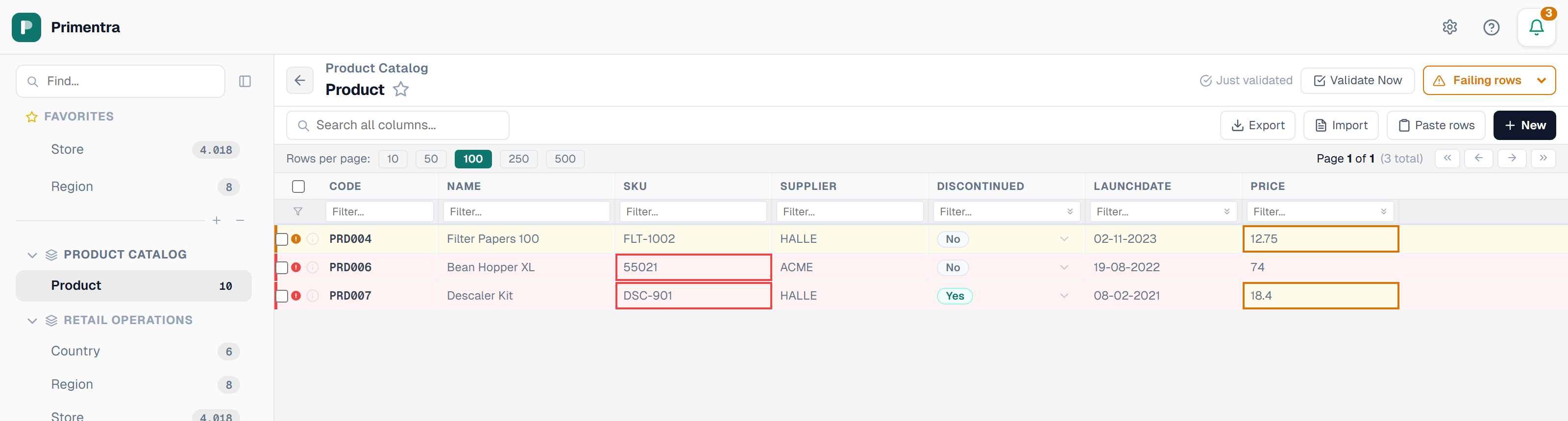
Or watch the whole clean-up on five thousand rows — the failing count before the rule goes live, why it should start as a warning, and the row filter that splits the entity into errors, warnings and passing rows:
- A red marker on the left border marks a row with an error violation. An amber marker marks a warning. A row with no violations has no marker.
- The cell the rule was about is tinted and outlined too — red for an error, amber for a warning — so you can see which column to fix without opening the row.
- A row breaking an error rule on one column and a warning rule on another shows both cell colors. Its left marker keeps the higher of the two.
- A rule that spans several columns at once, such as a combination unique, tints none of them. No single column is at fault.
A pending edit or an empty required field takes the cell color instead. An unsaved problem blocks the save right now; a stored violation is a state of the data.
Violation details
Next to the marker is a colored dot. Click it to open a popover listing the message every rule the row breaks would show on save, one line each. The badge at the top belongs to the row, not to a single rule: it carries the worst severity of everything listed under it. Click anywhere else to close it.
The row filter
Next to Validate Now is a row filter. It has five settings:
| Setting | Shows |
|---|---|
| All rows | Every row. This is the default. |
| Failing rows | Rows that break at least one rule, error or warning. |
| Errors only | Rows that break at least one error rule. |
| Warnings only | Rows that break a warning rule and no error rule. |
| Passing rows | Rows that break no rule at all. |
A row that breaks an error rule and a warning rule counts as an error row. It appears under Errors only and not under Warnings only — the same rule the red row marker follows. Errors only, Warnings only and Passing rows therefore split the entity into three groups that do not overlap.
The filter turns the icon and the label red for errors, amber for warnings and green for passing rows, matching the row markers.
Combine it with the column filters to narrow further: for example, error rows where Status equals *Active*. Changing the filter returns you to page 1.
Working through a list
- Set the filter to Errors only.
- Fix the tinted cells.
- Save.
- Click Validate Now again to refresh the markers.
Saving a row re-runs the rules against it, so a corrected row loses its marker without a full validation pass. Run Validate Now when you want the counts for the whole entity to be current.
Related
- Business Rules Overview — severity and where rules run
- Test Before Saving — see the failing count before a rule goes live
- Sorting, Filtering & Search — the column filters to combine with this one
- Grid Overview — the grid header and its buttons
- Audit Panel & Read-Only Fields — the panel behind the info icon