Processing & Errors
Rows sit in the staging table until a batch picks them up. This page covers running a batch, reading what failed, and clearing up afterwards.
Watch a batch fail and get fixed in eight minutes — good rows land while bad ones stay behind with an error code, the detail panel names the value that was rejected, and a corrected retry clears them:
Viewing staged data
The Staging Data tab shows every row currently in the staging table.
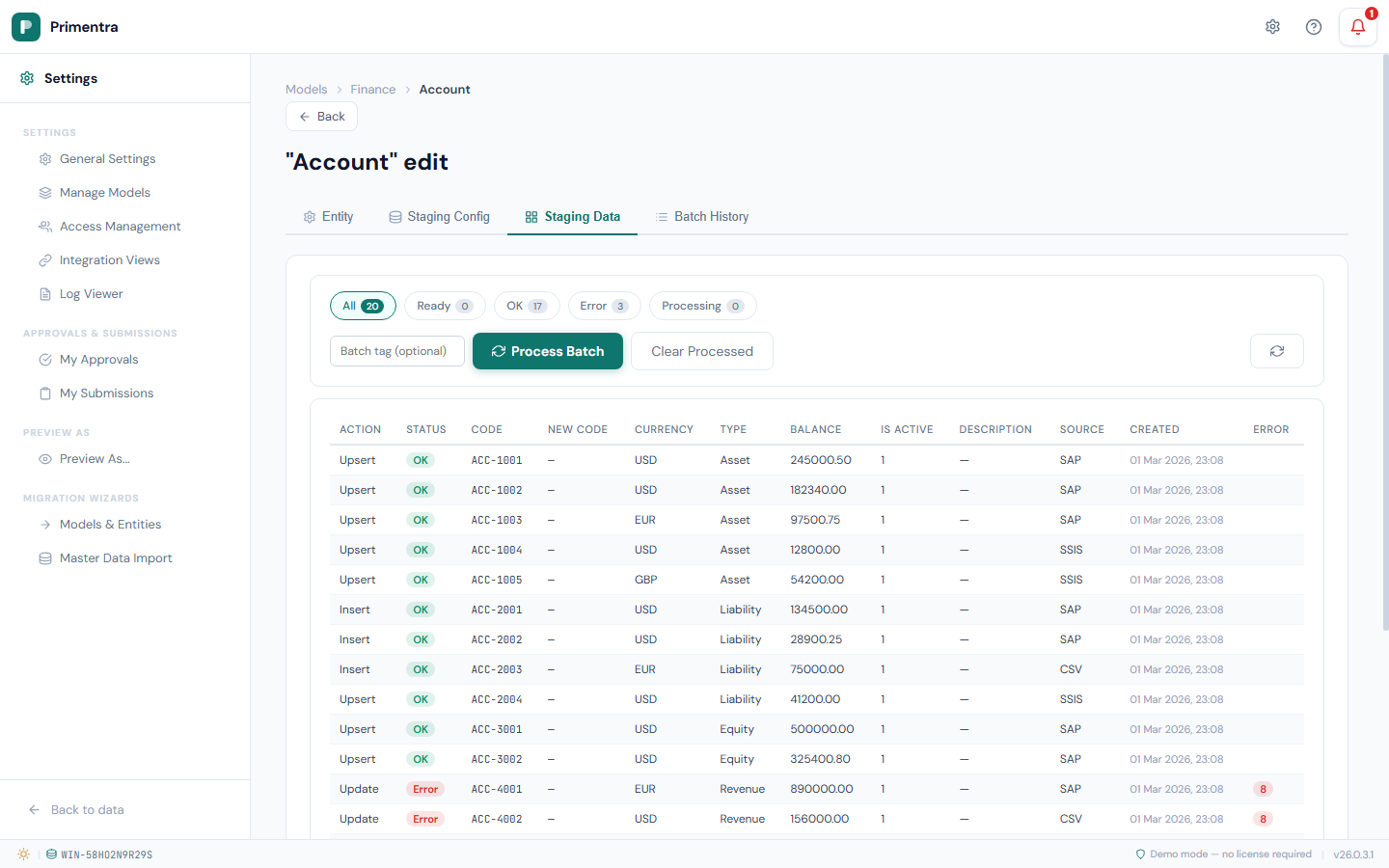
Status filters
Each filter button carries a count badge:
- All — every row
- Ready — unprocessed rows (
ImportStatus = 0) - OK — successfully processed rows (
ImportStatus = 1) - Error — rows that failed (
ImportStatus = 2) - Processing — rows currently being processed (
ImportStatus = 3)
The grid
The grid shows the system columns Action, Status, Code and New Code, then every attribute column, then Source, Created and Error.
- Status is a color-coded badge: grey (Ready), green (OK), red (Error), blue (Processing)
- Error shows the error code as a red badge. Hover it for the human-readable description
- The grid scrolls horizontally when the entity has many attributes
- Pages hold 50 rows, with Prev and Next
Processing a batch
- Open the Staging Data tab.
- Optionally type a Batch tag to process only the rows that were staged with that tag, for example
SSIS_2026-08-15. Leave it empty to process every Ready row. A tag that no staged row carries processes nothing. - Click Process Batch.
The engine takes every row with ImportStatus = 0 and:
- Claims the rows into a new batch in a single step, so a row can only ever belong to one batch
- Validates each row — required fields, data types, code uniqueness, domain references
- Applies the configured merge mode per field
- Runs the import action (insert, update, delete)
- Marks each row OK (
1) or Error (2) with an error-code bitmask
A progress bar shows how far the run has got.
Clearing up
| Button | What it removes |
|---|---|
| Retry Failed | Nothing. It puts failed rows back in the queue as Ready |
| Clear Failed | Failed rows. They are never removed by retention, so this is the way |
| Clear Processed | Rows with ImportStatus = 1 across every batch |
Retry Failed clears each row's error and its recorded reason, sets it back to Ready, and detaches it from the batch it failed in, so the next run treats it as new. Correct the values in the staging table first. The button is disabled when nothing has failed.
Batches that never finish
A batch that stops halfway — a dropped connection, a server restart mid-import — leaves its rows marked *Processing*. Only *Ready* rows are picked up, so those rows would otherwise sit there permanently: never imported, never reported as failed, invisible to a retry.
Recovery releases them back to Ready and closes the dead batch as Failed, noting how many rows it freed. A batch that is genuinely still running is left alone — it is recognized by its heartbeat, not by its age.
Error codes
A failed row's ErrorCode column holds a bitmask. Several errors can occur on one row, combined with bitwise OR.
Row-level errors
| Code | Name | Description |
|---|---|---|
1 | Duplicate code | Two or more rows in the same batch have the same code |
2 | Code required | The Code column is empty. Not raised for an insert (ImportAction 0 or 1) on an entity that auto-generates codes. Always raised for update, delete and rename, which have nothing to match on without it |
4 | Code already exists | Insert-only action, but the code already exists in production |
8 | Code not found | Update or delete action, but the code does not exist in production |
16 | Invalid ImportAction | The value is not one of 0, 1, 2, 3, 5 |
64 | Delete blocked | Cannot delete because other entities reference this row |
Field-level errors
| Code | Name | Description |
|---|---|---|
128 | Required field empty | A required attribute has no value |
256 | Text too long | The value exceeds the attribute's maximum length |
512 | Invalid integer | The value cannot be converted to an integer |
1024 | Invalid decimal | The value cannot be converted to a decimal |
2048 | Invalid datetime | The value cannot be converted to a date or time |
4096 | Invalid boolean | The value is not a recognized boolean |
8192 | Domain not found | The referenced code does not exist in the target entity |
Code rename errors
| Code | Name | Description |
|---|---|---|
32768 | NewCode already exists | The NewCode value already exists in production |
65536 | Duplicate NewCode | Two or more rows in the same batch have the same NewCode |
System errors
| Code | Name | Description |
|---|---|---|
131072 | Processing failed | An unexpected error occurred while processing the row |
Reading a combined code. ErrorCode = 130 is 128 + 2 — both "Required field empty" and "Code required".
Batch history
The Batch History tab lists every past run. Click a batch row to expand its error detail panel; click it again to collapse.
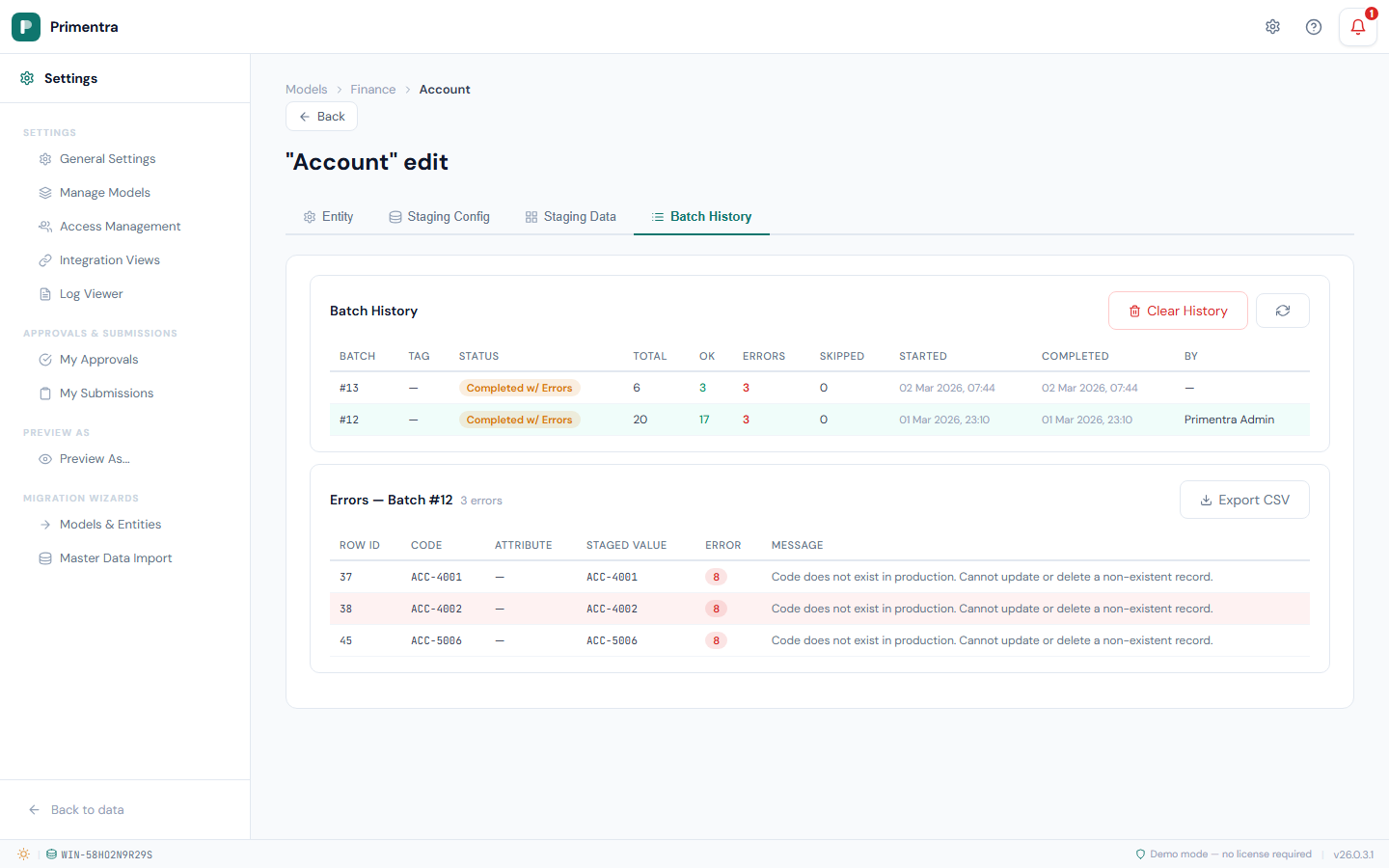
Batch list
| Column | Description |
|---|---|
| Batch | The batch id |
| Tag | The batch tag, if one was given |
| Status | Queued, Running, Completed, Completed w/ Errors, or Failed |
| Total | Rows in the batch |
| OK | Rows processed successfully |
| Errors | Rows that failed |
| Skipped | Rows skipped during processing |
| Started / Completed | When the run started and finished |
| By | The user who started the batch, or the scheduler trigger source |
Error details
The expanded panel lists every failed row with its row id, code, attribute name, staged value, error-code badge and message.
Click Export CSV to download them. The file is named {entityName}_batch_{batchId}_errors.csv and holds Row ID, Code, Attribute, Staged Value, Error Code and Message.
Clear history
Clear History removes all completed and failed batch records, together with their staging rows and error details. Running and queued batches are kept.
Related
- Staging Configuration — the field rules that decide whether a bad value fails the row
- Staging Table Structure — what to put in each column
- Staging Scheduler — starting batches without a person
- Rules in Staging & Imports — business-rule violations in a batch
- Audit Log — what a staging load changed, after the fact