Drift & Rebuild
A staging table has one column per attribute. When the attributes change and the table does not, the table has drifted — and staged data for the affected fields can never arrive.
What keeps the table in sync
Saving an entity in the entity editor already keeps its staging table in sync. Primentra rebuilds the table after every save, so adding, renaming or removing attributes through the editor never leaves the staging table out of date. There is no notification, because there is nothing to fix.
Two paths bypass that automatic repair:
- Importing a model that changes attributes on an entity with staging enabled
- Changes made outside the application — direct SQL, an SSIS package, or any other edit to a
stgtable
Drift detection
Primentra checks every staging-enabled entity's table against its current attributes and reports what does not match.
| Finding | Meaning | Severity |
|---|---|---|
| Missing column | An attribute exists with no matching staging column, so staged data for that field can never arrive | Error |
| Orphan column | A staging column exists with no matching attribute. Harmless, but unused | Warning |
| Missing table | Staging is enabled but the stg table no longer exists | Error |
NVARCHAR(MAX), whatever the attribute's type. The real type is applied when the batch is processed, not by the column's declared type.The notification
The notification reads "Staging for '{entity}' is out of date" with a "Go to staging →" action that opens the entity's Staging Config tab. A banner there repeats the detail.
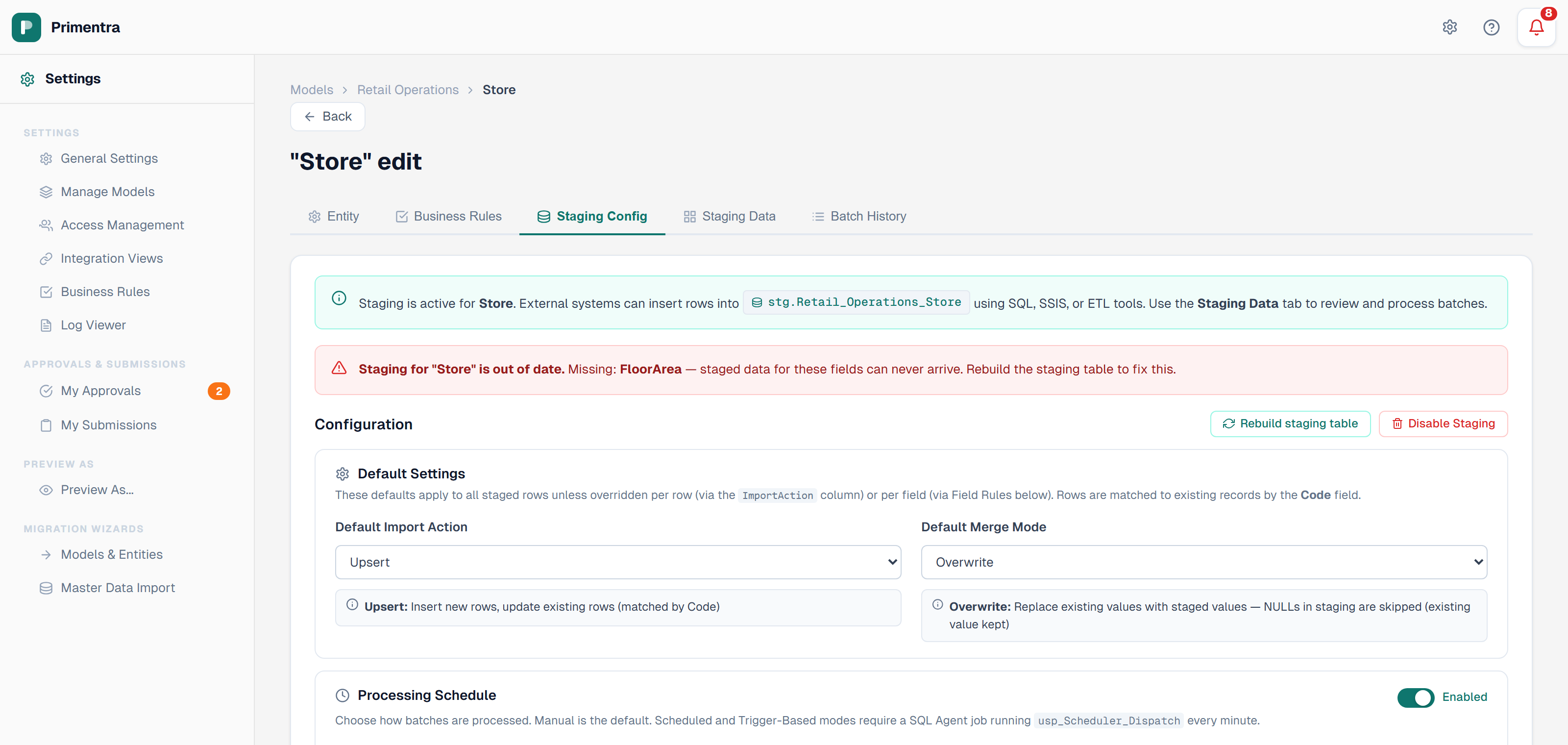
Or watch all three findings happen — a column dropped outside the app, an orphan column left behind, and the table itself gone — with the rebuild dialog naming what it will add and drop before it does either:
Rebuilding the table
- Open the entity's Staging Config tab.
- Click Rebuild staging table.
- Read the confirmation dialog. It names the columns to add and the columns to drop.
- Confirm.
Staged rows are kept — Ready and Error alike. Only the values held in dropped columns are lost.
If nothing has drifted, the dialog says the staging table already matches the entity's attributes and there is nothing to change.
stg table itself was dropped outside the application, disable staging and enable it again to recreate it.Disabling staging
Click Disable Staging on the Staging Config tab. The confirmation dialog warns that this drops the staging table permanently and deletes all unprocessed rows. Batch history records are kept for audit.
Related
- Staging Overview — enabling staging and naming the table
- Staging Table Structure — the columns being compared
- Model Export / Import — the import path that can cause drift
- Staging API Reference — the drift and rebuild endpoints
- Entity Management — editing an entity keeps its staging table in sync
Further reading
- Staging Table Drift: How Primentra Catches a Column That Stopped Arriving — the same mechanism from the inside, with the stored procedures that detect the mismatch and repair it