Creating a Rule from Templates
A template is a guided starting point. Pick one, fill in the form, and Primentra builds the rule. Every template produces the same rule structure — the template only sets which columns are offered and what the builder starts out as.
Open the gallery: Settings → Manage Models → [Entity] → Business Rules → Gallery. From the Rules tab, Add rule takes you there too.
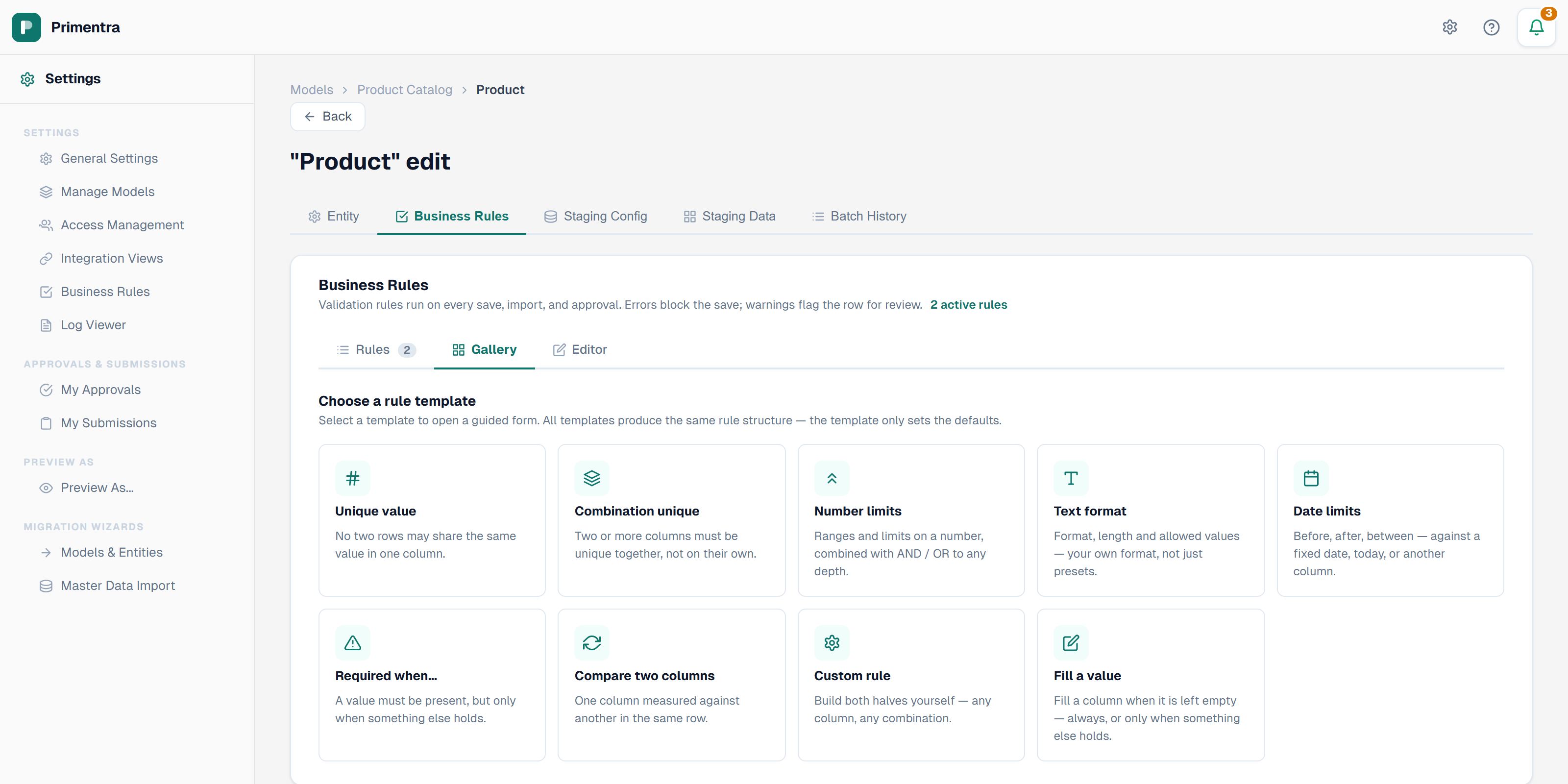
The nine templates
| Template | Builds |
|---|---|
| Unique value | No two rows may share the same value in one column. |
| Combination unique | Two or more columns must be unique together, not on their own. |
| Number limits | Ranges and limits on a number, combined with AND / OR to any depth. |
| Text format | Format, length and allowed values. |
| Date limits | Before, after, between — against a fixed date, today, or another column. |
| Required when… | A value must be present, but only when something else holds. |
| Compare two columns | One column measured against another in the same row. |
| Custom rule | Build both halves yourself — any column, any combination. |
| Fill a value | Fill a column when it is left empty. The only template that writes. |
Number limits, Text format and Date limits restrict the column picker to columns of that data type. The other six offer every column except the system date columns.
Building a rule
- Select a template. The Editor tab opens with the guided form.
- Type a Rule name. Stewards see this next to a flagged row, so name it after the requirement. The name must be unique within the entity.
- Pick the Column, or the columns for a combination key.
- Add the checks under [Column] must satisfy.
- Optionally add a condition under Only when. Without one, the rule applies to every row.
- Choose what happens If a row breaks this rule — Warn and flag or Refuse the save.
- Optionally type a Message shown to the user. Leave it empty to use the generated sentence.
- Click Test rule in the right panel, then Save rule.
The panel on the right shows the rule as a sentence while you build it, under This rule reads, along with where it runs and how it treats empty values.
Unique and Combination unique
Tick the columns that must be unique. Tick one for a single-column rule, several for a combination key. Two empty values never collide — a blank is not a duplicate.
Watch it done in 4:57 — a Unique value rule stops two rows sharing one value, tested against duplicates, capitals and empty cells:
Watch it done in 4:53 — a Combination unique rule over two columns refuses a duplicate pair, with no single cell at fault:
Text format
The matches the format check takes a mask rather than a regular expression:
| Character | Matches |
|---|---|
A | A letter |
9 | A digit |
* | A letter or a digit |
Anything else in the mask matches itself. The form shows the LIKE pattern the mask compiles to.
A mask is not a regular expression and does not try to be. It has no anchors, no alternation and no quantifiers, and that is the trade: it compiles to LIKE, so the database applies it to a grid edit, an import, a staging batch and an API write alike.
Watch it done in 5:41 — a Text format rule accepts only the agreed store formats, and a refused save is shown to a steward:
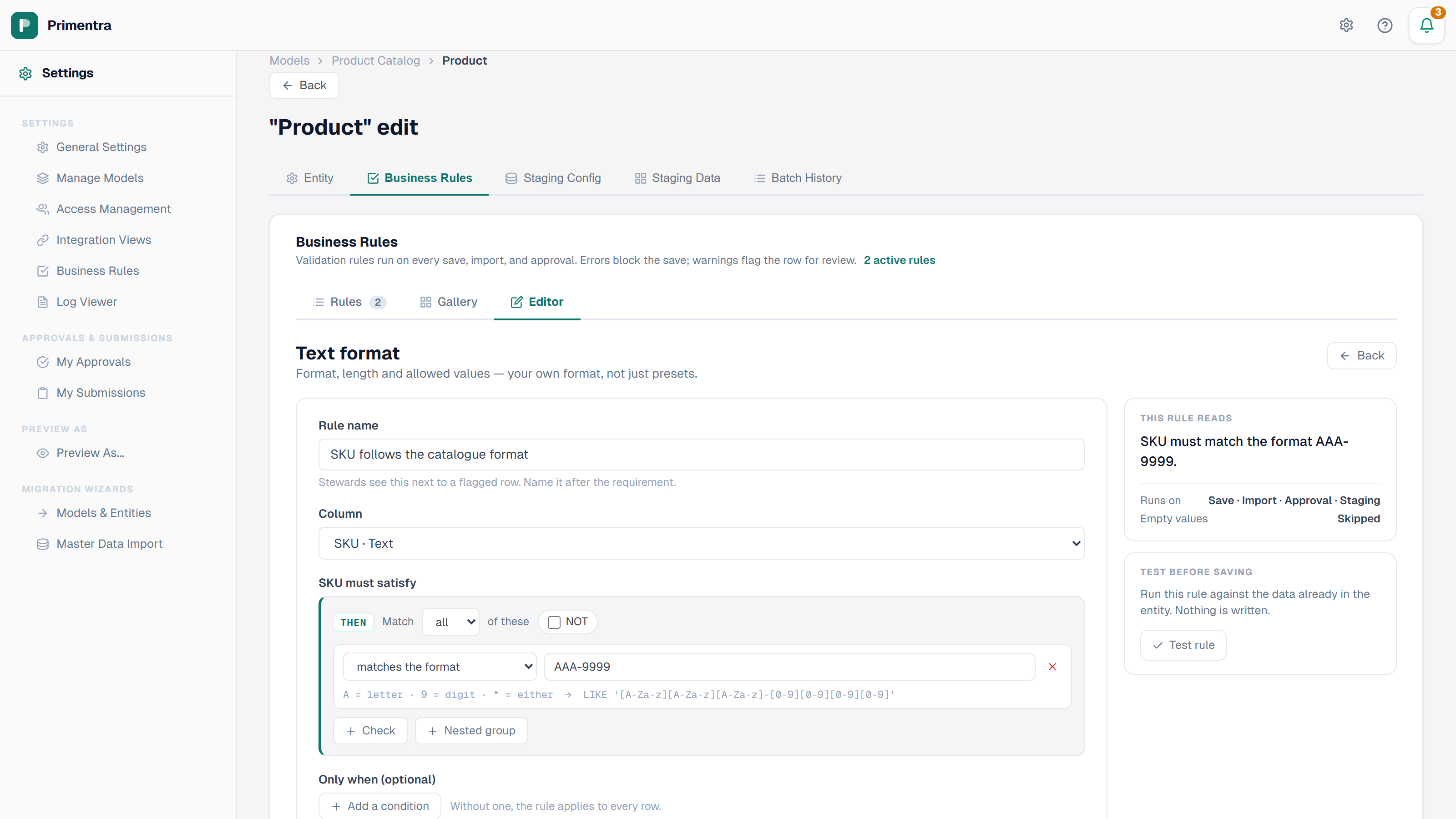
A mask compiles to LIKE, so the database enforces it on every write path.
Required when…
This template asserts that a column has a value, and it needs a condition. Without one it only repeats the attribute's own Required flag, which is cheaper and shows in the grid immediately. The form says so, and the save is refused until you add a condition or set the flag instead.
Watch it done in 5:22 — a column becomes required only when a store has fifty or more employees, in its three states:
Fill a value
The one template that writes. It fills a column on rows that left it empty.
Watch it done in 4:24 — a rule fills a column when it is empty, always or only under a condition, and never overwrites a value, not even zero:
- Pick the Column to fill. Name and Code are in the list too. On an entity with Auto-generate Code switched on, Code is in the list but greyed, and the line under the field says which setting to change — the generator hands out the code before any rule could run.
- Choose A fixed value or Built from other columns.
- For a fixed value, type it. For a domain column, type the code of the row to point at.
- For a built value, add the parts in the order they should read: a column, a piece of text, another column. Name and Code are always built this way — there is no fixed-value form for them.
- Optionally add a condition under Only when.
- Save.
There is no severity to choose: the rule cannot refuse anything.
Building a value out of other columns
Watch it done in 7:10 — a rule names every store after its city and its format, a second rule builds the code, and a file with neither column in it imports anyway:
A built value joins the parts you listed, left to right, using the values of that same row. Two columns with a hyphen between them turn a Clinic of *KAR* and a Room of *3* into KAR-3.
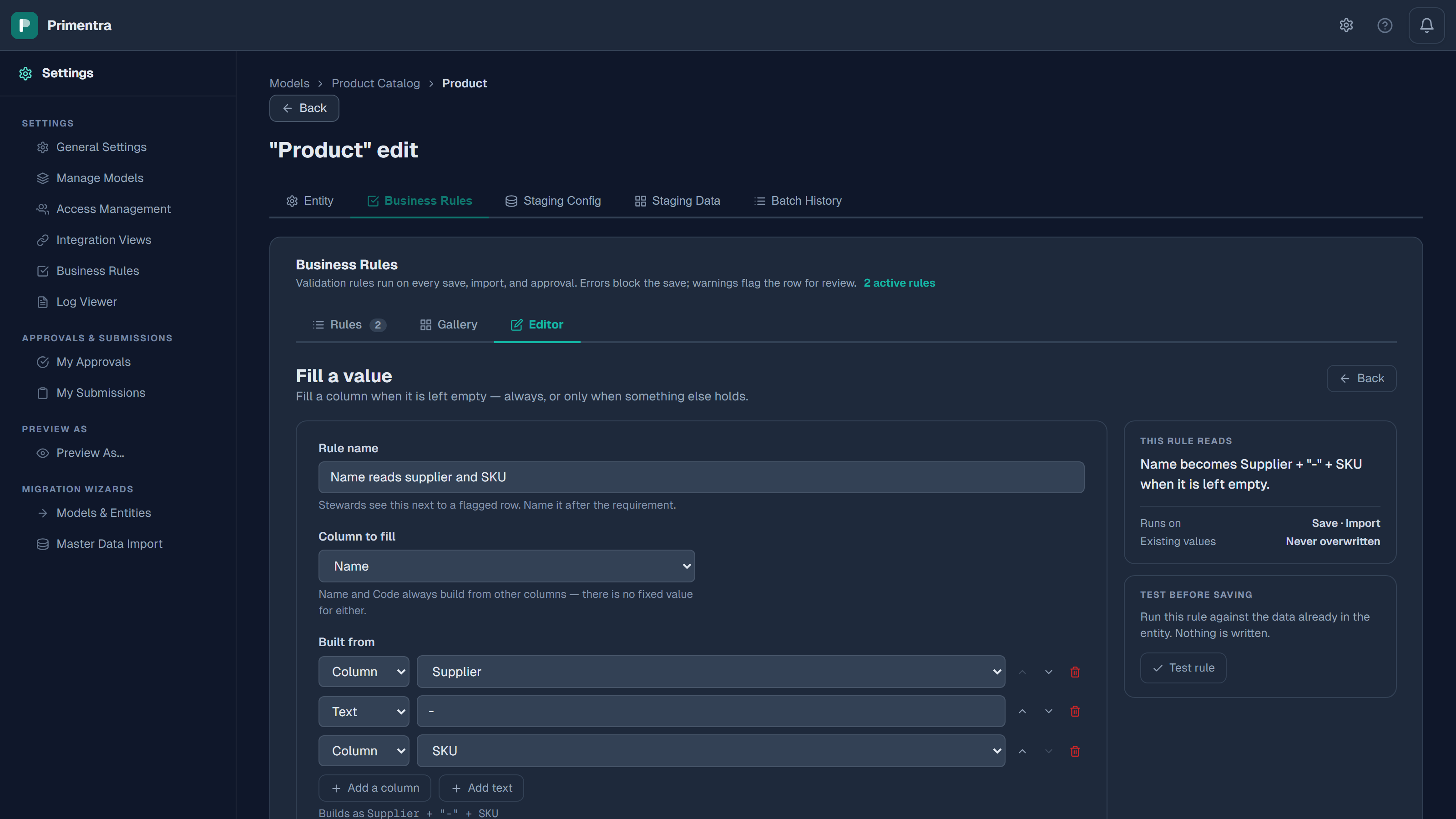
Each type reads the way the grid shows it, with one exception: a date reads as YYYYMMDD, without the time and without separators, so a code carrying a date still sorts. A domain column contributes the code of the row it points at.
The value is built once, while the column is empty. Change one of the source columns afterwards and the built value stays as it was. That is the same promise every filling rule makes, and it is why correcting a built name by hand is safe.
| What you want | How to build it |
|---|---|
| Every new record starts as Active | Fill Status with *Active*, no condition |
| External suppliers get a 12-month review | Fill ReviewCycle with *12*, only when Type is *External* |
| A ward named after its clinic and room | Build Name from Clinic, the text *-*, then Room |
| A code carrying the launch date | Build Code from the text *ORD-*, then LaunchDate |
| Site and cost centre both derived | Fill Site with *Zurich*, then fill CostCentre with *CH-100* only when Site is *Zurich* |
Managing rules
On the Rules tab, each rule shows its name, severity badge and template. Filter the list with All, Active or Inactive.
- Disable / Enable switches a rule off and on without deleting it.
- The arrows on the left move a rule up or down. Order decides which filling rule runs first.
- The pencil opens the rule for editing.
- The bin deletes it. Deleting a rule also removes the stored failure records for it.
Related
- Advanced IF/THEN Builder — the full check vocabulary and nested groups
- Test Before Saving — try a rule against live data first
- Business Rules Overview — severity and where rules run
- Attributes & Data Types — the data type decides which checks are offered
- Exporting & Importing Rules — move rules between environments