Configuring Approvers
Approval is configured per entity. You turn it on, assign the approvers, and choose how many of them must agree. Only an administrator can do this.
Watch the switch itself in just over six minutes — turning it on with two approvers, what a steward's save looks like once it is on, and the part with no video anywhere: removing an approver, and what that does to a request already in the queue:
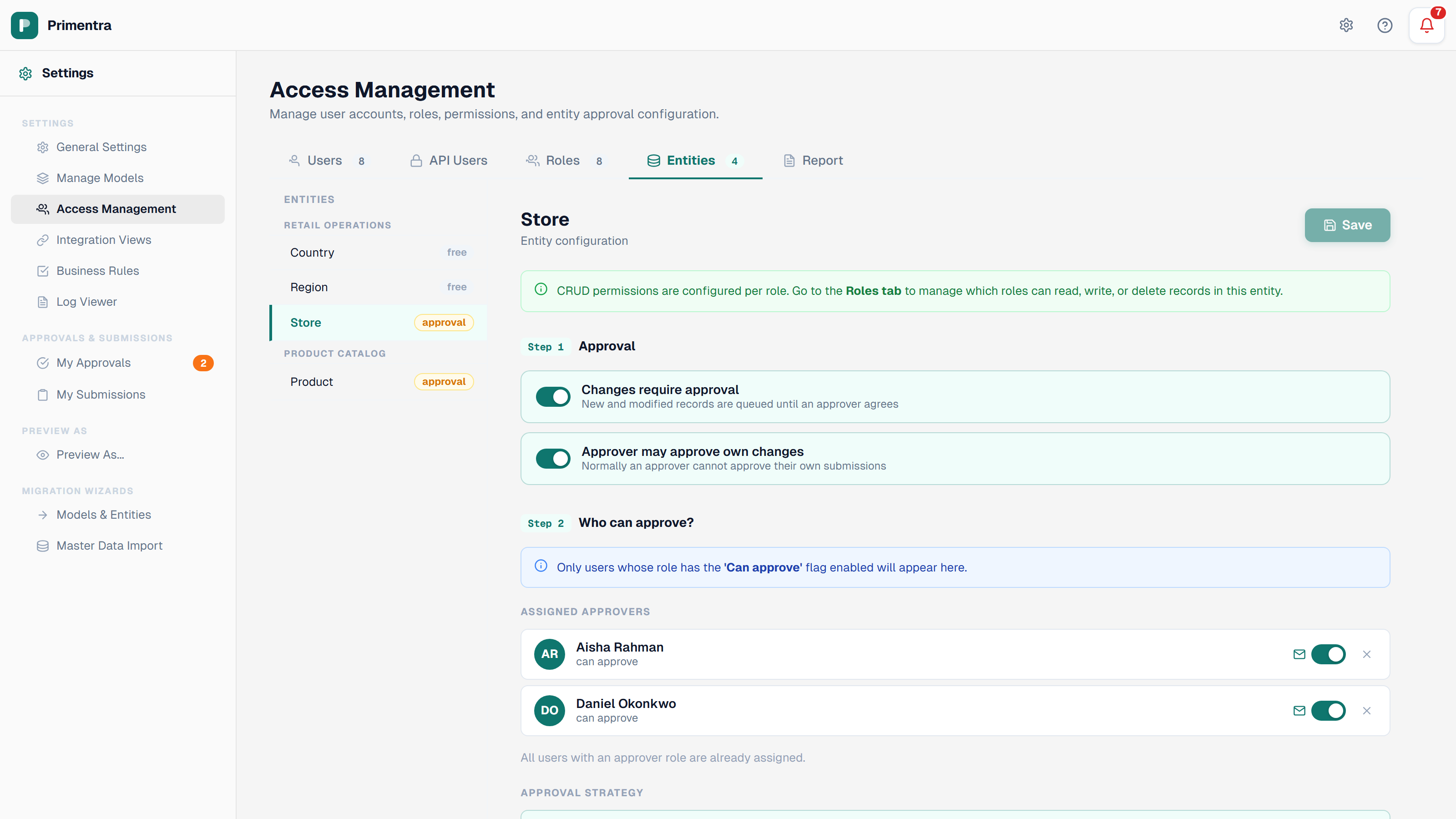
Open the configuration
- Go to Settings → Access Management.
- Open the Entities tab (
/admin/access-management/entities). - Pick an entity in the left panel. Entities are grouped by model.
Each entity in the list carries a badge: approval when it requires approval, free when it does not.
Step 1 — Approval
Two toggles control the workflow itself.
| Toggle | Effect |
|---|---|
| Changes require approval | New and modified records are queued until an approver agrees |
| Approver may approve own changes | Lets an approver decide on a request they submitted themselves |
The second toggle is disabled until the first is on. Leave it off to keep the four-eyes principle: an approver who submits a change cannot approve it, and gets *"Access denied: you cannot approve your own submission for this entity."*
Step 2 — Who can approve?
The Assigned approvers list holds the users who may decide on requests for this entity.
- Type a name in Search and add approver….
- Pick the user from the dropdown.
- Click Save.
Only users whose role has the Approver flag appear in the picker. If the list is empty, the screen shows *"No users found with a role where Can approve is enabled."* — set the flag on a role first. See Roles & Permissions.
Each assigned approver row has two controls:
- Mail toggle — whether this approver receives an email when a request arrives. It is on for a new approver. See Approval Email Notifications.
- Remove (×) — takes the user off the list.
Approval strategy
Choose how many assigned approvers must agree.
| Strategy | Label in the UI | Behavior |
|---|---|---|
any | One approver is sufficient | The first approver who agrees applies the changes |
all | All approvers must agree | Every assigned approver must vote before the changes are applied |
With all, each vote is recorded and the request stays pending. The last required vote applies every change in one step. A single rejection closes the request immediately, whatever the strategy.
Saving
Save stays disabled until you change something. It writes the toggles, the strategy and the approver list in one action, and confirms with a toast.
The entity form
The entity form under Manage Models carries the same Requires approval toggle. It is the same setting. Approvers, the strategy and the self-approval flag can only be set on the Entities tab.
Related
- Approval Workflows — how the workflow behaves once it is on
- Roles & Permissions — the Approver role flag
- Entities — the entity form and its other settings
- Role: Approver — what an assigned approver sees
- Approval Email Notifications — who gets mailed, and when