Documentation
Getting Started
Installation
Data Grid
Approvals
Administration
Account & Security
Integration & Staging
Architecture
Permissions Report
The Report tab in Access Management provides a read-only, cross-cutting overview of permissions across your entire system. It answers three questions that the Roles tab alone cannot:
- What can user X access?
- Who has access to entity Y?
- What does role Z grant?
Switch between perspectives using the segmented toggle at the top of the report.
By User — "What can this user access?"
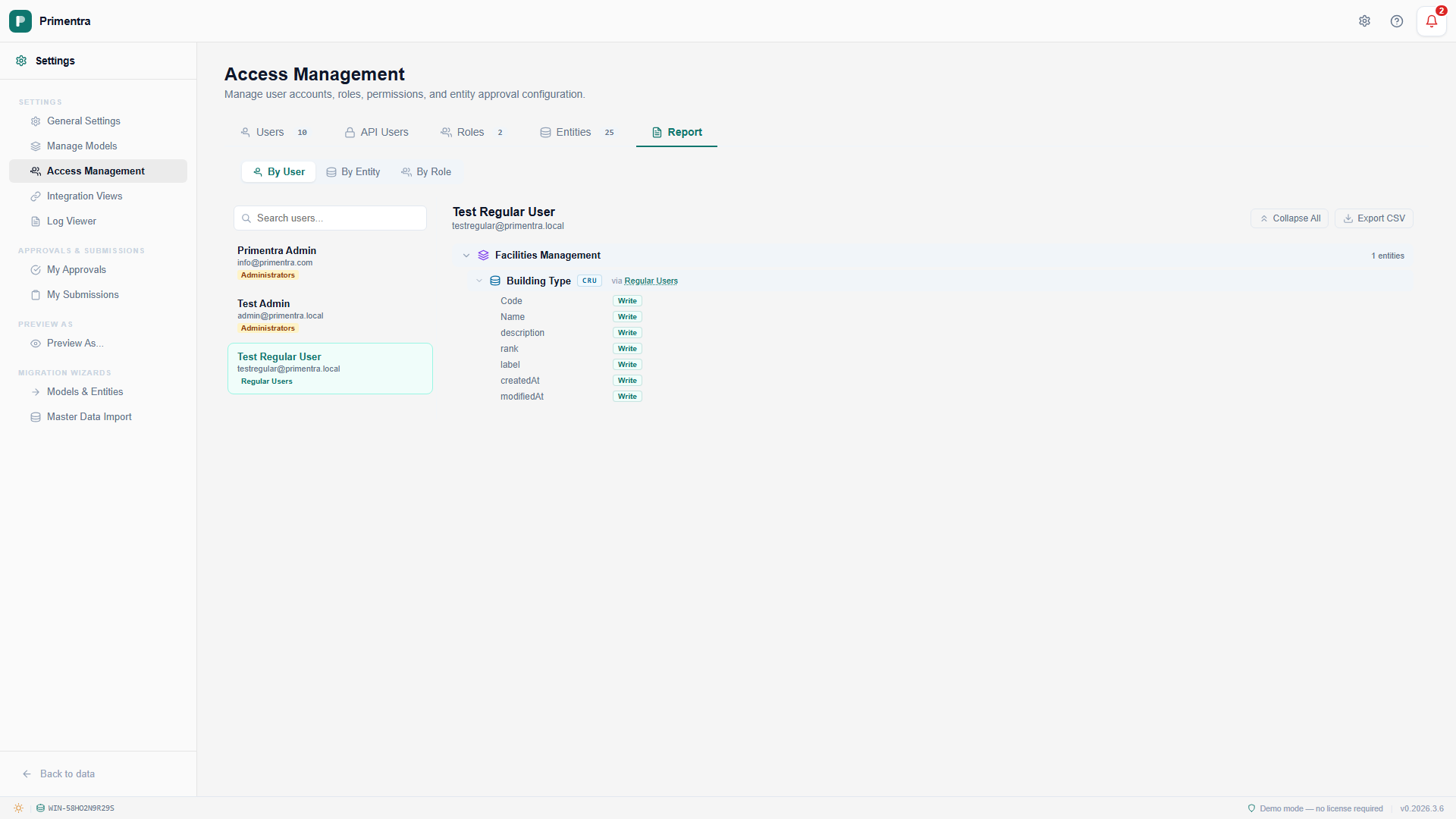
Permissions Report — By User perspective(click to enlarge)
Select a user from the left panel to see their effective permissions on the right:
- A permission tree grouped by model, then entity
- Each entity shows a CRUD badge (e.g. CRU) representing the OR-aggregated permissions across all the user's roles
- Click the expand chevron on an entity to see attribute-level permissions (Read/Write badges)
- Each permission row shows "via [Role Name]" — the role(s) that grant access
- Administrator users display an amber banner: "Administrator — full access to everything"
By Entity — "Who has access to this entity?"
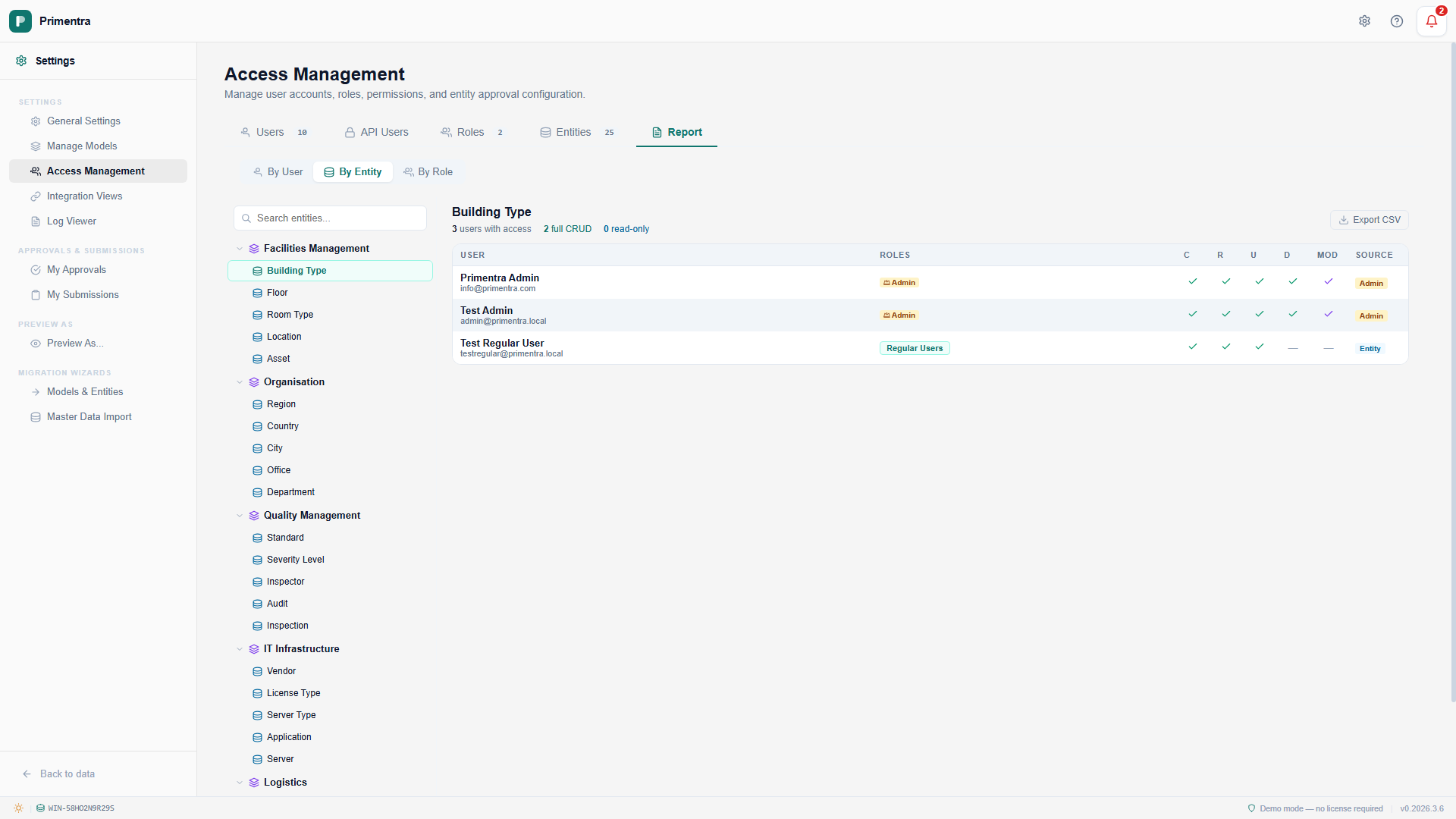
Permissions Report — By Entity perspective(click to enlarge)
Select an entity from the model/entity tree on the left. The right panel shows:
- Summary stats — total users with access, how many have full CRUD, how many are read-only
- A sortable table with columns: User, Roles, C, R, U, D, Mod, Source
- Source indicates whether access comes from an entity-scope permission, a model-scope permission, or admin privileges
- Click any column header to sort ascending or descending
By Role — "What does this role grant?"
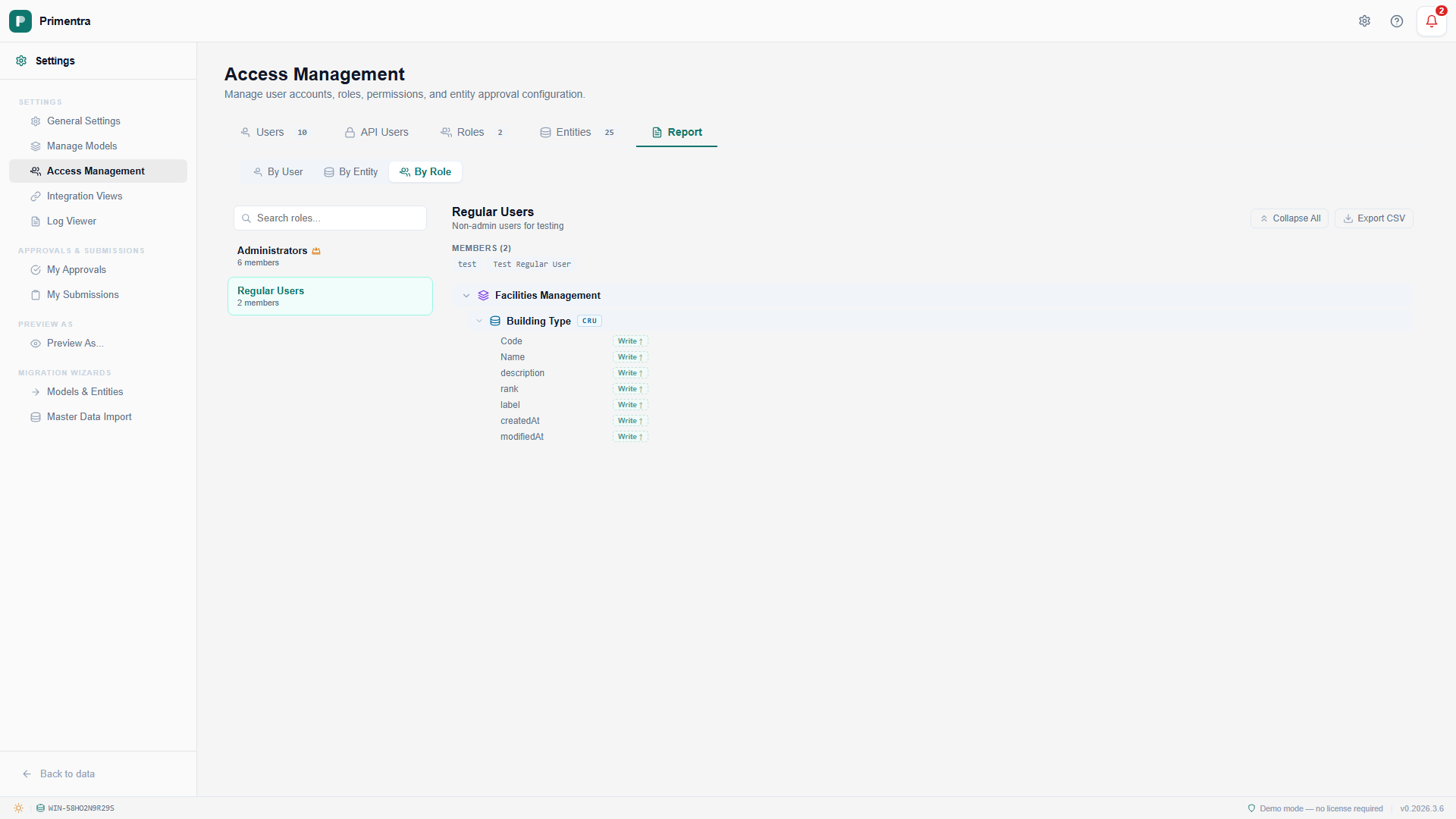
Permissions Report — By Role perspective(click to enlarge)
Select a role from the left panel. The right panel shows:
- Role name, description, and member list
- A read-only permission tree (models → entities) with CRUD badges
- Expand entities to see attribute-level Read/Write badges
- Administrator roles show an amber banner indicating they bypass all permission checks
Shared features across all perspectives:
- Search — Filter the left panel list by typing in the search box
- Expand All / Collapse All — Toggle all tree nodes at once
- Export CSV — Download the current view as a CSV file (client-side, no server call)
- Cross-navigation — Click a role badge in the User perspective to jump to that role in the Role perspective (and vice versa)