Roles & Permissions
Permissions in Primentra are always granted through roles. There are no per-user permissions. To know what a user can do, look at their roles.
Watch the whole thing in 4:21 — a role built from nothing, one grant on a model reaching three entities, C, R, U and D switching each other on and off, an entity carved out with an explicit none, and a single field set to Read:
Roles live in Settings → Access Management → Roles.
Create a role
- Click New role.
- On the Settings tab, enter a Role name and an optional Description.
- Choose a Role type if the role needs one (see below).
- Click Create role.
- Open the Members tab and tick the users who belong to the role.
- Click Save.
- Open the Permissions tab and grant access.
Role type
Two checkboxes on the Settings tab change what the role means.
- Administrator — members get full access to everything and bypass every permission check. The permission matrix is ignored for them.
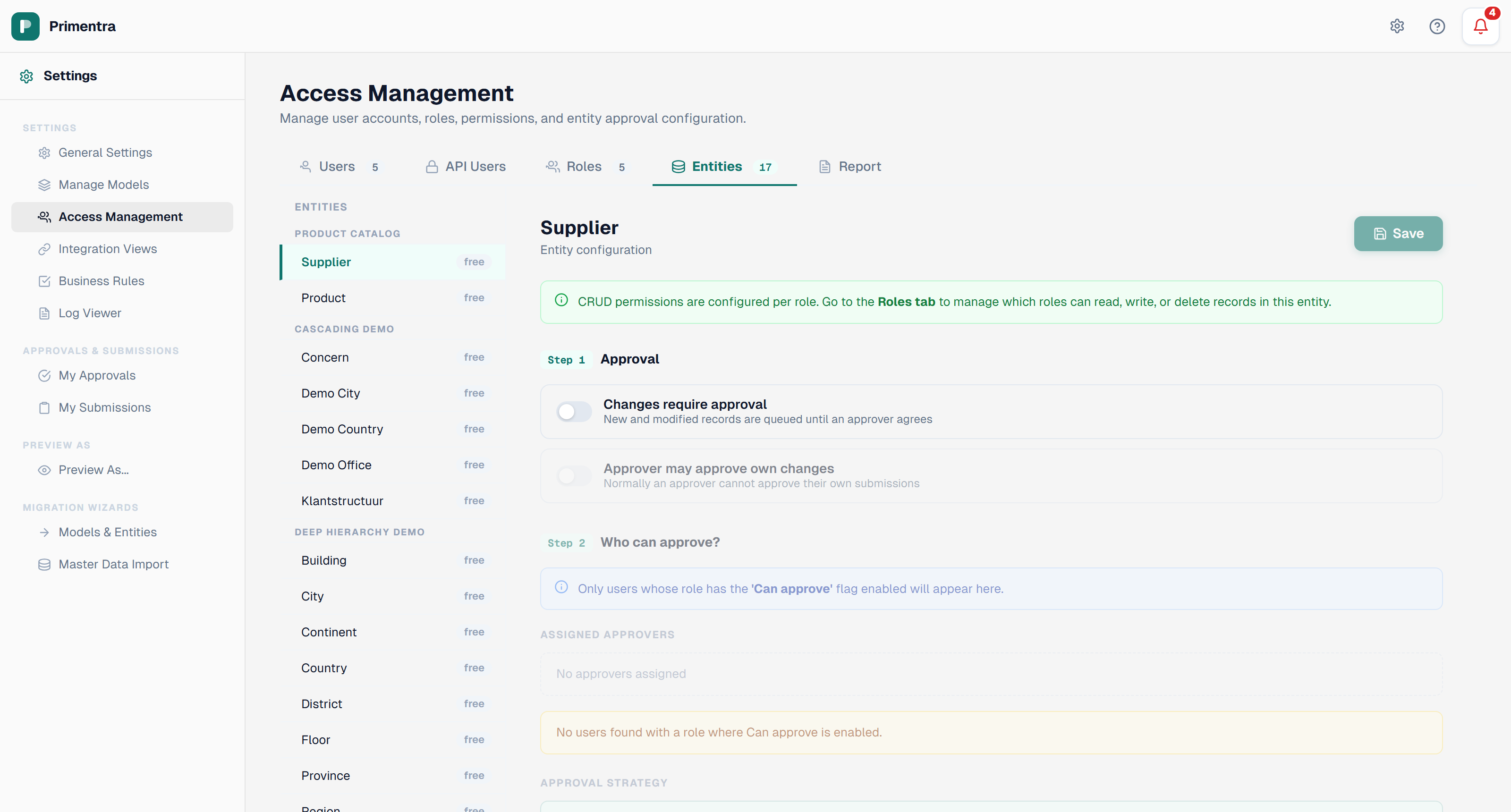
- Approver — members can approve changes. Only users in an Approver role can be assigned as approvers on an entity.
An Administrator role shows an amber banner on the Permissions tab: *Administrator role — permissions do not apply*.
Permission scopes
Permissions cascade through three levels.
| Scope | Effect |
|---|---|
| Model | Sets the default for every entity in the model |
| Entity | Overrides the model default for one entity |
| Attribute | Overrides entity and model for one column: None, Read or Write |
A badge with ↑ means the permission is inherited, not set directly. Click the × button next to the CRUD toggles to clear an override and fall back to inherited.
To hide one column from a role, set it to None. The section *Attribute permissions* below explains how.
CRUD permissions
At model and entity scope, five toggles control access.
| Toggle | Grants |
|---|---|
| C | Create — add rows, import data, paste rows |
| R | Read — view data in the grid and export it |
| U | Update — edit cell values, bulk edit, fill handle, Overwrite on import |
| D | Delete — remove rows, purge entity data, Replace all on import |
| Mod | Moderator — full CRUD plus entity and model configuration |
Three rules apply automatically:
- Turning on C, U, or D also turns on R. You cannot write what you cannot see.
- Turning on Mod turns on all four CRUD toggles.
- Turning off R turns off C, U, and D.
D does not need U, and C does not need U. The four operations are otherwise independent.
Effective combinations
| Combination | What the user can do | Typical use |
|---|---|---|
| None | No access — the entity is invisible | Restricted data |
| R | View and export only | Viewers, auditors, reporting |
| CR | View and add rows | Data entry that cannot correct itself |
| RU | View and edit existing rows | Maintenance teams |
| RD | View and delete rows | Cleanup roles |
| CRU | View, add, and edit | Safe default for editors |
| CRD | View, add, and delete, but not edit | Rare |
| RUD | View, edit, and delete | Maintain and clean up, no new rows |
| CRUD | Full data access | Power users, team leads |
| Mod | Full CRUD plus configuration | Data stewards |
Attribute permissions
Each column, except Code and Name, has a dropdown with four choices.
| Choice | What it does |
|---|---|
| Inherit (X) | No override. The column follows the entity level. Choosing it removes the stored setting. |
| None | The column is hidden from this role. |
| Read | The user sees the column but cannot edit it. |
| Write | The user sees the column and can edit it, when the entity allows editing. |
The entity permission decides which operations are available. The attribute permission decides what the user can do with one column during those operations. Both must allow it.
| Attribute level | Entity has R | Entity has C or U |
|---|---|---|
| None | Hidden | Hidden |
| Read | Visible, not editable | Visible, not editable |
| Write | Visible, not editable | Visible and editable |
Examples:
- Entity CRU, attribute
Salary= Read — the user edits rows, but the Salary field stays locked. - Entity CRU, attribute
Salary= None. The user edits rows and never sees Salary. - Entity R, attribute
Name= Write — view only. Write has no effect, because the entity grants no Update.
None is not the same as Inherit
The two are different.
- Inherit means "no opinion". The column takes whatever the entity level gives. If the entity has Read, the column is readable.
- None means "no access". The setting is stored, and it wins over the entity level. The entity can have full CRUD and the column is still hidden.
Code and Name cannot be set to None. Every row needs both to be recognized, so the dropdown does not offer it, and the server refuses it.
Where a hidden column is hidden
A column set to None is left out everywhere the user reads data. It is not greyed out. It is not there.
| Place | What the user sees |
|---|---|
| Data grid | The column is gone. It is also missing from filters, sorting, paste and the import column mapping |
| Filter value lists | Refused with a 403 error |
| Global search | The search does not look inside the column |
| Grid export and file export | The column is not in the file |
| REST API | Not in the records and not in the entity's attribute list |
| Audit panel of a row | The column's changes are left out of the history |
| Approval requests | The column is left out of the diff. The approver can still approve, and the value is applied |
| Preview As | The grid leaves the column out, the same as for the real user |
Writing to a hidden column
A write that touches a hidden column is refused. This covers a grid save, bulk edit, row edit, file import, REST API create and update, and submitting a change for approval. The refusal is the same one an unknown column gets, Unknown or hidden column., so it does not reveal that the column exists. A changed value for a read-only column is refused too, and that message does name the column. Nothing is written.
A required column blocks creating a row when the user cannot write to it. This holds when the column is hidden (None) and when it is read-only for the user. The save is refused with this message:
Existing rows are not affected. Only new rows need the required value.
Several roles: the highest level wins
Each role gives its own level for a column. That is the column setting of the role if it has one, and the entity level of the role if it does not. The user gets the highest of these levels.
Example. Anna is in two roles.
| Role | Entity level | Column Salary | Level from this role |
|---|---|---|---|
| HR-Restricted | Read | None | None |
| Sales | Read | no setting (Inherit) | Read |
The highest is Read. Anna sees Salary.
To really hide a column, no role of the user may give access to it. Check every role the user has. The Permissions Report and Preview As show the result.
Administrators
Administrators always see and write every column. A None setting does not apply to them.
Limits
Column None is enforced by the Primentra application. It does not reach the places that work without a Primentra user:
- Staging tables: a system that loads data through the
stgschema writes to every column. - Integration views: a view returns the columns it was built with, whoever reads it.
- Direct SQL access: anyone with a SQL login to the database can read the values.
If a column must stay secret from these routes, keep it out of the view, and control who gets a SQL login. See Integration Views and Staging Overview.
Moderator forces every attribute to Write
When an entity or model has Moderator, all its attributes are forced to Write ↑ and their dropdowns are disabled. Saving removes any leftover attribute overrides underneath. Remove the Moderator flag and the dropdowns become editable again.
Domain fields
A domain attribute follows the same Read and Write rules. Users do not need permission on the referenced entity to use its values in a dropdown — permission on that entity only controls whether they can browse it directly.
Multiple roles
When a user belongs to several roles, the most permissive combination wins. Read plus Create-Read-Update gives Create-Read-Update. This applies at model, entity, and attribute scope. One role can never block another. That includes None on a column: it only hides the column when no other role of the user grants it. See *Several roles: the highest level wins* above.
Server-side enforcement
Every permission is checked on the server. A request that bypasses the interface is rejected with HTTP 403.
The same holds for columns set to None. The server leaves them out of every read and refuses every write to them.
Audit trail
Each changed permission is written to the audit log as a separate entry with Action = permission_change. Saving a role can therefore produce many entries at once. The Details field records exactly what changed:
For attribute scope, changes holds level instead of the CRUD flags. The level reads "none" for a column you set to None, and "inherit" when you removed the override. The permission update and the audit entry succeed or fail together.
Questions
I set a column to None but the user still sees it
Two things cause this.
- Another role grants the column. The user gets the highest level of all their roles. If one role says None and another gives Read, the user sees the column. Open the Permissions Report for the user, or use Preview As, to find the role. Set the column to None in that role too, or take the user out of it.
- The user is an administrator. Administrators always see every column.
If neither applies, check that you chose None and not Inherit (X). Inherit removes the setting, and the column follows the entity level again.
I cannot save a new row, it says a column is required
The message reads *Column "X" is required, but you have no write access to it*. The column is required, and your roles give you None or Read on it. A row cannot be saved without a value you are not allowed to enter. Ask someone with write access to the column to create the row, or ask an administrator to change your access. Existing rows are not affected.
Can I hide the Name or Code column?
No. Code and Name cannot be set to None. Every row needs both.
Does None also hide the column in integration views and staging?
No. Those run without a Primentra user, so column None does not reach them. See *Limits* above.
Related
- User Management — create the accounts that join these roles
- Administrator & Moderator — the two elevated levels
- Preview As — check a role before handing it out
- Permissions Report — see the result across users and entities
- Configuring Approvers — what the Approver flag unlocks