Audit Log
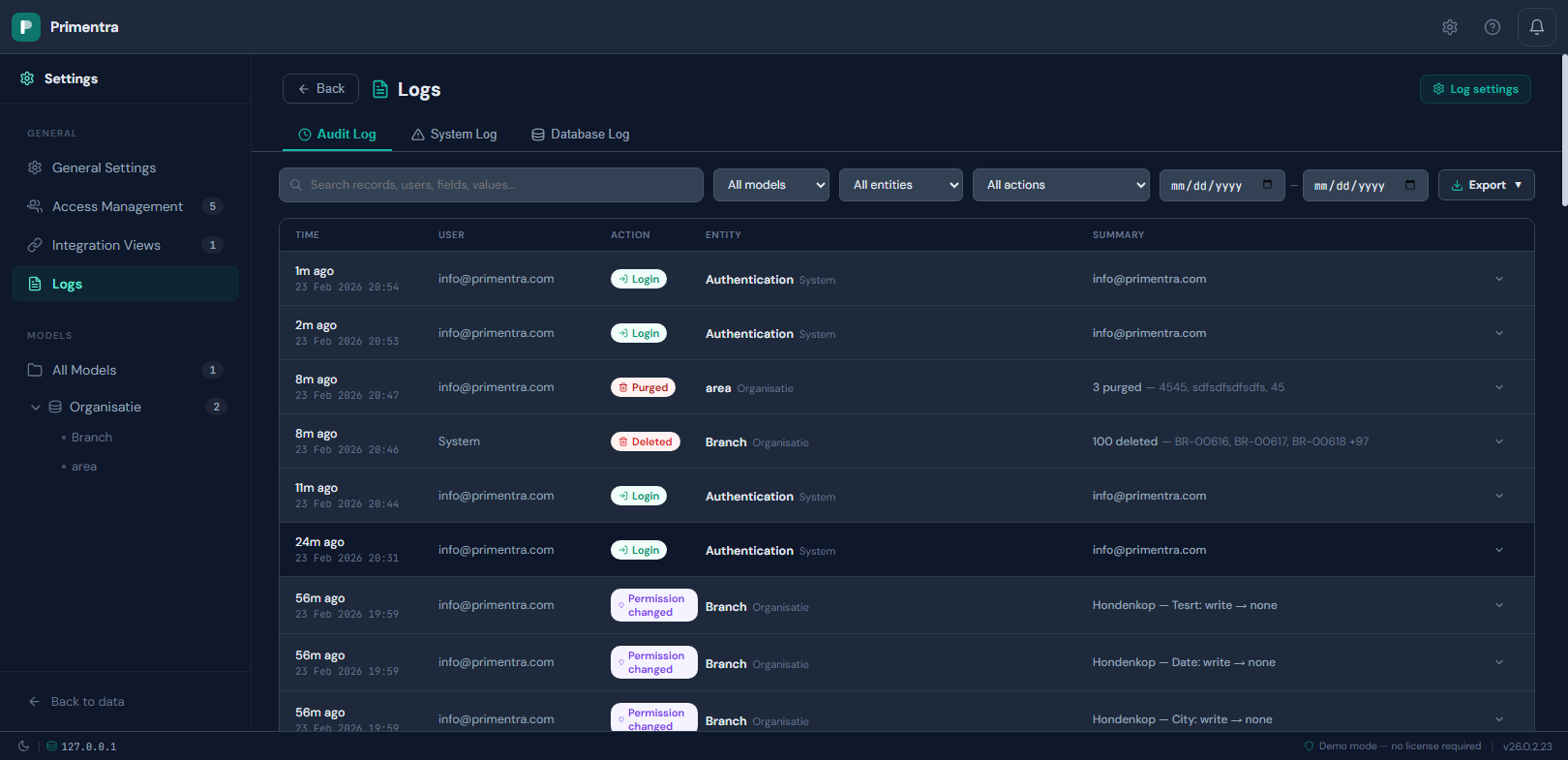
The audit log is the full trail of data changes and security events. It is append-only: entries are never edited, only deleted by the retention cleanup.
Access: Settings → Log Viewer → Audit Log tab
Or watch it end to end — a save traced from the record's own panel to the log, the difference an edit stores against the full snapshot a delete keeps, failed logins and a lockout, a permission move, the export, and the retention window that eventually deletes all of it:
How many entries you are looking at
Above the table is the count for the current selection: 60 entries match *of 61 in the log*. With no filter on, it is simply the size of the log.
Every filter is applied by the database to the whole log, not to the page on screen, so that number and the rows beneath it always describe the same set. It has not always been so — the filters once ran in the browser over the fifty rows that had been fetched, which hid matching entries on every other page and still reported the unfiltered page count.
Filtering
- Search across records, users, fields and values
- All users — who made the change. Matched on the account, so two people with the same display name stay apart
- All models and All entities dropdowns. Authentication and user-management events use entity
Authenticationand modelSystem - All actions, grouped into Data, Security, Permissions and Approval
- A from and to date pair. The to date includes the whole of that day
Click Clear filters to reset everything at once.
Sorting and page size
Click Time, User, Action or Entity to sort. Clicking again reverses it, and a third click returns to newest-first. The sort is applied to every matching entry, not to the page you happen to be on.
Rows per page offers 10, 50, 100, 1000 and Show all. Show all fetches everything that matches and then draws it in slices as you scroll, so a log of forty thousand entries does not freeze the tab. The indicator reads *Showing 200 of 40,000* while it fills in.
Action groups
| Group | Actions |
|---|---|
| Data | Edit, Create, Delete, Import, Purge |
| Security | Login, Failed login, Account locked, Logout, User created, User updated, User deleted, Welcome email, Password changed, Password set (forced), First setup |
| Permissions | Permission changed |
| Approval | Submitted for approval, Approved, Force approved, Rejected, Sent back |
API user and API key events use the same security badges: API user created, API user updated, API user deleted, API key regenerated.
Reading an entry
Every row shows the time, the acting user's email address, a color-coded action badge, the entity, and a one-line summary. Click a row to expand it.
- Data entries show a before-and-after table of every changed field
- Permission entries show the role, the scope, and the exact flags that changed
- Security entries show details such as the email address, the IP address, or the remaining login attempts
If a user is deleted, the numeric user ID appears instead of the email address.
Export
Click Export and choose JSON, CSV or XLSX. The export covers the filtered result set and includes the full field-level change data.
Technical reference
Database table: `AuditLog`
| Column | Type | Description |
|---|---|---|
Id | BIGINT | Primary key, auto-increment |
EntityId | INT | Foreign key → Entities.Id |
EntityName | NVARCHAR(200) | Entity name at the time of the action |
ModelName | NVARCHAR(200) | Model name at the time of the action |
Action | NVARCHAR(50) | See the action groups above |
RecordCount | INT | Number of rows affected |
UserId | INT | Foreign key → Users.Id. Resolved to an email address in the UI |
Comment | NVARCHAR(1000) | Optional save comment |
Details | NVARCHAR(MAX) | JSON with the field-level change data |
CreatedAt | DATETIME2 | Timestamp in UTC |
When an entry is written
The stored procedure responsible for each operation writes its own audit entry, inside the same transaction as the change. If the save rolls back, the audit entry rolls back with it — there are never phantom entries for changes that did not happen.
| Event | Written by |
|---|---|
| Rows saved (new, edited or mixed) | usp_Data_SaveChanges — one entry per save batch |
| Rows deleted | usp_Data_Delete — one entry per batch |
| Data imported by the migration wizard | The import procedure — one entry per entity |
| Permissions changed in bulk | usp_Permission_BulkSave — one entry per changed permission |
| A single permission upserted | usp_Permission_Upsert — one entry if anything changed |
| Login success or failure, account lockout | The authentication handler in the API |
| User created, updated or deleted | The user-management routes |
| Password changed or reset | The password-change route |
| First user setup completed | The setup route |
The `Details` JSON
For data actions, Details is an array with one element per affected row.
Create — every field value of the new row:
Edit — only the fields that changed:
Delete — a full server-side snapshot of every deleted row, always saved automatically:
Three keys are internal: code and name identify the row, and _savedId is the EntityRows.Id used by the audit panel to match entries to rows. _savedId is not displayed.
Domain attributes are resolved at write time. Instead of the raw ID 131, the log stores {NL} Netherlands, so the entry stays readable after the referenced record is changed or deleted.
Only changed fields are stored. The grid sends a changedFields array per row and the backend filters the details with it, so unchanged fields never clutter the trail.
Permission change entries
usp_Permission_BulkSave writes one entry per individual change, with Action = permission_change and RecordCount = 1. Here Details is an object, not an array:
Attribute scope adds attributeId and attributeName, and changes carries level. Only flags that actually changed appear.
Attribute-level level values are "none", "read", "write" or "inherit".
"none"is an explicit deny. The column is hidden for that role."inherit"means the override was removed. The column follows the entity level again.
Batch saves
One save operation produces one entry, with RecordCount equal to the number of rows and one Details element per row. Action is:
create— every row is newedit— every row already existedcreate/edit— the batch contains both
Stored procedures
| Procedure | Purpose |
|---|---|
usp_AuditLog_Write | Inserts an entry |
usp_AuditLog_GetPaginated | Paginated retrieval for this screen |
usp_AuditLog_GetByRow | Entries for one row, used by the audit panel |
usp_AuditLog_GetDashboard | The last 200 data actions, for the dashboard |
usp_AuditLog_ResolveAttributes | Maps uda_* column names to display names |
usp_AuditLog_Cleanup | Deletes entries past the retention window |
Automatic cleanup
usp_Maintenance_Cleanup reads auditRetentionDays (default 90) and calls usp_AuditLog_Cleanup:
The cutoff moves forward one day for every day that passes, so the log always covers exactly the configured window. See Data Retention.
Related
- Data Retention — how long entries are kept
- Error Log — the other two tabs of the same screen
- Audit Panel & Read-Only Fields — per-row history inside the grid
- Roles & Permissions — what a permission entry records