Entities
Within each model you create entities. An entity is one specific type of master data — a structured table or list. If the model is a filing cabinet, entities are the drawers.
What makes a good entity
An entity holds one clearly defined type of record. Keep each entity focused on a single concept.
| Model | Entities |
|---|---|
| Customer Management | Customers, Contacts, Customer Segments |
| Product Management | Products, Product Categories, Brands |
| Supplier Management | Suppliers, Contracts, Certifications |
Code and Name
Every entity has two built-in system fields:
- Code — the unique business identifier. Import, export and domain resolution all match on it.
- Name — the label shown to users.
Both are always required. They are columns on the entity, not attributes, so they cannot be deleted, renamed or retyped.
Auto-generate Code
Turn on Auto-generate Code to let the database assign the Code. Users never type or paste one: the cell is read-only in the grid, the Code column is ignored by Paste rows and by the Excel import, and the value is assigned when the record is saved.
Three settings appear once the toggle is on:
| Setting | What it does |
|---|---|
| Code prefix | Text placed in front of the number, for example CUST-. Up to 20 characters |
| Digits | Zero-padding width, so 42 with 5 digits becomes 00042 |
| Start numbering at | The first number to use. It is a floor, not an override: if the entity already holds a higher code, numbering continues above that |
An Example beside the three fields shows what the first generated code will look like.
Leave all three empty for a plain integer. The number is a sequence, not a count — gaps are normal after deletions or discarded edits, and a number is never handed out twice.
Create an entity
Prefer to watch? This 80-second video creates a model and its first entity, sets a code prefix and adds two attributes:
- Select a model in the sidebar or on the model list.
- Click New entity.
- Enter an Entity name. This field is required.
- Enter a Description. This field is optional and holds up to 500 characters.
- Set the toggles: Active, Requires approval, Shared across models, Auto-generate Code.
- Add attributes in the table below the toggles.
- Click Create entity.
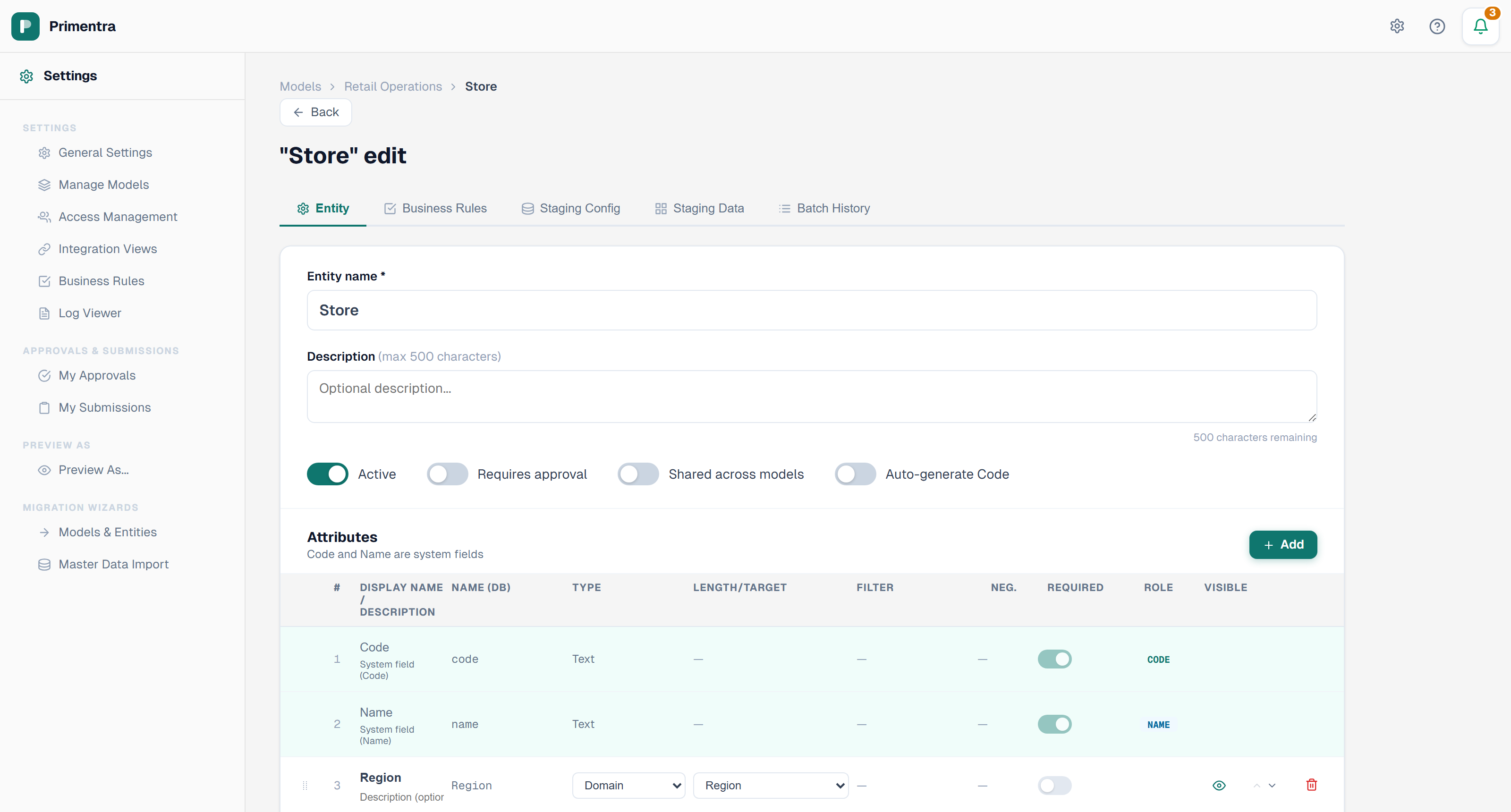
The database table name used by integration views is derived from the entity name automatically — every character that is not a letter or a digit is removed. There is no field to type it in.
The tabs across the top of the form are the entity's other settings — Business Rules, Staging Config, Staging Data and Batch History. They appear once the entity has been saved. Derived Columns appear at the bottom of the form for the same reason.
The four toggles
| Toggle | Effect |
|---|---|
| Active | An inactive entity is hidden from regular users, and its data cannot be edited through the UI. The data stays in the database |
| Requires approval | Every change goes through the approval workflow before it is committed |
| Shared across models | The entity can be used as a domain target from any model, not only its own |
| Auto-generate Code | The database assigns the Code — see above |
The entity list
Each model lists its entities with these columns: Entity, Fields, Records, Rules, Approval, Staging, Auto code, Domain and Status.
Click a column header to sort. The cycle is ascending, descending, then back to the default order. Entity, Fields, Records, Rules, Approval and Status sort.
Reorder entities by dragging the grip handle on a row, or with the up and down arrows. The order decides how entities appear in the sidebar and in the model detail view.
Required fields
Code and Name are always required. Custom attributes marked Required are enforced as you edit:
- A red border appears on an empty required cell as soon as the row is modified.
- Save is blocked until every required field on a modified row has a value.
- The save dialog names the rows and fields that are missing.
Related
- Attributes & Data Types — the fields inside an entity
- Models — what an entity belongs to
- Entity Management — clone, purge and delete an entity
- Configuring Approvers — what the Requires approval toggle switches on