Documentation
Getting Started
Installation
Data Grid
Approvals
Administration
Account & Security
Integration & Staging
Architecture
Documentation/Administration/Models & Entities/Attributes

Attributes

Overview

Attributes are the individual fields within an entity. They define what information you capture for each record. If the entity is a drawer, attributes are the columns on the form inside it.

For the "Customers" entity, attributes might include:

  • Customer Name (text)
  • Registration Number (text)
  • Address (text)
  • Industry (dropdown)
  • Status (dropdown)

Each attribute has a data type and can include validation rules to ensure data quality at the point of entry.


Data Types

Each attribute in Primentra has a data type that determines what kind of values it can hold and how it behaves in the data grid.

  • Text — Free-form text input. Use for names, descriptions, addresses, and other string values. Text fields support filtering by substring and can be sorted alphabetically.
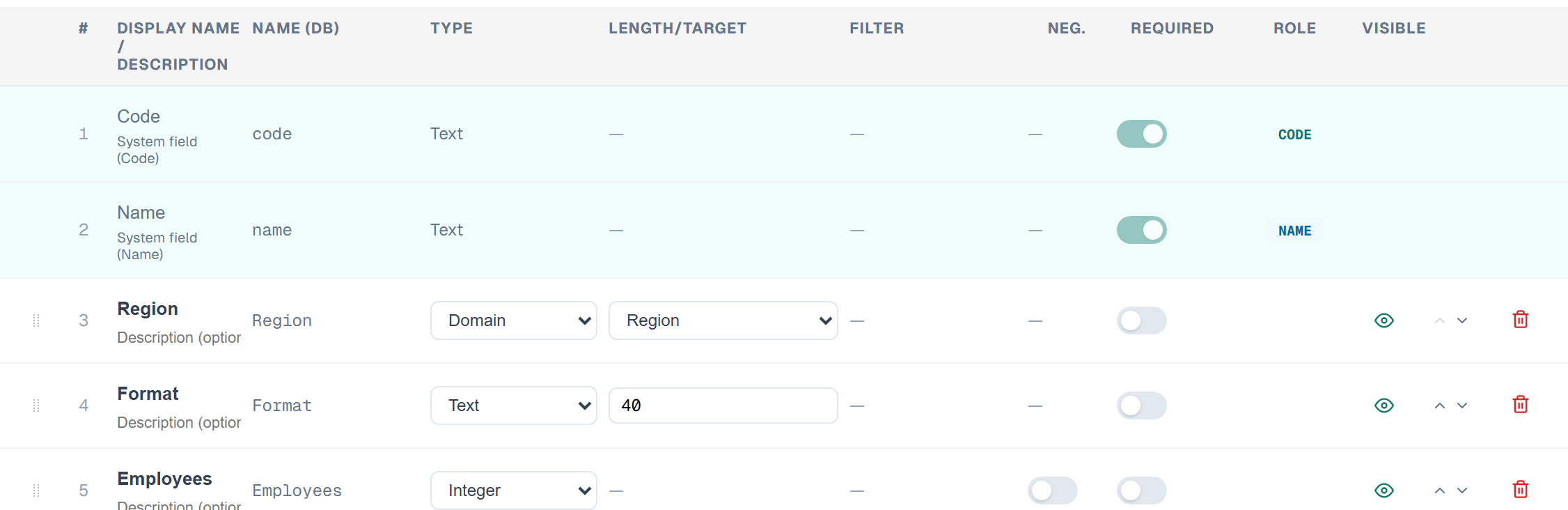
  • Int — Whole numbers without decimals. Use for quantities, counts, sequence numbers, or any numeric value that doesn't need fractional precision. In entity setup, you can enable Allow negatives to accept negative values; when unchecked, only zero and positive numbers are accepted.
  • Decimal — Numbers with decimal places. Use for prices, percentages, measurements, or any value that requires fractional precision. In entity setup, you can configure Decimal places (0–10) to control the number of fractional digits stored, and enable Allow negatives to accept negative values.
  • DateTime — Date and time values. Rendered as a date picker in the data grid. Use for registration dates, expiry dates, or any temporal data. In entity setup, you can configure the Date format per attribute: DD/MM/YYYY, MM/DD/YYYY, YYYY-MM-DD, or DD MMM YYYY.
  • Boolean — A true/false flag. Stored as 1 (true) or 0 (false). Displayed in the data grid as a pill badge with configurable labels. Use for active/inactive flags, approval states, or any binary attribute. Boolean fields work with search, paste rows, export, and import.

Display format (set per attribute in entity setup):

  • Yes / No (default) — green "Yes" or grey "No" pill
  • True / False — displays "True" or "False"
  • 1 / 0 — displays "1" or "0"
  • Custom — uses the labels set in General Settings → General → Boolean Display. Selecting Custom shows a tooltip in entity setup pointing to that location.
  • Domain — A reference to another entity. Domain attributes create a link between two entities, turning the field into a dropdown that shows records from the referenced entity. For example, a "Zone" field on a Business Unit entity would be a Domain attribute pointing to the Zone entity. Domain values are displayed in {Code} Name format.

The data type of an attribute is set when you create it and determines the editing experience in the grid, the available filter options, and how values are validated.


Changing Data Types

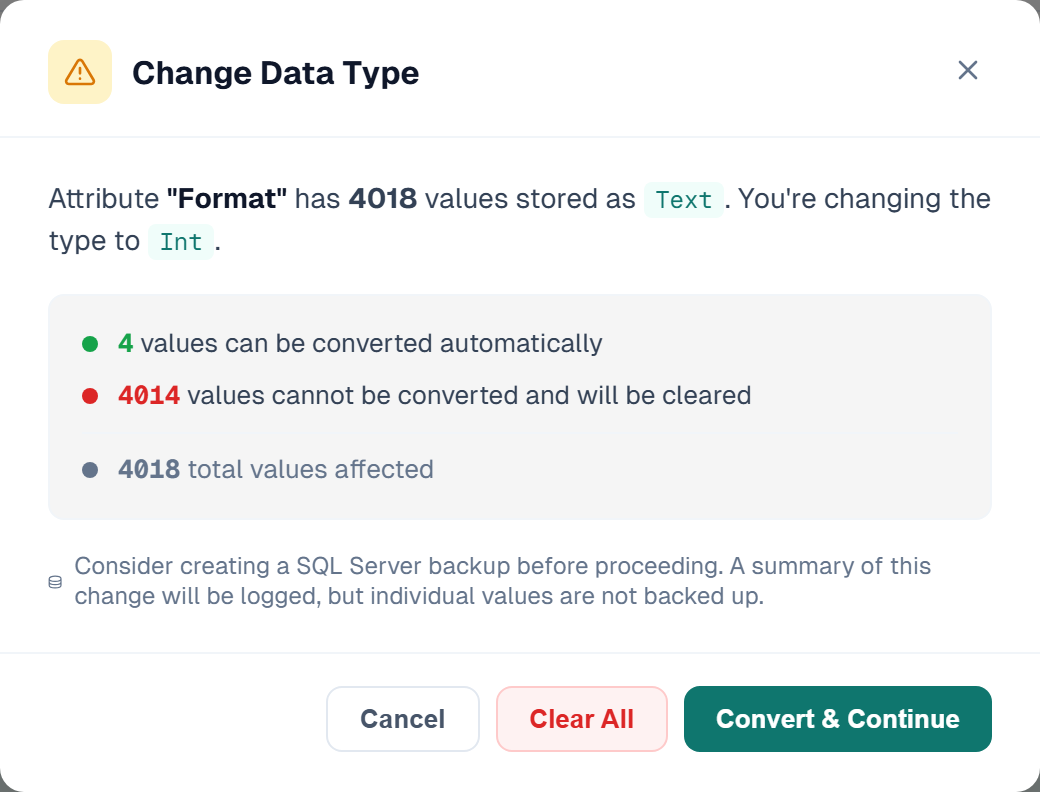
You can change the data type of an existing attribute even after data has been entered. When you change the type, Primentra checks all stored values and shows an impact preview before applying the change.

Impact preview: The dialog tells you exactly what will happen:

  • How many values can be automatically converted to the new type (shown in green)
  • How many values cannot be converted and will be cleared (shown in red)
  • The total number of values affected

Your options:

  • Convert — Attempt automatic conversion. Values that can be converted keep their data; values that cannot are set to empty.
  • Clear All — Reset all values to empty regardless of convertibility.
  • Cancel — Abort the change, keeping the original data type and all values intact.

Conversion examples:

  • Int → Text: always succeeds (number becomes text)
  • Text → Int: succeeds only if the text is a valid number (e.g., "42" converts, "hello" is cleared)
  • Boolean → Int: always succeeds (Yes becomes 1, No becomes 0)
  • Text → Boolean: succeeds for recognized values like "yes", "no", "true", "false", "1", "0"
  • Domain → any other type: values are always cleared (domain references cannot be converted)

Audit trail: A summary of the change is written to the audit log (attribute name, old type, new type, how many values were converted or cleared). Individual values are not backed up — create a SQL Server backup before the conversion if you need full recovery.

Transaction safety: The entire conversion runs inside a single database transaction. If anything goes wrong, all changes are rolled back — you never end up with partially converted data.

No data at risk with empty entities: If the attribute has no data yet (zero rows), the type change is applied silently without showing the dialog.


Domain Attributes

Domain attributes are the backbone of Primentra's relational data model. They create parent-child relationships between entities by linking one entity's field to another entity's records.

How they work: When you create an attribute with data type Domain, you select a target entity. In the data grid, this field becomes a dropdown showing all records from the target entity. Users pick a value from the list rather than typing free text — ensuring referential integrity.

Building a hierarchy: By chaining domain attributes, you build a multi-level hierarchy. For example:

  • The Costcenter entity has a Domain attribute pointing to Area
  • The Area entity has a Domain attribute pointing to Zone
  • The Zone entity has a Domain attribute pointing to Country

This creates the chain: Costcenter → Area → Zone → Country.

Automatic hierarchy detection: Primentra automatically detects these chains and visualizes the full hierarchy in the admin panel under each model. You don't need to configure the hierarchy separately — it's derived directly from your domain attribute structure.

Display format: Domain fields always display in {Code} Name format (e.g., {NL} Netherlands). This format is also used when copying, pasting, and exporting data. During import, domain values are matched by Code, Name, or the combined {Code} Name format.

Cascading domain dropdowns: When you have two related Domain attributes in the same entity — for example, a RoleGroup attribute and a Role attribute — you can configure the Role dropdown to automatically narrow its options based on the selected RoleGroup. This is called a cascading filter or parent filter.

Without this feature, the Role dropdown always shows every role from the Role entity, regardless of what RoleGroup is selected. With it, the dropdown is narrowed to only the roles that belong to the selected group — making it impossible to pick an inconsistent combination.

Setting it up:

  1. Go to Settings → Models → [your entity] → Edit
  2. In the attribute list, find the Domain attribute you want to filter (the child — e.g., Role)
  3. In the Filter column, select the parent Domain attribute (e.g., RoleGroup)
  4. Save the entity

What "matching" means: For the filter to work, the child entity (Role) must itself have a Domain attribute that points to the same entity as the parent (RoleGroup). Primentra uses that relationship to resolve the options: when you select "Management" as the RoleGroup, the Role dropdown shows only roles whose own RoleGroup attribute is "Management".

In the data grid: Once configured, selecting a value in the parent dropdown immediately narrows the child dropdown. If the parent is cleared, the child shows all options again. If you change the parent to a different value, the child field is automatically cleared to prevent inconsistent combinations.

Cascade filtering also works in reverse: when you fill in the child field first, Primentra automatically fills the parent field with the correct linked value. This means it is impossible to create an invalid combination — the fields always stay consistent, regardless of which one you fill in first.

Example — roles filtered by role group:

  • Entity: Human with two domain attributes:
    • RoleGroup → references the RoleGroup entity
    • Role → references the Role entity (Role itself has a RoleGroup attribute)
  • Set Role's Filter to: RoleGroup
  • Result: selecting "Management" as the RoleGroup narrows the Role dropdown to management roles only
  • Result: selecting "Accountant" as the Role automatically fills RoleGroup with "Finance" — the group that Accountant belongs to

This is especially useful when users know the specific value (the Role) but not the category (the RoleGroup). They can fill in whichever field they know first and Primentra handles the rest.

Loop prevention: Attribute A can filter attribute B, but B cannot also filter A. The attribute editor enforces this: the Filter dropdown only shows sibling Domain attributes that don't form a loop.

Chain filters: You can chain multiple levels: A filters B, and B filters C. Each level filters based on its direct parent. Configure one link at a time — set B's Filter to A, then set C's Filter to B.

Renaming is safe: Domain references are stored as internal IDs, not names. You can safely rename an entity or attribute without breaking any domain relationships — the dropdowns, hierarchy, and data all continue to work. The only thing affected by renaming is integration views, which may show drift warnings (see Drift Detection & Sync).


Derived Columns

Derived columns let you pull a value from a related entity through a chain of domain attributes — without duplicating data. They appear as read-only columns in the data grid, automatically resolved from the relational path you define.

Example: Your "Costcenter" entity has a domain attribute pointing to "Area", and "Area" has a domain attribute pointing to "Zone". A derived column on Costcenter can follow the path Costcenter → Area → Zone and display the Zone name directly on each Costcenter row.

How to create a derived column:

  1. Go to Settings → Models → [Entity] → Edit
  2. Scroll to the Derived Columns section (below the attributes list)
  3. Click Add derived column
  4. Walk the relational path: the wizard shows the available domain attributes at each step. Click a domain attribute to follow it to the next entity, then pick the leaf attribute (the final value to display)
  5. A display name is auto-generated from the path (e.g. "Area / Zone") — you can edit it
  6. Click Save to create the column

In the data grid:

  • Derived columns appear after all regular attributes
  • They are read-only — the value is resolved automatically from the domain chain
  • When a domain value changes (e.g., a Costcenter is moved to a different Area), the derived column updates automatically

Requirements:

  • The entity must have at least one domain attribute to create derived columns
  • The path must be at least two steps long (one domain hop + one leaf attribute)

Deleting a derived column removes only the column definition — no data is affected, since derived columns do not store their own values.

Ready to get started?

Start managing your master data with Primentra today.

View Pricing