
Your data has hierarchy. Roles belong to role groups, branches to regions, products to categories. That structure is already in your master data — it's part of how models, entities, and attributes relate to each other. MDS just doesn't know it at the UI level. Every domain attribute dropdown pulls the full list, every time, regardless of what else is on the record.
For small datasets, mildly annoying. For real-world master data, where a single entity can have hundreds of domain values, it makes the system hard to use. Users scroll. They pick the wrong thing because the list is too long to navigate with confidence.
The MDS way: technically possible
MDS had derived hierarchies and parent-child relationships. Technically the tools were there. But wiring them to actually filter what appeared in a domain attribute dropdown required model design work that went well beyond what most teams maintained. You weren't configuring a filter. You were restructuring entity relationships to make a filter possible.
Most teams skipped it. The workaround was a custom Add-in column, a naming convention that at least sorted the list sensibly, or just telling users to scroll carefully. None of those held up.
A concrete example: RoleGroup → Role
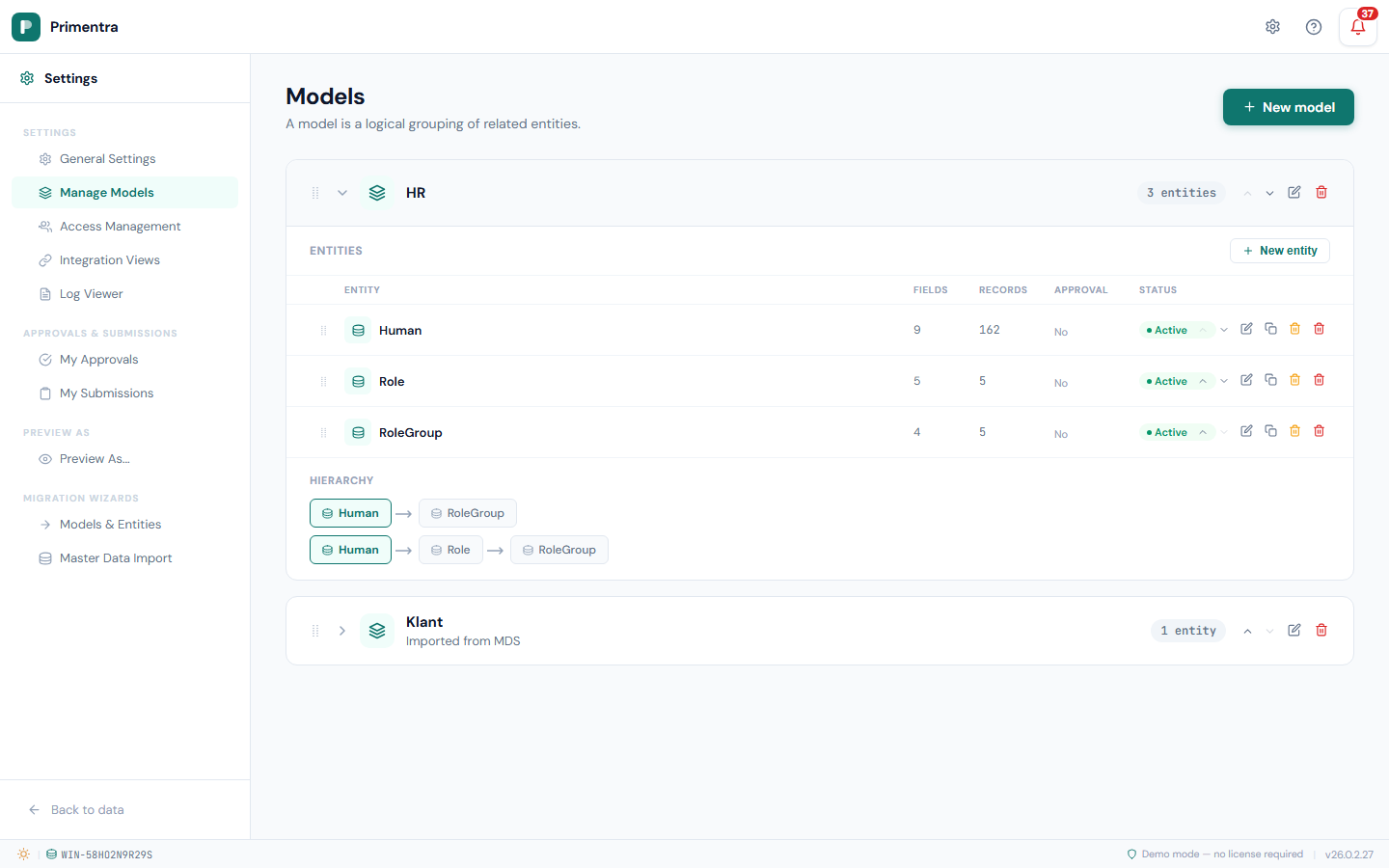
Take the Human entity in an HR model. Each record needs two things: which RoleGroup the person belongs to, and which Role within that group.
Both are domain attributes. RoleGroup points at your RoleGroup entity, Role points at your Role entity. The relationship is already there — roles are linked to role groups in your data model. What you want: pick a RoleGroup, and see only that group's roles in the Role dropdown. Not all 156 of them.
In MDS, that link didn't exist at the UI level. You could see the hierarchy in Hierarchy Explorer, navigate it in reports. But in an entity form with two domain fields sitting next to each other? Each one fetched its own full list, with no idea the other was there.
The Primentra way: one setting
When you configure a domain attribute in Primentra, you can set another domain attribute as its Parent filter. Pick the filter source, save, done.
With Parent filter set to RoleGroup, the Role dropdown in the grid will only show roles linked to whichever RoleGroup is selected in that row.
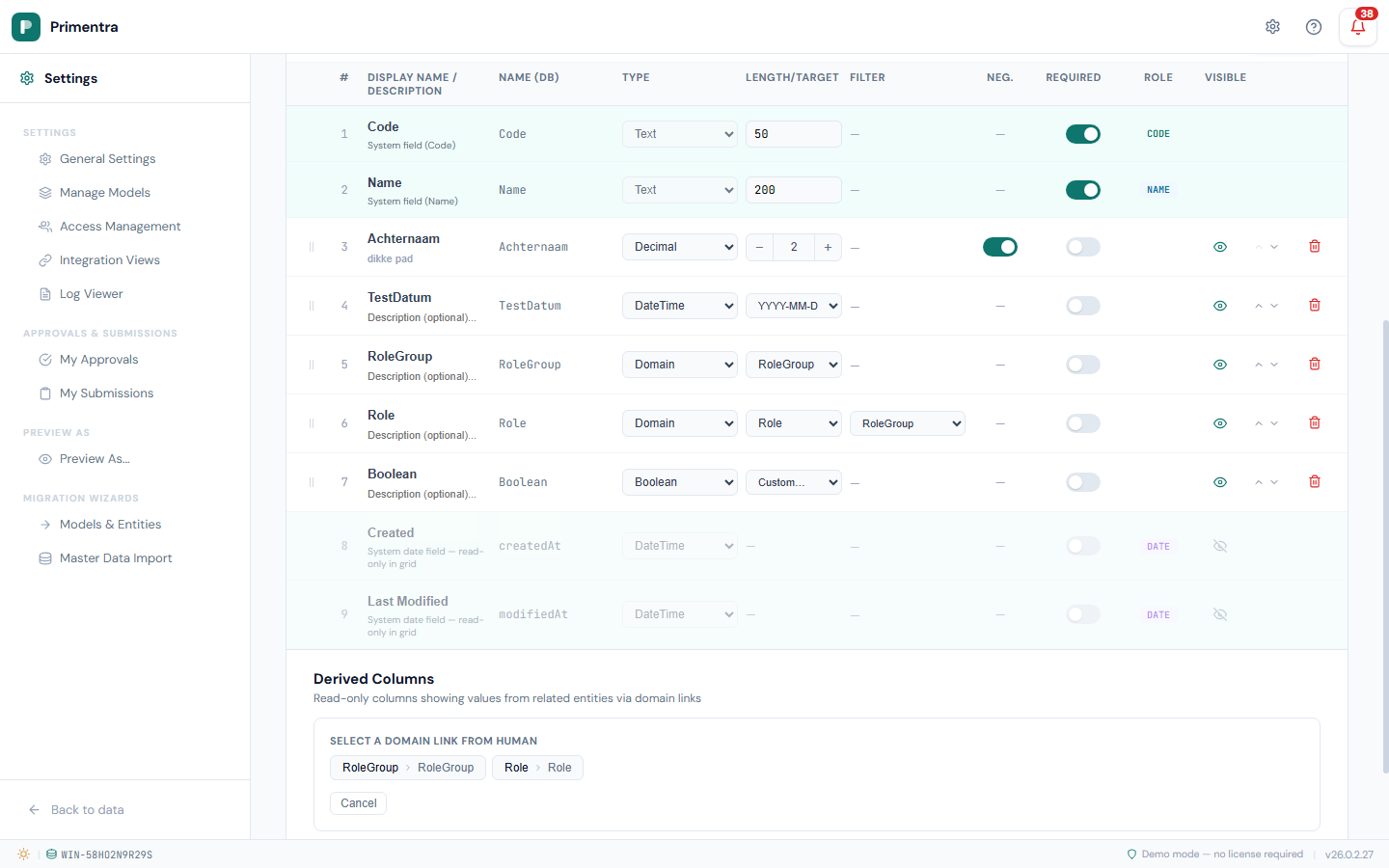
In the grid, it's immediate. Pick a RoleGroup on a row, and the Role dropdown filters to only the roles in that group — drawn from the actual relationship in your Role entity. No custom code, no Add-in column, no Excel.
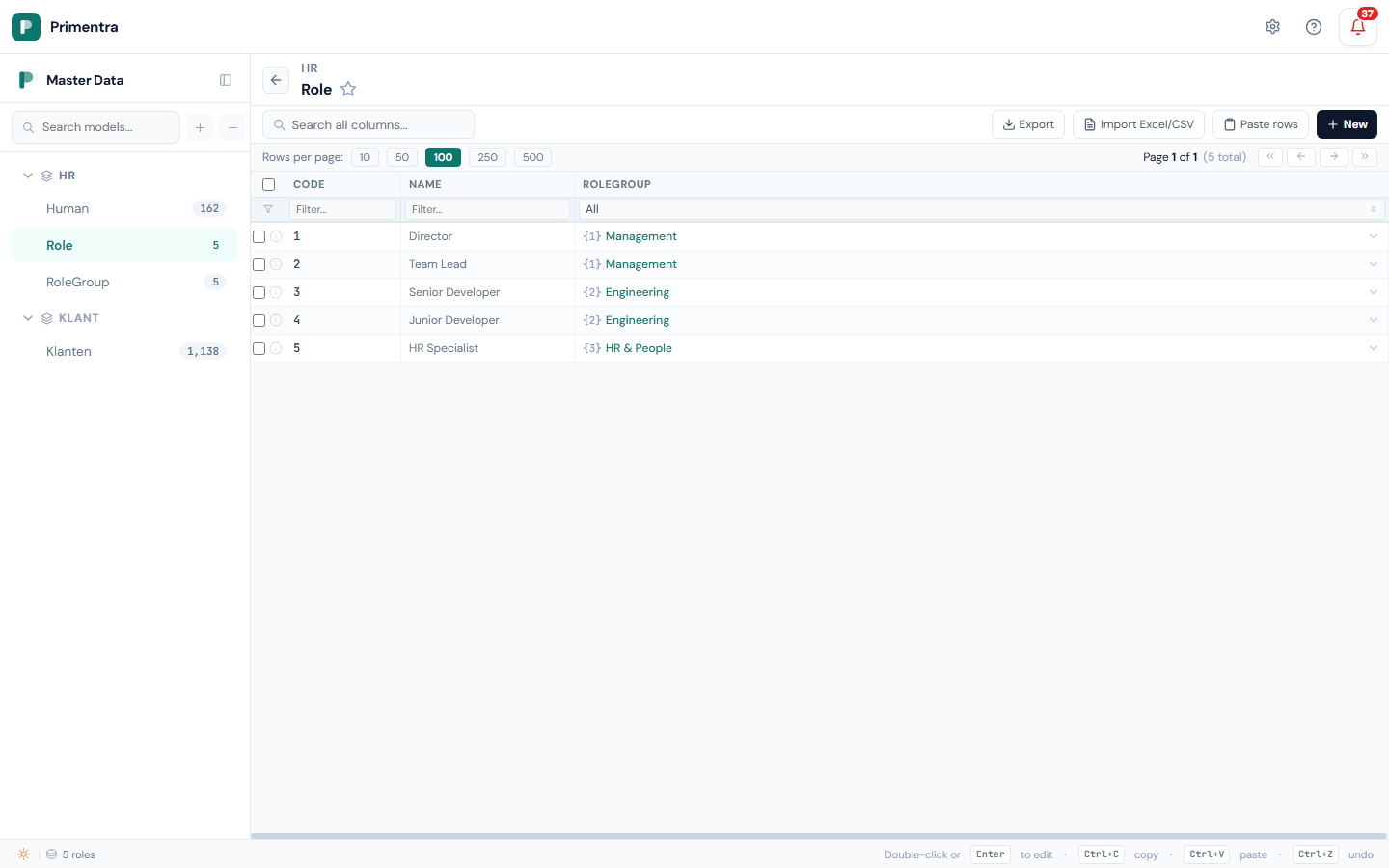
It works both ways. Select a RoleGroup and the Role dropdown filters immediately. But if you already know the Role and pick it first, Primentra fills in the RoleGroup for you automatically. Either starting point ends up with a consistent, valid combination.
It chains
Two levels is the most common case, but it works deeper. Set Region as a parent of Division, Division as a parent of Branch — select a Region, Divisions filter, select a Division, Branches filter. Down from 847 options to 14.
Selecting a Region automatically narrows Divisions. Selecting a Division then narrows Branches — down from 847 to 14.
Pull in fields from related entities
Say a Human record has Role selected. That Role has a RoleGroup. You can pull the RoleGroup name directly onto the Human grid as a read-only column — no schema change, no duplication, no stored denormalization. The value is resolved at query time from the actual RoleGroup entity.
It works via Derived Columns, configured in the same entity editor. You navigate the domain link chain — Human → RoleGroup → Name, or Human → Role → RoleGroup → Name for a two-hop path — and pick the leaf field you want to surface.
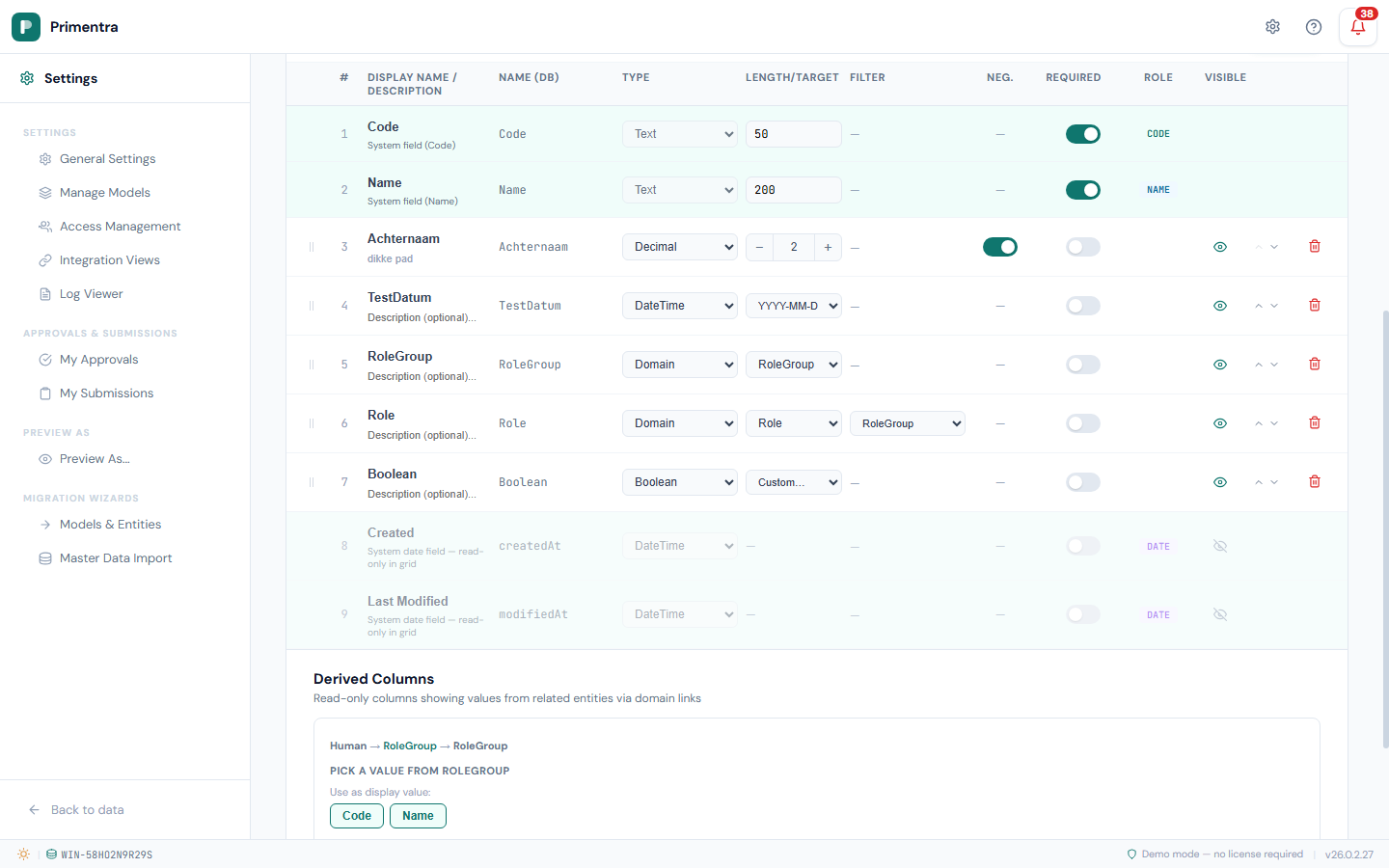
The parent filter narrows what you can pick. The derived column brings in context from what you picked. Between the two, users rarely need to open another entity while editing a record. If your model still carries a typed copy of a parent value, here is why that copy goes stale, and when a copy is still the right call.
In MDS, this kind of surfacing meant custom views, Add-in configs, or flat entity schemas. In Primentra it's just how domain attributes work. If you're moving off MDS and want to bring your existing model structure over, the MDS migration guide covers the full process — including how domain attributes and hierarchy are preserved.
See it for yourself
The 60-day trial includes full access to entity configuration and domain attributes, including parent filter setup. No sales call needed. If you're on MDS, the migration wizard brings your existing models over in minutes.