Entity Management
Clone, purge and delete an entity from the row actions in the Models list. All three are available in both the card view and the list view.
The commonest reason to clone is to freeze a structure before a period closes, so a quarter's numbers keep reconciling however much the live structure moves afterwards. Watch it in 6:44 — 5,218 rows copied in batches, a live row changed to prove the copy stays put, and the one reference a clone does not freeze:
Clone an entity
Click the copy icon on any entity.
The dialog offers:
- New name — a unique name for the clone
- Clone data — copy all data rows. On by default
- Clone permissions — copy entity-level group permissions. Off by default
All attributes, derived columns and approvers are deep-cloned with new IDs. Domain attribute references within the same entity are remapped to the cloned rows.
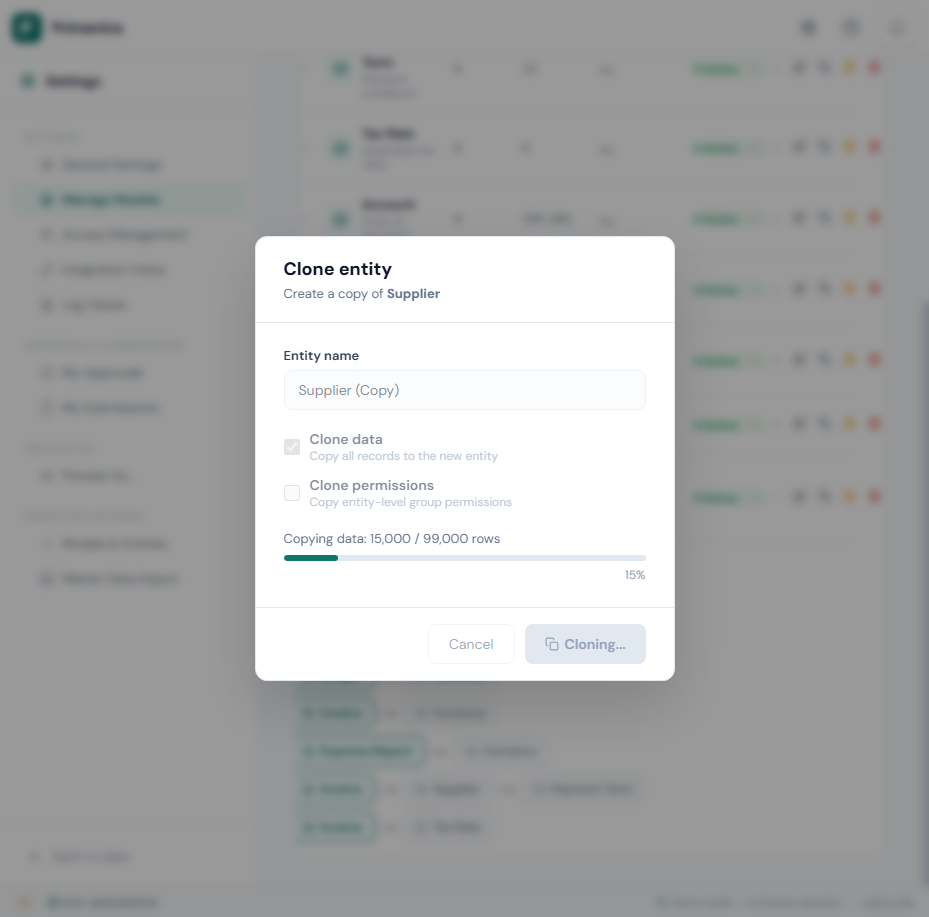
Progress — the structure is cloned first, then the data in batches of 5,000 rows, with a live count such as Copying data: 15,000 / 99,000 rows and a percentage. Batching means the operation never times out, however large the entity.
Purge entity data
Click the amber trash icon to remove every data row while keeping the entity itself.
The dialog has three parts:
- A red banner explaining that all rows, attribute values and domain references are deleted permanently.
- A Save data snapshot to Audit Log checkbox, unchecked by default.
- A confirmation field. Type the exact entity name to enable Purge all data.
When the entity uses Auto-generate Code, a further option appears:
The dialog also shows the SQL to read the snapshot back out of the audit log, with a copy button.
The purge is always recorded in the audit log with the action purge and the number of deleted rows. The entity definition — attributes, derived columns, permissions — is untouched.
Delete an entity
Click the trash icon to delete the entity and all its data.
Before the button enables, the dialog checks two things:
- Domain usage — if other entities reference this one as a domain source, each is listed as *entity → attribute*. You must tick I understand — clear all domain values and delete this entity to continue.
- Name confirmation — type the exact entity name.
A Save data snapshot to Audit Log checkbox appears whenever the entity holds rows. It is unchecked by default.
Progress — a bar reports each phase, attribute values, approval rows, entity rows, then metadata cleanup, with a percentage and a running count such as 45,000 / 200,000 items deleted. Rows are deleted in batches so large entities do not time out.
Data snapshots
| Operation | Snapshot behavior |
|---|---|
| Row delete in the grid | A full snapshot is always saved. Every deleted row is stored as JSON in the audit log, with no action from you |
| Purge entity data | You choose. The checkbox is unchecked by default |
| Delete entity | You choose. The checkbox is unchecked by default |
When the checkbox is ticked, all rows are captured as a JSON array in the Details column of the AuditLog table before anything is deleted. Above 10,000 rows a note warns that this takes a moment.
Recover deleted data
A snapshot is stored as JSON, so you can restore rows without a database backup.
Step 1 — read the snapshot out of the audit log. Use Action = 'delete' for row deletes, 'purge' for a purge, or 'delete_entity' for a deleted entity:
SSMS truncates long text in the grid. Use Results to File (Ctrl+Shift+F before running the query) to save the full output, or write it directly with BCP:
Step 2 — import the JSON back.
- Save the extracted JSON as a
.jsonfile. - Open the target entity in the data grid.
- Click Import in the toolbar.
- Drop or select the file.
- Map the columns and choose a conflict action — Skip existing to restore only missing rows, Overwrite to replace current values.
- Review and confirm.
The JSON matches what the import wizard expects: each object has code, name, and every attribute display name as a key. No manual transformation is needed.
Related
- Entities — create and configure an entity
- Model Export / Import — restore an entity structure
- Audit Log — where snapshots and purge records are kept
- Import from Excel & CSV — the import wizard used in step 2