Staging Scheduler
The scheduler runs staging batches without a person, so external systems can push data and have it loaded on time. Each entity is configured on its own, with its own mode, schedule and triggers.
The scheduler lives on the Staging Config tab under Processing Schedule. The toggle in that section enables or disables it without losing the configuration.
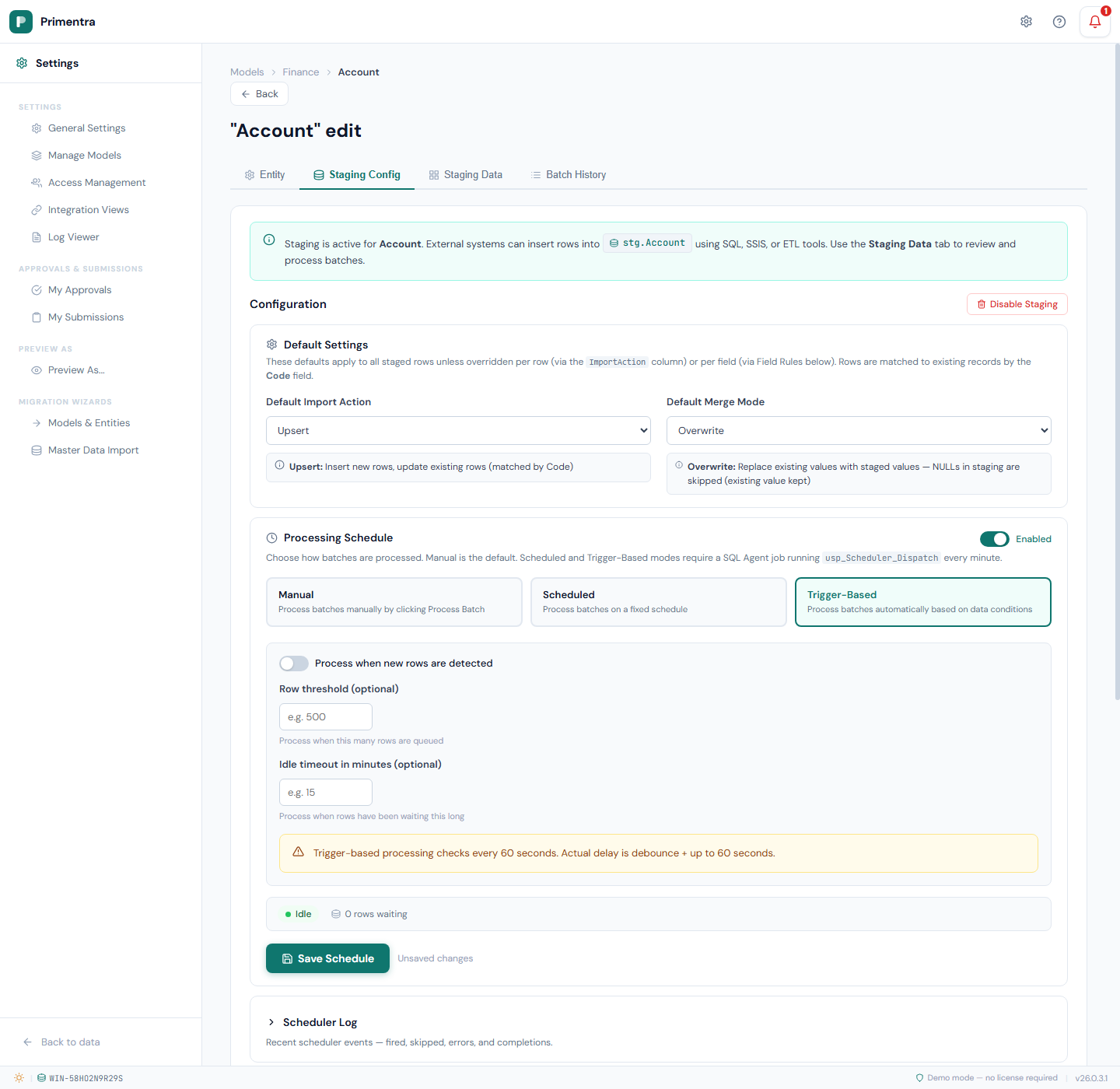
Processing modes
Watch all three modes run in eight minutes — Manual, a fixed Scheduled time, and Trigger-based processing set off by a row threshold and an idle timeout:
Select a mode by clicking its card.
Manual
The default. A user clicks Process Batch on the Staging Data tab. Nothing runs on its own.
Scheduled
Batches run on a fixed schedule. Four schedule types are available.
| Type | Configuration | Example |
|---|---|---|
| Every N minutes | Interval spinner (1–1440) | Every 30 minutes |
| Daily | One or more time slots | Every day at 06:00 and 18:00 |
| Weekly | Day checkboxes plus time slots | Monday, Wednesday, Friday at 07:00 |
| Monthly | Day-of-month grid plus time slots | 1st and 15th at 03:00 |
To configure a daily schedule:
- Select Scheduled.
- Choose Daily from the schedule type dropdown.
- Type a time such as
06:00and click Add. - Add more times if you need them. Each appears as a chip you can remove.
- Click Save Schedule.
Weekly and Monthly work the same way, with day selection added. The panel shows a live Next run preview.
Trigger-based
Batches fire when data conditions are met. Three triggers can be combined.
| Trigger | Fires when | Configuration |
|---|---|---|
| New rows detected | Unprocessed rows exist | Toggle plus a debounce window in seconds |
| Row threshold | N or more rows with ImportStatus = 0 are queued | Number input, for example 500 |
| Idle timeout | The oldest unprocessed row has waited N minutes | Number input, for example 15 |
ImportStatus = 0 count. Processed, failed and in-progress rows are ignored when triggers are evaluated.Trigger priority. Row threshold is checked first, then idle timeout, then new rows detected. The first condition that matches wins; the others are not evaluated.
Composite triggers. Set both a row threshold and an idle timeout to balance throughput against latency: *"process when 500 rows queue up, or when any row has waited 15 minutes, whichever comes first."*
How "new rows detected" works
The dispatcher runs on a 60-second loop. Each cycle it counts the rows with ImportStatus = 0. If the count is above zero and the debounce window has elapsed since the last check, the trigger fires.
The debounce window defaults to 60 seconds and prevents thrashing. When an ETL tool inserts 10,000 rows one at a time, the window collects them into one batch rather than firing on every insert.
Because the dispatcher polls every 60 seconds, the delay from insert to batch start is the debounce window plus or minus 60 seconds — about 120 seconds worst case at the default. If you need faster processing, call usp_Staging_ProcessBatch directly from your pipeline instead of using the scheduler.
Overlap guard and zombie timeout
While a batch is running, the scheduler skips that entity. A run that would have fired is skipped, not queued, and the skip is recorded in the scheduler log. This prevents double-processing and concurrent-run deadlocks.
If a batch is still marked running after the zombie timeout, the scheduler treats it as stuck and releases the lock, then re-evaluates the schedule immediately.
| Timeout | Use case |
|---|---|
| 5–15 min | Small tables, fast transforms |
| 30 min | Default — suitable for most workloads |
| 60–120 min | Large imports, complex validation rules |
| 240–480 min | Overnight batch jobs |
Configure it under Processing Schedule → Advanced options.
Status bar
When the mode is Scheduled or Trigger-based and a configuration has been saved, a status bar shows:
- Current status — Idle, or Running with a pulsing indicator and elapsed time
- Next run — the calculated next execution time (Scheduled mode only)
- Last run — time since the last completed batch
- Pending rows — rows waiting with
ImportStatus = 0
Scheduler log
The scheduler log, collapsed by default below the Save button, records every event.
| Event | Meaning |
|---|---|
| Fired | The scheduler started a batch |
| Completed | A scheduled or triggered batch finished |
| Skipped | A run was skipped because a batch was already running |
| Error | The scheduler hit an error |
Each entry shows the timestamp, event type, trigger source, message, queue depth at the time, and batch duration. The log holds 10 entries per page and is hidden in Manual mode.
SQL Agent setup
Scheduled and trigger-based modes need one SQL Agent job that calls the dispatcher. All the scheduling logic lives in the stored procedure, so the job itself is a one-liner. Setting up the database creates the job for you — normally there is nothing to do beyond confirming it exists.
The job is Primentra_Scheduler, on a 1-minute 24/7 schedule, with two steps:
| Step | Command | Purpose |
|---|---|---|
| 1 | EXEC dbo.usp_Scheduler_Dispatch; | Fires scheduled and triggered staging batches |
| 2 | EXEC dbo.usp_Maintenance_Cleanup; | Applies the retention settings |
Step 1 continues to step 2 on failure, so a dispatch error never blocks cleanup. There is no retry — the next 60-second tick handles recovery. One job serves every entity.
Primentra tells you when it is missing
Set the Processing Schedule of an entity to Scheduled or Trigger-Based and Primentra checks the job every time the panel opens. A missing job gets an amber warning above the status bar, naming the script that repairs it. Settings › General Settings › Database reports the same thing after every setup run.
The panel can also report that the job could not be verified. That is not a fault: reading job names needs rights in msdb, and a locked-down instance grants the Primentra login none. Check it by hand with the query below, and if the job is there, nothing is wrong.
Verify the job exists — connect as a sysadmin:
A login that is only a member of SQLAgentUserRole is denied sysjobs altogether. It reads sysjobs_view instead, which lists just the jobs that login owns:
Also confirm the SQL Server Agent service is running and set to start automatically. The job cannot fire without it.
If the job is missing
setup-db-and-user.sql creates the job during installation, while it is still connected as a sysadmin, and it also grants the Primentra login SQLAgentUserRole in msdb so that setup-database.sql can create the job on later upgrades. A database ends up without the job when neither of those happened — an installation made before this behaviour existed, or an instance where the grant was refused by policy.
Run scripts\create-scheduler-agent-job.sql from the Primentra install folder as a sysadmin. Change @DatabaseName at the top if your database is not called Primentra, and @JobOwner if your application login is not called primentra_svc. Re-running it is safe — it drops and recreates the job.
Rights it needs. The Primentra application login cannot run this unless it holds SQLAgentUserRole: on its own it has permissions inside the Primentra database only. Connect as sa or another sysadmin.
Who owns the job matters. All three scripts give it to the application login on purpose. A job owned by sa is invisible to that login, so Primentra cannot confirm it and reports the status as *could not be verified* even though the job runs perfectly.
Primentra uses the plain job name; any other gets the database name appended, as in Primentra_Scheduler (Primentra_Acc).Without SQL Agent
SQL Server Express ships without SQL Server Agent, so there is no job to create. The script detects this, prints the reason and stops without changing anything. Drive the same two stored procedures yourself, once a minute, from anything that can run on a timer:
Run them in that order, in the same database. Both are safe to call at any time and on any interval: the dispatcher takes an exclusive APPLOCK so two overlapping runs cannot double-fire a batch, and the cleanup is a cheap no-op when there is nothing to purge. A longer interval only means batches fire later and retention is applied less often.
The same applies to Azure SQL, to any instance where the Agent service is disabled, and any time you want to force a run by hand.
Windows Task Scheduler:
Linux cron:
The stored procedures are the contract. Any mechanism that calls them on a 60-second interval works.
Trigger source in batch history
When scheduling is active, each batch shows what started it.
| Source | Meaning |
|---|---|
Manual | A user clicked Process Batch |
Schedule | The scheduled run fired |
Trigger: 523 rows (threshold 500) | The row threshold was reached |
Trigger: idle 18min (timeout 15min) | The idle timeout was exceeded |
Trigger: new rows detected (47) | The new-rows trigger fired after its debounce |
Related
- Processing & Errors — what a batch does once it fires
- Staging Configuration — the merge rules each batch applies
- Staging API Reference — the scheduler endpoints, including the dry run
- Data Retention — the settings step 2 of the job applies
- Health & Monitoring — confirming the stack is up
Further reading
- Inside the Staging Scheduler — the dispatch loop, the concurrency guards and the zombie recovery behind this page